INTEGRATE JUPYTER NOTEBOOK WITH SPARK ON WINDOWS.
Integrating Jupyter Notebooks with Spark on Windows
PySpark, the Python interface to Apache Spark, can be run directly inside a Jupyter Notebook, which gives you Spark’s distributed processing alongside Jupyter’s interactive, cell by cell way of writing and documenting code. On Windows specifically, there are a couple of extra pieces needed beyond a plain pip install, and this is where most setup guides, including the previous version of this page, tend to stop short.
What You Need Before You Start
- A working Java installation. Spark runs on the JVM, so a current JDK, version 8 or later, needs to be installed and reachable on your system.
- Python already installed, along with pip, which ships with most current Python installers.
Step by Step Process to Integrate Jupyter Notenooks with Spark
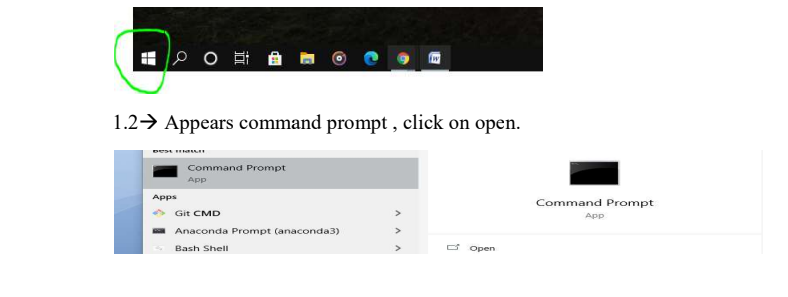
Step 1: Open Command Prompt
Click the Windows Start button, or press the Windows key, and type cmd to open Command Prompt.
Step 2: Install PySpark and Jupyter
From Command Prompt, install both PySpark and Jupyter using pip:
pip install pyspark
pip install jupyter
This installs Spark itself as a Python package, so you do not need to separately download and extract a Spark archive for typical local use.
Step 3: Install findspark
Jupyter does not automatically know where PySpark is installed unless you tell it. The findspark library bridges that gap, making pyspark importable as a normal library inside a notebook.
pip install findspark
Step 4: Set Up winutils.exe
This is the step most Windows specific guides skip past too quickly, and the one this page never reached at all. Spark relies on a small set of Hadoop utilities, collectively called winutils, to handle file system permissions the way Hadoop expects, even when you are only running Spark locally with no actual Hadoop cluster involved. Without it, certain operations will fail with a file system related error.
- Download winutils.exe that matches the Hadoop version your installed PySpark was built against. The GitHub repository maintained by Steve Loughran is the commonly used source for these binaries across Hadoop versions.
- Create a folder such as C colon backslash hadoop backslash bin, and place winutils.exe inside it.
- Set an environment variable named HADOOP_HOME pointing to C colon backslash hadoop, the folder one level above bin.
Step 5: Set Your Environment Variables
Search for environment variables in the Windows search box, open Edit the system environment variables, and set the following under System variables:
- JAVA_HOME, pointing to your JDK installation folder, not the JRE folder.
- HADOOP_HOME, pointing to the folder containing the hadoop bin directory you created in Step 4.
Add both of these to your Path variable as well, then restart Command Prompt, or restart your computer if changes do not seem to take effect, which is common with environment variable updates on Windows.
Step 6: Launch Jupyter and Connect to Spark
From Command Prompt, start Jupyter Notebook:
jupyter notebook
In a new notebook cell, initialize findspark before importing pyspark, then create a Spark session:
import findspark
findspark.init()
import pyspark
from pyspark.sql import SparkSession
spark = SparkSession.builder.appName(“JupyterSparkTest”).getOrCreate()
data = [(“Java”, “17”), (“Python”, “3.12”), (“Spark”, “3.5”)]
df = spark.createDataFrame(data, [“Language”, “Version”])
df.show()
If this cell runs without error and prints a small table of the three rows above, Spark is running correctly inside your notebook.
Common Mistakes to Avoid
- Downloading a winutils.exe version that does not match your Hadoop version. A mismatch can cause confusing errors that look unrelated to winutils at all. Check the Hadoop version pip installed alongside PySpark before downloading a specific winutils build.
- Setting JAVA_HOME to a JRE folder instead of a JDK folder. Spark needs the development kit, not just the runtime, so double check which one your path actually points to.
- Forgetting findspark.init() before importing pyspark. Without it, Jupyter often cannot locate your Spark installation even though the import line itself runs without an immediate error.
- Not restarting Command Prompt or your computer after changing environment variables. Windows does not always pick up new environment variables in windows that were already open.
That covers getting PySpark running inside Jupyter Notebook on Windows from start to finish. To go further, explore Prwatech’s Apache Spark training program, which includes placement assistance.