Data visualization
Data Visualization in Python Using Matplotlib: Complete Tutorial
Imagine you have a spreadsheet with ten thousand rows of sales, marks or sensor readings. You could scroll through it for hours and still miss the one pattern that matters. Draw a chart and you see it in seconds. Data visualization is the habit of turning numbers into pictures, and in Python the library that does most of the work is Matplotlib.
Matplotlib is the oldest and most widely used plotting library in Python. It draws 2D and 3D charts, it works with NumPy arrays, and many other tools, such as Seaborn and the plotting methods in pandas, are built on top of it. If you learn how Matplotlib thinks, with its figures, axes and plot functions, every other Python charting tool becomes easier.
This tutorial is a complete working reference. We list the main plot types and functions, explain the Figure and Axes classes, and then go through each plot one by one: line, multiplot, subplot2grid, grid, limits, ticks, bar, histogram, pie, scatter, contour, quiver, box, violin, and the 3D line, contour, wireframe and surface plots. Every program has been run. We also add a guide to picking the right chart, the two ways of writing Matplotlib code, and the mistakes beginners make most often.
Introduction to Data Visualization in Python Using Matplotlib
Here is what Matplotlib gives you.
- 2D and 3D plots. Line, bar, pie, scatter, contour and many more, plus 3D surfaces through the mplot3d toolkit.
- NumPy friendly. It draws NumPy arrays directly.
- Pyplot. A module of simple commands that works like MATLAB, where each command changes the current figure.
- Many output formats. Save to PNG, JPG, PDF, SVG and more.
- Works in many places. Jupyter Notebook, plain Python scripts, and desktop windows built with Tkinter, PyQt or wxPython.
Install Matplotlib
Python 2 reached its end of life in 2020, so use Python 3. Current Matplotlib needs Python 3.11 or newer, along with these packages, which pip installs for you: contourpy, cycler, fonttools, kiwisolver, numpy, packaging, pillow, pyparsing and python-dateutil.
This tutorial was tested on Python 3.13 with Matplotlib 3.11.2 and NumPy 2.5.3.
Two Ways to Write Matplotlib Code
This is the idea that confuses most beginners, so it is worth a minute. Matplotlib has two styles, and the examples below use both.
| Style | How it looks | When to use it |
|---|---|---|
| Pyplot style | plt.plot(x, y) then plt.title(“Sales”) | Quick, single plots and learning |
| Object oriented style | fig, ax = plt.subplots() then ax.plot(x, y) and ax.set_title(“Sales”) | Several plots, full control, real projects |
In the object oriented style, a Figure is the whole window or page, and an Axes is one plot inside it. You will see the methods on an Axes start with set_, such as set_title and set_xlabel.
Types of Plots in Matplotlib
These are the main plot functions.
| Function | What it draws |
|---|---|
| plot | Lines or markers, the default choice for trends |
| bar | Vertical bar chart |
| barh | Horizontal bar chart |
| boxplot | Box and whisker plot |
| hist | Histogram |
| hist2d | 2D histogram, counting points in a grid of cells |
| pie | Pie chart |
| polar | Plot on polar coordinates |
| scatter | Scatter plot of two variables |
| stackplot | Stacked area plot |
| stem | Stem plot, lines from a baseline to each value |
| step | Step plot |
| quiver | Arrows showing direction and size |
Image Functions in Matplotlib
These three functions read, save and show images. Their names are all lowercase.
| Function | What it does |
|---|---|
| imread | Reads an image file into an array |
| imsave | Saves an array as an image file |
| imshow | Shows an array as an image |
The shape means 3 rows, 3 columns and 4 values per pixel, which are red, green, blue and transparency.
Axes Functions in Matplotlib
| Function | What it does |
|---|---|
| axes | Adds an axes to the figure |
| text | Adds text at a position on the axes |
| title | Sets the title of the axes |
| xlabel, ylabel | Sets the label of the x axis and the y axis |
| xlim, ylim | Gets or sets the range of the x axis and the y axis |
| xticks, yticks | Gets or sets the tick positions and labels of the x axis and the y axis |
Do not mix up the last two rows. The functions xlim and ylim set the range. The functions xticks and yticks control where the marks sit and what they say.
Figure Functions in Matplotlib
| Function | What it does |
|---|---|
| figtext | Adds text to the figure |
| figure | Creates a new figure |
| show | Shows the figure |
| savefig | Saves the figure to a file |
| close | Closes a figure window |
Figure Class in Matplotlib
The Figure is the top level container. Everything you draw sits inside one. You create it with plt.figure.
You can pass these optional parameters:
| Parameter | What it sets |
|---|---|
| figsize | Width and height in inches, as a pair such as (6, 3) |
| dpi | Dots per inch, which is the sharpness of the image |
| facecolor | The background colour of the figure |
| edgecolor | The colour of the border around the figure |
| linewidth | The width of that border |
Axes Class in Matplotlib
An Axes is the actual plot area, with its own x axis, y axis, title and data. A figure can hold many. You add one by calling add_axes with four numbers, which are the left, bottom, width and height as fractions of the figure. So [0.1, 0.1, 0.8, 0.8] means a plot that starts 10 percent in from the left and bottom, and takes 80 percent of the width and height.
The legend method labels the lines or shapes, and its loc argument says where to put it. Here are the location codes.
| Location | Code | Location | Code |
|---|---|---|---|
| best | 0 | center left | 6 |
| upper right | 1 | center right | 7 |
| upper left | 2 | lower center | 8 |
| lower left | 3 | upper center | 9 |
| lower right | 4 | center | 10 |
| right | 5 |
axes.plot() in Matplotlib
The plot method draws lines or markers. You can add a format string as the third argument, which packs the colour, marker and line style into a short code. For example, rs- means red, square markers, solid line. Here is a working example.
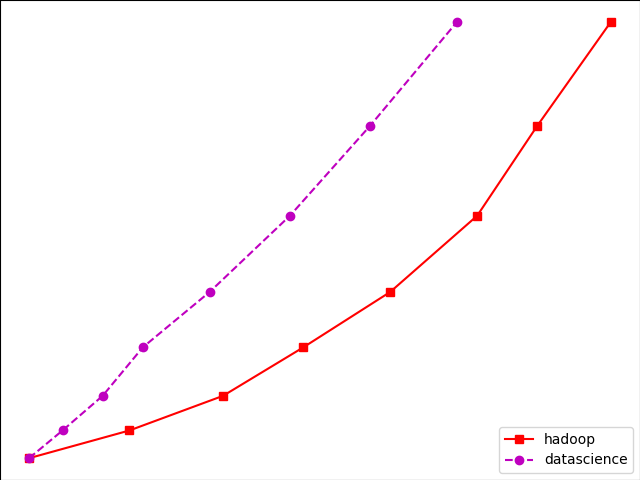
You will see two rising lines and a legend in the lower right corner. These are the colour codes:
| Code | Colour | Code | Colour |
|---|---|---|---|
| b | Blue | m | Magenta |
| g | Green | y | Yellow |
| r | Red | k | Black |
| c | Cyan | w | White |
Marker Codes in Matplotlib
Markers are the shapes drawn on each data point. Note that the D marker is a diamond.
| Code | Marker |
|---|---|
| “.” | Point |
| “o” | Circle |
| “x” | X mark |
| “D” | Diamond |
| “H” | Hexagon |
| “s” | Square |
| “+” | Plus |
Line Styles in Matplotlib
The dashed style is two hyphens typed together.
| Code | Line style |
|---|---|
| “-“ | Solid |
| “–“ | Dashed |
| “-.” | Dash dot |
| “:” | Dotted |
Multiplot in Matplotlib
To draw several plots in one figure, use plt.subplots with the number of rows and columns. It returns the figure and an array of axes, and you pick each axes by its row and column.
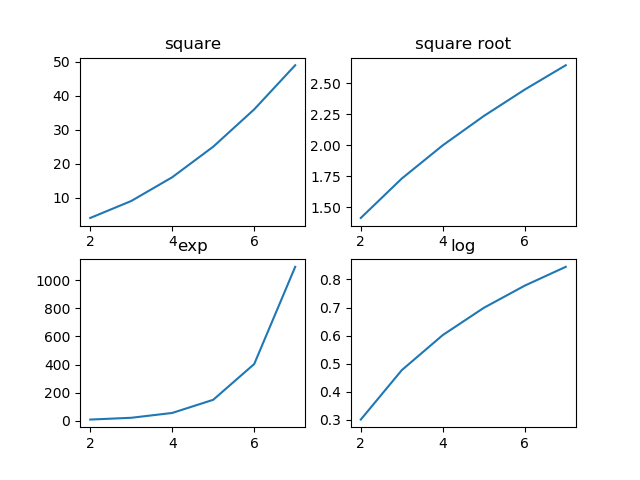
You will see four small plots, with square and exp rising fast, and square root and log rising slowly. The call tight_layout stops the titles from overlapping.
The subplot2grid Function
With subplots, every cell is the same size. The function subplot2grid lets you place axes at chosen positions in a grid, and let one axes span several rows or columns. The call is plt.subplot2grid(shape, location, rowspan, colspan).
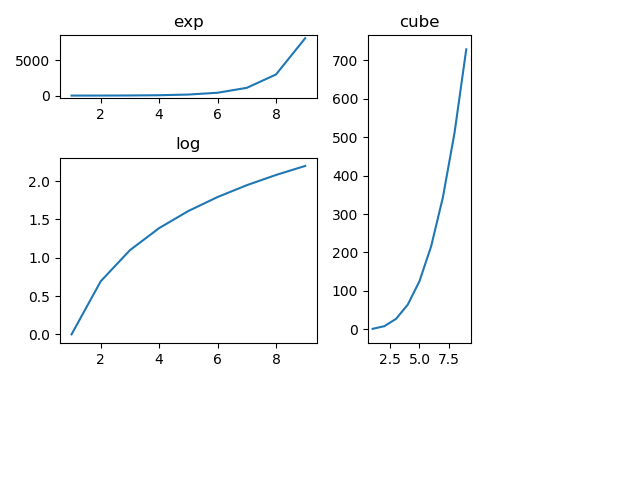
The grid is 4 by 4. The first plot takes the top two cells, the second takes three rows on the right, and the third takes a 2 by 2 block on the left.
Grid in Matplotlib
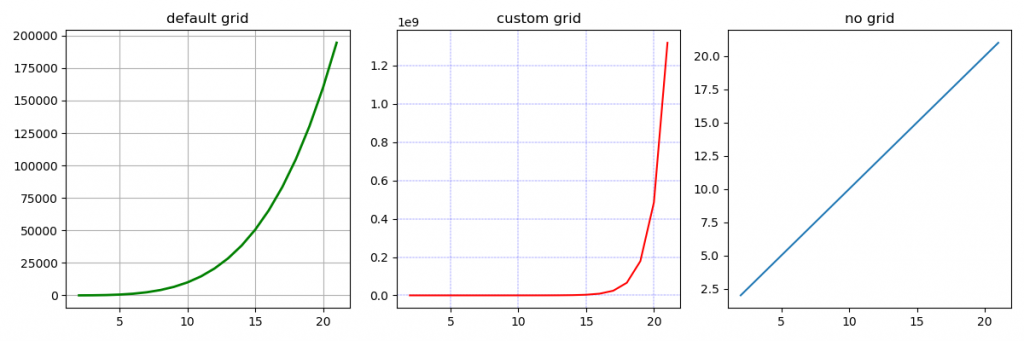
The grid method turns gridlines on or off, and lets you change their colour, line style and width. The short names are ls for linestyle and lw for linewidth.
Setting Limits in Matplotlib
By default Matplotlib chooses the range of each axis from your data. The methods set_xlim and set_ylim let you fix it, which is useful when a few huge values squash everything else. Note that these are two separate methods.
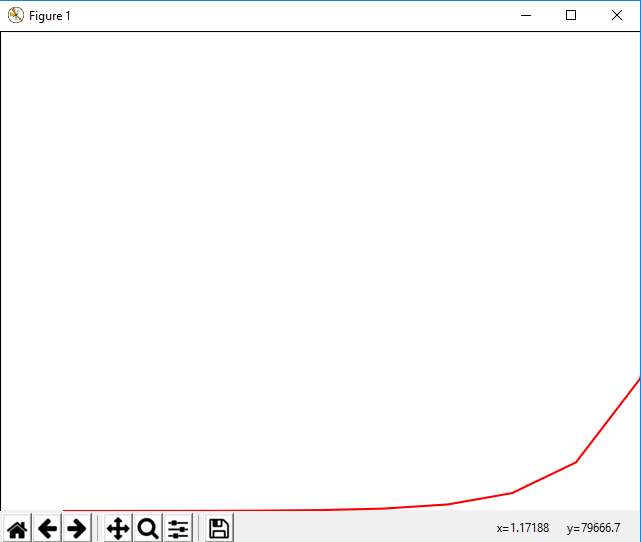
Without the limits, the curve would reach a number with 39 digits and the early part would look flat. With the limits, you see the rise clearly.
Setting Ticks and Tick Labels
Ticks are the small marks along an axis. Tick labels are the text next to them. Use set_xticks and set_yticks to choose the positions, and set_xticklabels and set_yticklabels to choose the text.
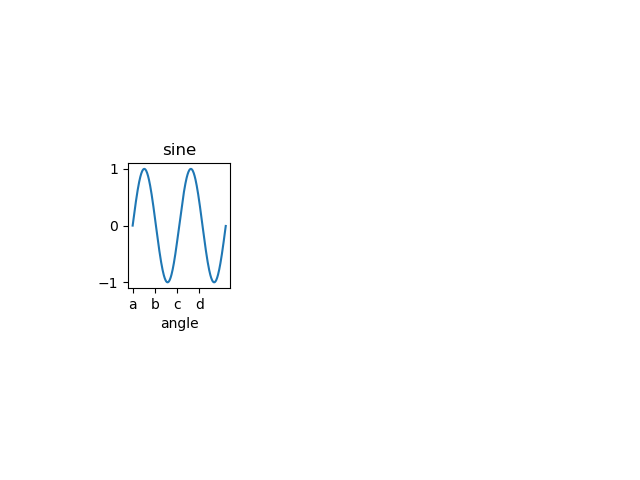
The x axis now shows the letters a to d at positions 0, 3, 6 and 9, and the y axis shows only minus 1, 0 and 1.
Bar Plot in Matplotlib
A bar plot compares values across categories. Use bar for vertical bars and barh for horizontal ones. These are its main parameters.
| Parameter | What it sets |
|---|---|
| x | The positions of the bars on the x axis |
| height | The height of each bar |
| width | The width of each bar, 0.8 by default |
| bottom | Where each bar starts on the y axis, used for stacking |
| align | Whether bars are centred on the position or start at it |
The first example stacks the girls on top of the boys using bottom. The stacked totals reach about 267, so the y axis here goes to 300. If you stopped it at 80, the bars would run off the chart.
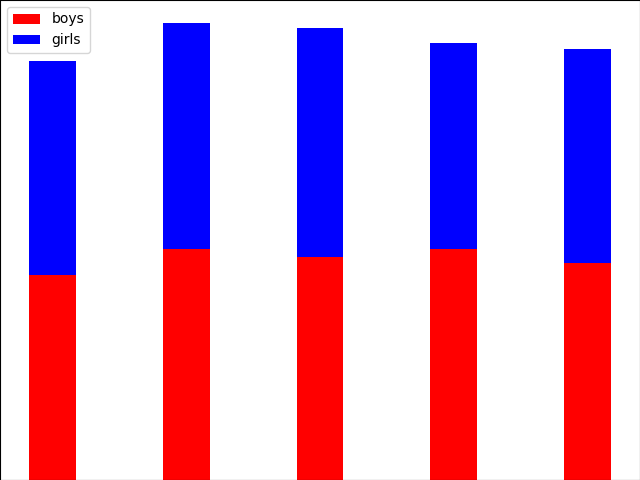
Stacked bars hide the comparison, because only the bottom bar starts at zero. To compare the two means, put the bars side by side. Shift the boys bars left by half the width, and the girls bars right by half the width.
Now the two bars in each group start at zero, and you can see at a glance that the girls beat the boys only in G1 and G3. The call to set_xticks with two arguments needs Matplotlib 3.5 or newer.
Histogram in Matplotlib
A histogram groups numbers into ranges, called bins, and counts how many values fall in each. It shows the shape of a distribution, for example how marks are spread across a class. It is an estimate of the distribution, because the picture changes with the bin choice.
| Parameter | What it sets |
|---|---|
| x | The data, as an array or a list |
| bins | The number of bins, or a list of bin edges |
| range | The lowest and highest values to include |
| density | If True, shows the share of values and not the count |
The four bars have heights 5, 3, 5 and 2. That means 5 students scored below 25, 3 scored from 25 to 50, 5 from 50 to 75, and 2 from 75 up.
Pie Chart in Matplotlib
A pie chart shows each value as a share of the whole. It works best with five or fewer slices. These are its main parameters.
| Parameter | What it sets |
|---|---|
| x | The values, one per slice |
| labels | The text for each slice |
| colors | The colour of each slice |
| autopct | A format string that prints the percentage on each slice |
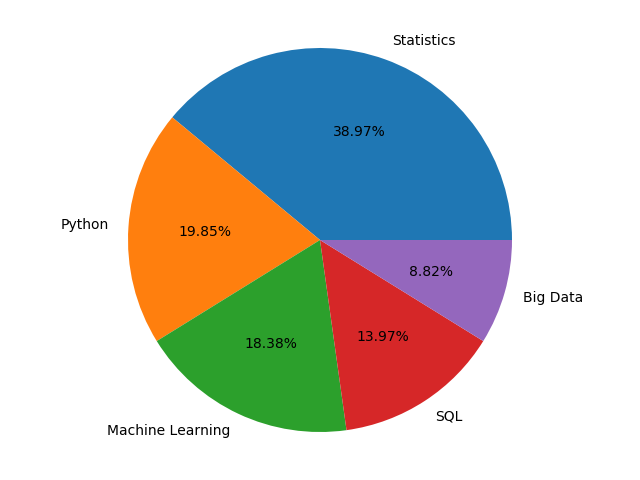
Statistics gets 38.97 percent, Python 19.85, Machine Learning 18.38, SQL 13.97 and Big Data 8.82. The pie function already draws a circle, so you do not need an extra axis equal line.
Scatter Plot in Matplotlib
A scatter plot draws one dot for each pair of values. It shows whether two variables move together, and where the odd points sit. A third variable can set the colour or the size of the dots. Keep in mind that a pattern shows a link, not a cause.
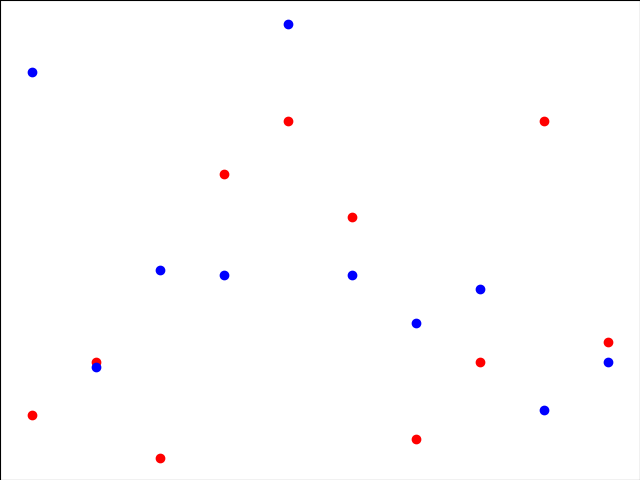
The label and legend lines tell the reader which colour is which. Without them, red and blue would be a guess.
Contour Plot in Matplotlib
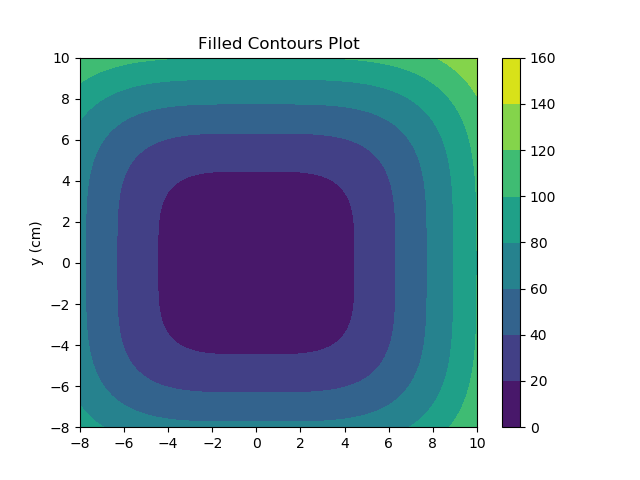
A contour plot shows a surface on a flat page. It is sometimes called a level plot. You give it a grid of X and Y values, and a height Z for each point. X goes on the x axis and Y on the y axis, and Z is shown by lines or colours. The function contour draws lines, and contourf fills the bands with colour.
Quiver Plot in Matplotlib
A quiver plot draws arrows. Each arrow sits at a point and has a direction and a length. It is used for wind, water flow, forces and slopes. These are its parameters.
| Parameter | What it sets |
|---|---|
| x, y | The position of each arrow |
| u, v | The horizontal and vertical size of each arrow |
| c | An optional colour for each arrow |
In the code below, np.gradient gives the slope of the surface. It takes the spacing along y first, then x. The y grid steps by 0.25 and the x grid by 0.2, so the call is np.gradient(z, .25, .2).
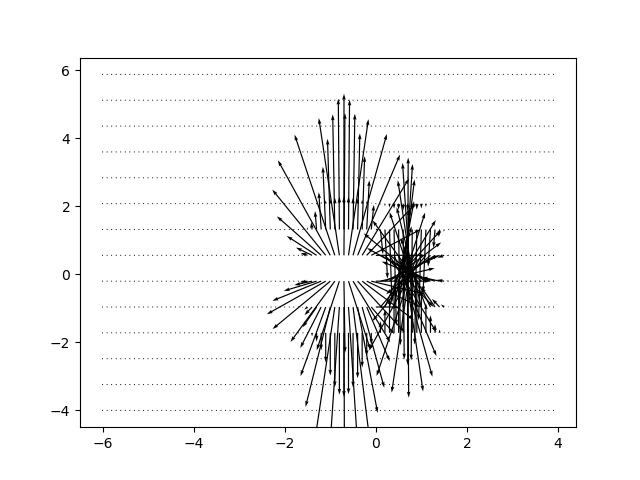
The arrows point uphill, toward the peak on the right and away from the dip on the left. They are longest where the slope is steepest.
Box Plot in Matplotlib
A box plot summarises a set of numbers with five values: the lowest value in range, the first quartile, the median, the third quartile and the highest value in range. The box runs from the first to the third quartile, and the line inside it is the median. By default the whiskers reach 1.5 times the interquartile range, and any point beyond that is drawn as a separate circle and called an outlier.
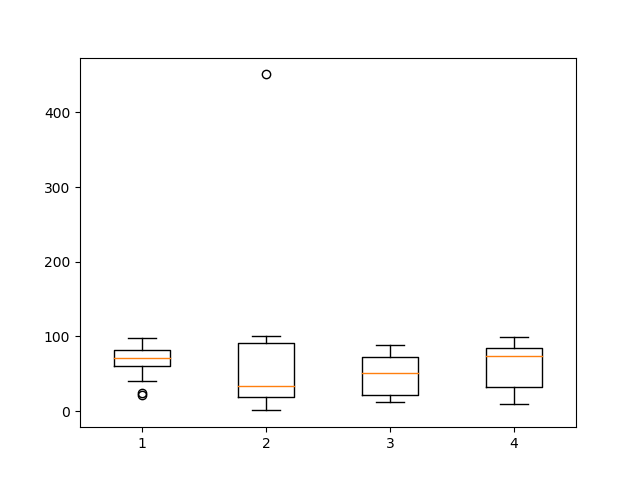
You will see four boxes. The second data set has a circle far above the others at 451. It is an outlier, and it also squashes the other boxes into the bottom of the chart. The first data set shows two outliers near 22 and 24, drawn so close that they look like one.
Violin Plot in Matplotlib
A violin plot has the same summary idea as a box plot, and adds the shape of the density on each side. The wide parts of the shape show where most values sit. It shows more than a box plot, but it is also harder to read for a new audience, so the choice depends on who reads it. Remember that a box plot shows the median, and not the mean.
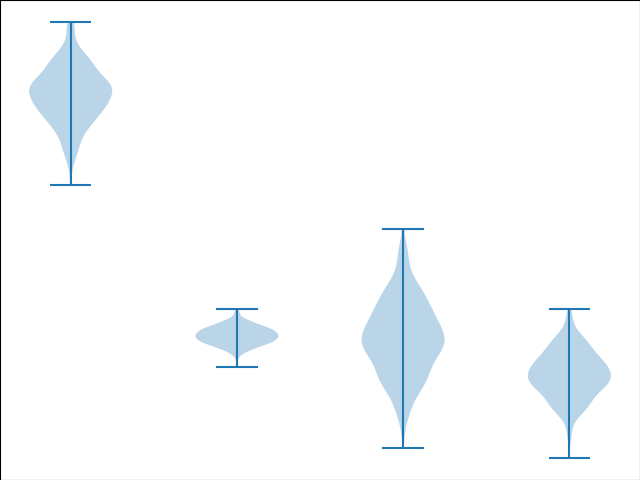
The first violin sits high, around 300. The second is short, because its values vary the least. The third is the tallest, because its values vary the most. The showmedians argument adds a line at the median of each one.
Three Dimensional Plotting in Matplotlib
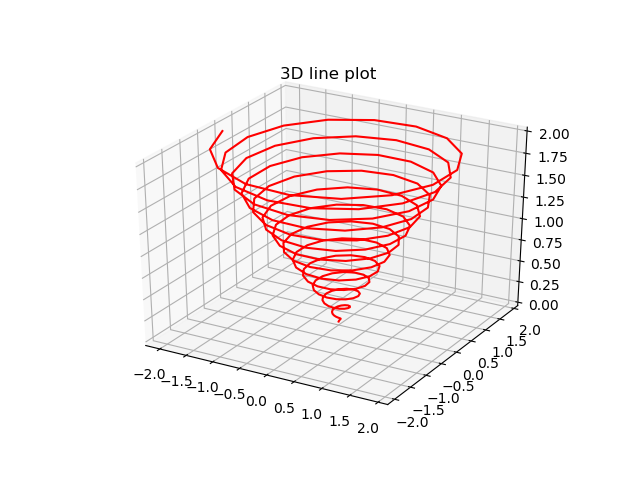
Although Matplotlib began as a 2D library, it can draw 3D plots through the mplot3d toolkit. To create a 3D axes, set projection to the text "3d". In recent versions the import of mplot3d is no longer needed, but it does no harm. The first 3D example draws a line that spirals upward.
3D Contour Plot
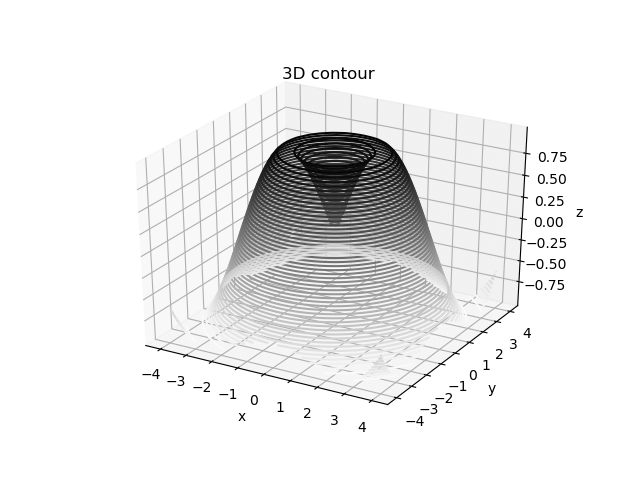
The contour3D method draws contour lines on a 3D surface, given a grid of X and Y values and the height Z. The number 50 is how many levels to draw, and cmap sets the colours.
3D Wireframe Plot
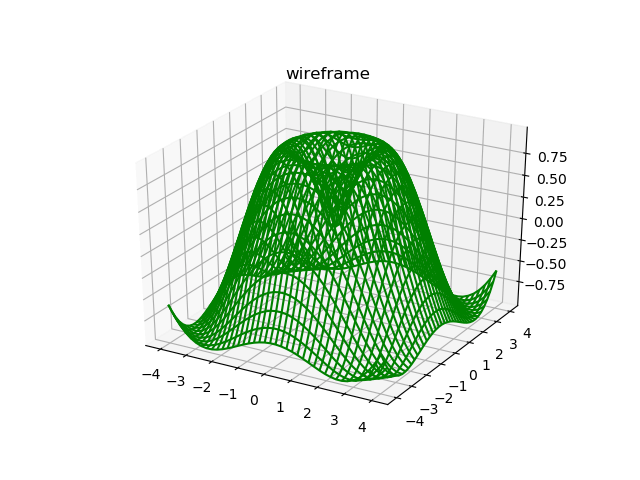
The plot_wireframe method places a mesh of lines over the surface, so you see the shape without a solid fill. It uses the same X, Y and Z grids as the contour above. They are repeated here so the code runs on its own, and only the last calls change.
3D Surface Plot in Matplotlib
The plot_surface method draws a filled 3D surface. It takes the X, Y and Z grids, and the surface is coloured by height when you pass a colour map. In this example Z is the dependent value, calculated from X and Y.
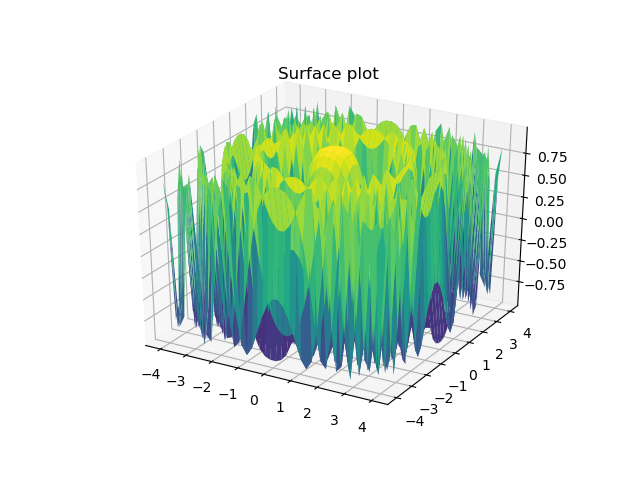
The np.outer call builds a grid where every row is the same, and the transpose makes a matching grid in the other direction. Together they work like meshgrid.
Which Plot Should You Use?
Pick the plot by the question you want the chart to answer.
| If you want to show | Use | Function |
|---|---|---|
| A trend over time | Line plot | plot |
| A comparison across categories | Bar plot | bar, barh |
| How one set of numbers is spread | Histogram, box plot or violin plot | hist, boxplot, violinplot |
| Parts of a whole, five or fewer | Pie chart | pie |
| The link between two numbers | Scatter plot | scatter |
| A surface on a flat page | Contour plot | contour, contourf |
| Direction and size at many points | Quiver plot | quiver |
| A surface in three dimensions | Wireframe or surface plot | plot_wireframe, plot_surface |
Common Mistakes With Matplotlib
- Curly quotes in code. Text copied from a web page or a Word file can turn straight quotes into curly ones, and Python rejects them.
- A stray character before import. One minus sign at the start of a line stops the whole program.
- Misspelt method names. The correct names are
set_xticklabelsand notset_xlabels, andxlabeland notxlable. - An axis that cuts off the data. Check the axis range after you set ticks, as in the stacked bar example.
- Overlapping titles. Call
tight_layoutwhen you use more than one plot. - No labels or legend. If a chart has two colours and no legend, the reader has to guess.
- Reading too much into a scatter plot. A pattern shows a link, not a cause.
Complete Script to Run Yourself
Here is the full script used to test every plot on this page. It saves each plot as an image in a folder called viz_out, so create that folder first. The line matplotlib.use("Agg") lets it run without opening windows. Remove it if you want to see the plots on screen.
Matplotlib has a lot of functions, but the ideas repeat. You make a figure, you add axes, you call one plot method, and you label it. Once you see that pattern, the 3D plots and the unusual charts become variations on the same steps. Run the script above, change the data, and break things on purpose. Then try a real dataset with pandas, and look at Seaborn when you want statistical charts with less code.
