Pycharm IDE for Python Installation
How to Install PyCharm on Windows: Step by Step Guide for Python Beginners
Writing Python in Notepad works for a ten line script. Then you make a typo in a variable name, spend twenty minutes finding it, and wonder how professionals manage thousand line programs. They use an IDE, a tool that helps you write, run and fix code in one place. It underlines your mistakes while you type, suggests the next word, runs your program at a click, and shows you what went wrong.
PyCharm is one of the most popular IDEs for Python. It is made by JetBrains, it runs on Windows, Mac and Linux, and it is used by beginners and large teams alike. Getting it installed is simple, but the steps have changed in the last two years, and many guides online still describe the old way.
In this guide, we cover what you need before you start, what PyCharm is and which version to download today, and how to install it on Windows. We then show how to install Python itself, create your first project, and run your first program. We end with fixes for the problems beginners meet most often. The steps follow the official JetBrains and Python documentation for PyCharm 2026.2.
What is PyCharm IDE?
PyCharm is an IDE, which stands for integrated development environment. An IDE is more than a text editor. It combines an editor with a code runner, a debugger, a file browser and tools for testing and version control. JetBrains builds it, and it works on Windows, macOS and Linux.
Which PyCharm Version Should You Download?
Older guides say PyCharm comes in three editions: Educational, Community and Professional. That has changed.
- PyCharm 2025.2 was the last Community Edition. JetBrains has stopped making a separate Community download.
- From PyCharm 2025.3 there is one unified PyCharm. The Community and Professional versions have been combined into a single product.
- The core is free. Core features, including Jupyter notebook support, stay free.
- Pro is a paid extra. A Pro subscription adds more advanced features.
- New installs get a trial. You automatically receive a 30 day free Pro trial. After that you can buy Pro or keep using the free core.
In short, there is nothing to choose between. Download PyCharm from the JetBrains website, and you get one installer. If you used Community before, you can move to the new unified PyCharm and keep using it for free.
JetBrains may change its plans again, so check the current terms on the JetBrains site before you buy anything. This guide does not give prices for that reason.
What You Need Before You Install
Check these before you start. The numbers come from the JetBrains installation guide for PyCharm 2026.2.
| Requirement | What you need |
|---|---|
| Operating system | Windows 10 or Windows 11. Windows 8 and 8.1 are not supported |
| Processor | x86_64 or arm64, with 4 cores |
| Memory | 8 GB of RAM in total, with 3 GB free for the IDE |
| Disk space | 10 GB |
| Screen | At least 1280 by 720 |
| Python | Python must be installed before you create a project. PyCharm supports Python 3.9 and newer |
| Internet | Needed to download the installer and Python |
You do not need to install Java. PyCharm comes with its own Java runtime. Windows on an arm processor needs its own separate installer.
Install PyCharm on Windows
Follow these steps in order. JetBrains updates the screens now and then, so a button may be named a little differently on your computer. The idea of each step stays the same.
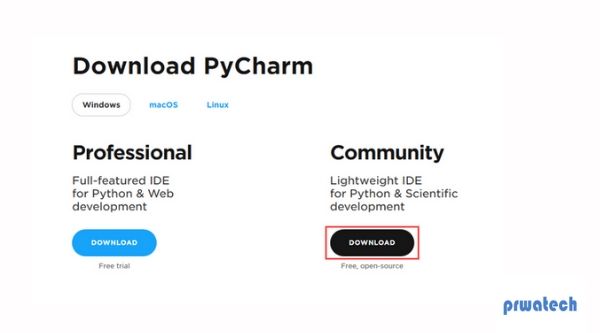
Step 1: Download PyCharm
Open your web browser and go to the PyCharm download page on the JetBrains website. Choose Windows and download the installer. It is a file that ends with .exe. There is no separate Community section any more, so just take the main download. Type the address yourself, and do not use links from other sites, so you are sure the file comes from JetBrains. The download page also shows a checksum, which you can use to confirm that the file is not damaged.
Step 2: Run the Installer
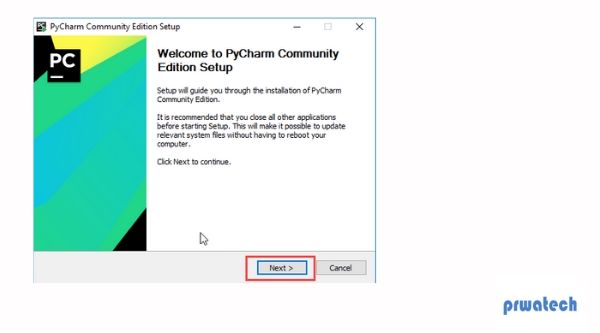
When the download finishes, open the .exe file. Windows may ask if you want to allow the app to make changes. Choose Yes. The setup wizard opens. Click Next.
Step 3: Choose the Install Location
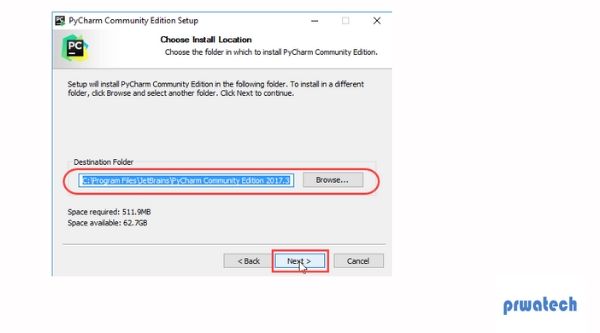
The wizard shows the folder where PyCharm will be installed. The default is fine for most people, so click Next. Change it only if you have a reason, for example if your C drive is nearly full.
Step 4: Choose the Installation Options
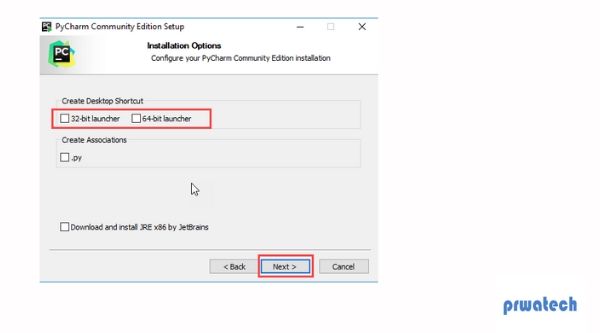
The wizard lists a few optional settings. According to the JetBrains guide, these are the ones you may see.
| Option | What it does |
|---|---|
| 64 bit launcher | Adds a PyCharm icon to your desktop |
| Open Folder as Project | Adds a right click option in Windows to open any folder in PyCharm |
| .py | Opens Python files in PyCharm when you double click them |
| Add launchers dir to the PATH | Lets you start PyCharm from the command line |
A good choice for a beginner is to tick the desktop icon and the .py option. The others are useful later. Then click Next.
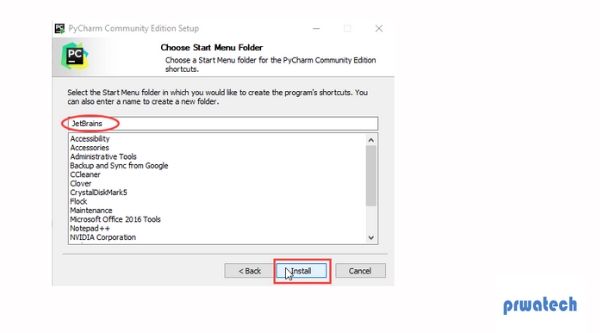
Step 5: Choose the Start Menu Folder and Click Install
The wizard asks for a Start menu folder. The default name is JetBrains, and you should keep it. Then click Install.
Step 6: Wait for the Installation to Finish
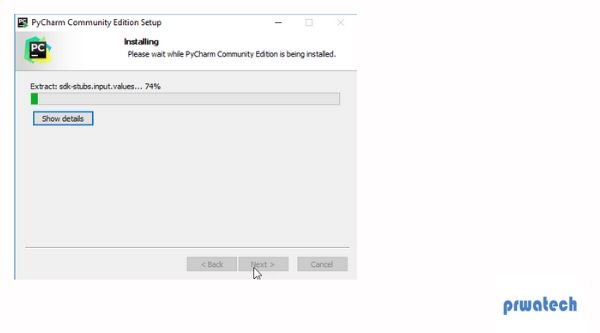
A progress bar shows the files being copied. It usually takes a few minutes, depending on your computer. Do not close the window.
Step 7: Finish the Installation
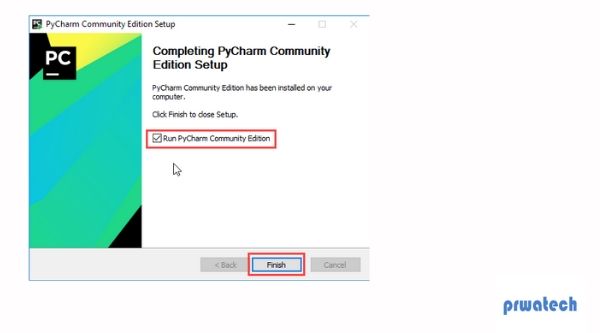
When the installation finishes, the wizard shows a message that PyCharm is installed. It may ask you to restart the computer. If you tick the box to run PyCharm, it opens as soon as you click Finish. Tick it, and click Finish.
Step 8: Open PyCharm for the First Time
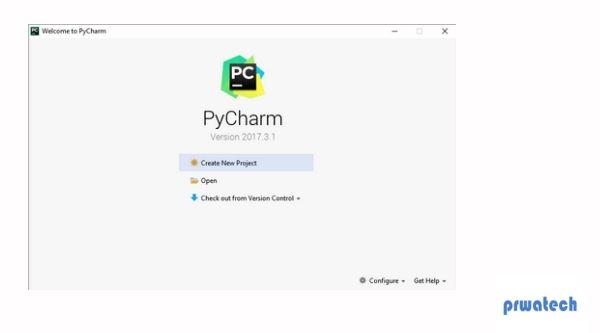
You can start PyCharm from the Start menu, from the desktop icon, or from the bin folder inside the installation folder. On the first start, it may ask whether to import settings from an older version. If this is your first time, skip it and set up from scratch. You then reach the Welcome screen, where you can create a new project, open an existing one, or get one from version control. A 30 day Pro trial starts on its own with a new install, and the free core features remain available after it ends.
Another Way: The JetBrains Toolbox App
JetBrains recommends its Toolbox App as the easiest way to install and update its tools. You install the Toolbox, click its icon, choose PyCharm, and it installs and updates it for you. It also lets you keep older versions side by side. Both ways are fine. The Toolbox is better if you plan to use more than one JetBrains tool.
Install Python on Windows
PyCharm is the editor. Python is the language it runs. PyCharm does not install Python for you in every case, so install it first.
- Open the Python downloads page on the python.org website. At the time of writing it shows Python 3.14.4 as the latest version. Always take the latest version it shows.
- Download the Python install manager, which is the tool the official Python documentation now recommends for Windows. You can also get it from the Microsoft Store. The old installer still works for now, but it is deprecated since Python 3.14.
- Run the downloaded file and choose Install.
- If the installer offers to add a folder to your PATH, accept it. This lets you type
pythonin a terminal. - Open a terminal, which is the Command Prompt or PowerShell. Type
pythonand press Enter. If you see a version number and a prompt, Python works. Typeexit()to leave.
PyCharm supports Python 3.9 and newer, so any current version is fine. The latest Python versions need Windows 10 or newer.
Create and Run Your First Project
Once PyCharm and Python are both installed, follow these steps from the JetBrains guide to run your first program.
- On the Welcome screen, click New Project. If a project is already open, use the File menu and choose New Project.
- Choose the Pure Python template. It makes an empty project.
- In the Location field, click Browse and choose a folder. The project takes its name from the folder.
- For the interpreter, keep the default, which is a Project venv. A venv is a private copy of Python for this project, so its packages do not mix with other projects. If PyCharm cannot find Python, it offers to let you point to the Python file, or to download it from python.org.
- Click Create.
- In the Project panel on the left, right click the project folder, choose New, then Python File, and give it a name such as
first. - Type the program below into the file.
- Run it. You can right click inside the file and choose Run, or press Ctrl, Shift and F10. The Run panel opens at the bottom and shows the output.
If you see these four lines, everything works. You have installed PyCharm, set up Python and run your first program.
PyCharm on Mac and Linux
PyCharm is cross platform, and the steps above cover Windows. The short version for the other systems is this. On a Mac, download the installer for macOS from the same page, open it, and drag PyCharm into the Applications folder. On Linux, download the Linux archive, unpack it, and run the script named pycharm.sh in the bin folder. Mac and Linux usually come with Python already installed, but check the version before you start.
Common Problems and Fixes
| Problem | What to try |
|---|---|
| The installer will not start on Windows 8 or 8.1 | These versions are not supported. Update to Windows 10 or 11 |
| PyCharm says no Python interpreter found | Install Python first, or use the option in the New Project screen to download it. Then pick it as the interpreter |
| Typing python in the terminal does nothing | Python is not on your PATH. Reinstall it, accept the PATH option, and open a new terminal |
| PyCharm is slow or freezes | Check that you have 8 GB of RAM and close other heavy programs. Large folders in the project can also slow indexing |
| The Community option is missing | It is gone. Install the unified PyCharm, which has a free core |
| My project uses the wrong Python | Open the settings, find the Python interpreter for the project, and change it |
Common Mistakes When Installing PyCharm
- Downloading from an unofficial link. Always use the JetBrains website, and type the address yourself.
- Looking for the Community Edition. It no longer exists as a separate product.
- Skipping Python. PyCharm needs a Python interpreter, and installing the IDE alone is not enough.
- Using an old guide. Python 3.7 and Windows 8 are both out of support.
- Ignoring the interpreter setting. If the wrong Python is chosen, your packages and your code can behave differently from what you expect.
Installing PyCharm takes about fifteen minutes. The part that matters is what comes after: install a current Python, make a project with its own venv, and run something small to prove it works. Once the four lines of output appear, try changing the program, add a mistake on purpose, and watch how PyCharm points it out. Then move on to the next tutorials on Python variables and data types.
