ElasticSearch Basic Concepts
Elasticsearch Basic Concepts: Cluster, Node, Index, Shard and Replica
Elasticsearch has a small vocabulary, and almost every guide, error message and dashboard uses it. Cluster, node, index, document, shard, replica. If you know what each word means, and how the words fit together, the rest of Elasticsearch becomes much easier. If you do not, even a simple message such as the cluster is yellow is a puzzle.
The idea is simple. You store documents in an index. The index is cut into shards, so that it can spread over many machines. Each shard can have copies, called replicas, so that you do not lose data when a machine fails. The machines are called nodes, and a group of nodes working together is a cluster.
This guide takes the seven terms from the original page, in the same order, and fixes what was wrong or missing. We add a diagram, a table that connects the terms, the rules for shards and replicas that the old page left out, the colours of cluster health, and a few requests to try. We also explain why the old Type term should not be used today.
Cluster
A cluster is a group of one or more nodes that work together and hold all of your data. A cluster gives you indexing and search across all its nodes, and it keeps working when one node fails, if you have set it up with replicas. The old page said the same, in a shorter form.
The Elastic docs say that you can add nodes to a cluster to increase its capacity, and that Elasticsearch spreads data and query load over the nodes. All nodes know about each other, so a request that arrives at any node can be passed to the right place.
Every cluster has a name. A small test cluster can have one node. A large production cluster can have many.
Node
A node is one running instance of Elasticsearch that is part of a cluster. It stores data, and takes part in indexing and search. The old page called a node a single server. That is close, but not exact. A node is a program, and one server could run more than one node, although in production the usual setup is one node for each server.
Node Roles
A node can have one or more jobs. These are the roles you will hear about most. The Elastic docs have a separate page for node roles, and I did not read it here, so check it for the roles in your version.
| Role | What it does |
|---|---|
| Master eligible | Can be elected to manage the cluster, such as adding or removing indices and tracking the nodes |
| Data | Holds the shards, and handles the indexing and search work on them |
| Ingest | Prepares documents with a pipeline before they are indexed |
| Coordinating | Every node does this for requests it receives. It sends the work to the right nodes, and joins the results |
On a small cluster, one node usually does all of these jobs.
Index
An index is a named collection of documents. The Elastic docs call it the basic unit of storage, and the level where you work with your data. You keep different sets of data in different indices, such as one index for orders and another for customers. Each index has its own mapping, which describes the fields, and its own settings, such as the number of shards.
The old page compared an index to a database. That comparison is from the days of types, when an index held several types, and a type was compared to a table. Today the usual comparison is that an index is like a table. It is a rough comparison, because an index is built for search, and it does not work with joins in the way that a database table does.
| Relational database | Elasticsearch today | Note |
|---|---|---|
| Table | Index | A rough match. Both hold records of one kind |
| Row | Document | One record, stored as JSON |
| Column | Field | The type of each field is set in the mapping |
| Schema | Mapping | Can be defined by you, or detected by Elasticsearch |
Index names must be lower case, which we cover in the index configuration guide.
Type: Why You Should Not Use It Now
In old versions of Elasticsearch, one index could hold several types, such as a person type and an order type, and every document had one. The old page described a type as the kind of a document, and compared it to a table.
This idea was removed. The Elastic docs say that mapping types were removed in 7.0.0. Today each index supports one type, called _doc, and the type in a response is always _doc. If you see a URL such as information/person/1 in an old tutorial, the right form now is information/_doc/1. If you want separate kinds of data, use separate indices.
Document
A document is the basic unit of information in Elasticsearch. It is a JSON object, with fields and values. JSON is a common text format for data, which almost every programming language can read and write. The old page called it a global internet data interchange format, which is awkward. It is enough to say that it is a widely used data format.
Elasticsearch also adds system fields to each document, such as _index and _id. The Elastic docs mention both.
Shards
An index can grow too big for one machine. Elasticsearch solves this by splitting the index into pieces called shards. The Elastic docs say that each index is a grouping of one or more physical shards, and that each shard is a self contained Lucene index that holds a subset of the documents. Lucene is the search library that Elasticsearch is built on.
Shards let an index spread over many nodes, so that it can hold more data, and so that indexing and search work can be shared. Each document belongs to exactly one primary shard.
The Rule the Old Page Left Out
The old page said that shards are set in the index schema. It did not say the most important thing. The number of primary shards is fixed when the index is created. The Elastic docs say this twice, in the cluster and index pages. If you later need a different number, you create a new index, and copy the data across. The Search Labs shards guide also describes the split, shrink and clone APIs, which resize an index without indexing every document again. That page is also not fully consistent about whether the count can ever change, so treat those APIs as an advanced route, and read their documentation before you use them.
How Many Shards Should You Use?
Too few shards limit how much you can spread the work. Too many cause oversharding, which slows queries and indexing, and makes the cluster harder to manage. The Elastic Search Labs guide gives these numbers.
- A good shard size is about 10 to 50 GB of data.
- Stay under 200 million documents in a shard.
- The hard limit of Lucene is 2,147,483,519 documents in one shard.
- Since Elasticsearch 7.0, a new index has 1 primary shard and 1 replica by default.
The same guide gives an example. If you add 300 GB of logs each day, about 10 shards for that day fits, if the cluster has enough nodes. Treat all of these as rules of thumb, and test with your own data.
Replicas
A replica is a copy of a primary shard. The Elastic docs give two reasons to have replicas. They protect your data when hardware fails, because a copy exists on another node, and they let the cluster answer more search requests, because searches can run on any copy.
New data is written to the primary shard first, and then copied to its replicas. If a primary becomes unavailable, for example when its node fails, a replica is promoted to take over.
Rules for Replicas
- A replica is always placed on a different node from its primary. Otherwise, one failed node would take both copies. The Search Labs guide states this rule.
- The number of replicas can change at any time. The Elastic docs say you can change it without stopping indexing or search. This is the opposite of the number of primary shards.
- Replicas need nodes. To run n replicas of each shard, you need at least n plus 1 nodes. The Search Labs guide gives an example: with 2 nodes and 6 replicas, only 1 replica is placed, and with 7 nodes, the primary and all 6 replicas fit.
- The default is 1 replica. The settings table in the Elastic docs lists
index.number_of_replicasas 1. Setting it to 0 risks downtime during restarts, and data loss if a shard is corrupted.
How the Terms Fit Together
Here is one possible layout. An index has 3 primary shards, and 1 replica of each. That makes 6 shard copies in total. Each replica sits on a different node from its primary.
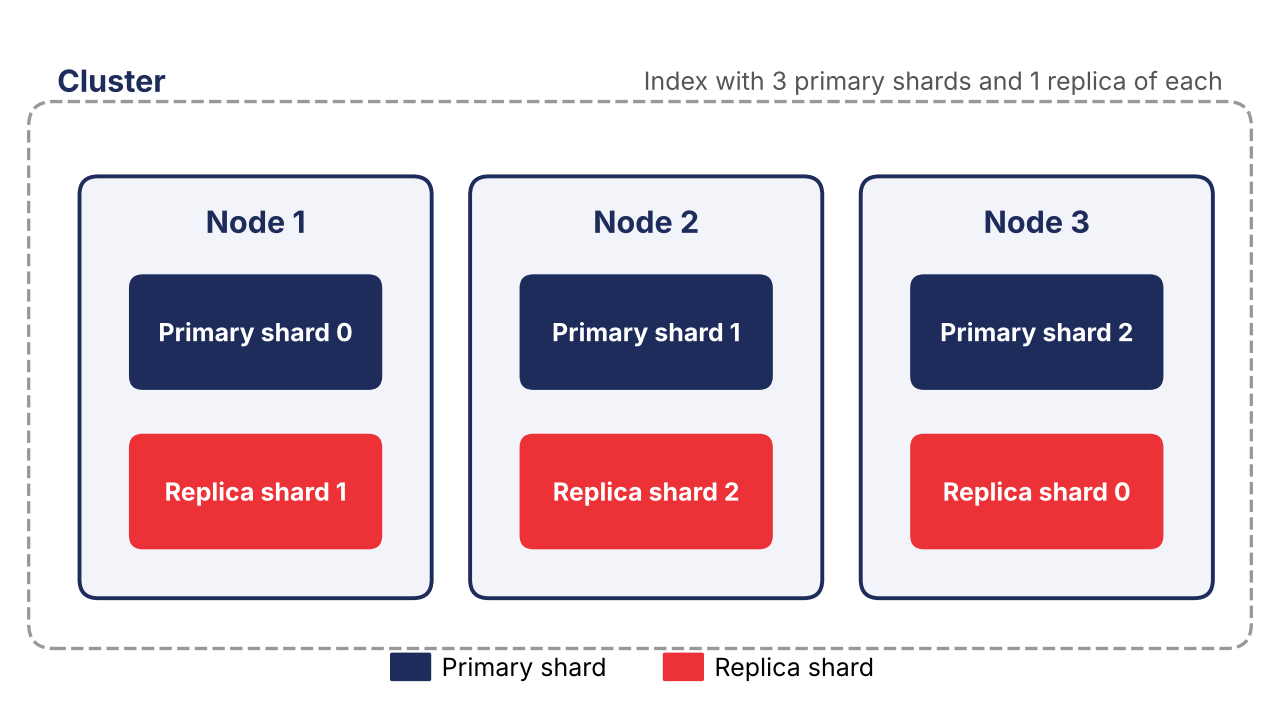
Figure: one example layout. Elasticsearch decides the real placement itself, and it moves shards when nodes join or leave.
Now check what happens if Node 2 fails. Primary shard 1 is lost, but its replica is on Node 1, so Node 1 promotes that replica to be the new primary. Replica shard 2 is also lost, but its primary is still on Node 3. No data is lost, and the cluster keeps working. This is the whole reason for replicas.
| Term | What it is | Fixed or changeable |
|---|---|---|
| Cluster | A group of nodes | You can add or remove nodes |
| Node | One running Elasticsearch instance | Added or removed as needed |
| Index | A named set of documents | Created and deleted by you |
| Document | One JSON record | Added, updated and deleted |
| Primary shard | A slice of an index | The number is fixed at index creation |
| Replica shard | A copy of a primary shard | The number can change at any time |
Quick Arithmetic
| Primary shards | Replicas of each | Shard copies in total |
|---|---|---|
| 1 | 1 | 2 |
| 3 | 1 | 6 |
| 3 | 2 | 9 |
| 5 | 0 | 5 |
The total is the primary shards multiplied by 1 plus the number of replicas. With 2 replicas, you need at least 3 nodes, so that each copy of a shard has its own node.
Cluster Health: Green, Yellow and Red
The health of a cluster tells you whether your shards are placed. The three colours are described in the Elastic cluster health API documentation, which I did not open for this guide, so please check the exact wording there.
| Colour | What it means |
|---|---|
| Green | All primary shards and all replica shards are placed |
| Yellow | All primary shards are placed, but some replicas are not. Your data is complete, but not fully protected |
| Red | At least one primary shard is not placed, so some data is not available |
A one node cluster with the default of 1 replica is yellow. The replica cannot be placed on the same node as its primary, so it has nowhere to go. On a test machine, you can set the replicas to 0 to turn it green. Do not do this for data you cannot lose.
The Search Labs guide also lists the states of a shard: initializing, started, relocating and unassigned. An unassigned shard has a reason, such as NODE_LEFT, which appears when a node leaves the cluster.
Try It: Three Requests
You can look at all of this on your own cluster. Run these in Kibana Dev Tools. I could not run Elasticsearch here, so I have not printed their responses. They are the standard requests for the job.
The health of the cluster, including its colour:
The shards of an index, with the node of each one, and whether it is a primary or a replica. The v option adds the column names:
Create an index with your own number of shards and replicas:
Later, you can change the replicas on the live index. You cannot do the same for the shards.
Common Misunderstandings
| Idea | What is true | Why it matters |
|---|---|---|
| An index is a database | It is closer to a table | It affects how you plan your data |
| I can use types to group data | Types were removed in 7.0.0 | Old tutorials will fail on a current cluster |
| More shards are always better | Too many shards slow the cluster down | Plan the number before you create the index |
| I can change the shard count later | Not on the same index. Create a new one, or read about the resize APIs | A wrong count means extra work |
| A replica is a backup that I can lose | It also serves search, and it takes over if a primary is lost | It improves both safety and speed |
| A yellow cluster has lost data | It means that some replicas are not placed | Your data is complete, but not fully protected |
Practice Exercises
- Start a one node cluster, and run the health request. Which colour is it, and why?
- Create an index with 1 shard and 0 replicas, and check the health again.
- Draw your own layout for an index with 2 primary shards and 1 replica on 3 nodes, and check that no replica sits with its primary.
- Work out the total shard copies for 4 primary shards and 2 replicas, and the least number of nodes that you need.
- Explain to a friend, in two sentences, why the number of primary shards is fixed and the number of replicas is not.
