Elasticsearch Document API
Elasticsearch Document API: Add, Get, Update, Delete and Bulk
Everything you store in Elasticsearch is a document. A person, an order, a log line, a tweet. Each one is a JSON object, and the document APIs are the requests that create, read, change and remove them. Learn these five or six calls and you can work with any Elasticsearch index.
The old version of this page showed the calls but most of them would fail on a current cluster. They use mapping types, which were removed, they have a typo that quietly adds a wrong field, and the bulk example has comments that JSON does not allow. This guide rebuilds each request so that it is correct, shows what you get back, and explains the response fields.
We cover the five single document calls, then the bulk API for many documents at once. After that, we look at what happens inside Elasticsearch when a document is indexed, which is the analysis phase, with a corrected inverted index and a way to test any analyzer yourself.
How Documents are Identified?
Elasticsearch stores documents as JSON objects, and keeps them in indices. The old page said that an index, a type and an ID identify a document. That was true in old versions. Today the Elastic docs say that mapping types are removed, and that each index supports one type, called _doc. So a document is identified by its index and its ID.
All requests below can be run in Kibana Dev Tools. If you use curl on a cluster with security on, which is the default in 8.x, you need https and a login. Here is the search request as curl, with placeholders for the password and the certificate file:
Never write a real password into a page, a script or a screenshot.
1. Add a Document
Use PUT with an ID to add a document, or to replace one that has the same ID. If the index does not exist, Elasticsearch creates it for you, and applies any matching index template. The old page said the same, and used a type in the URL. Here is the fixed version:
Read the response like this.
| Field | What it tells you |
|---|---|
| _index and _id | Where the document is stored, and its ID |
| _version | Starts at 1, and goes up each time the document changes |
| result | created for a new document, updated if the ID already existed |
| _shards | How many shard copies the write went to, and how many worked |
| _seq_no and _primary_term | Counters that Elasticsearch uses to control concurrent changes |
The values of _seq_no, _primary_term and _shards will differ on your cluster.
Let Elasticsearch Choose the ID
If you do not care about the ID, use POST and leave it out. Elasticsearch makes a unique ID, and returns it in the response.
Add Only If New: _create
A PUT with an ID replaces an existing document, which can overwrite data by mistake. The _create form adds a document only if the ID is new. The Elastic docs say that with op_type create, the request fails if the ID already exists.
If a document with ID 1 already exists, this request fails with a version conflict, and the status code is 409.
2. Get a Document
Use GET with the index and the ID. The response has the document in _source, and found tells you whether it exists.
Get by ID is real time. It sees a document as soon as it is indexed, without waiting for a refresh. A search does not, as we explain below. To get only some fields, use the _source parameter:
To only check that a document exists, use HEAD. It returns a status code and no body, 200 if found and 404 if not.
3. Update a Document
The update API changes part of a document. You send only the fields to change inside doc, and Elasticsearch merges them into the stored document. Other fields stay as they are.
The Typo That Adds a Field
The old page stored a field called job_desc, and then updated a field called job_description. Here is what that does:
Elasticsearch does not report an error. It treats job_description as a new field. When you get the document, both fields are there, and the manager value is unchanged:
Notice that both job_desc and job_description now exist, and the version has gone up. If the index has dynamic mapping, a typo in a field name creates a new field. This is also why many teams use a strict mapping, as we showed in the index configuration guide.
The Correct Update
What Happens If Nothing Changes?
The Elastic docs say that an update that changes nothing is ignored, and the response has a result of noop. Send the same update again:
This time the result is noop, and the version stays the same. To turn this behaviour off, set detect_noop to false.
Update or Insert: Upsert
An upsert updates the document if it exists, and creates it if it does not. The doc_as_upsert option uses the doc itself as the new document. The Elastic docs note that ingest pipelines are not supported with doc_as_upsert.
Update With a Script
For changes that depend on the old value, such as a counter, use a script. This Painless script adds 1 to a visits field, and starts at 1 if the field is missing:
The Elastic docs say that if both doc and script are given, the doc is ignored. So use one or the other.
4. Delete a Document
Use DELETE with the index and the ID.
If the document does not exist, the response has a result of not_found, and a status of 404. Deleting a document does not delete the index, and an empty index stays.
5. Search for Documents
The old page searched with a short query string, and used a URL that started with localhost:9200. In Dev Tools, you name the index. The q parameter takes a simple search text, and finds documents with that word in any field. Here is the search for Paul on our index:
A request without an index name searches all indices, which is rarely what you want, so name the index. For real work, use the request body and the Query DSL, as in our Query DSL guide:
Why does a New Document Not Show Up in Search at Once?
The old page said that a shard becomes searchable when a segment is full. That is not right. Elasticsearch is near real time. A new document becomes searchable after the next refresh, and the default refresh interval is 1 second. The Elastic docs for the index API also describe a refresh parameter. With refresh set to true, the request refreshes the shards at once. With wait_for, it waits for the next refresh before it returns. The default is false, which forces nothing.
Use refresh true in tests and demos. Do not use it on every request in production, because it creates many small segments and slows indexing.
Analysis Phase in Elasticsearch
When you index a text field, Elasticsearch does not store the sentence as a block. It breaks the text into terms, and records which documents each term appears in. This list is called an inverted index, and it is why a search for a word is fast. The step that breaks the text into terms is called analysis.
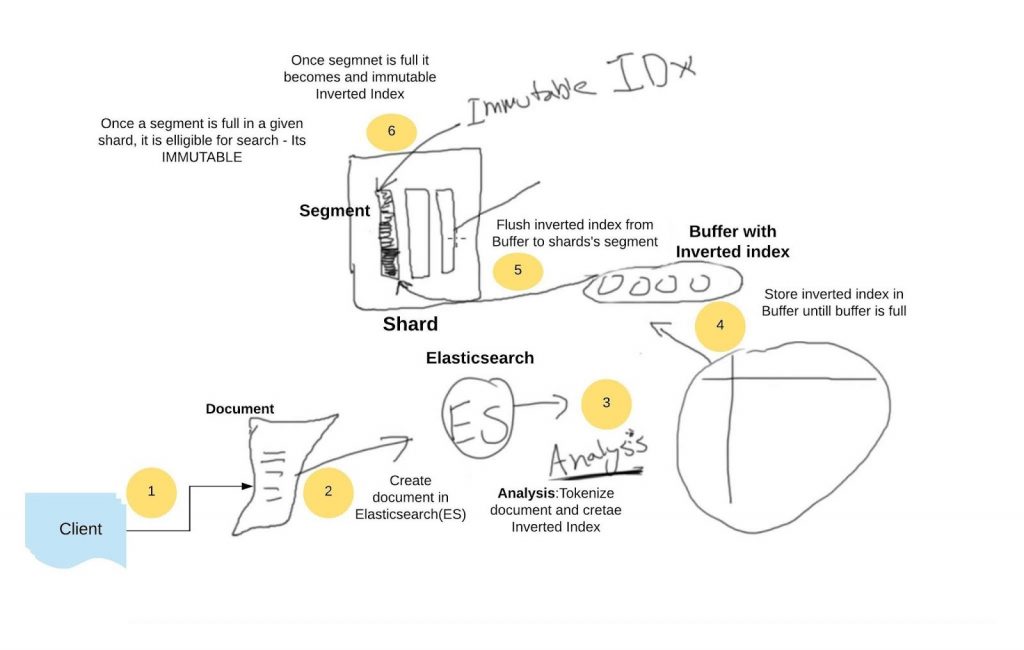
Let us use the two documents from the old page. Here they are, with the commas fixed. The old version had missing commas and stray spaces inside the quotes, so the JSON was invalid. The index name user is used, with the type removed.
Tokenization
Tokenization splits the text into terms, which are also called tokens. With the standard analyzer, the words are also lower cased. This table shows the inverted index for the two comments and the numbers are the documents where each term appears. I built it with a short script from the two sentences.
| Term | Appears in document |
|---|---|
| in | 1, 2 |
| lake | 1, 2 |
| lifeguard | 1, 2 |
| race | 2 |
| skinny | 2 |
| swimmers | 2 |
| swimming | 1 |
| the | 1, 2 |
| thin | 1 |
| was | 1 |
| with | 2 |
The old table had two mistakes. It put swimming under document 2, but the word is in document 1, in was swimming in the lake. It put with under document 1, but the word is in document 2, in race with the skinny lifeguard. It also listed The and the as two terms. With lower casing, they are one term.
Filtering
After the text is split, token filters can change the terms. Common jobs are lower casing, removing stop words, stemming, which reduces swimming and swimmers toward a common root and adding synonyms. The old page listed all of these as if every analyzer did them. That is not so. Which filters run depends on the analyzer. The standard analyzer splits the text and lower cases it, and does not stem. The language analyzers, such as english, add stemming and stop words.
Do not trust a description. Test the analyzer with the analyze API, which shows the terms that come out. This works on any text, with no index needed:
Now try the english analyzer on the same sentence, and compare the terms:
I did not run these two requests, so I cannot print their results. Run them in Dev Tools and look at the difference. That is the best way to learn what each analyzer does.
Analyzers in Elasticsearch
An analyzer is a tokenizer, plus zero or more token filters. Elasticsearch has ready made analyzers, and you can build your own.
| Analyzer | What it does |
|---|---|
| Standard | The default. Splits the text into words, and lower cases them |
| Simple | Splits the text at anything that is not a letter, and lower cases it |
| Whitespace | Splits the text only at spaces, and keeps the case |
| Stop | Like simple, and also removes common stop words |
| Keyword | Keeps the whole text as one term |
| Pattern | Splits the text with a regular expression |
| Language | One for each language, such as english, with stemming and stop words |
| Custom | One that you build from a tokenizer and filters of your choice |
The same analysis is used when you search, so a search for Swimmers is analysed in the same way as the text that was indexed. That is why a match query finds words in any case.
Bulk Load in Elasticsearch
Sending one request for each document is slow. The bulk API sends many actions in one request. The body is not a normal JSON document. It is newline delimited JSON. Each line is one JSON object, and the Elastic docs give these rules.
- Keep each JSON object on one line. Do not pretty print.
- An action line is followed by a source line, only if the action needs one.
- The final line must end with a newline.
- The content type is
application/jsonorapplication/x-ndjson. - With curl, send a file with the data binary option. The plain data option drops the newlines.
The Old Example, Fixed
The old page loaded three cars. It used a type in the URL, and added comments after the action lines. Comments are not allowed. Here is the fixed request, with no type and no comments. The empty action line means that Elasticsearch makes the IDs.
The old request looked like this, and it fails because of the comment on the action line:
Here is how you would send a file with curl. Remember the newline at the end of the file:
Four Actions in One Request
| Action | Needs a source line? | What it does |
|---|---|---|
| index | Yes | Adds a document, or replaces it if the ID exists |
| create | Yes | Adds a document, and fails if the ID exists |
| update | Yes | Changes part of a document. The next line holds doc, upsert or script |
| delete | No | Removes a document |
This request adds a car with ID 1, creates a car with ID 2, updates the condition of car 1, and deletes ID 9, which does not exist.
Always Check the Response
A bulk request does not stop at the first failure, and the HTTP status can be 200 even when some items failed. The response has three parts, according to the Elastic docs.
- took is the time taken, in milliseconds.
- errors is true if any action failed.
- items has one result for each action, in the order you sent them.
For the request above, I expect these item results. This is based on the docs, and I did not run it.
| Action | Expected status | Expected result |
|---|---|---|
| index for ID 1 | 201 | created |
| create for ID 2 | 201 or 409 if ID 2 already exists | created, or a version conflict error |
| update for ID 1 | 200 | updated |
| delete for ID 9 | 404 | not_found |
The Elastic docs example shows a delete of a missing document with a not_found result and an errors value of false, so a missing document on delete is not counted as an error. Even so, test with your own data and look at every item.
How Big Should a Bulk Request Be?
The Elastic docs give no fixed number. They say to test different sizes for your workload. They also say that the default HTTP request limit is 100 MB, and a single document larger than the limit cannot be indexed. A common way to start is with a small batch, then measure the speed, and raise the size step by step.
Document API Summary
| Task | Request | Note |
|---|---|---|
| Add or replace | PUT index/_doc/id | Replaces a document with the same ID |
| Add with a new ID | POST index/_doc | Elasticsearch makes the ID |
| Add only if new | PUT index/_create/id | Fails with 409 if the ID exists |
| Read one | GET index/_doc/id | Real time |
| Check it exists | HEAD index/_doc/id | 200 or 404, no body |
| Change part | POST index/_update/id | Merges the doc you send |
| Remove | DELETE index/_doc/id | Result is deleted or not_found |
| Find many | GET index/_search | Near real time |
| Do many at once | POST _bulk | Newline delimited JSON |
Common Document API Mistakes
| Problem | Usual cause | Fix |
|---|---|---|
| A type in the URL, such as person | Code from an old tutorial | Use _doc |
| The update adds a new field | A typo in the field name | Check the name, or use a strict mapping |
| A PUT overwrote a document | PUT with an ID replaces | Use _create, or the update API |
| The bulk request is refused | Comments, pretty printed JSON, or a missing final newline | One object per line, and end the file with a newline |
| Some bulk items failed, but the status is 200 | Bulk does not stop on a failure | Check errors, and every item |
| A new document is not in search | No refresh yet | Wait about a second, or use refresh in tests |
| A request to localhost:9200 is refused | Security is on, so https and a login are needed | Use https, a user, and your certificate |
Practice Exercises
- Add a document to an index called information, read it, and then delete it.
- Update the document with a field name that does not exist, and look at what the get request shows.
- Try
_createtwice with the same ID, and read the error. - Load the three cars with a bulk request, and search for the Honda cars.
- Run the analyze API on a sentence with the standard analyzer and the english analyzer and compare the terms.
The document APIs are the base of everything else in Elasticsearch. Once you can add, read, change and remove a document, and load many at once, the Query DSL and the aggregations have something to work on. A good next step is to load a few hundred documents with the bulk API, and then try the search and aggregation requests from our other guides.
