Python MySQL Connection
Python MySQL Connection Tutorial: Connect Python to MySQL With mysql.connector
Almost every real application keeps its data in a database. A shop stores orders, a school stores marks, a company stores customers. Python can read and write that data, but it cannot talk to a database on its own. It needs a driver, a small library that speaks the language of the database server.
For MySQL, the official driver is MySQL Connector/Python. Once it is installed, a few lines of Python can connect to the server, create a database and a table, insert rows, read them back, change them and delete them. This is the base of data entry tools, reporting scripts, web back ends and data pipelines.
In this tutorial, we follow ten clear steps: install the connector, check Python, import the module, create a connection, pick an editor, create a database, check it, create a table, check it, and insert rows. Then we cover select, update, delete, commit, rollback, placeholders that keep your data safe, error handling and a table of the common errors with their codes. Every program was run on a real database server, and the real output is shown.
What You Need Before You Start?
- Python 3 installed on your computer.
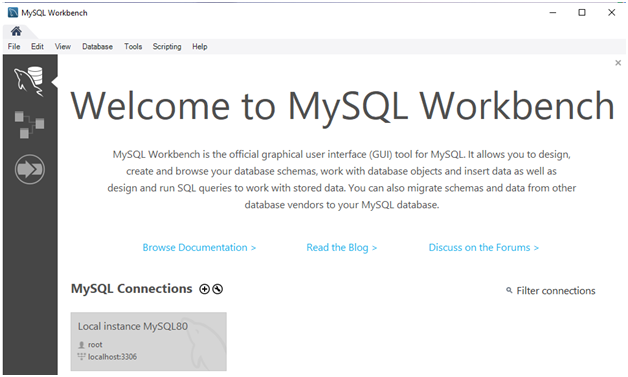
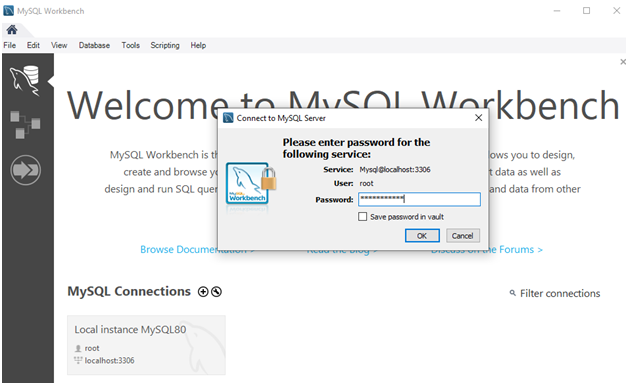
- A MySQL server that is running, and a MySQL account with a username and password. MySQL Workbench is a free visual tool that helps you check your account and see your tables.
- The connector library, which we install in step 1.
In every example, you will see your_user and your_password. Replace them with your own values. Never share a real password in a blog, a screenshot or a code repository.
Step 1: Install MySQL Connector/Python
The simplest way is pip, the Python package installer. Open the command prompt on Windows, or the terminal on Mac and Linux, and run:
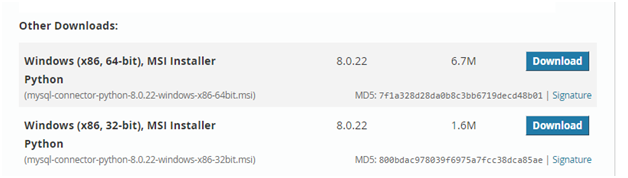
You can also download the installer from the MySQL website. Pip is faster, works the same on every system, and is easy to update.
Step 2: Check That Python Runs in the Command Prompt
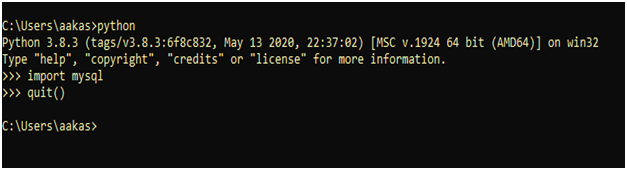
Check that Python is set up properly by asking for its version. If you see a version number, you are ready. If the computer says the command is not found, Python is not on your path, and you need to fix that first.
Your version number may be different, and that is fine. On some Mac and Linux systems, the command is python3.
Step 3: Import the Module
The correct line is import mysql.connector, and not just import mysql.
If this line runs with no error, the connector is installed. If you see ModuleNotFoundError: No module named 'mysql', go back to step 1. You can also check the connector version:
Your version will be different, since the library is updated often.
Step 4: Create a Connection
To connect, call mysql.connector.connect with the host (the computer where MySQL runs, usually localhost), your username and your password.
Do not Use the Root Account
Root can do anything on the server, including deleting every database. Make a separate user for your project, with only the rights it needs. Run this in MySQL Workbench or the mysql command line, as an administrator:
This user can work only on the database prwatech_demo and nothing else.
Keep the Password Out of Your Code
A password written inside a script ends up in screenshots, emails and shared folders. Read it from an environment variable instead.
You set the variables once in your system, and the code never contains the password. For the rest of this tutorial we show the simple form so the examples are easy to read.
Step 5: Choose a Code Editor and Run Your Script
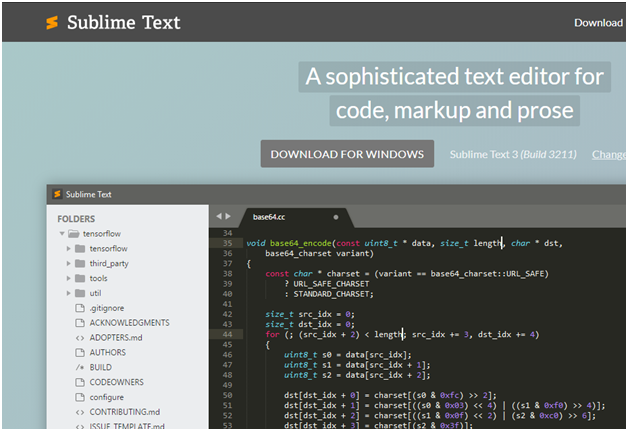
You do not need a particular editor. Use any one you like, such as VS Code, PyCharm, IDLE or Sublime Text. Save the code in a file, for example connect.py, and run it from the terminal. This works in every editor and on every system.
In Sublime Text, Ctrl and B runs the file only after you choose Python as the build system. If you see nothing happen, that is usually the reason.
Step 6: Create a Database
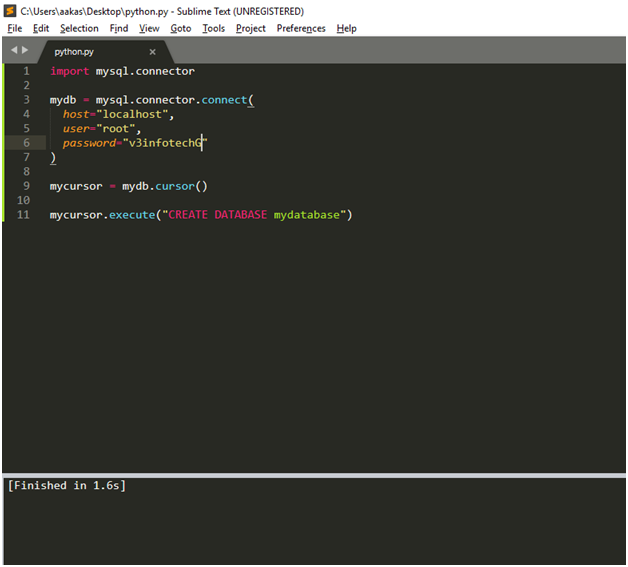
A database is a container for your tables. Use a cursor to send SQL commands to the server. The words IF NOT EXISTS stop an error if you run the script twice.
There is no output, because the command only creates the database. The next step checks it.
Step 7: Check If the Database Exists
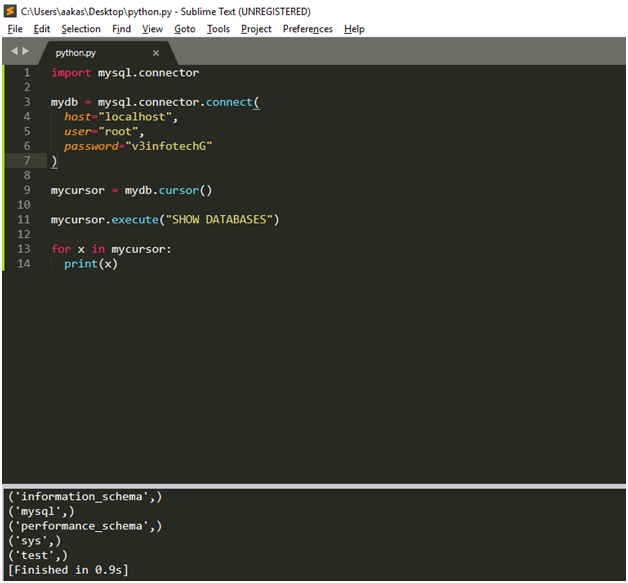
List the databases your account can see, and look for yours.
The first line prints True, so the database exists. The second line shows only the databases this account is allowed to see. An account with wider rights, such as root, will see more names, including the ones MySQL makes for its own use.
Step 8: Create a Table
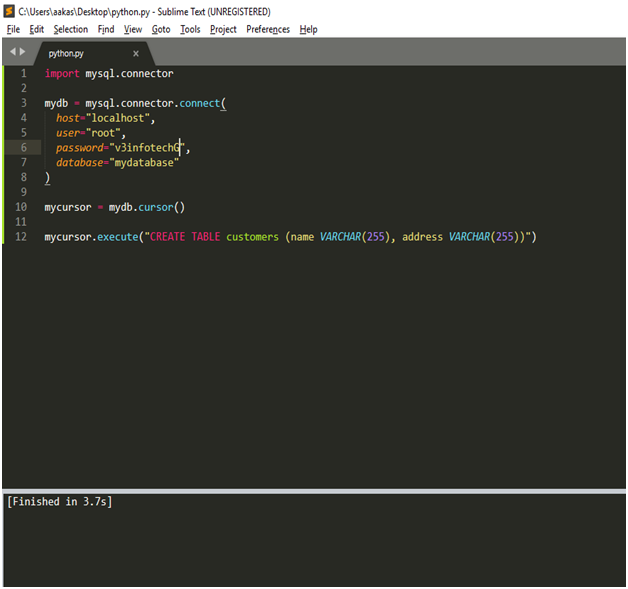
A table holds rows of data in fixed columns. To work inside your database, tell the connection which one to use. Setting the database property on the connection does this. You can also pass database= when you connect.
This table has four columns.
| Column | Type | What it means |
|---|---|---|
| id | INT, AUTO_INCREMENT, PRIMARY KEY | A number that MySQL fills in for each new row, and that identifies the row |
| name | VARCHAR(50), NOT NULL | Text of up to 50 characters, and it cannot be empty |
| course | VARCHAR(50) | Text of up to 50 characters |
| marks | INT | A whole number |
Step 9: Check If the Table Exists
The first line shows the table is there. The second part lists its columns.
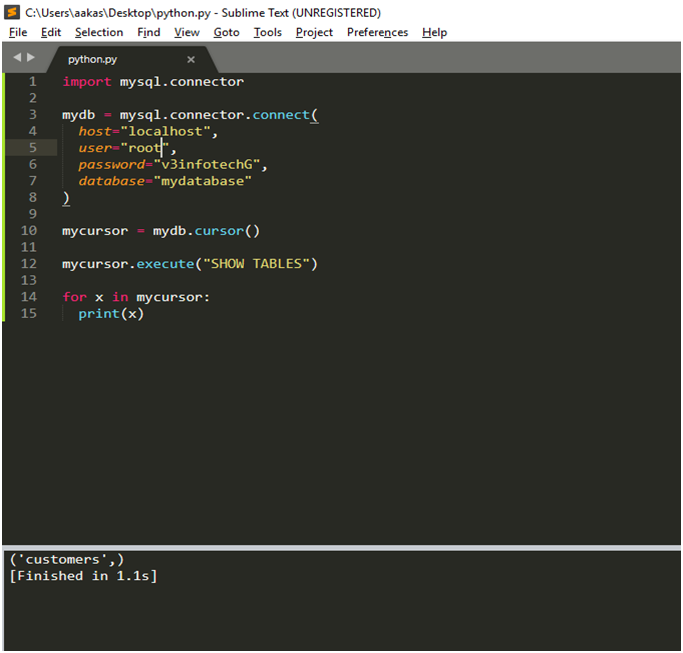
Step 10: Insert Into a Table
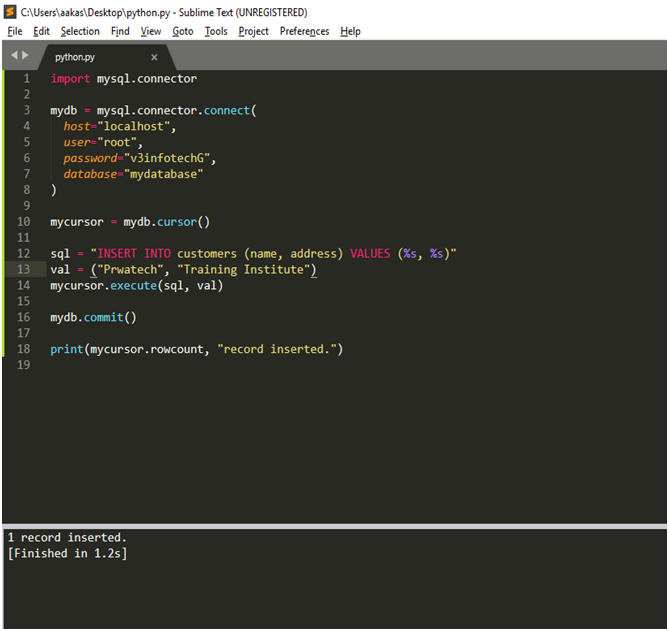
To add a row, send an INSERT command. Put a %s in the SQL for each value, and pass the values separately as a tuple. These are called placeholders. Do not build the SQL by joining text yourself. The reason is explained in the section on safety below.
Always Call commit
MySQL keeps your changes in a waiting area until you call commit. If you skip it, the insert is lost when the connection closes, and the table stays empty. This is the most common reason a beginner says my data is not showing.
Insert Many Rows at Once
To add several rows, use executemany with a list of tuples. It is faster and shorter than a loop.
Read Data With SELECT
Use SELECT to read your data back. The cursor then holds the result, and you fetch it with fetchall, fetchone or fetchmany.
Each row comes back as a tuple. You can filter with WHERE and sort with ORDER BY, and pass the filter value as a placeholder:
A single value in a placeholder tuple needs a trailing comma, such as ("Python",). Without the comma, Python sees plain brackets and not a tuple. The method fetchone returns one row, and None when there are no more.
Update and Delete Rows
Always include a WHERE clause on an update or a delete. Without it, the command changes or removes every row in the table. The rowcount tells you how many rows were affected, which is a quick check that the command did what you meant.
Rollback: Undo a Mistake
Until you call commit, you can undo your changes with rollback. Here we delete every row by accident, check the count, and then undo it.
Why You Must Use Placeholders
If you build SQL by joining text, a user can type something that changes the meaning of your command. This attack is called SQL injection, and it is one of the most common ways websites are broken into. Placeholders send the value separately from the command, so the database treats it only as data.
The tricky text is treated as a plain name, so nothing matches. If the SQL had been built with an f string, the same text would have matched every row in the table.
Handling Errors
Connections and queries fail often, because the server is off, the password is wrong, or a table is missing. Catch the Error class from the connector, and read its errno and msg.
These are the errors you will meet most often.
| Code | Meaning | What to check |
|---|---|---|
| 1045 | Access denied for the user | The username or password is wrong |
| 2003 | Cannot connect to the MySQL server | The server is not running, or the host or port is wrong |
| 1049 | Unknown database | The database name is misspelt, or it was never created |
| 1146 | Table does not exist | The table name is wrong, or you are in the wrong database |
| 1048 | A column cannot be null | A required value is missing from your insert |
| 1064 | Error in your SQL syntax | A typo in the SQL, such as SELEC for SELECT |
The wording of a message can differ a little between MySQL versions, but the code number stays the same.
Close the Connection
When you finish, close the cursor and the connection. This frees the resources on the server. Many servers allow only a limited number of connections, so leaving them open can block other users.
To make sure it always happens, even after an error, put the close calls in a finally block. Our exception handling tutorial explains how.
Common Mistakes When Connecting Python to MySQL
- Writing
import mysql. The module ismysql.connector. - Forgetting commit. Your inserts, updates and deletes are not saved until you call it.
- Using the root account. Create a user with limited rights.
- Building SQL with an f string or plus signs. Use placeholders.
- Leaving out WHERE. An update or delete without it hits every row.
- Forgetting the comma in a one value tuple. Write
(value,)and not(value). - Putting the password in the code. Use an environment variable.
- Never closing the connection. Close it, or use a
finallyblock.
Quick Reference
| Task | Code |
|---|---|
| Install the connector | pip install mysql-connector-python |
| Import it | import mysql.connector |
| Connect | mysql.connector.connect(host=, user=, password=) |
| Make a cursor | cursor = mydb.cursor() |
| Run SQL | cursor.execute(sql, values) |
| Run many | cursor.executemany(sql, list_of_tuples) |
| Read results | cursor.fetchall(), cursor.fetchone() |
| Save changes | mydb.commit() |
| Undo changes | mydb.rollback() |
| Close | cursor.close() and mydb.close() |
Complete Script to Run Yourself
Here is the full script used to produce every output on this page. Change your_user and your_password at the top, and run it with Python 3. It creates a database called prwatech_demo, so it will not touch your other data. The script drops and rebuilds the students table each time, so run it only on a practice database.
Connecting Python to MySQL is a short list of habits: connect with a safe user, send SQL through a cursor, use placeholders for every value, commit your changes, handle errors, and close the connection. Run the script above on a practice database, change the data, and break things on purpose. Then try a bigger project, such as a small student record app, or load the results of a query into pandas for analysis.
