Creating Cloud SQL instance
Creating a Cloud SQL Instance in the Console
Cloud SQL is Google Cloud’s managed relational database service for MySQL, PostgreSQL, and SQL Server, handling patching, backups, and maintenance so you do not have to run a database server yourself. This walks through creating an instance directly in the console, which is the more visual option when you are still deciding between settings, compared to typing the equivalent gcloud command blind.
Reaching for the console over the command line makes the most sense the first few times you create an instance, or whenever you want to see every available option laid out rather than needing to already know the right flag name for it. Once you know exactly what you want, the gcloud command line path, covered in a separate guide, becomes the faster option.
This covers choosing a database engine and edition, setting the instance’s core configuration, and deleting an instance you no longer need.
Step by Step Process of Creating a Cloud SQL Instance
Step One: Open the SQL Section
Open the console, then the menu, then SQL, under Storage.
Menu > SQL
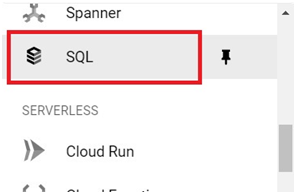
Step Two: Create an Instance
Click Create Instance.
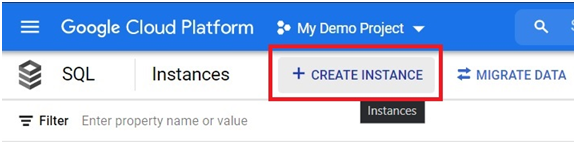
Step Three: Choose a Database Engine
Choose the database engine you need, MySQL, PostgreSQL, or SQL Server. This example uses MySQL.
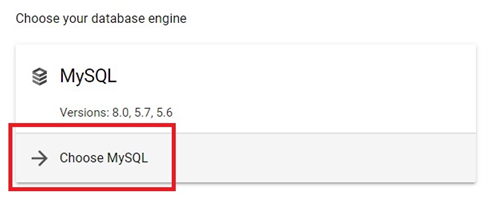
Step Four: Name the Instance and Set a Password
Give the instance an ID and a password, and choose the database version you want.
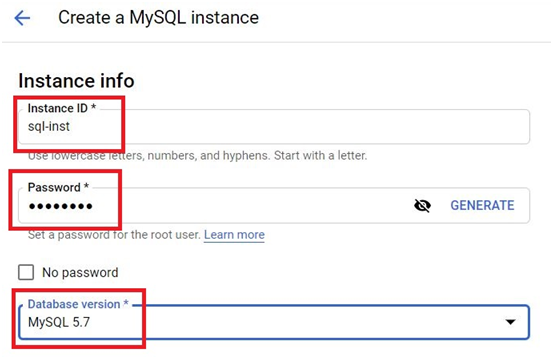
Step Five: Choose an Edition
Choose Enterprise for standard workloads, or Enterprise Plus if you need its extra performance, availability, and observability features, such as longer running Query Insights history and finer grained metrics. Enterprise Plus also unlocks a slightly different set of available machine series. If you are not sure which you need, Enterprise covers the vast majority of everyday use cases, and you can upgrade an existing instance to Enterprise Plus later with only sub second downtime, so this choice is not entirely locked in.
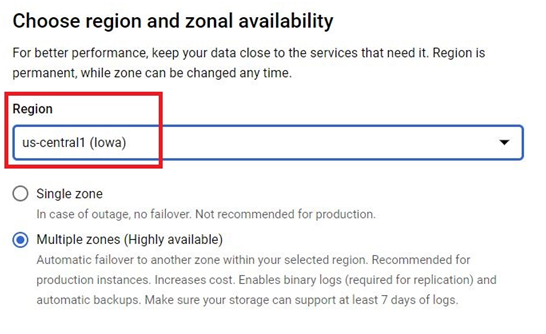
Step Six: Choose a Region and Zone
Choose the region and zone for your instance.
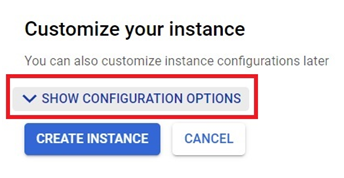
Step Seven: Show Configuration Options
Click Show Configuration Options.
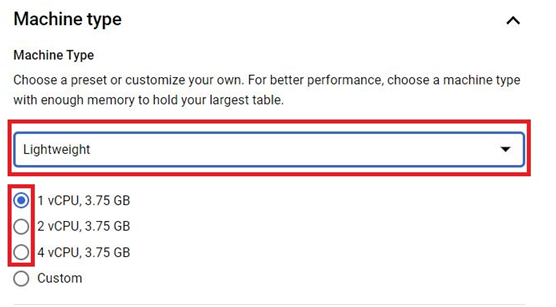
Step Eight: Choose a Machine Type
Choose the machine type and specification for the instance. This decides its available memory and CPU. Note that you cannot change an instance’s machine series after it is created, so pick with some headroom rather than the absolute minimum you think you need today.
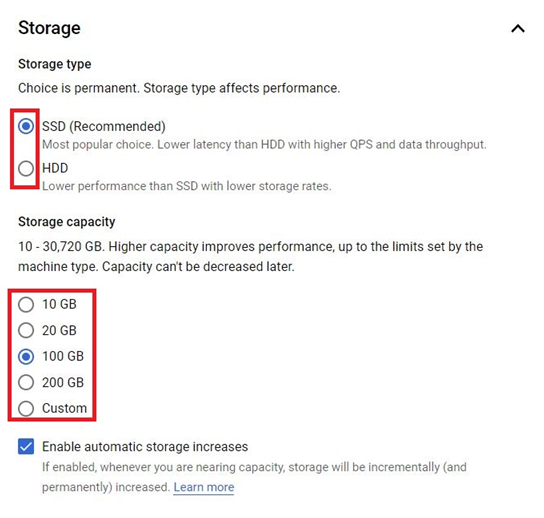
Step Nine: Choose Storage
Choose the storage type and capacity.
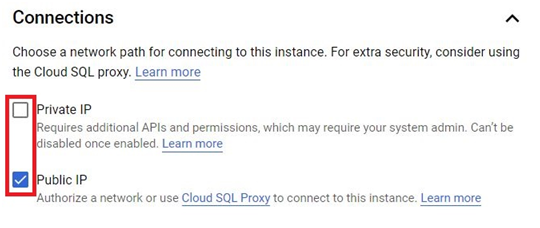
Step Ten: Choose Connectivity
Choose how you want to connect to this instance. If you enable a public IP here, plan to either restrict which addresses can reach it under Authorized Networks or connect through the Cloud SQL Auth Proxy instead of leaving it open broadly, covered in more depth in the Creating a Cloud SQL Instance With gcloud guide.
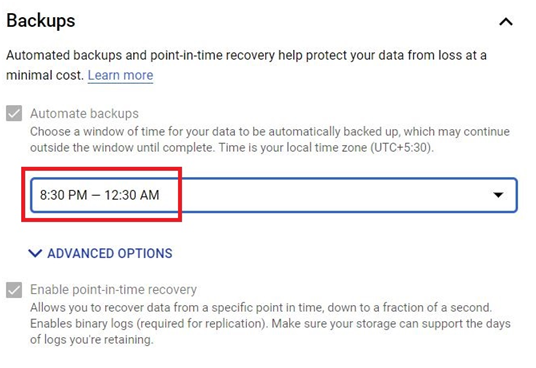
Step Eleven: Set a Backup Window
If you want backups, choose a backup window.
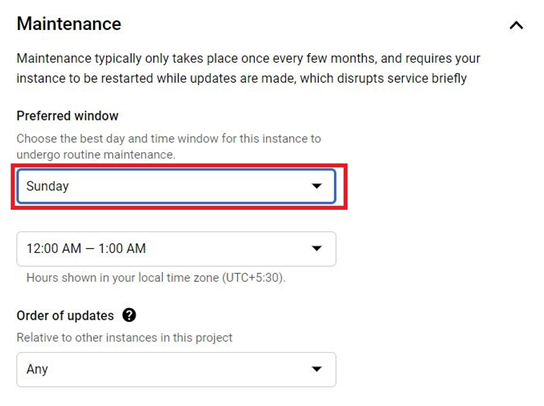
Step Twelve: Set a Maintenance Window
Choose a day for maintenance when your instance typically sees less traffic.
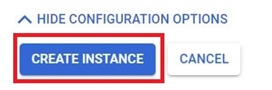
Step Thirteen: Create the Instance
Click Create Instance.
The instance will be created.
Deleting a Cloud SQL Instance
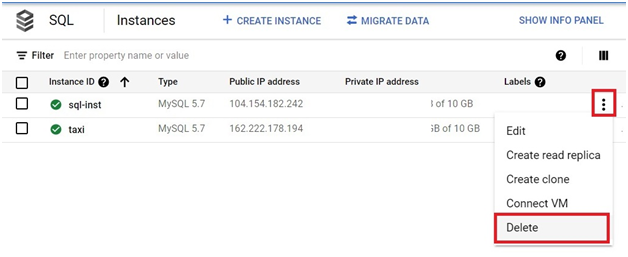
In the SQL instances list, click the three dots next to the instance, then Delete.
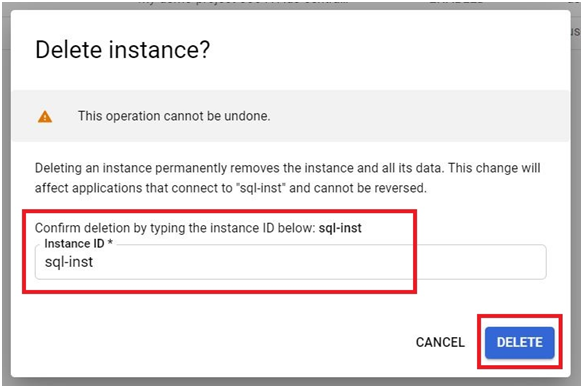
Type the instance ID to confirm, then press Delete.
Common Mistakes to Avoid
- Choosing the smallest machine type available without headroom. Since the machine series cannot be changed after creation, undersizing here means recreating the instance later rather than simply resizing it.
- Enabling a public IP without restricting authorized networks or using the Auth Proxy. A public IP with no access restriction is reachable from anywhere.
- Picking Enterprise Plus by default without a specific need for it. Enterprise covers most everyday workloads, and you can upgrade later if you genuinely need the extra performance and observability features.
That covers creating and deleting a Cloud SQL instance from the console. To go further, explore Prwatech’s Google Cloud training program, which includes placement assistance.
