Working with Dataflow
Working With Dataflow: From a Local Run to the Cloud
This is the foundational Dataflow lab that the other Dataflow guides in this series build on. It runs the same basic idea, a script that filters text for a pattern, three times: once locally on your own machine, once on Dataflow itself, and once more with a slightly more advanced example that groups and ranks results, the same pattern used in the ETL and BigQuery source Dataflow guides elsewhere in this series.
This walks through setting up the lab environment, running a simple pipeline locally to see what it does before involving the cloud at all, then running the equivalent version on Dataflow, and finally a more advanced example that writes ranked output back into Cloud Storage.
Step by Step Process of Working with Dataflow
Step 1: Clone the Training Repository
Activate Cloud Shell, then run:
git clone https://github.com/GoogleCloudPlatform/training-data-analyst

$ ls

Step 2: Set a Bucket Variable
Create a bucket in the console first, using the same name as your project ID, then set it as a variable:
BUCKET=”your-bucket-name”
echo $BUCKET

Step 3: Enable the Dataflow API
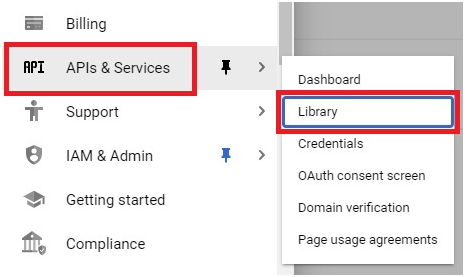
Open Menu > API services > Library
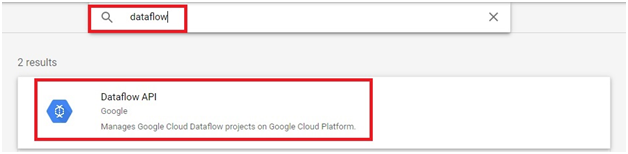
Search for Dataflow, then click the Dataflow API.
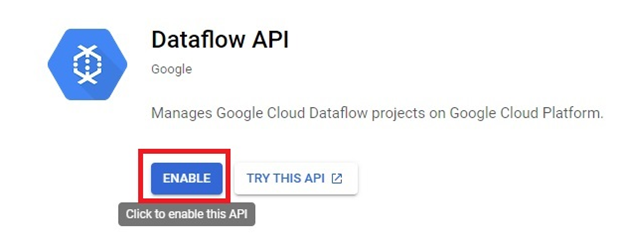
Click Enable
Step 4: Move Into the Lab Directory
cd training-data-analyst/courses/data_analysis/lab2/python
ls
The lab files will be displayed.

Step 5: Install the Required Packages
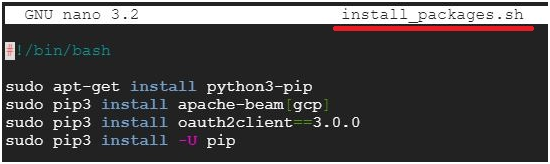
Open install_packages.sh to see what it does before running it:
nano install_packages.sh

This file installs the Python components the lab needs.
$ sudo ./install_packages.sh

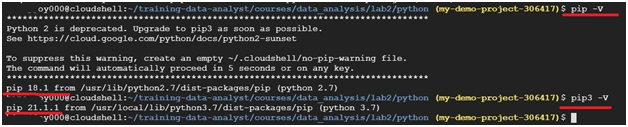
Step 6: Confirm Your Python Version
pip -V
pip3 -V
Step 7: Run a Simple Pipeline Locally
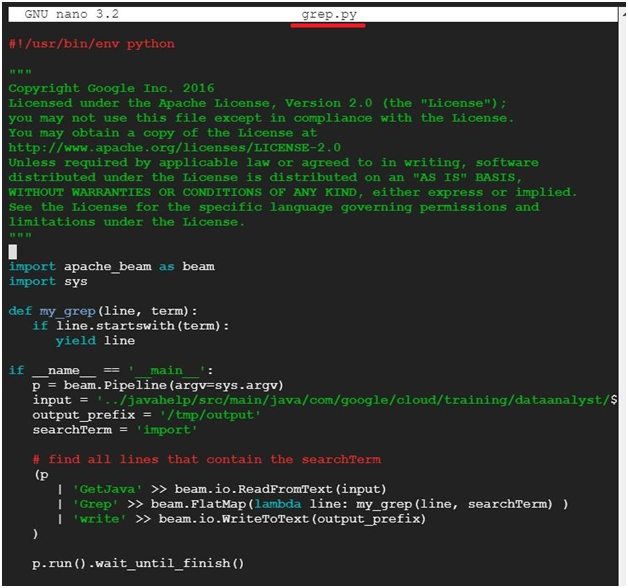
Open grep.py and look at what it does. This script searches text files for a pattern and runs on Beam’s DirectRunner by default, meaning it executes right there in Cloud Shell, with no Dataflow job created at all.
nano grep.py

$ python3 grep.py

Confirm it actually produced output:
ls /tmp

cat /tmp/output-*

Step 8: Copy Sample Files Into Your Bucket
gsutil cp ../javahelp/src/main/java/com/google/cloud/training/dataanalyst/javahelp/*.java gs://$BUCKET/javahelp
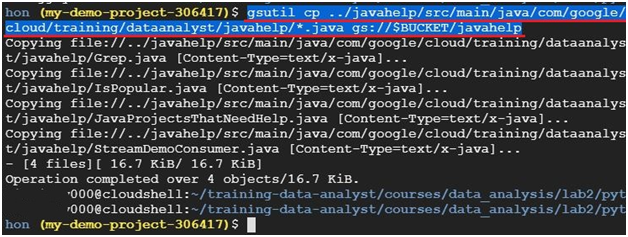
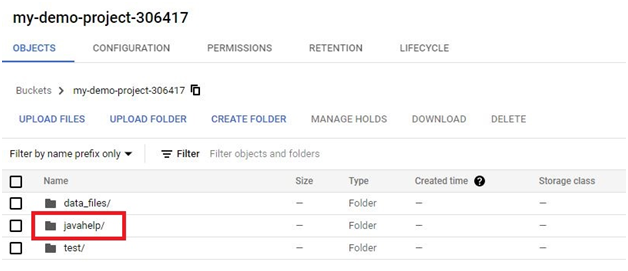
Confirm they arrived. Open the menu, then Cloud Storage, then your bucket.

The files should be listed there.
Step 9: Run the Same Idea on Dataflow
Confirm your project and bucket variables are still set correctly:
echo $DEVSHELL_PROJECT_ID
echo $BUCKET

Open grepc.py, the cloud version of the same script:
nano grepc.py

Edit its PROJECT and BUCKET values to match your own project ID and bucket name. If both happen to be the same value, you can use that same ID for both.
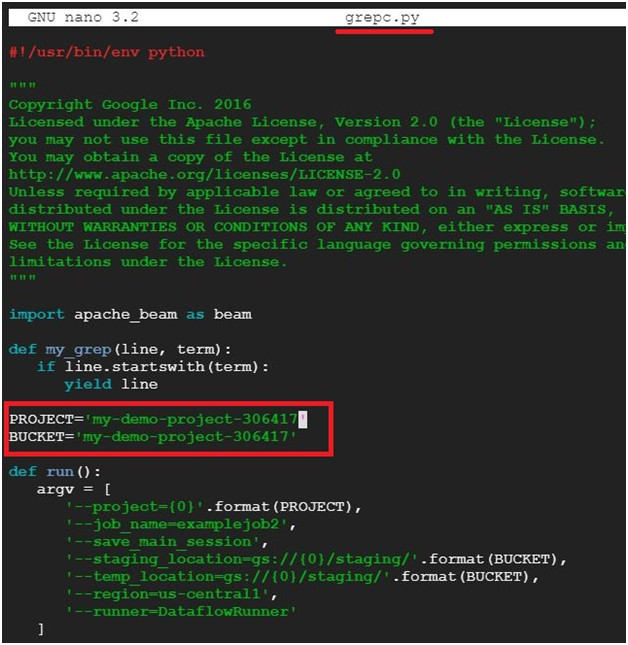
Save and exit with control x, then y, then enter, and run it:
python3 grepc.py

Step 10: Watch the Job in Dataflow
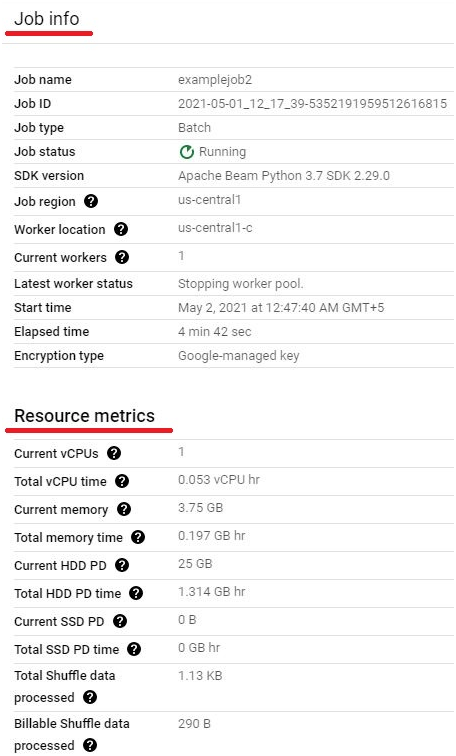
Open Console >Dataflow > Jobs
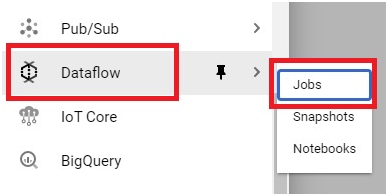
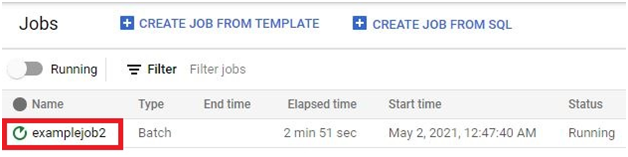
Open the Job which is executed.
Click the Job Graph.
The Graph is displayed.
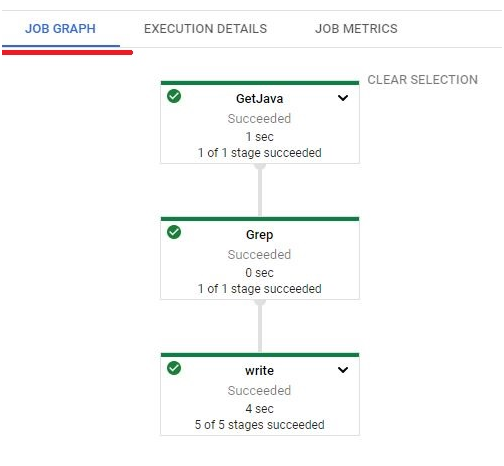
In Job Graph on right side you can see the Job info and resource metrics.
Step 11: A More Advanced Example
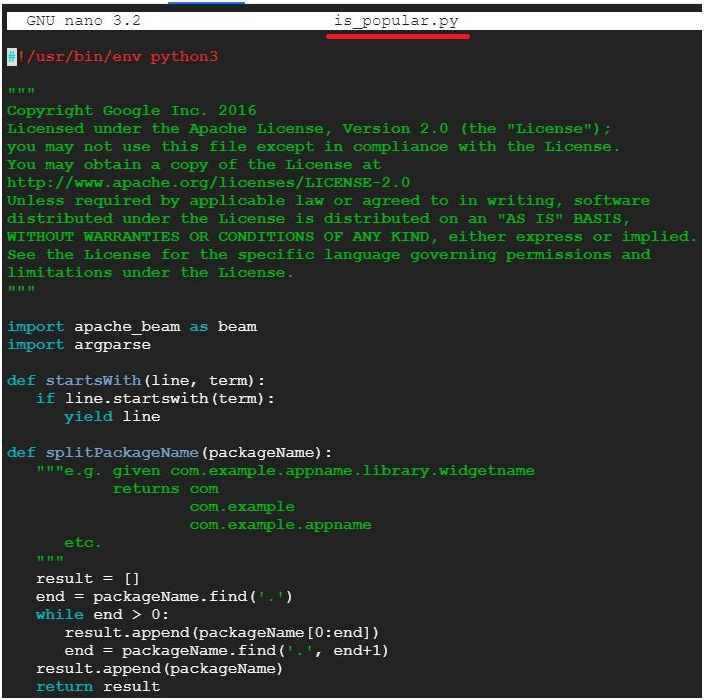
is_popular.py goes further than a simple filter, grouping and ranking results rather than just matching a pattern. Open it and look through it before running it.
ls
nano is_popular.py

It will open the file is_popular.py
Run it, then check the output:
python3 ./is_popular.py
cat /tmp/output-*

$ python3 ./is_popular.py –output_prefix=/tmp/myoutput

$ nano /tmp/myoutput-00000-of-00001

It will open the file with output.

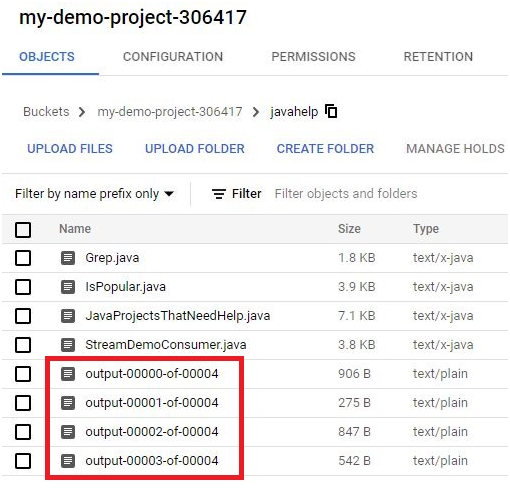
Step 12: Check the Final Output in Your Bucket
Open the menu, then Cloud Storage, then your bucket.

Open javahelp/ folder
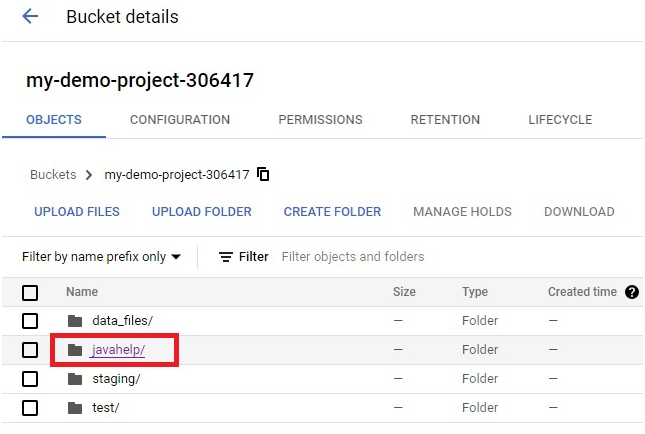
The outputs will be stored in it.
DirectRunner Versus DataflowRunner
The reason this page runs grep.py before grepc.py is to show the same underlying idea two different ways. DirectRunner, the default when no runner is specified, executes a pipeline on the machine you are already on, useful for quickly checking that your logic works before spending time and money running it at scale. DataflowRunner submits the exact same kind of pipeline to run as a managed job in the cloud, which is what you actually want once the data is too large for one machine, or once the job needs to keep running without you watching it.
How This Page Fits With the Other Dataflow Guides
This page is the right starting point in this series, since it shows the DirectRunner versus DataflowRunner distinction that the other three assume you already understand. From here, ETL Processing With Dataflow and BigQuery shows a complete batch pipeline reading a file and writing into BigQuery, Pub/Sub Stream Processing With Dataflow shows a continuously running pipeline instead of a one time job, and Building a Dataflow Pipeline From a BigQuery Source shows Dataflow reading from BigQuery itself as the input.
Common Mistakes to Avoid
- Typing pip-V as one word. It needs a space, pip -V, to run as an actual command rather than an unrecognized one.
- Copying a command with an en dash instead of a real double hyphen. Retype the flag if it fails immediately.
- Running grepc.py without editing its PROJECT and BUCKET values first. It will fail or write to the wrong place if those still hold placeholder text.
- Assuming grep.py and grepc.py do fundamentally different things. They demonstrate the same logic under two different runners, not two unrelated scripts.
That covers running a Beam pipeline locally and on Dataflow, across three progressively more advanced examples. To go further, explore Prwatech’s Google Cloud training program, which includes placement assistance.
