Pubsub stream processing with dataflow
Streaming Pub/Sub Messages to Storage With Dataflow
This builds a streaming pipeline, one that runs continuously rather than once on a fixed dataset, reading messages published to a Pub/Sub topic and writing them into Cloud Storage in timed batches. It is a different shape of problem from the batch ETL pipeline covered in the ETL Processing With Dataflow and BigQuery guide in this series, which runs once against a file that already exists. Here, the pipeline keeps running and keeps writing new output as new messages arrive.
This walks through publishing test messages on a schedule, running the streaming pipeline against them, watching it write output to a bucket, and shutting everything down again.
Step by Step Process of Streaming Pub/Sub Messages
Step 1: Activate Cloud Shell
If a permission error comes up later, grant the Owner role to the default compute service account before continuing.
Step 2: Set Your Variables
BUCKET_NAME=your-bucket-name
PROJECT_ID=$(gcloud config get-value project)
TOPIC_ID=your-topic-id
REGION=your-dataflow-region
Choose a Dataflow region close to wherever you are actually running these commands from.

Step 3: Create a Cloud Scheduler Job
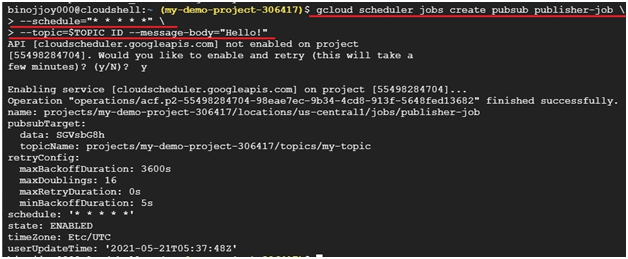
This publishes a test message to your Pub/Sub topic once a minute:
gcloud scheduler jobs create pubsub publisher-job \
–schedule=”* * * * *” \
–topic=$TOPIC_ID –message-body=”Hello!”
Step 3: Start the Job
gcloud scheduler jobs run publisher-job

Step 5: Clone the Sample Repository
git clone https://github.com/GoogleCloudPlatform/python-docs-samples.git

Step 6: Move Into the Sample Directory
cd python-docs-samples/pubsub/streaming-analytics

Step 7: Install the Requirements
pip3 install -r requirements.txt

If a required Apache Beam version cannot be found, install the current version instead of pinning an old one. Open requirements.txt with nano requirements.txt and either remove a hard version number entirely or update it to a current release, rather than setting it back to 2.24.0.
Step 8: Edit the Script
Open the file:
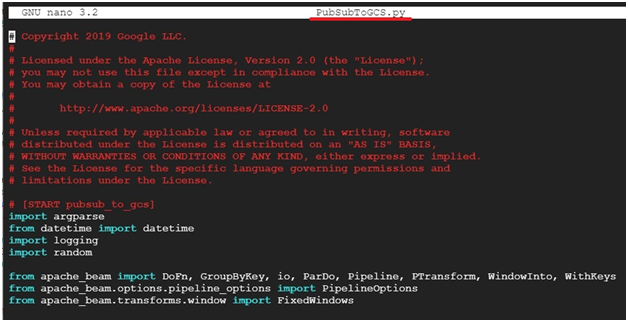
nano PubSubToGCS.py
Replace its contents with the following, which is the corrected version of the script the live page’s copy had lost its formatting from:
import argparse
from datetime import datetime
import logging
import random
from apache_beam import DoFn, GroupByKey, io, ParDo, Pipeline, PTransform, WindowInto, WithKeys
from apache_beam.options.pipeline_options import PipelineOptions
from apache_beam.transforms.window import FixedWindows
class GroupMessagesByFixedWindows(PTransform):
def __init__(self, window_size, num_shards=5):
self.window_size = int(window_size * 60)
self.num_shards = num_shards
def expand(self, pcoll):
return (
pcoll
| “Window into fixed intervals” >> WindowInto(FixedWindows(self.window_size))
| “Add timestamp to windowed elements” >> ParDo(AddTimestamp())
| “Add key” >> WithKeys(lambda _: random.randint(0, self.num_shards – 1))
| “Group by key” >> GroupByKey()
)
class AddTimestamp(DoFn):
def process(self, element, publish_time=DoFn.TimestampParam):
yield (
element.decode(“utf-8”),
datetime.utcfromtimestamp(float(publish_time)).strftime(
“%Y-%m-%d %H:%M:%S.%f”
),
)
class WriteToGCS(DoFn):
def __init__(self, output_path):
self.output_path = output_path
def process(self, key_value, window=DoFn.WindowParam):
ts_format = “%H:%M”
window_start = window.start.to_utc_datetime().strftime(ts_format)
window_end = window.end.to_utc_datetime().strftime(ts_format)
shard_id, batch = key_value
filename = “-“.join([self.output_path, window_start, window_end, str(shard_id)])
with io.gcsio.GcsIO().open(filename=filename, mode=”w”) as f:
for message_body, publish_time in batch:
f.write(f”{message_body},{publish_time}”.encode(“utf-8”))
def run(input_topic, output_path, window_size=1.0, num_shards=5, pipeline_args=None):
pipeline_options = PipelineOptions(
pipeline_args, streaming=True, save_main_session=True
)
with Pipeline(options=pipeline_options) as pipeline:
(
pipeline
| “Read from Pub/Sub” >> io.ReadFromPubSub(topic=input_topic)
| “Window into” >> GroupMessagesByFixedWindows(window_size, num_shards)
| “Write to GCS” >> ParDo(WriteToGCS(output_path))
)
if __name__ == “__main__”:
logging.getLogger().setLevel(logging.INFO)
parser = argparse.ArgumentParser()
parser.add_argument(
“–input_topic”,
help=”The Cloud Pub/Sub topic to read from, in the format projects/PROJECT_ID/topics/TOPIC_ID.”,
)
parser.add_argument(
“–window_size”,
type=float,
default=1.0,
help=”Output file’s window size in minutes.”,
)
parser.add_argument(
“–output_path”,
help=”Path of the output GCS file including the prefix.”,
)
parser.add_argument(
“–num_shards”,
type=int,
default=5,
help=”Number of shards to use when writing windowed elements to GCS.”,
)
known_args, pipeline_args = parser.parse_known_args()
run(
known_args.input_topic,
known_args.output_path,
known_args.window_size,
known_args.num_shards,
pipeline_args,

Save and exit with control x, then y, then enter.
Step 9: Run the Streaming Pipeline
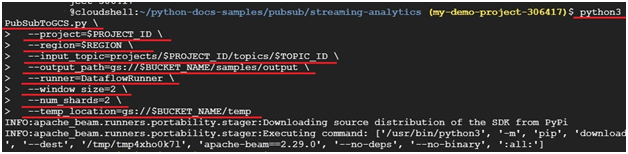
python3 PubSubToGCS.py \
–project=$PROJECT_ID \
–region=$REGION \
–input_topic=projects/$PROJECT_ID/topics/$TOPIC_ID \
–output_path=gs://$BUCKET_NAME/samples/output \
–runner=DataflowRunner \
–window_size=2 \
–num_shards=2 \
–temp_location=gs://$BUCKET_NAME/temp
Step 10: Watch the Job in Dataflow
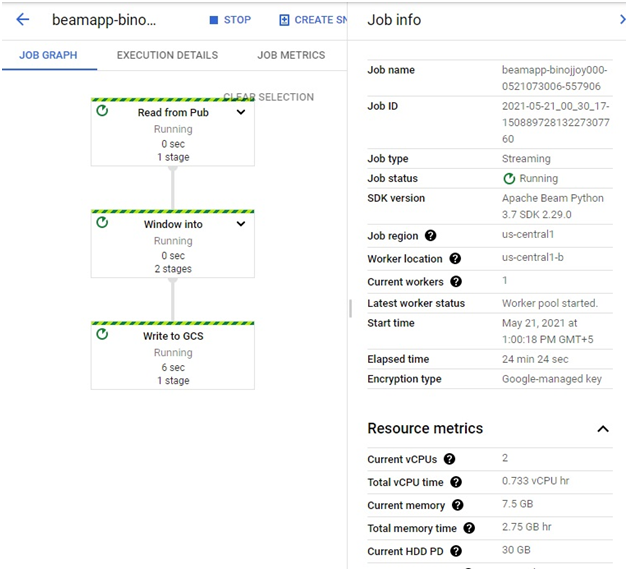
Open the menu, then Dataflow, to see the job’s progress.
Step 11: Check the Output
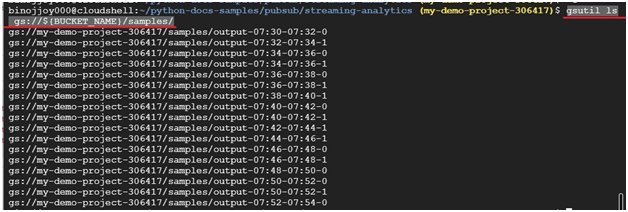
After a short wait, check the bucket for a samples folder with output inside it:
gsutil ls gs://${BUCKET_NAME}/samples/
Step 12: Clean Up
Delete the scheduler job so it stops publishing test messages:
gcloud scheduler jobs delete publisher-job

Streaming Compared to Batch Pipelines
A batch pipeline, such as the one in the ETL Processing With Dataflow and BigQuery guide, runs once against data that already exists, finishes, and stops. A streaming pipeline, like this one, starts and keeps running indefinitely, processing new data as it arrives in fixed time windows, here every two minutes as set by window_size. Streaming suits ongoing sources such as a live event feed, while batch suits a fixed file or table you already have in hand.
Common Mistakes to Avoid
- Downgrading Apache Beam to an old pinned version to work around an install error. Install a current version instead, the old pin creates more problems than it solves.
- Copying commands with en dash characters instead of real double hyphens. Retype the flags if a command fails immediately.
- Leaving the Cloud Scheduler job running after you are done. It keeps publishing a message every minute until you delete it, which keeps the pipeline doing work and incurring cost.
- Pasting Python code from a web page without checking its indentation. Whitespace is significant in Python, and a page that reflows text can silently break it.
That covers streaming Pub/Sub messages into Cloud Storage with Dataflow, corrected end to end after several parts of the original had stopped working. To go further, explore Prwatech’s Google Cloud training program, which includes placement assistance.
