Creating instance in VPC Network
How to Launch a VM Instance in a Custom VPC Network on Google Cloud
When you create your first virtual machine in Google Cloud, it quietly lands in the default network. That is fine for a quick test, but real projects almost never stay there. Teams build their own Virtual Private Cloud, or VPC, network so they can choose the address ranges, separate environments such as development and production, and decide exactly which traffic is allowed in and out.
A VPC network is made of subnets, and every virtual machine lives in one of them. That has two practical consequences. The machine must be created in the same region as the subnet it uses, and nothing can reach it until you create firewall rules that allow the traffic. A custom network starts closed. New users are often caught out by exactly this, when a machine they created looks perfectly healthy but cannot be reached.
This guide takes you through the whole job. We first create a custom network and subnet, then launch a Compute Engine instance inside it using the console with every original screenshot kept in place. After that we add a firewall rule for SSH, connect to the machine to prove it works, repeat the setup with gcloud, and finish with troubleshooting, common mistakes and a short FAQ.
Default Network or Custom Network?
| Point | Default network | Custom mode network |
|---|---|---|
| Subnets | One per region, created automatically | Only the subnets you create |
| Address ranges | Chosen by Google | Chosen by you |
| Firewall rules | Includes rules allowing internal traffic, SSH and ping | No allow rules for incoming traffic until you create them |
| Best for | Quick tests and learning | Production and anything that needs planned addressing |
My advice: learn on a custom network from the start. It shows you exactly which rules your application needs, and Google’s own documentation says custom mode suits most production use.
Prerequisites:
- A Google Cloud account with a project that has billing enabled.
- The Compute Engine API enabled.
- A role that can create networks, instances and firewall rules, such as Compute Admin and Network Admin.
- A custom VPC network with at least one subnet. If you do not have one, create it with the next section.
Create a Custom VPC Network and Subnet
In the console, open the navigation menu, choose VPC network, then VPC networks, and click Create VPC network. Name it, choose the Custom subnet creation mode, and add a subnet with a name, a region and an IP range such as 10.10.0.0/24. Click Create.
The same job in gcloud takes two commands:
gcloud compute networks create my-vpc –subnet-mode=custom
gcloud compute networks subnets create my-subnet –network=my-vpc –range=10.10.0.0/24 –region=us-central1
Remember the region you chose. Your virtual machine must be in the same one.
Create a VM Instance in the VPC Network Using the Console
Menu labels move from time to time, so use the wording below as a guide.
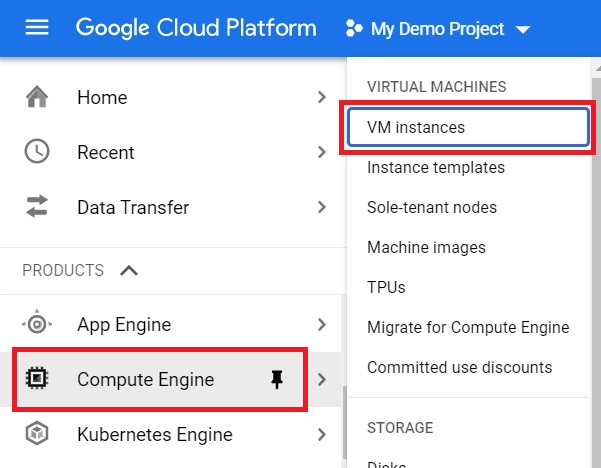
1. Open the Google Cloud console. Choose Compute Engine and then VM instances.
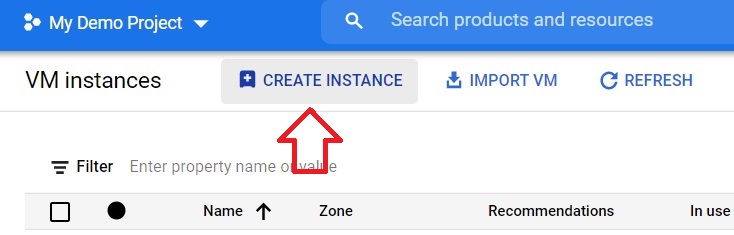
2. Click Create instance.
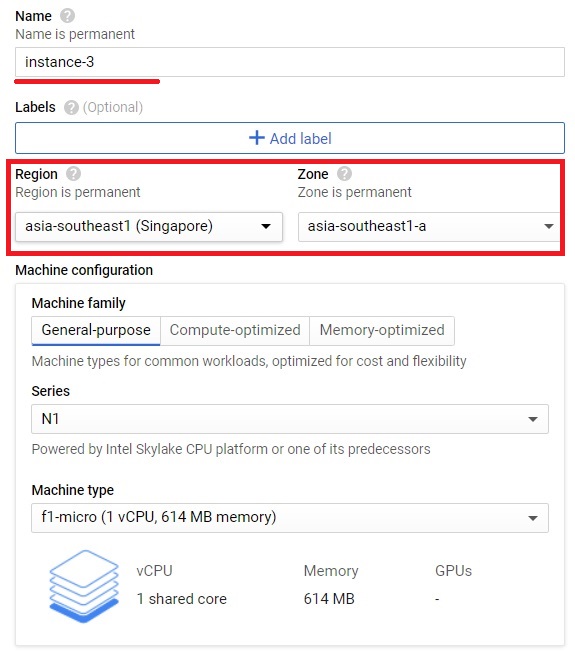
3. Give the instance a name. Choose the region that matches your subnet, and then any zone inside that region.
4. Under Firewall, tick Allow HTTP traffic and Allow HTTPS traffic if you plan to run a web server. These boxes add network tags, and you still need firewall rules in a custom network. We cover that below.
5. Open the section called Advanced options, then Networking. In older consoles it is named Management, security, disks, networking, sole tenancy.
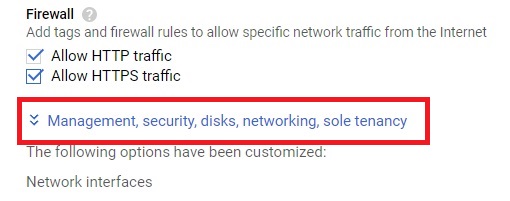
6. Under Network interfaces, select the VPC network and the subnetwork you created.
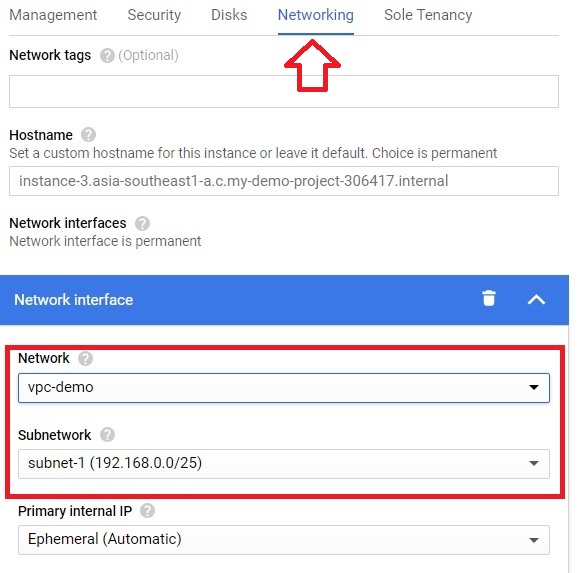
7. Click Done, then Create.
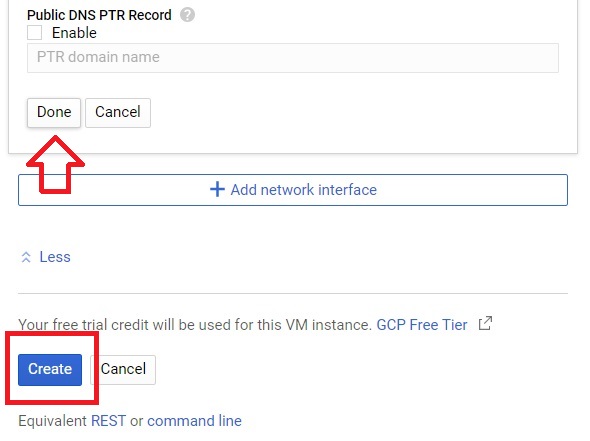
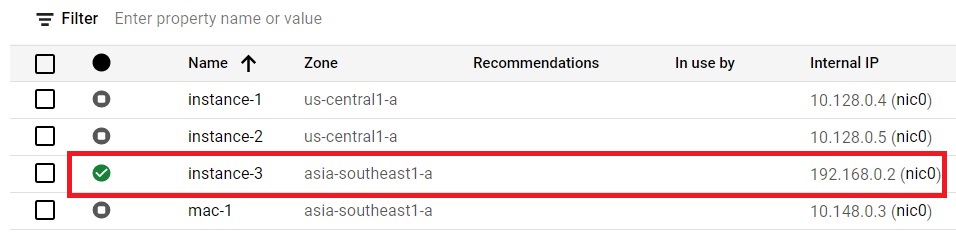
8. When the instance is ready, confirm that it is in the region you chose and has an internal IP address. It will show an external address too unless you turned it off.
Create a Firewall Rule to Allow SSH
A custom network does not allow incoming connections until you say so. To connect over SSH, you need a rule for port 22.
1. Open the navigation menu, choose VPC network and then Firewall.
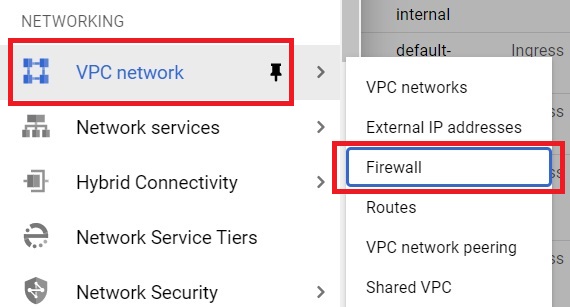
2. Click Create firewall rule.
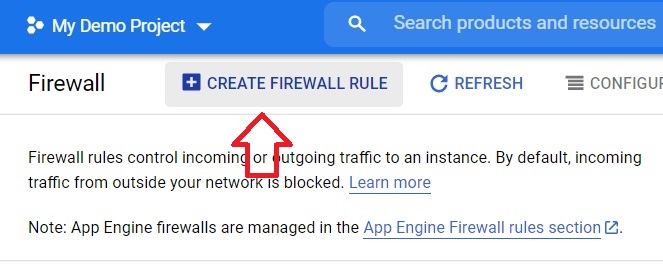
3. Enter a name, such as allow-ssh-my-vpc, and select your custom VPC network.
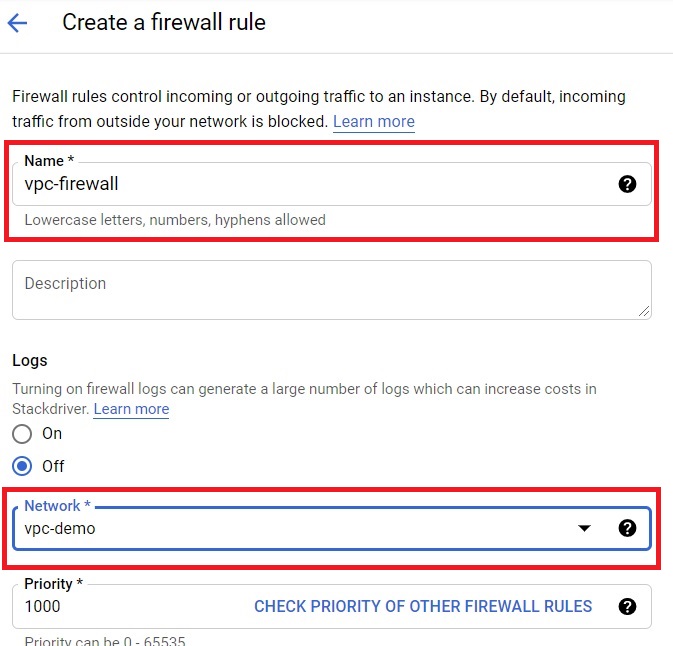
4. Choose the direction of traffic. Ingress controls connections coming in to your machines, and egress controls connections going out. For SSH you want ingress.
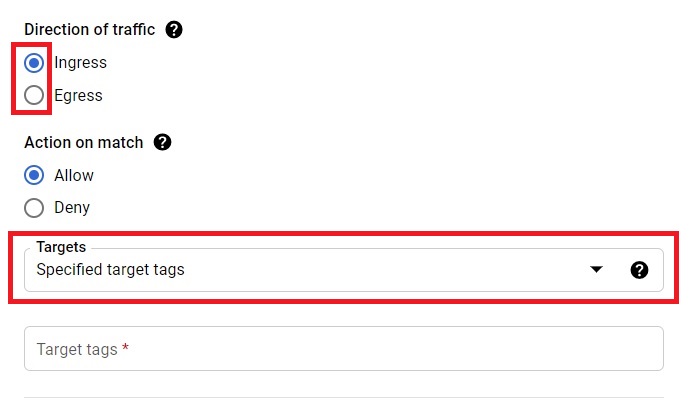
5. Set the targets to all instances in the network, or to a specific network tag. Enter the source IP ranges. Under Protocols and ports, choose TCP and enter port 22. Click Create.
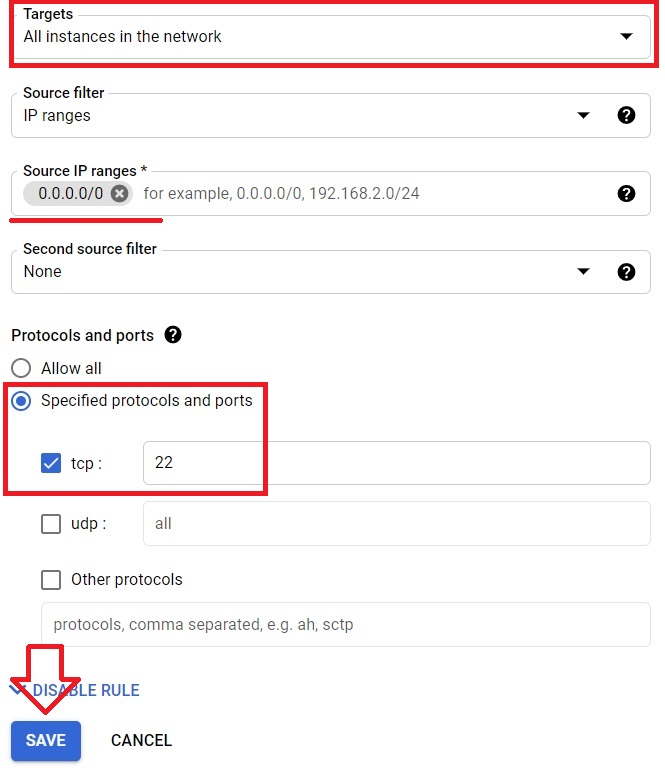
Security note: the source range decides who can try to log in. The range 0.0.0.0/0 means the whole internet, which invites constant automated login attempts. Use your own office or home address range, or use Identity-Aware Proxy, which needs the source range 35.235.240.0/20, so that no machine has SSH open to everyone.
Connect With SSH to Test the Network
1. Go back to Compute Engine and VM instances.
2. Click SSHnext to your new instance.

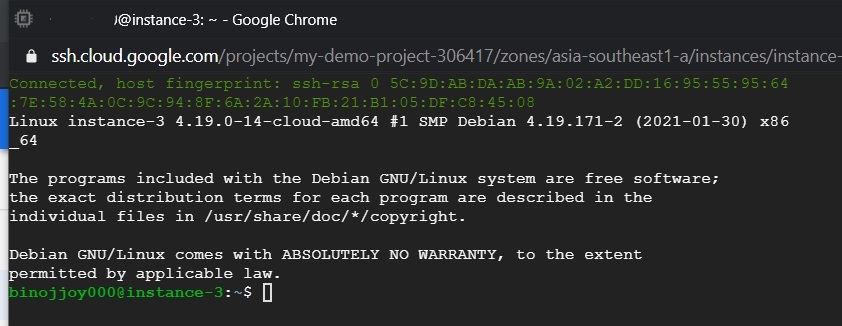
3. A browser window opens and connects. If you reach a command prompt, the machine is running inside your VPC network and your firewall rule works.
Do It With gcloud
Create the instance in your subnet:
gcloud compute instances create vpc-vm –zone=us-central1-a –subnet=my-subnet –tags=allow-ssh
Create the firewall rule, targeting only machines with that tag:
gcloud compute firewall-rules create allow-ssh-my-vpc –network=my-vpc –direction=INGRESS –action=allow –rules=tcp:22 –source-ranges=35.235.240.0/20 –target-tags=allow-ssh
Replace the source range with your own address range if you are not using Identity-Aware Proxy. Then connect:
gcloud compute ssh vpc-vm –zone=us-central1-a
If you want a web server on this machine, create a second rule allowing TCP ports 80 and 443 in the same way.
When SSH Does Not Connect
- No rule for port 22.This is the most common cause in a custom network. Create the ingress rule.
- Rule targets the wrong tag.Check that the tag on the machine matches the tag in the rule.
- Rule on the wrong network.The rule must belong to the same VPC network as the machine.
- Source range does not include you.Your current address must fall inside the range.
- No external address.A machine without one cannot be reached directly from the internet. Use Identity-Aware Proxy or a bastion host.
Common Mistakes to Avoid
- Choosing a region without a subnet.You cannot create instances in a region that has no subnet in your network.
- Trusting the HTTP and HTTPS boxes.In a custom network they add tags only. Create the rules.
- Opening SSH to the whole internet.Use a narrow range or Identity-Aware Proxy.
- Copying commands with curly quotes or a long dash.Pasting from a web page can change the double dash before a flag into a single long character. Type the flags by hand if a command fails oddly.
- Leaving test machines running.Delete the instance and the network when you finish, to avoid charges.
You now have a custom network, a machine inside it and a firewall rule that lets you connect. From here, try adding a second subnet in another region, or a web server with its own narrow rule for ports 80 and 443.
