Routes in GCP
How to Create a Custom Route in a GCP VPC Network
Every packet that leaves a virtual machine in Google Cloud needs directions. Should it stay inside the network, go out to the internet, or travel through a VPN tunnel to your office? The thing that answers that question is a route. Routes are the rules a Virtual Private Cloud network uses to decide where traffic goes next.
Most of the time you never touch them. Google Cloud creates routes automatically, so your machines can talk to each other and reach the internet from the moment you create a network. Routes matter when your design gets more interesting: sending traffic through a firewall appliance, reaching an on premises network, steering one group of machines differently from another, or blocking the default internet path.
This guide explains what a route is made of, the types you will meet, and how Google Cloud picks one when several match. Then it shows you how to create a custom static route in the console with the original screenshots kept in order, repeats the job with gcloud, and ends with common mistakes and a short FAQ.
What is a Route in a VPC Network?
A route tells the network that traffic heading for a certain range of addresses should be sent to a certain next hop. Each route has a few fields.
| Field | What it does |
|---|---|
| Destination | The range of IP addresses the route applies to, written in CIDR format such as 10.50.0.0/24 |
| Next hop | Where matching traffic is sent, such as the default internet gateway, a virtual machine, a VPN tunnel or an internal load balancer |
| Priority | A number that breaks ties between routes with the same destination. A lower number wins |
| Network tags | An optional list of tags that limits the route to machines carrying those tags |
| Network | The VPC network the route belongs to |
Types of Routes You Will See
- Subnet routes.Google Cloud creates one automatically for every subnet range. They make machines in different subnets reach each other.
- The default route.A route for 0.0.0.0/0 with the default internet gateway as its next hop. It is created with a new network and sends traffic to the internet when nothing more specific matches. You can remove or replace it.
- Custom static routes.The ones you create by hand, which is the subject of this guide.
- Dynamic routes.Learned automatically from your on premises network through a Cloud Router using BGP.
- Peering routes.Imported from a peered VPC network.
- Policy based routes.Rules that match on things like source address or protocol, and are checked before the others.
How Google Cloud Picks a Route?
Several routes can match the same packet, so Google Cloud runs a selection order. Reading Google’s documentation, the main points for a custom route are these:
- Policy based routes are checked first, and subnet routes are used next for traffic inside your own ranges.
- Among static and dynamic routes, the most specific destination wins. A route for 10.50.0.0/24 beats a route for 10.0.0.0/8.
- If two routes have the same destination, the one with the higher priority wins, which means the lower number.
- Routes whose next hop is unusable, such as a stopped virtual machine, are ignored.
- If no route matches, the packet is dropped.
That explains why the default route is a last resort. Its destination 0.0.0.0/0 is the least specific range possible, so any more specific route wins over it.
Prerequisites:
- A Google Cloud account with a project that has billing enabled.
- A VPC network. The default network works for practice.
- A role that can manage routes, such as Compute Network Admin.
- A next hop to point the route at, for example a virtual machine, VPN tunnel or load balancer.
Create a Route Using the Console
Menu labels move from time to time, so treat the wording below as a guide.
1. Sign in to the Google Cloud console.
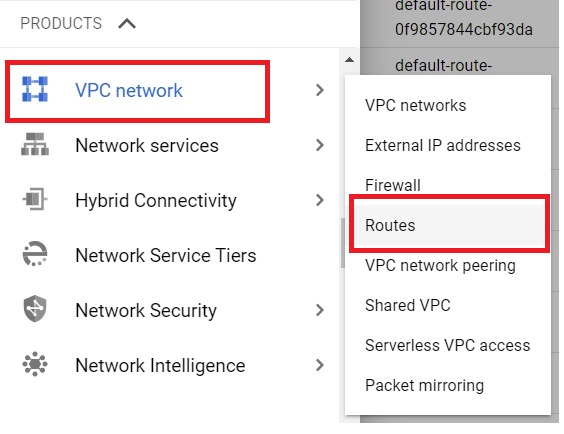
2. Open the navigation menu, choose VPC network and then Routes. This page lists every route in the project, including the automatic ones.
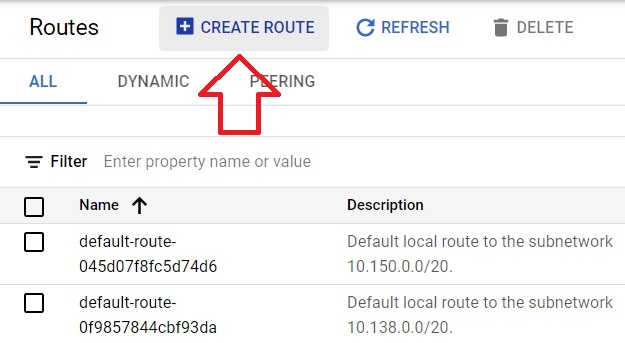
3. Click Create route.
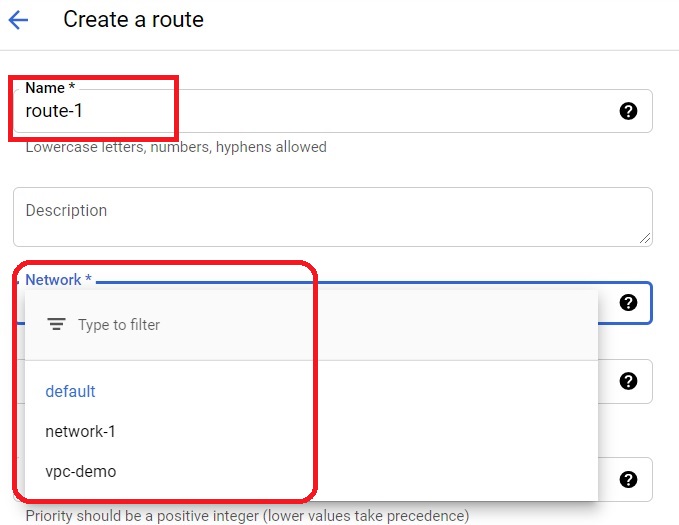
4. Give the route a clear name, such as route-to-appliance, and select the network, either the default network or your own VPC network.
5. Enter the destination IP range for the route in CIDR format. To apply the route only to certain machines, add network tags. Then choose the next hop type and target, and set a priority. The default priority is 1000, and a lower number wins.
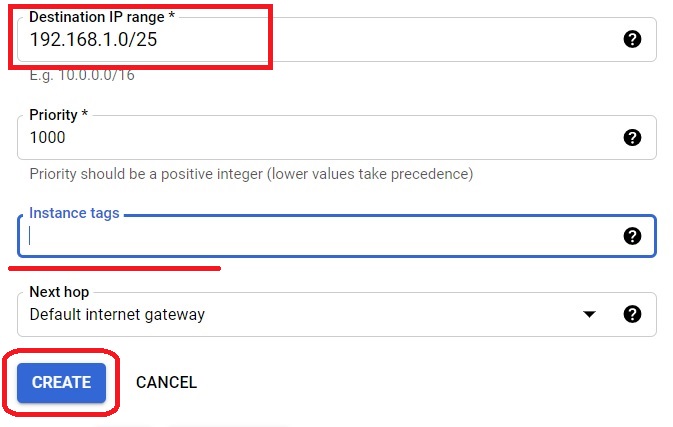
6. Click Create. The route appears in the list within a few seconds.
Create a Route With gcloud
The same route from the command line, using a virtual machine as the next hop:
gcloud compute routes create route-to-appliance –network=default –destination-range=10.50.0.0/24 –next-hop-instance=appliance-vm –next-hop-instance-zone=us-central1-a –priority=900 –tags=app-servers
Machines that carry the app-servers tag will now send traffic for 10.50.0.0/24 to appliance-vm. The next hop machine must have IP forwarding enabled, which you set when you create it:
gcloud compute instances create appliance-vm –zone=us-central1-a –can-ip-forward
List the routes in your network to confirm, and delete the route when you finish:
gcloud compute routes list –filter=”network:default”
gcloud compute routes delete route-to-appliance
Choosing a Next Hop
- Default internet gateway.Sends traffic to the internet. Use it to restore internet access for a range.
- Sends traffic to a virtual machine, such as a firewall or proxy appliance. The machine needs IP forwarding turned on.
- VPN tunnel.Sends traffic to your on premises network through Cloud VPN.
- Internal passthrough load balancer.Spreads traffic across several appliances for higher availability.
Things to Know Before You Rely on It
- You cannot create a static route whose destination falls inside an existing subnet range. Subnet routes always take precedence.
- Network tags apply a route to only the machines that carry them. A route with no tags applies to every machine in the network.
- Removing or replacing the default route can cut outbound internet access for machines that depend on it, so plan before you delete.
- A route does not open anything by itself. Firewall rules still decide whether traffic is allowed.
Common Mistakes to Avoid
- Forgetting IP forwarding.Traffic sent to a virtual machine next hop is dropped if the machine cannot forward packets.
- Mixing up priority.A lower number wins, so 100 beats 1000.
- Overlapping a subnet range.Google Cloud will reject a static route that sits inside an existing subnet.
- Blaming the route when the firewall is the problem.Check firewall rules as well as routes when traffic does not arrive.
- Copying commands with curly quotes or a long dash.Pasting from a web page can change the double dash before a flag into a single long character. Type the flags by hand if a command fails oddly.
Once you understand destination, next hop and priority, Google Cloud routing stops feeling mysterious. Start with a single tagged route to a test machine, confirm it with the routes list, and build up from there.
