Creating Scheduled Query in BigQuery
Creating a Scheduled Query in BigQuery
Scheduled queries in BigQuery represent a valuable feature for automating and optimizing recurring data processing tasks within Google’s cloud-based data warehouse platform. This introduction will delve into the fundamentals of creating scheduled queries in BigQuery, empowering users to leverage automation for seamless execution of data transformations, reports generation, and other periodic operations.
Scheduled queries enable users to define SQL queries or Data Definition Language (DDL) statements and schedule them to run at predefined intervals, ranging from minutes to months. This automation eliminates the need for manual intervention, ensuring timely execution of critical data tasks without the hassle of manual execution.
The process of creating a scheduled query involves specifying the SQL code to be executed, setting the desired execution schedule, and configuring optional parameters such as destination table for query results, notification preferences, and error handling mechanisms. This streamlined workflow enables users to define complex data processing pipelines with ease, streamlining operations and reducing overhead.
Scheduled queries in BigQuery offer several benefits, including improved operational efficiency, enhanced data timeliness, and simplified management of recurring tasks. Whether it’s generating daily reports, updating aggregations, or performing data validations, scheduled queries provide a robust mechanism for automating repetitive data workflows, freeing up valuable time and resources for more strategic endeavors. Join us as we explore the capabilities of scheduled queries in BigQuery and unlock new possibilities for automated data processing.
Step by Step Process of Creating a Scheduled Query
Step One: Write Your Query
In the console, open the menu, then go to BigQuery, and type your query into the query editor.
Step Two: Open the Schedule Menu
Click on Schedule > Create a new Scheduled Query.
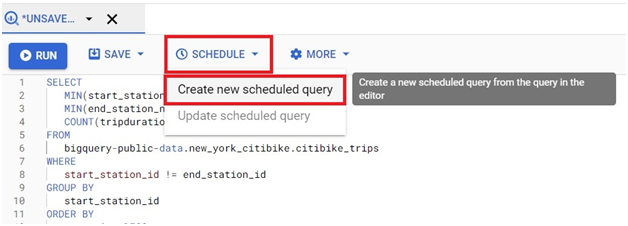
Step Three: Name the Query and Set Its Frequency
Give the scheduled query a name, and choose how often it should repeat.
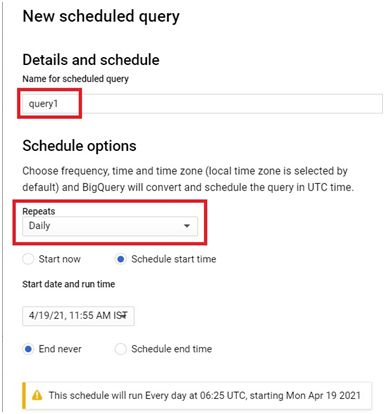
Step Four: Choose Who the Query Runs As
This is the step worth slowing down for. By default, the query runs under your own personal Google account credentials. That works fine at first, but personal credentials can expire, get revoked, or lose access if your permissions change later, and when that happens the scheduled query starts failing without any obvious warning. If a service account is available in your project, choosing it here instead avoids that problem, since a service account is not tied to any one person’s login session the way your own credentials are.
Step Five: Turn On Failure Notifications
While setting up the schedule, look for Send email notifications and turn it on, so you are told directly the moment a run fails rather than discovering it later through a stale report. If your team already routes alerts through Pub/Sub, you can also enter a Pub/Sub topic here to send failure notifications there instead of, or alongside, email.
Step Six: Set the Destination
Choose the dataset and table where the query’s results should be written, then click Schedule.
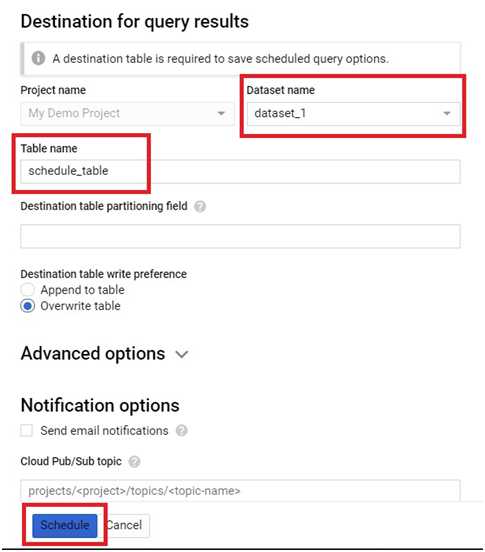
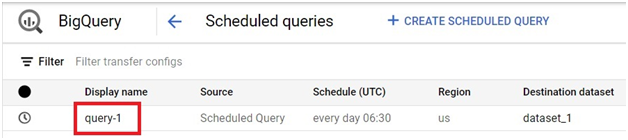
Step Seven: Confirm It is Scheduled
Click on Big Query > Scheduled Queries
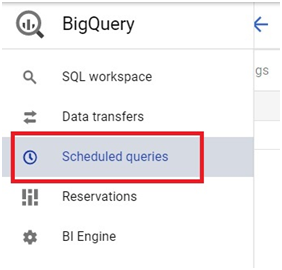
Your scheduled query will appear in the list.
Why Scheduled Queries Fail Silently
A scheduled query that fails does not interrupt anything or show up on a dashboard by default. It simply does not update its destination table, and unless you are actively checking the Scheduled Queries list, a failed run can go unnoticed for a long time, quietly leaving a report or downstream process working from stale data. Choosing a service account for authentication and turning on failure notifications, as covered above, are the two most effective ways to close that gap.
Common Mistakes to Avoid
- Leaving a scheduled query on your personal credentials indefinitely. Fine for a quick test, but for anything long running or important, switch to a service account before it becomes someone else’s problem to debug months later.
- Never checking the Scheduled Queries list. Even with notifications on, it is worth glancing at this list occasionally to confirm recent runs actually succeeded.
- Assuming a successful first run means it will always succeed. Permissions, credentials, and even the underlying tables a query depends on can all change after the fact, so a query that worked last month is not guaranteed to keep working without anyone touching it.
That covers scheduling a query in BigQuery, and setting it up so it does not fail quietly. To go further, explore Prwatech’s Google Cloud training program, which includes placement assistance.
