Accessing Cloud SQL from BigQuery
Querying Cloud SQL Data in BigQuery
BigQuery can query data sitting in a Cloud SQL instance directly, without first copying it in, using a feature called a federated query. You set up a connection once, then reference it inside a query using the EXTERNAL_QUERY function, and BigQuery sends your query to Cloud SQL, gets the result back, and converts it into BigQuery’s own data types.
Step by Step Process of Querying Cloud SQL Data in BigQuery
Step One: Enable the BigQuery Connection API
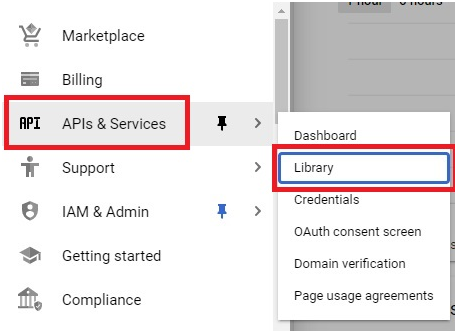
In the console, open the menu, then go to APIs and Services, then Library.
Open Menu > API & Services > Library
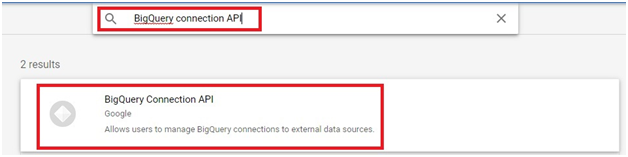
Search for the BigQuery Connection API and open it.
Open It.
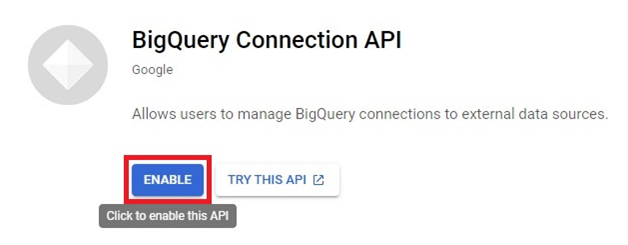
Click on Enable to enable API
Step Two: Open Your Cloud SQL Instance
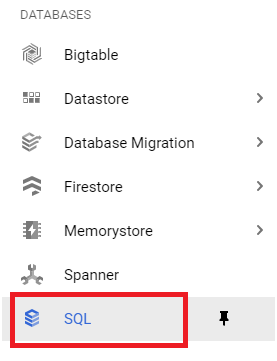
Open the menu, then go to SQL.
menu > SQL
Open your Cloud SQL instance.
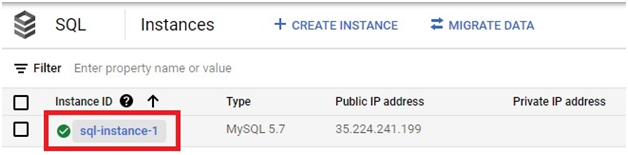
Step Three: Choose Public or Private IP
Open the Connections tab.
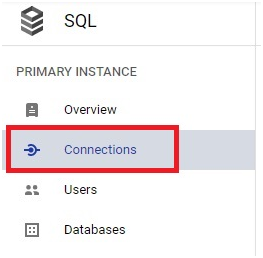
For a quick test, confirm Public IP is enabled here. For anything beyond a scratch project, consider configuring private IP connectivity instead, and selecting the enable private path option on the BigQuery side when you create the connection in the next step. Private connectivity keeps traffic between BigQuery and Cloud SQL off the public internet entirely, which current Google Cloud guidance treats as the safer default.
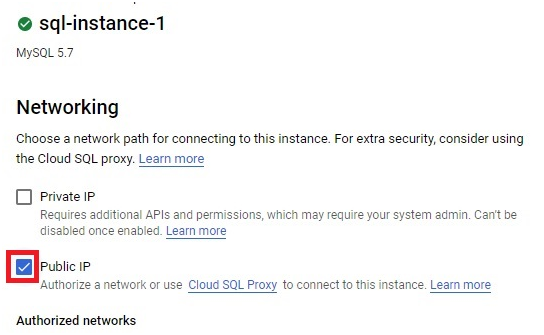
Step Four: Start Creating the Connection in BigQuery
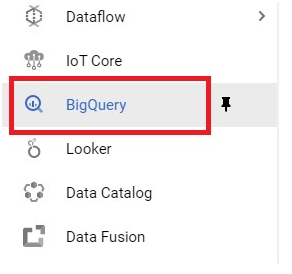
Open the menu, then go to BigQuery.
Open Menu > BigQuery
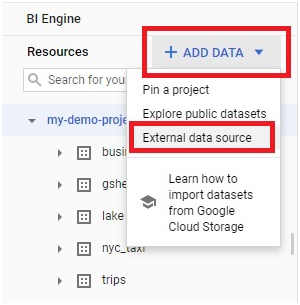
Click on Add Data > External Data Source
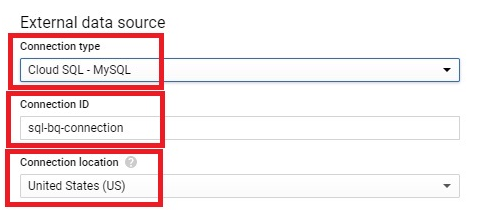
Choose your connection type, matching the database engine your Cloud SQL instance runs, MySQL or PostgreSQL. Give the connection an ID and choose a data location. Pick the same location as your Cloud SQL instance, since a federated query can only run against a resource in the same region as the connection.
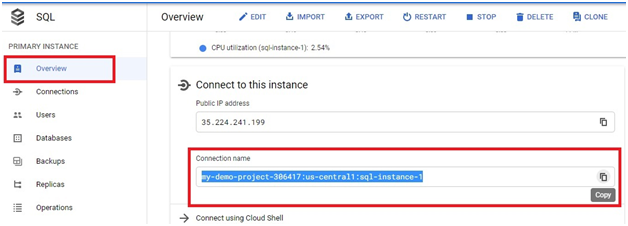
Step Five: Copy the Cloud SQL Connection Name
In a new tab, open the menu, then SQL, then your instance’s Overview page, and copy its connection name.
In new tab, Open Menu > SQL Instance > Overview Copy the connection name
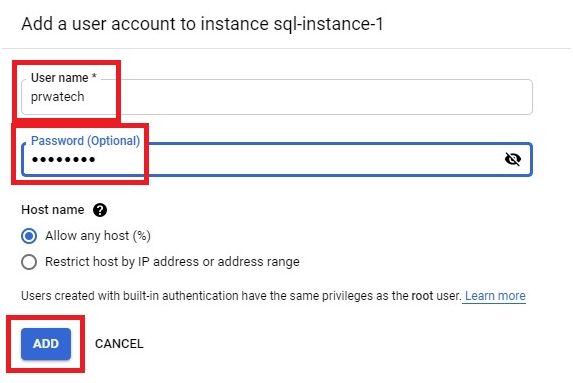
Click on users. If your user account is there, you can skip this step. Else add the user accoount.
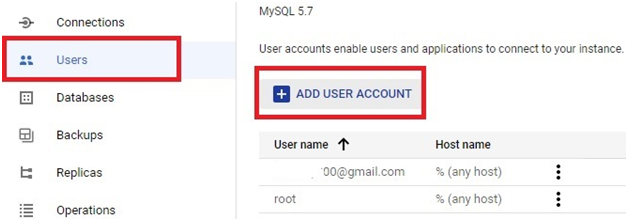
Step Six: Confirm or Add a Database User
Click Users. If the account you want to connect with is already listed, you can skip ahead. Otherwise, add it.
Step Seven: Finish Creating the Connection
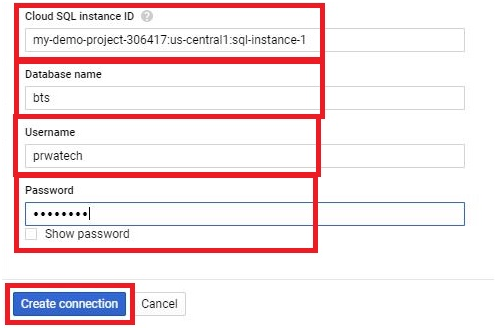
Back in the BigQuery tab, paste the Cloud SQL instance connection name, along with the database name, username, and password for the account you just confirmed or created. Click Create Connection.
Step Eight: Share the Connection, if Needed
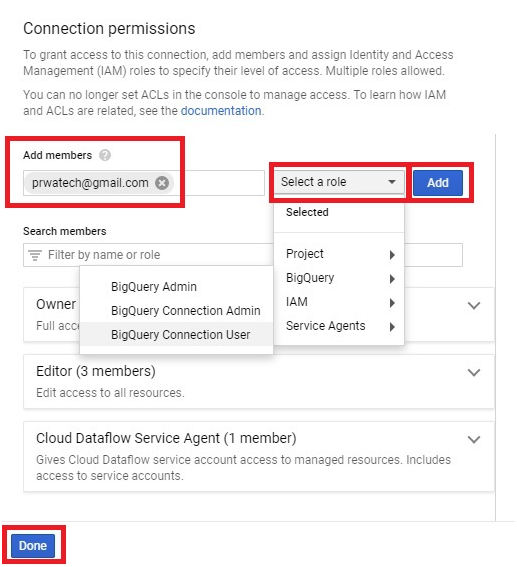
If other people need to view, edit, or otherwise use this connection, click Share Connection.
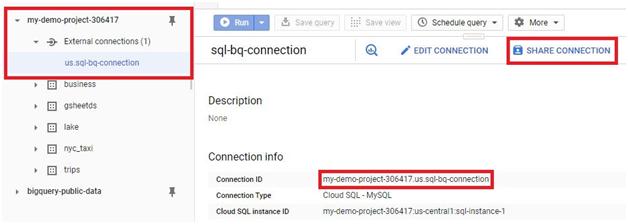
The connection will be created.
Enter their email address, choose a role, click Add, then Done.
Step Nine: Run a Federated Query
Click Query Connection. This adds a starter query into the query editor:
SELECT * FROM EXTERNAL_QUERY(“<project-ID>.<Location>.<connection-ID>”,”<SQL QUERY>”);
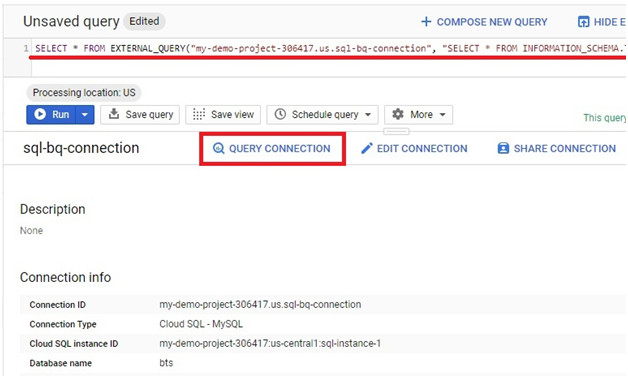
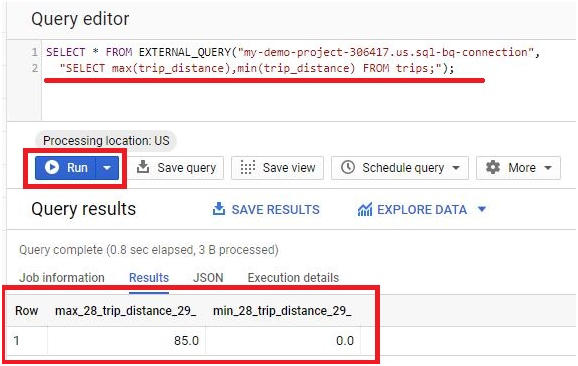
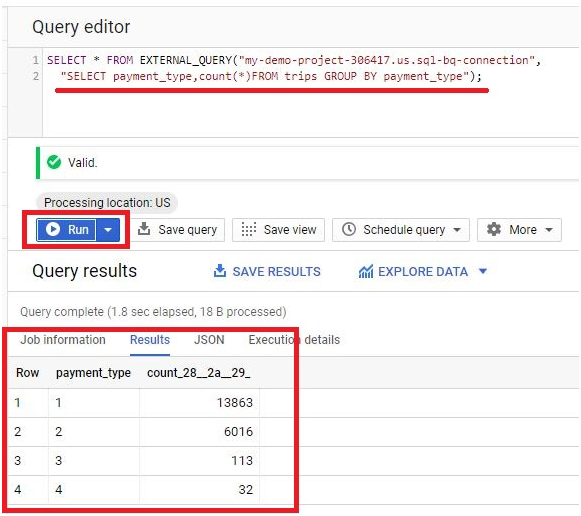
Change only the SQL query text inside the quotes, written in your Cloud SQL database’s own SQL dialect. Leave the EXTERNAL_QUERY function call and the project, location, and connection ID section exactly as generated. Click Run, and it executes the same as any other BigQuery query.
An Important Limitation: Federated Queries Are Read Only
A federated query can only read data out of Cloud SQL. You cannot use EXTERNAL_QUERY to insert, update, or delete rows back in the source database. If your workflow needs to write data somewhere, that write has to happen through a normal connection to Cloud SQL directly, not through this BigQuery connection.
Common Mistakes to Avoid
- Placing the BigQuery connection and the Cloud SQL instance in different regions. A federated query can only reach a resource in the same region as the connection, so a mismatch here will fail rather than just run slowly.
- Leaving public IP open without restricting authorized networks. If you do use public IP, restrict which IP ranges can connect to the instance at all, rather than leaving it open to any address.
- Editing the wrong part of the generated query. The project, location, and connection ID section inside EXTERNAL_QUERY is generated for you and should stay untouched. Only the SQL query string inside it needs to change.
Expecting to write data back through this connection. Federated queries are read only, so plan any writes back to Cloud SQL through a separate, direct connection.
That covers connecting BigQuery to Cloud SQL and running a federated query against it. To go further, explore Prwatech’s Google Cloud training program, which includes placement assistance.
