Displaying error message in BigQuery
Viewing Detailed Error Messages in BigQuery
Accessing detailed error messages in BigQuery is essential for diagnosing and resolving issues encountered during query execution. This introduction elucidates the importance and methods of viewing detailed error messages in BigQuery, empowering users to troubleshoot effectively and optimize query performance.
BigQuery surfaces error information in a few different places, depending on whether a query fails before it even runs, fails partway through execution, or completes but produces a result you want to flag as invalid yourself. This covers all three.
Catching Errors Before You Run a Query
As you type a query, the query editor checks it in the background. A red exclamation mark next to a line, and in the query validator at the bottom of the editor, means BigQuery has already spotted a problem, usually a syntax error, before you have even clicked Run. A green checkmark in the same spot means the query is valid and ready to execute. Catching an error here costs nothing, since the query never actually runs, whereas an error caught after clicking Run may have already used some processing time.
Common BigQuery Error Reasons to Know
When a query does fail, the error response includes a reason code that tells you what category of problem you are dealing with. A few of the most common:
- invalidQuery, a syntax error somewhere in the query itself.
- notFound, the query references a table, dataset, or column that does not exist, often a typo in a name.
- accessDenied, your account or service account does not have the right permission on the resource being queried.
- resourcesExceeded, the query needed more memory or resources than allowed, often fixable by simplifying the query or filtering data earlier.
- billingTierLimitExceeded, the query is scanning or processing far more data than expected, often due to an inefficient join.
Knowing the category narrows down where to look immediately, rather than rereading the entire query line by line.
BigQuery surfaces error information in a few different places, depending on whether a query fails before it even runs, fails partway through execution, or completes but produces a result you want to flag as invalid yourself. This covers all three.
Catching Errors Before You Run a Query
As you type a query, the query editor checks it in the background. A red exclamation mark next to a line, and in the query validator at the bottom of the editor, means BigQuery has already spotted a problem, usually a syntax error, before you have even clicked Run. A green checkmark in the same spot means the query is valid and ready to execute. Catching an error here costs nothing, since the query never actually runs, whereas an error caught after clicking Run may have already used some processing time.
Common BigQuery Error Reasons to Know
When a query does fail, the error response includes a reason code that tells you what category of problem you are dealing with. A few of the most common:
- invalidQuery, a syntax error somewhere in the query itself.
- notFound, the query references a table, dataset, or column that does not exist, often a typo in a name.
- accessDenied, your account or service account does not have the right permission on the resource being queried.
- resourcesExceeded, the query needed more memory or resources than allowed, often fixable by simplifying the query or filtering data earlier.
- billingTierLimitExceeded, the query is scanning or processing far more data than expected, often due to an inefficient join.
Knowing the category narrows down where to look immediately, rather than rereading the entire query line by line.
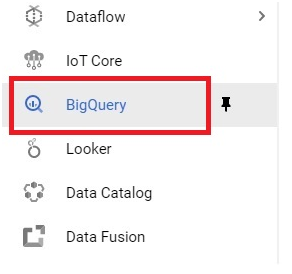
Step One: Open BigQuery
In the console, open the menu, then go to BigQuery.
Open Menu > Bigquery
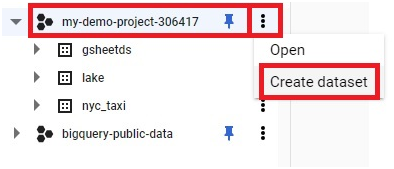
Step Two: Create a Dataset
Click the three dots next to your project, then Create Dataset.
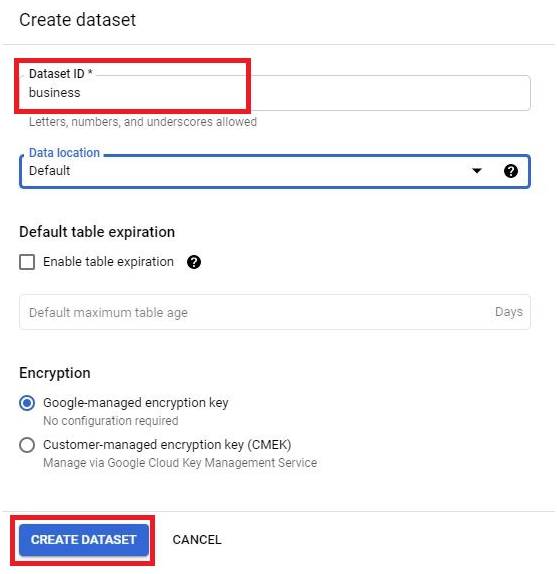
Give Dataset ID.
Click Create Dataset.
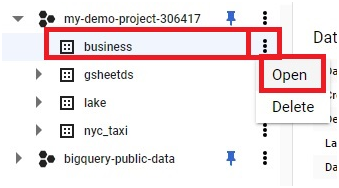
Step Three: Open the Dataset
Click the three dots next to the dataset, then Open.
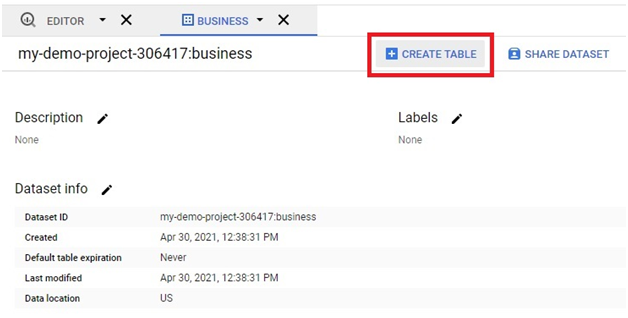
Step Four: Create a Table
Click Create Table.
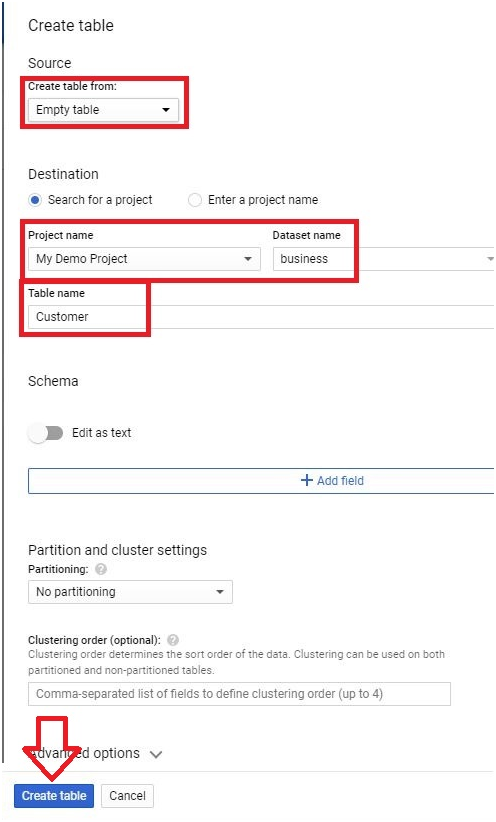
Choose Empty table as the source, give it a name, then click Create.
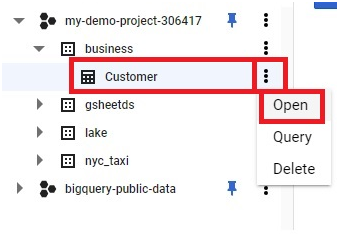
Step Five: Open the Table
Click the three dots next to the table, then Open.
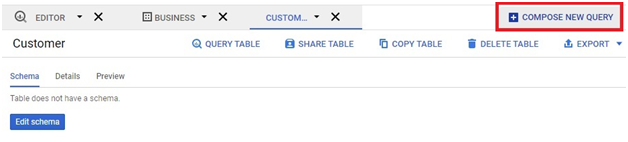
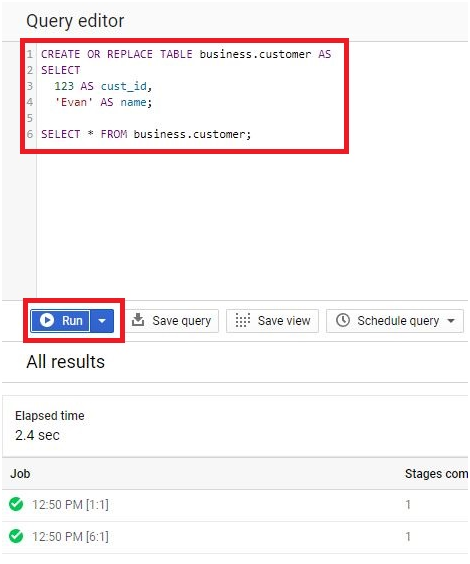
Step Six: Insert Sample Data
Click Compose new query, then paste in the following:
CREATE OR REPLACE TABLE business.customer AS
SELECT
123 AS cust_id,
“Evan” AS name;
SELECT * FROM business.customer;
Click Run.
Step Seven: Delete a Row
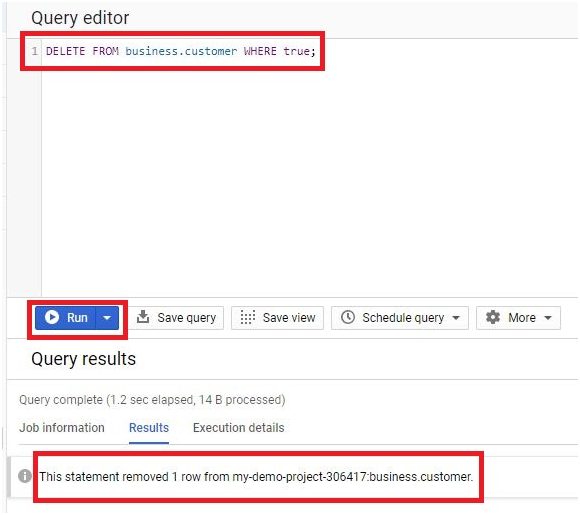
Paste the following and click Run. It removes one row.
DELETE FROM business.customer WHERE true;
Step Eight: Raise a Custom Error With the ERROR Function
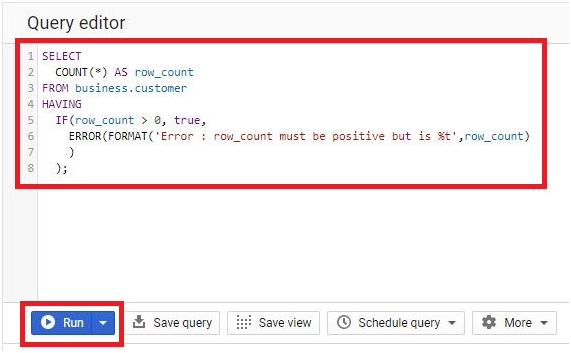
The ERROR function lets you fail a query deliberately, with your own message, when a result does not meet a condition you care about. Here, the query checks that the table has at least one row, and raises a custom error if it does not.
SELECT
COUNT(*) AS row_count
FROM business.customer
HAVING
IF(row_count > 0, true,
ERROR(FORMAT(“Error: row_count must be positive but it is %t”, row_count))
);
Click Run.
Step Nine: View the Error Message
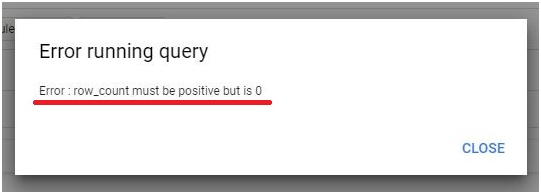
Since the table has no rows left after the delete, the condition fails and BigQuery displays the custom message you wrote inside FORMAT.
Where to Look When a Query Fails for Another Reason
Most query failures are not a custom ERROR call, they are an ordinary mistake. When one happens, click Execution Details under the query results pane to see the full job information, including the specific error reason. For jobs you are checking after the fact, the Job History tab in BigQuery lists your recent jobs, and from the command line, bq show, followed by a job ID, returns the same detail, with bq show and the pretty json format option giving you the full error object for programmatic use.
Common Mistakes to Avoid
- Copying SQL from a document or slide without checking its quotation marks. Curly quotes inserted automatically by a word processor will break a string literal in BigQuery, the same as they would in most programming languages.
- Rerunning a failed query repeatedly without checking Execution Details first. The specific error reason usually points straight at the problem, rather than needing to guess from the query alone.
- Using ERROR for something better handled with a WHERE or HAVING filter. A custom error is meant to flag a condition that should never happen, not as a general substitute for filtering data you simply do not want in a result.
That covers finding BigQuery’s own error details and raising a custom one with the ERROR function. To go further, explore Prwatech’s Google Cloud training program, which includes placement assistance.