Data Fusion with BigQuery
Cloud Data Fusion and BigQuery
Cloud Data Fusion is Google Cloud’s fully managed, visual data integration service, built on the open source CDAP project. Instead of writing code, you build a data pipeline by connecting boxes on a canvas, each one a source, a transformation, or a destination, and Data Fusion handles running it as an actual Spark job underneath.
This walks through a real pipeline: cleaning up a raw CSV of New York taxi trips using Data Fusion’s Wrangler tool, joining it against a BigQuery public dataset to turn numeric zone IDs into readable zone names and boroughs, and writing the joined result back into BigQuery as a new table.
Step by Step Process of Cloud Data Fusion and BigQuery
Step One: Prepare Your Files in Cloud Shell
Open the console and activate Cloud Shell.
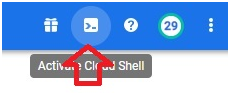
Run the following, one line at a time:
echo $GOOGLE_CLOUD_PROJECT
gsutil cp gs://cloud-training/OCBL017/ny-taxi-2018-sample.csv gs://$GOOGLE_CLOUD_PROJECT
gsutil mb gs://$GOOGLE_CLOUD_PROJECT-temp
The first line confirms your project ID. The second copies a sample taxi trip CSV from a public training bucket into your own project’s default bucket. The third creates a second, temporary bucket, which Data Fusion will use later to stage data during the pipeline run.

Confirm both buckets by opening the menu, then Cloud Storage, then Browser.
Open Menu > Cloud Storage > Browser
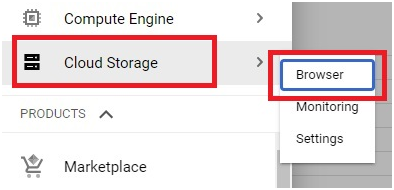
The temporary bucket is created and the file is copied in main bucket.
Step Two: Open Data Fusion and Start Wrangler
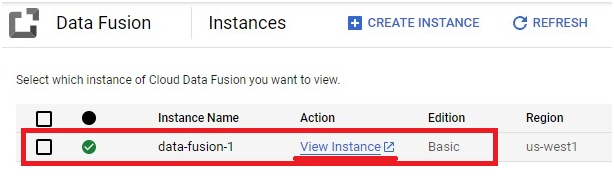
Open the menu, then Data Fusion, then click View Instance.
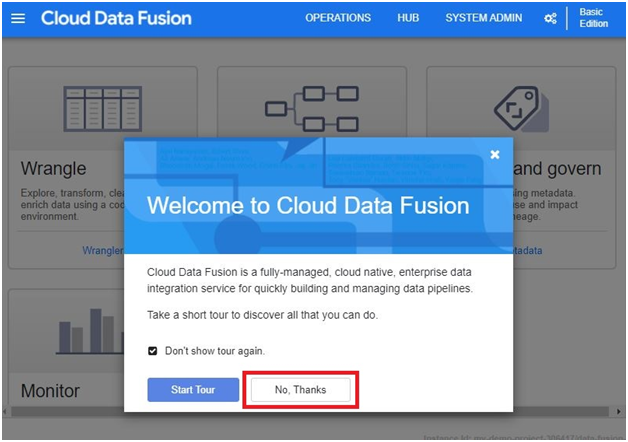
Dismiss the welcome prompt by clicking “No thanks”.
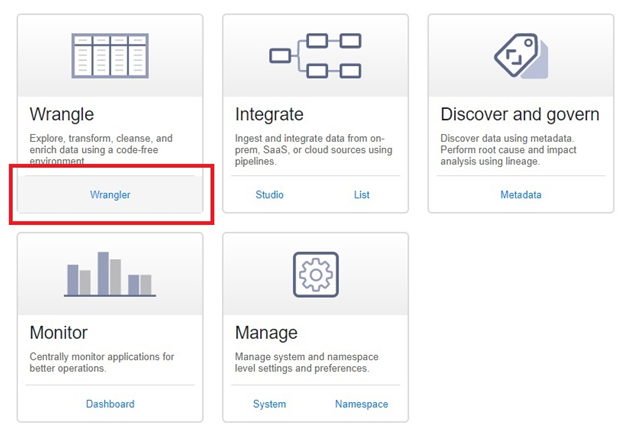
Click Wrangler, the tool used to clean and reshape raw data before it enters a pipeline.
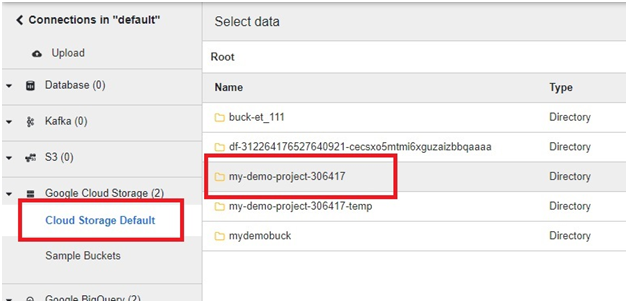
Under Default Cloud Storage, open the bucket you copied the CSV into.
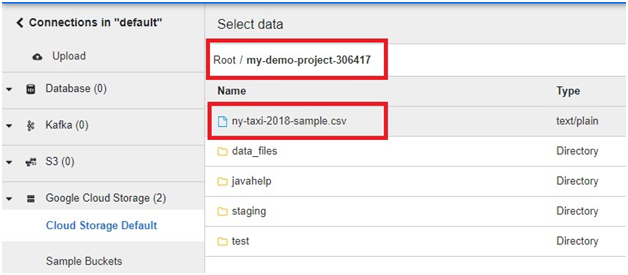
Select the copied file.
Step Three: Clean the Data in Wrangler
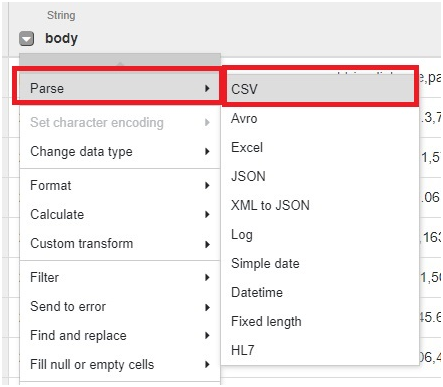
Click the dropdown arrow on the loaded column.
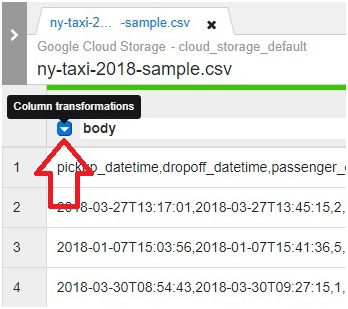
Click Parse > CSV
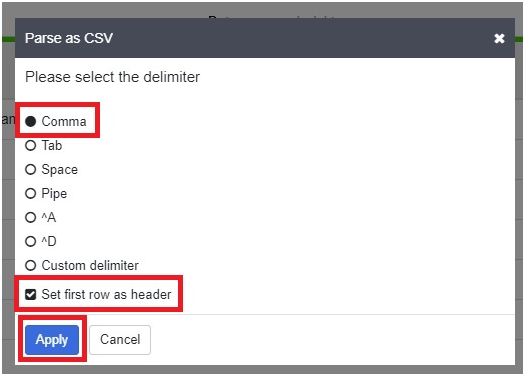
Select comma and tick set first row as header.
Click Apply
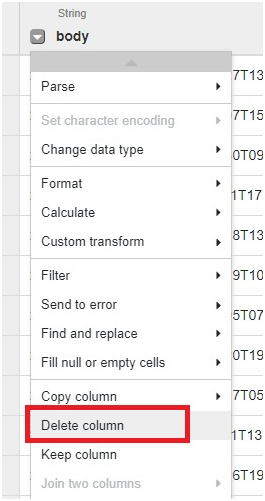
In drop down of body column, Click delete column
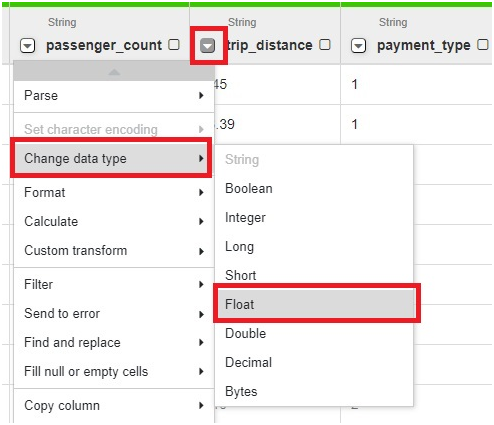
In Trip distance drop down > change data type to Float
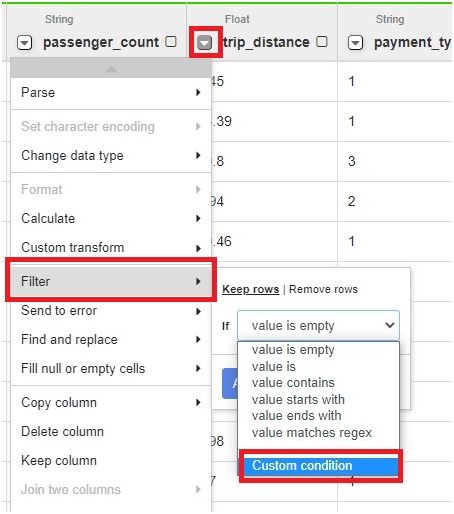
open Filter > Custom condition
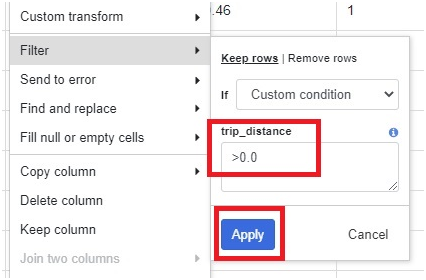
Give Condition as >0.0
Click Apply
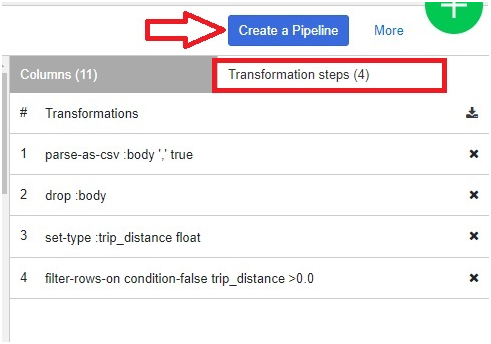
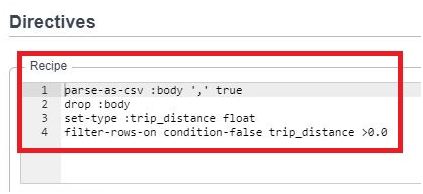
In right side of table, we can see the transformations which we did in our table
Step Four: Turn Wrangler Into a Pipeline
Click Create a pipeline.
Choose Batch Pipeline, since this runs once on a fixed dataset rather than continuously on streaming data.

A pipeline canvas opens with a Wrangler node already placed, carrying every transformation you just defined.
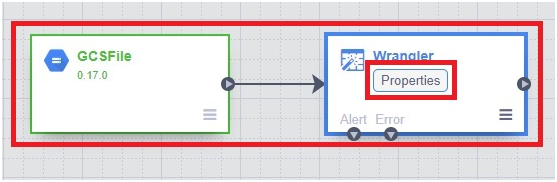
Opening its properties confirms the same transformations are recorded here.
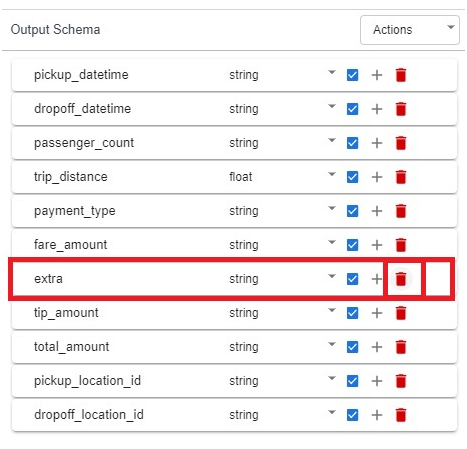
On the right, the output schema is shown. Delete the column named extra, which is not needed downstream.
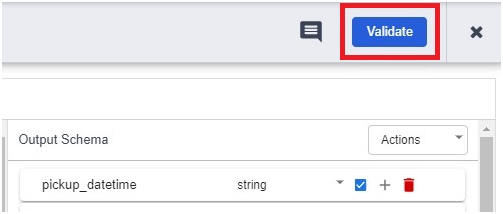
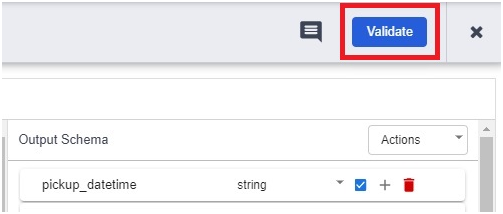
Click Validate to check the node for configuration errors.
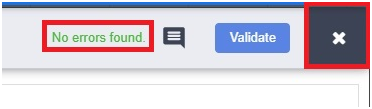
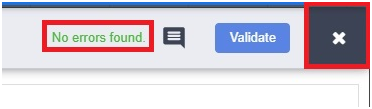
Close the validation panel once it confirms no errors were found.
Step Five: Prepare the BigQuery Side of the Join
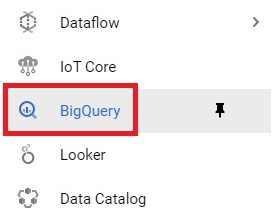
Open Console > BigQuery
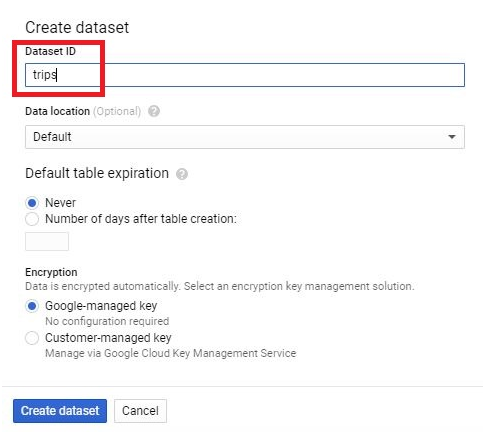
Click Create Dataset.

Give dataset name. Click Create Dataset.
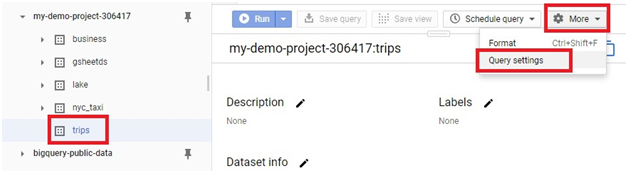
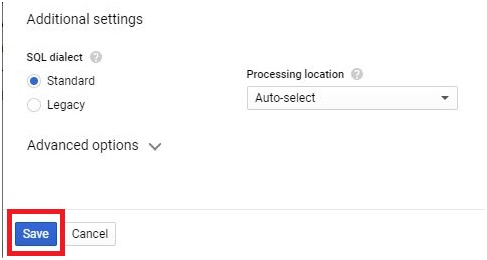
Click More, then Query Settings.
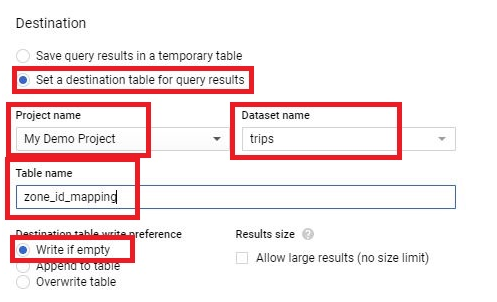
Tick Set destination table for query results, and give it your project, the dataset you just created, and a table name. Choose Write if empty or Overwrite table, so reruns do not fail on a table that already exists, then click Save.
Click save
In the query editor, paste the following, which pulls zone reference data from a BigQuery public dataset:
SELECT
zone_id,
zone_name,
borough
FROM
bigquery-public-data.new_york_taxi_trips.taxi_zone_geom
Click Run.
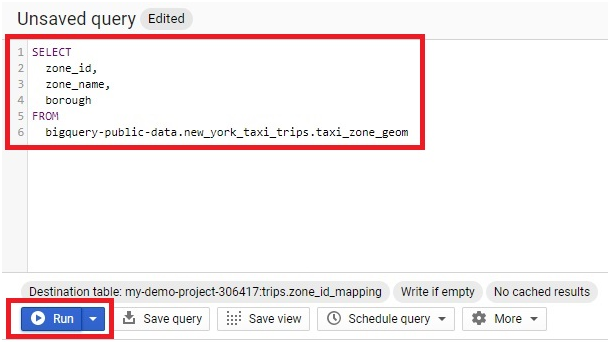
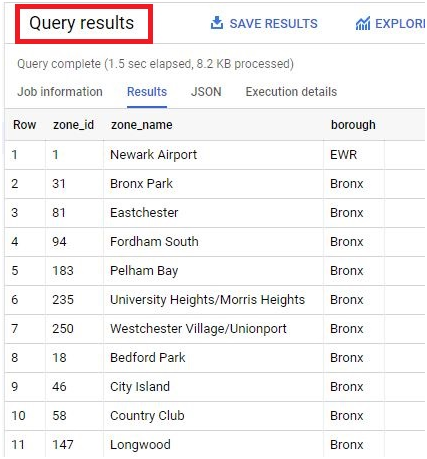
The result is written into the destination table you configured.
Step Six: Add BigQuery as a Second Source in the Pipeline
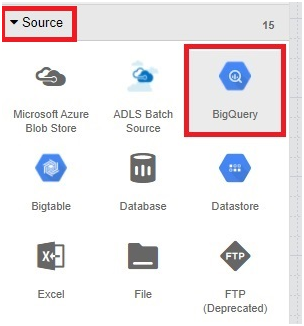
Back in Data Fusion, add a Source node, then choose BigQuery.
Source > BigQuery
Open its properties in BigQuery.
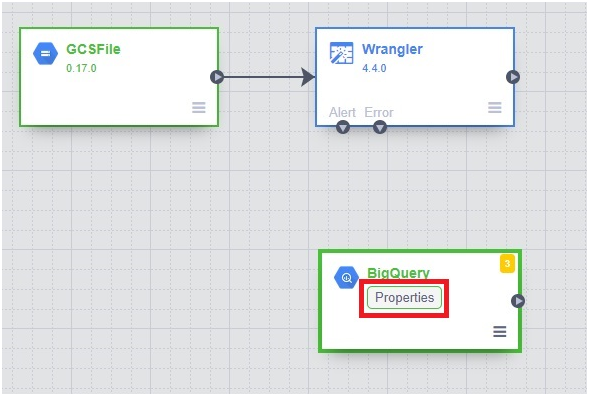
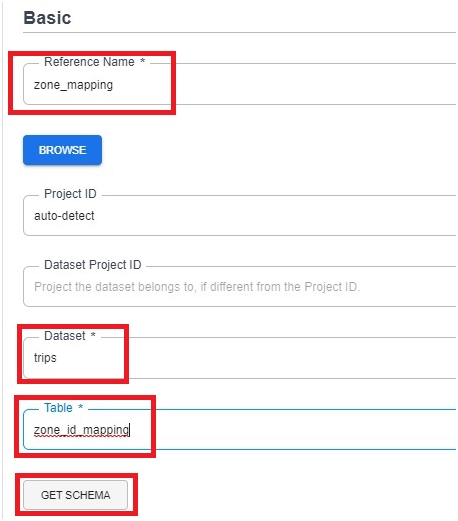
Give it a reference name, then the dataset and table name you just created, and click Get Schema.
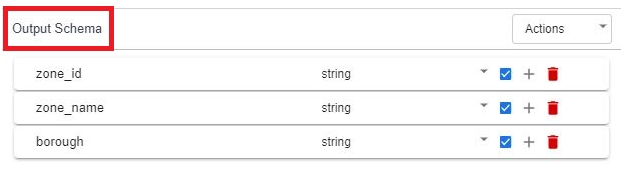
The output schema appears on the right.
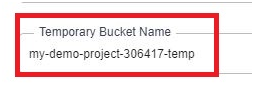
Provide the temporary bucket name you created earlier in Cloud Shell.
Click on Validate.
Close the panel once no errors are found.
Step Seven: Join the Two Data Streams
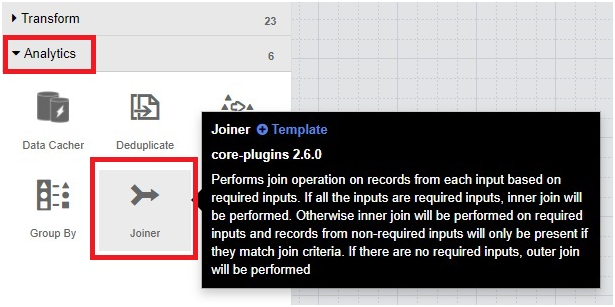
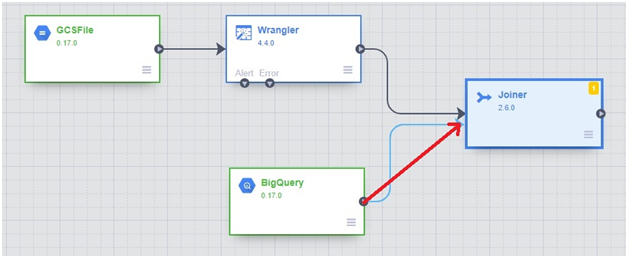
Add an Analytics node, then choose Joiner.
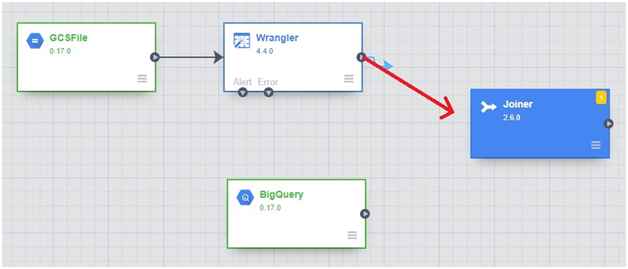
Drag a connecting arrow from both the Wrangler node and the BigQuery source node into the Joiner.
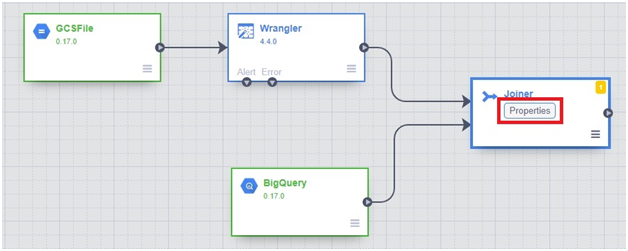
Click on properties in joiner
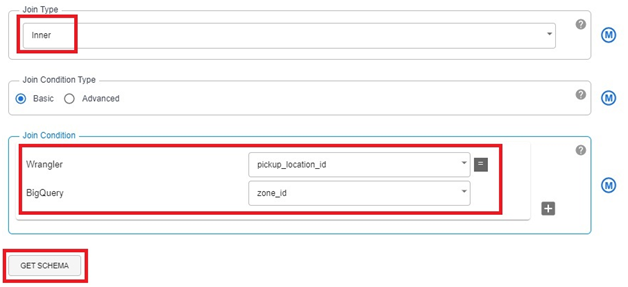
Jointype : inner
Join condition
Wrangler : pickup_location_id
BigQuery : zone_id
Click on Get Schema.
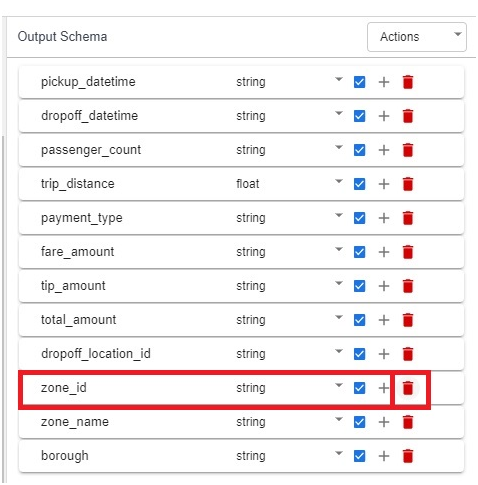
In output schema remove pickup_location_id & zone_id
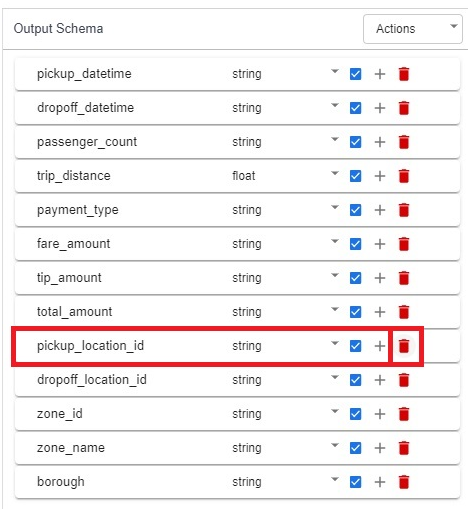
remove zone_id.
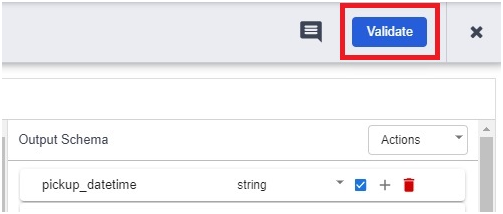
Validate.
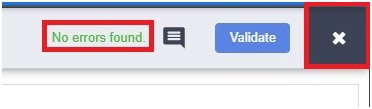
close if no errors found.
Step Eight: Send the Joined Result to BigQuery
Add a Sink node, then choose BigQuery.
Sink > bigQuery
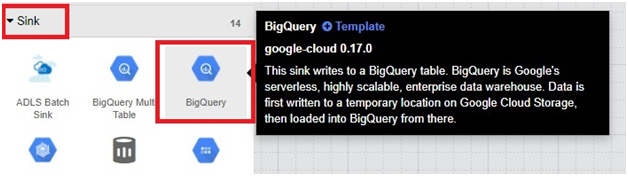
Open its properties in second big query.
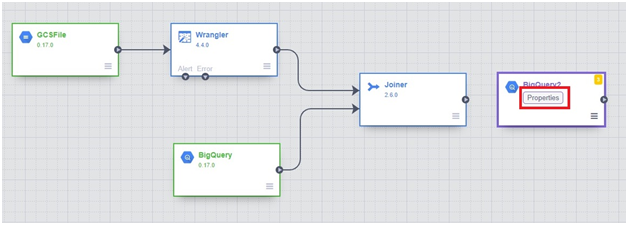
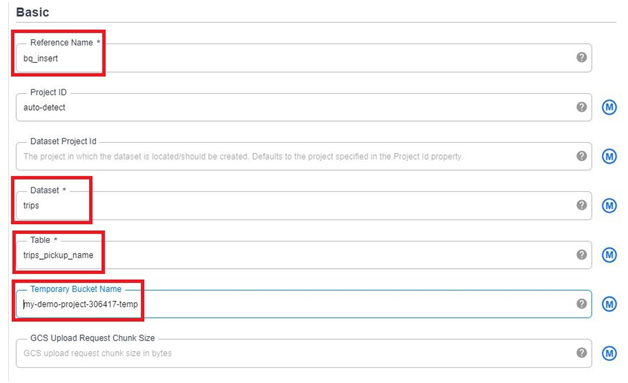
Give it a reference name, a dataset and table name for the final joined output, and the same temporary bucket name used earlier.
Click on Validate.
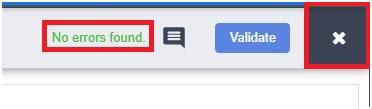
close if no errors found
Now drag the arrow from Joiner
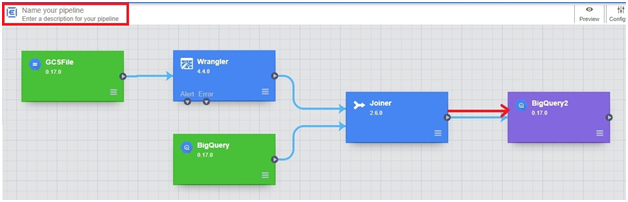
Step Nine: Deploy and Run the Pipeline
Give the pipeline a name, then click Save.
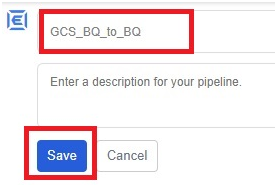
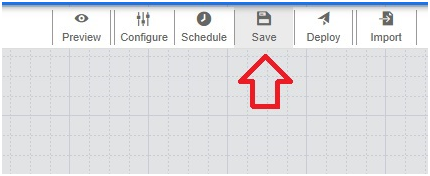
Click Save.
Click Deploy.
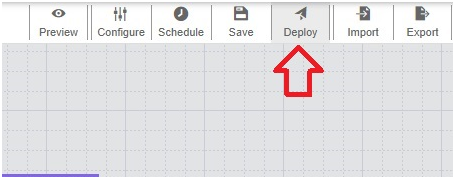
It will deploy pipeline

Click Run. A full execution typically takes around 10 to 15 minutes, since Data Fusion provisions an actual Spark cluster to run it.
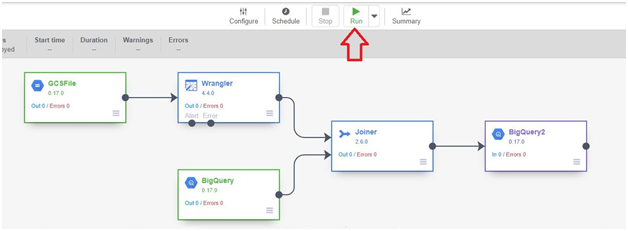
It will Start Execution. This execution will take arround 10-15 minutes.
Execution is Provisioning
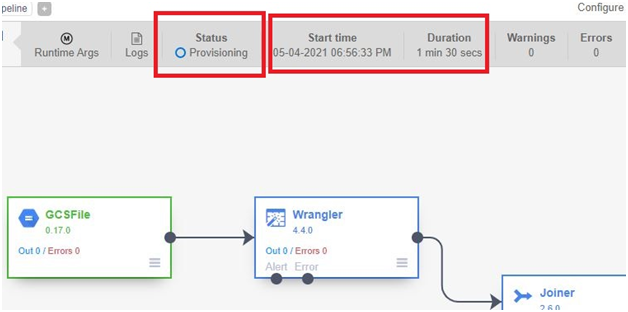
Starting

Running

Finished Successfully.
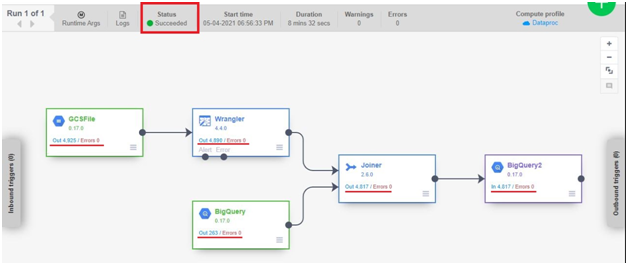
Step Ten: Confirm the Result
In BigQuery, the destination dataset now has a new table holding the joined, cleaned data.
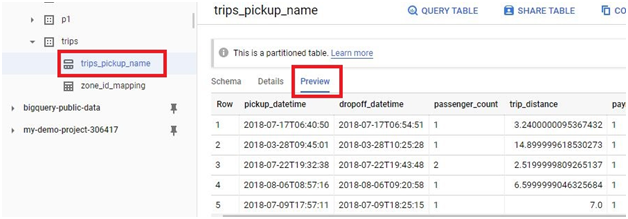
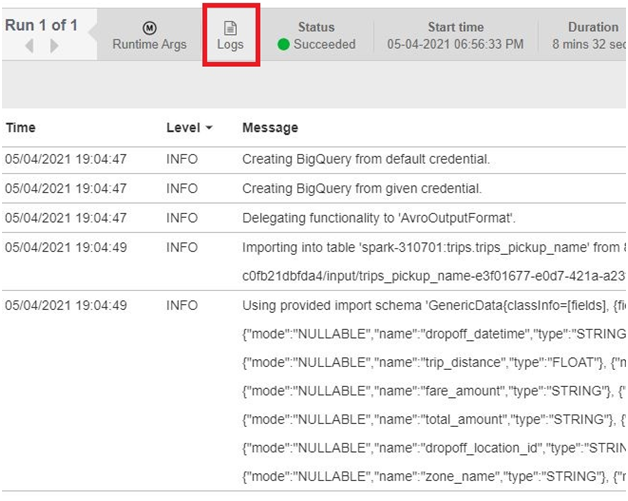
Back in Data Fusion, click Logs to review the full execution log for the run.
Common Mistakes to Avoid
- Forgetting to click Get Schema after changing a join condition or removing columns. The schema shown in each node has to be refreshed manually whenever the fields feeding into it change, or later nodes will validate against an outdated schema.
- Reusing the wrong bucket for temporary storage. The temporary bucket used by BigQuery source and sink nodes needs to be one your Data Fusion service account can actually write to, which is why the dedicated temp bucket created in Cloud Shell matters.
- Choosing Write if empty instead of Overwrite table when rerunning a query or pipeline during testing. Write if empty will fail once the destination table already has data in it from a previous run.
- Skipping validation on a node before connecting the next one. Catching a schema mismatch at the node where it happened is far faster than tracing it back after the whole pipeline fails partway through a 10 minute run.
That covers building a full Data Fusion pipeline that cleans, joins, and writes data back into BigQuery. To go further, explore Prwatech’s Google Cloud training program, which includes placement assistance.
