Python Matplotlib
Python Matplotlib Tutorial for Beginners
A table of numbers tells you very little. Put the same numbers on a chart, and in a few seconds you can see the trend, the odd value that does not belong, and the group that is far ahead of the rest. That is why every data analyst, data scientist and machine learning engineer learns to plot early, and why Matplotlib is usually the first plotting library they meet.
Matplotlib is a Python library for drawing charts. It can make line plots, bar charts, histograms, pie charts, scatter plots, contour plots, 3D surfaces and more. Many other libraries, such as Seaborn and the plotting tools in pandas, are built on top of it, so what you learn here carries over.
In this tutorial, we start with the setup and your first line plot, and then build up one chart type at a time: simple plots, multiple plots, subplots, bar, histogram, pie, scatter, contour, quiver, violin, 3D contour, 3D wireframe and grids. Every program is written as text that you can copy, and every one has been run to make sure it works. We also cover titles and labels, colours and markers, saving a figure, and the common mistakes.
Prerequisites
You need three things on your computer: Python 3, a code editor or Jupyter Notebook, and two libraries, Matplotlib and NumPy. Install the libraries from your terminal:
The programs in this tutorial were tested on Python 3.13 with Matplotlib 3.11.2 and NumPy 2.5.3. You can check your own versions like this:
What is Matplotlib?
Matplotlib is a cross platform data visualization and plotting library for Python. Cross platform means it runs on Windows, Mac and Linux. Its main module is pyplot, which gives you a simple set of commands to build a figure step by step, in a style borrowed from MATLAB. Each command changes the figure a little: it adds a line, sets a title, or labels an axis.
What is Pyplot?
Pyplot is the module inside Matplotlib that holds these commands. By habit, everyone imports it with the short name plt. The name plt is only an alias that saves typing. It is not the name of the package.
What is NumPy?
NumPy is a Python library for fast work with large arrays of numbers. Most of the data you plot comes from NumPy arrays, so the two libraries are almost always used together. It is imported with the alias np.
Jupyter Notebook Introduction
Jupyter Notebook is an open source tool that lets you write code, see its output, and add notes in one document. You can find it at jupyter.org. It is a good place to learn Matplotlib, because each plot appears right under the code that made it. You can install it with pip install notebook and start it with the command jupyter notebook. In a plain Python file, you need to call plt.show() to open the plot window. In Jupyter, the plot appears on its own.
Plot a Line in Matplotlib
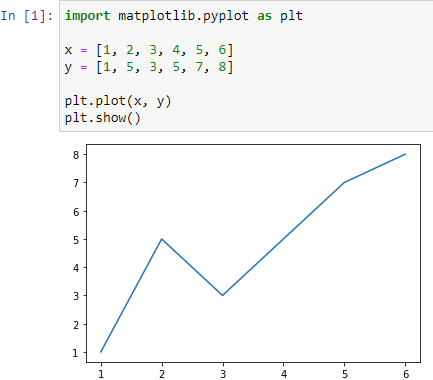
The simplest plot is a line. Pass a list of x values and a list of y values to plt.plot, and then call plt.show. Here is a working example, with labels added:
You will see a straight rising line through four points, with Day on the bottom and Units sold on the side. If you give plt.plot only one list, Matplotlib uses the positions 0, 1, 2 and so on for the x values.
Simple Plot: A Sine Wave
To plot a smooth curve, create many x values with NumPy, work out y for each one, and plot the pair. The function np.arange makes values from a start to a stop in equal steps, and np.sin gives the sine of each value.
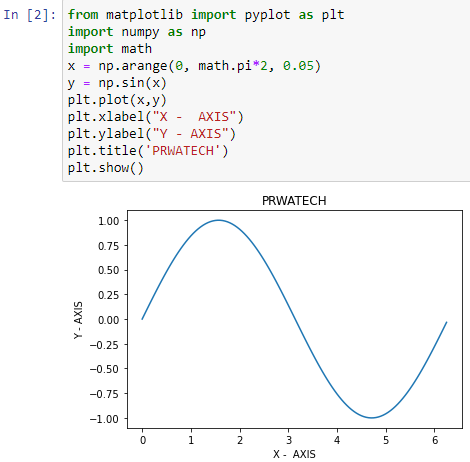
The result is a smooth wave that rises to 1, falls to minus 1, and rises again, about one and a half cycles.
Multi Plot: Several Lines in One Figure
To compare two or more series, call plt.plot more than once before plt.show. Give each line a label and call plt.legend, so the reader knows which is which.
Matplotlib gives each line its own colour automatically. The cosine wave is the sine wave shifted to the left.
Subplot: Several Graphs in One Window
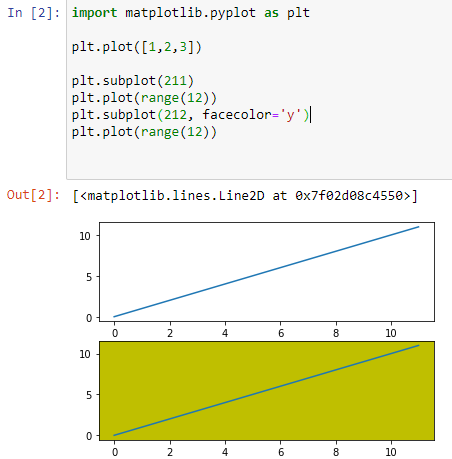
A subplot divides the window into a grid and places one plot in each cell. The call plt.subplot(rows, columns, position) picks a cell. The short form 211 means 2 rows, 1 column, position 1. So 211 is the top plot and 212 is the bottom one. The facecolor argument sets the background, and the value must be written with straight quotes.
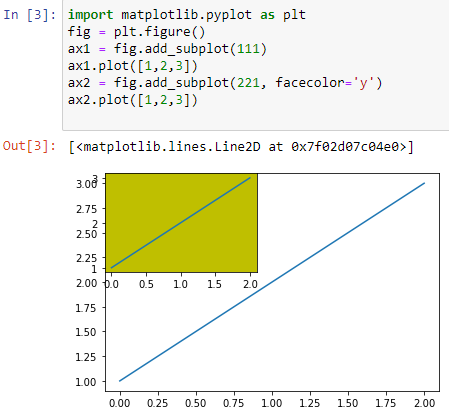
The top plot has a white background, and the bottom plot has a yellow one. The call plt.tight_layout stops the titles from overlapping.
Bar Plot
A bar plot compares values across categories, such as sales by region or students by course. The height of each bar shows the value. In this example, fig.add_axes takes four numbers, the left, bottom, width and height of the plot area, as a fraction of the figure.
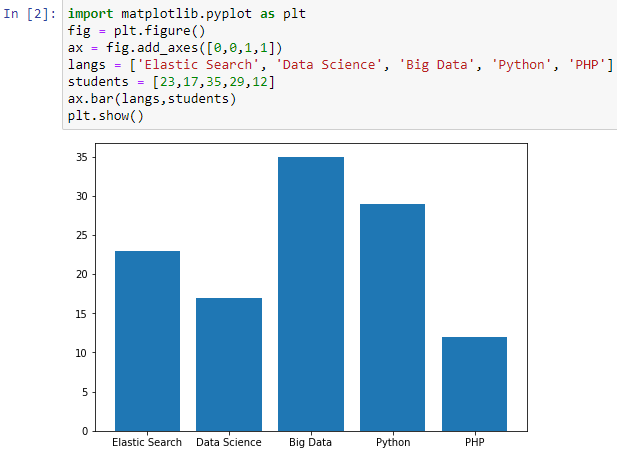
You will see four bars, with Python the tallest at 25. Use ax.barh instead of ax.bar for horizontal bars, which is better when the category names are long.
Histogram
A histogram shows how numeric data is spread. It groups the values into ranges called bins and counts how many fall into each one. A histogram looks like a bar graph, but a bar chart compares separate categories, while a histogram shows the shape of one continuous variable, so the bars touch.
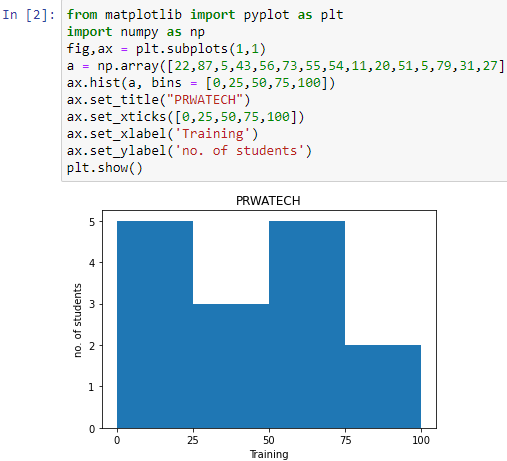
There are four bins, 0 to 25, 25 to 50, 50 to 75 and 75 to 100. The bins argument controls them. Different bins can tell a different story, so try a few.
Pie Chart
A pie chart shows how one total is split into parts. Use it only for a small number of slices, ideally five or fewer, and when the parts add up to a whole. The slices show percentages only when you ask for them with the autopct argument.
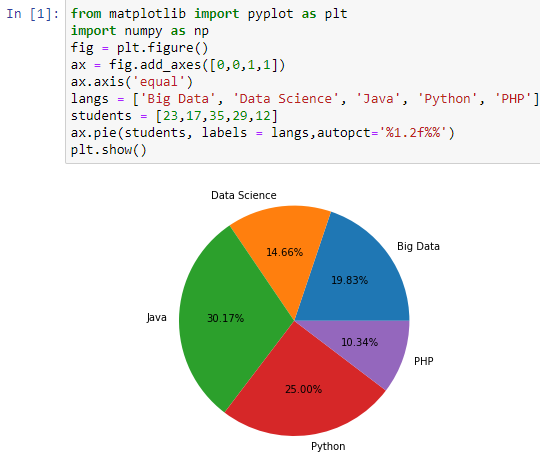
The slices show 40.0%, 30.0%, 20.0% and 10.0%, as labelled.
Scatter Plot
A scatter plot draws one dot for each pair of values. It shows whether two variables are related, whether the relationship goes up or down, and whether any points sit far from the rest. The example below makes made up data where more study hours give higher scores, with some random noise.
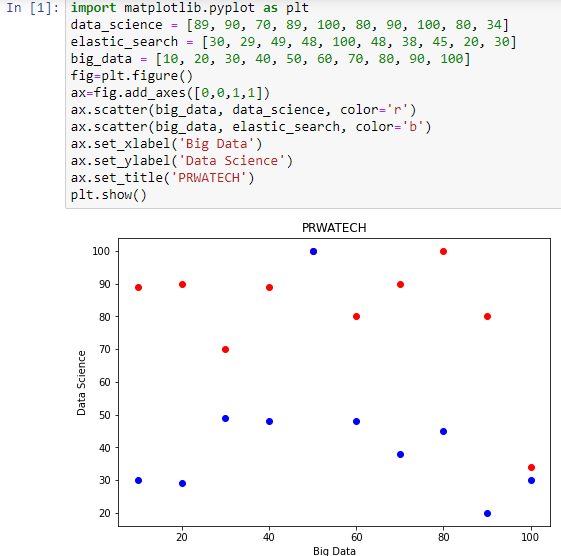
The dots rise from the lower left to the upper right, which shows a positive relationship. The call plt.subplots creates the figure and the plotting area, and ax.scatter places the dots in it.
Contour Plot
A contour plot shows a 3D surface on a flat page by drawing lines that join points of equal height, like the lines on a map. Here, np.linspace makes evenly spaced numbers, np.meshgrid turns two lists into a grid of points, and the height at each point is its distance from the centre.
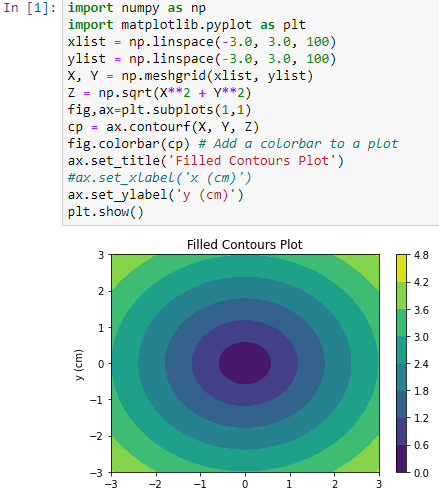
You will see circles around the centre, because the height depends only on the distance from it. The colorbar on the side tells you which colour means which height.
Quiver Plot
A quiver plot draws arrows. Each arrow sits at a point and shows a direction and a size, which makes it a good fit for wind, water flow or force fields. Velocity is one use, but any quantity that has a direction and a size can be shown. Here is a complete example.
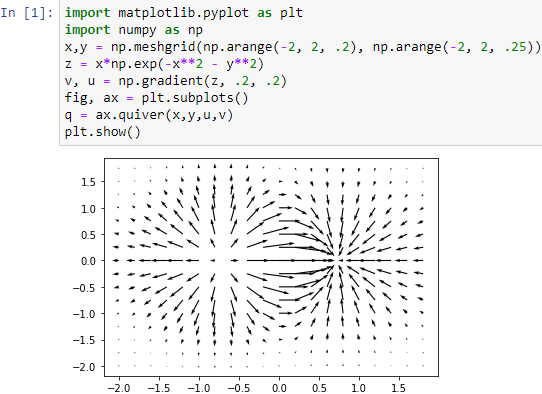
The first two arguments give the position of each arrow, and u and v give its horizontal and vertical size. You will see a 5 by 5 grid of small arrows that turn as you move across it.
Violin Plot
A violin plot shows how data is spread, and it is similar to a box plot. The difference is that it also draws the shape of the density, so you can see where the values are packed together. It is more detailed than a plain box plot.
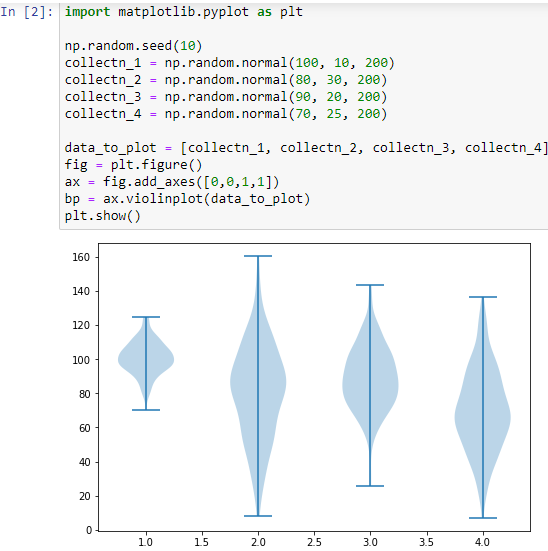
You will see three shapes centred near 50. Batch A is narrow, because its marks are close together, and Batch C is wide, because its marks vary more.
3D Contour Plot
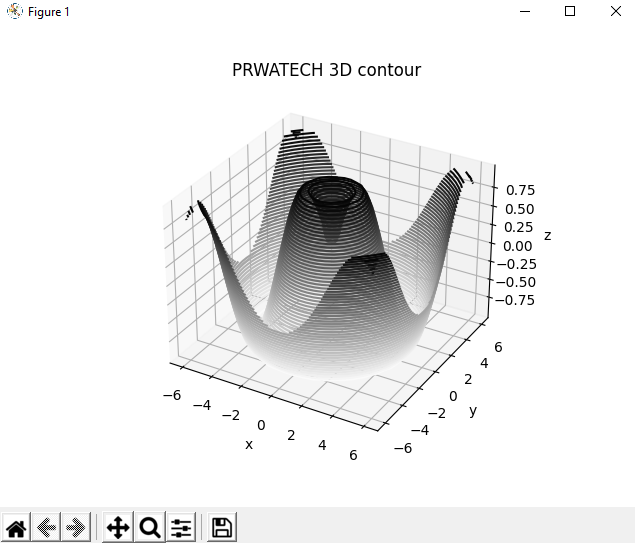
For 3D plots, create the axes with projection set to "3d". The method contour3D then draws the contour lines in three dimensions, with height shown on the vertical axis.
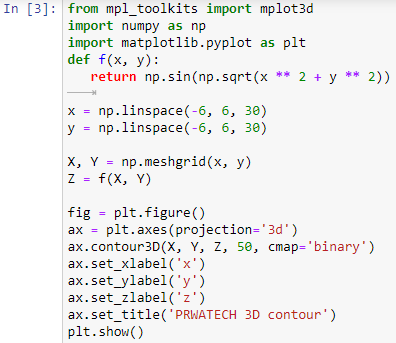
The number 50 is the number of contour levels. You will see a ripple shape, like the rings that spread out when you drop a stone in water.
Output:
3D Wireframe Plot
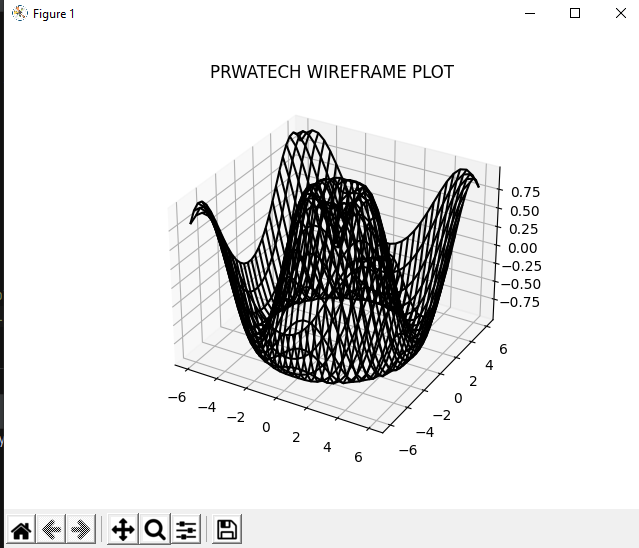
A wireframe draws a surface as a mesh of lines, so you can see the shape without a solid fill. It uses the same X, Y and Z grid as the 3D contour above, so only the last call changes. The program is shown in full so that you can run it on its own.
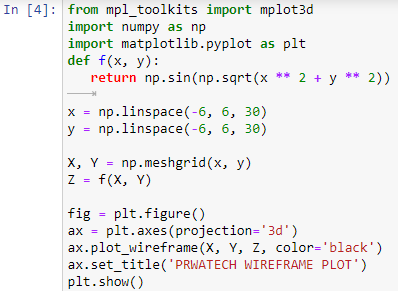
You will see the same ripple, drawn as a green net.
Output:
Grids
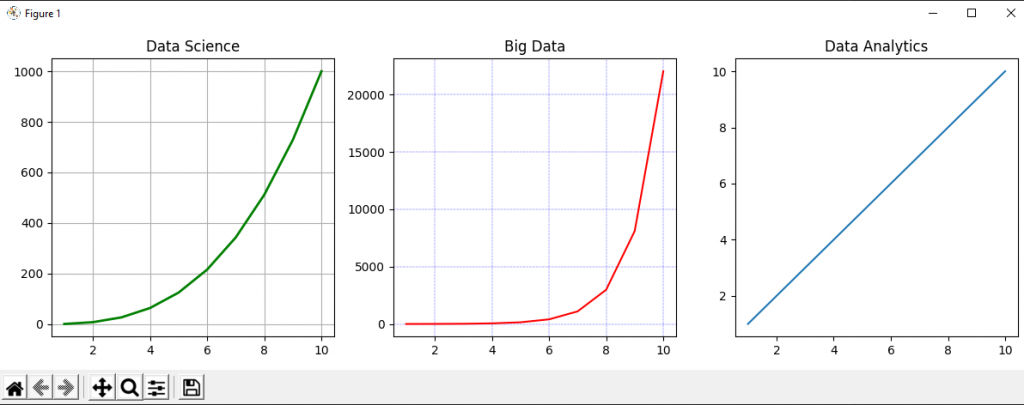
Gridlines make it easier to read values off a plot. Turn them on with grid(True) and off with grid(False). In recent versions of Matplotlib, the default is no grid for most plot styles.
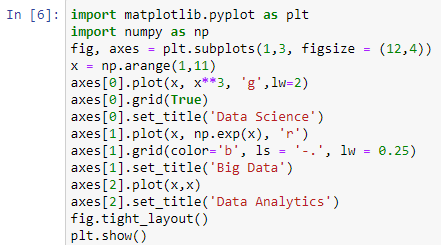
The left plot has gridlines and the right one does not.
Output:
Titles, Labels, Colours and Markers
These options will make your charts clear enough to share.
| What you want | Command | Example |
|---|---|---|
| Title | plt.title | plt.title(“Sales”) |
| Axis labels | plt.xlabel, plt.ylabel | plt.xlabel(“Day”) |
| Line colour | color argument | color=”navy” |
| Line style | linestyle argument | linestyle=”–“ |
| Point markers | marker argument | marker=”o” |
| Legend | label argument, then plt.legend | label=”sin” |
| Figure size | figsize argument | plt.figure(figsize=(8, 4)) |
How to Save a Plot as an Image?
Use plt.savefig before plt.show. After the window is shown and closed, the figure is cleared and you would save an empty image. The dpi argument controls the sharpness, and bbox_inches set to "tight" trims the empty border.
Which Chart Should You Use?
| Chart | Use it to show | Matplotlib call |
|---|---|---|
| Line | A trend over time | plt.plot |
| Bar | A comparison across categories | ax.bar, ax.barh |
| Histogram | How one numeric variable is spread | ax.hist |
| Pie | Parts of a whole, few slices | ax.pie |
| Scatter | The link between two numeric variables | ax.scatter |
| Contour | A surface as lines of equal height | ax.contour |
| Quiver | Direction and size at many points | ax.quiver |
| Violin | Spread and density of groups | ax.violinplot |
| 3D contour and wireframe | A surface in three dimensions | ax.contour3D, ax.plot_wireframe |
Common Mistakes With Matplotlib
- Curly quotes in code. Text copied from a web page or a Word file can turn straight quotes into curly ones, and Python rejects them.
- Misspelt function names. The correct names are
np.arangeandnp.linspace. - Forgetting the brackets.
ax = fig.add_axesdoes nothing. You need to call it, with the four numbers. - Saving after show. Call
plt.savefigbeforeplt.show, or you will save a blank image. - Overlapping titles in subplots. Add
plt.tight_layout. - Too many pie slices. Use a bar chart when there are more than five or six parts.
- No labels. A chart without a title and axis labels is hard to read. Always add them.
Complete Script to Run Yourself
Here is the full script that tests every plot on this page. It saves each plot as an image file in a folder called mpl_out, so create that folder first. The line that says matplotlib.use("Agg") lets it run without opening windows. Remove it if you want to see the plots on screen.
Matplotlib looks long, but it comes down to a few habits: pick the right chart for the question, label everything, and run the code yourself. Copy the programs above, change the numbers, and watch the chart change. Once you are comfortable here, try plotting a real dataset with pandas, and then look at Seaborn for faster statistical charts.
