Basic configuration file : Deployment Manager
Deployment Manager Configuration File Structure
A Deployment Manager configuration file is the YAML file you give the service to describe the resources you want. It has a resources section, which is required, and optional imports and outputs sections. Each resource has a name, a type, and a set of properties, and Deployment Manager turns that description into real resources, such as a virtual machine, in your project.
Before you build anything, note that Deployment Manager reached end of support on March 31, 2026. Google says existing users can keep managing, migrating, or deleting existing resources at their own risk, but it does not answer standard support tickets for the service and does not support new customers or organizations using it. The replacement is Infrastructure Manager, which uses Terraform. Treat this guide as background for understanding how the service works and for maintaining an existing deployment.
This walks through listing the resource types you can use, writing a configuration file for a virtual machine, previewing it before anything is created, and then either deploying the preview or cancelling and deleting it.
Step by Step Process of Deploying Manager Configuration File
Step 1: List the Supported Resource Types
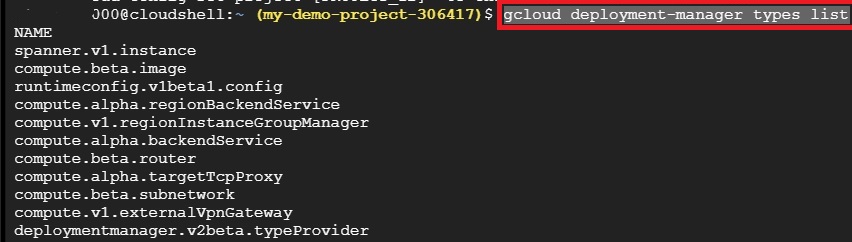
This shows the resource types Deployment Manager supports, which is where the type in a configuration file comes from:
gcloud deployment-manager types list
Step 2: Create the Configuration File
Create a file with the extension .yaml. This will be your configuration file:
nano vm.yaml

Step 3: Paste In the Configuration
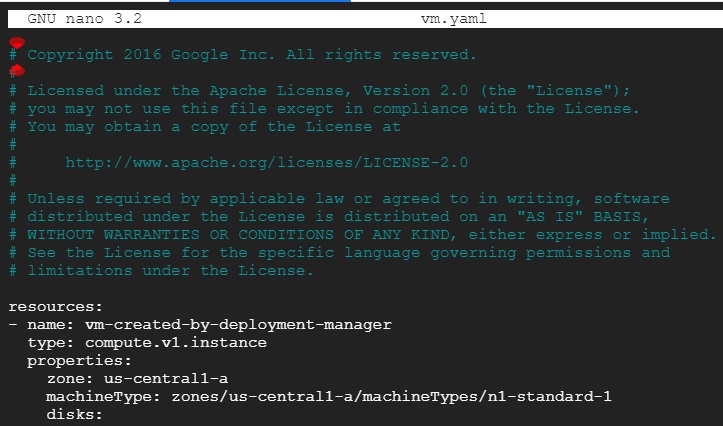
Paste in the following. The header comments are Google’s licence notice for this sample, so keep them if you reuse the code. The only change from the original is the image family, now debian 12 instead of debian 9.
# Copyright 2016 Google Inc. All rights reserved.
#
# Licensed under the Apache License, Version 2.0 (the “License”);
# you may not use this file except in compliance with the License.
# You may obtain a copy of the License at
#
# http://www.apache.org/licenses/LICENSE-2.0
#
# Unless required by applicable law or agreed to in writing, software
# distributed under the License is distributed on an “AS IS” BASIS,
# WITHOUT WARRANTIES OR CONDITIONS OF ANY KIND, either express or implied.
# See the License for the specific language governing permissions and
# limitations under the License.
resources:
– name: vm-created-by-deployment-manager
type: compute.v1.instance
properties:
zone: us-central1-a
machineType: zones/us-central1-a/machineTypes/n1-standard-1
disks:
– deviceName: boot
type: PERSISTENT
boot: true
autoDelete: true
initializeParams:
sourceImage: projects/debian-cloud/global/images/family/debian-12
networkInterfaces:
– network: global/networks/default
To close the editor, press control x, then y to confirm, then enter. The file is saved. The screenshots may still show the original code, so check them and retake any that do before you publish.
Reading the Sample Line by Line
- resources, the list of things to create. This file defines one.
- name, what this resource is called in the deployment. Because the sample sets no separate name property, it is also the name the virtual machine gets.
- type, v1.instance, which means a Compute Engine instance from the version 1 API. The types list in Step One shows what else is available.
- zone and machineType, where the machine runs and how big it is.
- disks, a persistent boot disk built from the image family you name. Setting autoDelete to true means the disk is deleted along with the machine.
- networkInterfaces, which network the machine joins, here the default one.
Step 4: Preview the Configuration
A preview lets you see the resources Deployment Manager would create without creating any real ones. It builds placeholder resources instead, so you can check the plan before committing to it.
gcloud deployment-manager deployments create example-config –config vm.yaml –preview

Choosing What to Do After a Preview
Steps Five, Six, and Seven below are choices, not a sequence. Google’s documentation gives you these options after a preview.
- To go ahead, run an update on the deployment without naming a configuration file. Deployment Manager uses the last previewed configuration. That is Step Seven.
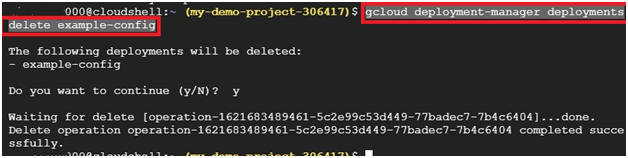
- To walk away, cancel the preview and then delete the deployment. Cancelling does not delete the deployment itself, so you need both. Those are Steps Five and Six.
Do not run all three in order on the same deployment. Once you delete it, there is nothing left to deploy. Google also advises cancelling and deleting any previewed deployments you no longer need, so they do not pile up.
Step 5: Cancel a Preview You Do Not Want
gcloud deployment-manager deployments cancel-preview example-config

Step 6: Delete the Deployment
gcloud deployment-manager deployments delete example-config
Step 7: Deploy the Preview Instead
gcloud deployment-manager deployments update example-config
This turns the previewed placeholder resources into real ones. Because the service is out of support, these commands may still work in a project that already uses Deployment Manager, but a new project may not be able to use it at all, and I have not tested them.

What to Use Instead
For new work, use Infrastructure Manager, which runs Terraform for you, or Terraform itself. Deployment Manager configuration files and templates map onto Terraform configuration and modules. Google provides a tool called DM Convert to convert existing ones, and the Adding Templates guide in this series covers the replacement and the migration route in more detail.
Common Mistakes to Avoid
- Starting new work on Deployment Manager. It is out of support and new customers are not supported.
- Using a different file name in the command than the one you created. The command can only find the file you actually saved.
- Running cancel, delete, and update one after another on the same deployment. Choose deploy, or cancel and delete, not both.
- Cancelling a preview and assuming the deployment is gone. It is not deleted until you delete it.
- Leaving previewed deployments around. Cancel and delete the ones you no longer need.
- Calling the configuration file a Jinja template. The configuration is YAML, and Jinja or Python is for templates.
That covers how a Deployment Manager configuration file is structured and how to preview it safely. To go further, explore Prwatech’s Google Cloud training program, which includes placement assistance.
