Mounting Filestore file share on Compute Engine clients
Mounting a Filestore File Share on Compute Engine Clients
Filestore is Google Cloud’s managed file server. It serves a file share over NFS, the standard network file system protocol, so that a virtual machine can use it like a folder on its own disk. Mounting is the step that makes that connection, and several VMs can mount the same share to work on the same files.
Getting the mount working is quick, but there are three things the basic steps do not cover. The share has to be reachable, meaning the VM and the Filestore instance must be in the same project and VPC network. The mount has to be writable by the people who need it. And a manual mount is gone the next time the VM restarts, so anything you rely on needs a permanent entry.
This walks through installing the NFS client, creating a local folder, mounting the share, and confirming it worked, then making it writable, keeping it across reboots, and mounting a subdirectory.
Step by Step Process of Mounting a Filestore File Share
Step 1: Open the VM Instances Page
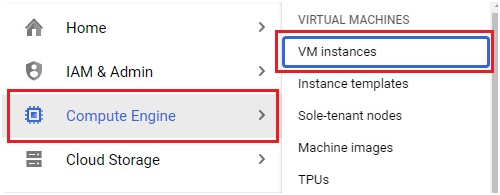
Open the console, then the menu, then Compute Engine, then VM instances.
Step 2: Open an SSH Session
Find the VM you want to use as the client and click SSH next to it.

Step 3: Install the NFS Client
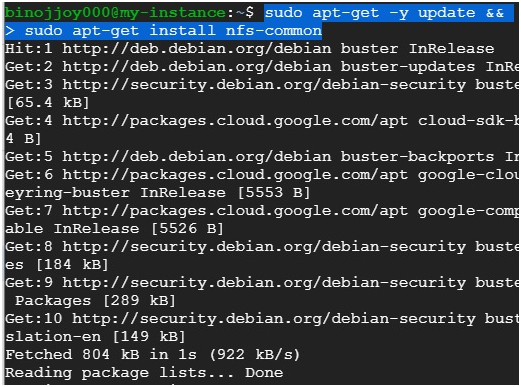
On Debian or Ubuntu:
sudo apt-get -y update
sudo apt-get install nfs-common
On RedHat or CentOS:
sudo yum install nfs-utils
Step 4: Make a Local Folder for the Share
Create the folder the file share will appear in, for example a folder named filestore under mnt:
sudo mkdir -p MOUNT_POINT_DIRECTORY

Step 5: Open the Filestore Instance
In the console, open Filestore, then Instances, and click your instance.

Step 6: Copy the NFS Mount Point
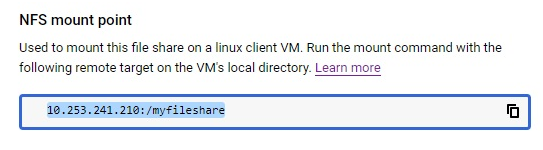
Copy the NFS mount point shown for the instance. It combines the instance’s IP address and the file share name, and it is what you give the mount command.
Step 7: Mount the File Share
Replace the first placeholder with the NFS mount point you copied, and the second with the folder you made in Step Four:
sudo mount -o rw IP_ADDRESS:/FILE_SHARE MOUNT_POINT_DIRECTORY

Step 8: Confirm the Share Is Mounted
df -h –type=nfs
The original page typed the option with an en dash, which makes the command fail. It needs two real hyphens. The output should list your file share with its size.

Make the Share Writable
After mounting, the folder may not be writable by every user who needs it. Google’s guide handles this with a chmod command. For example, this lets the group that owns the folder and all other users read and write:
sudo chmod go+rw MOUNT_POINT_DIRECTORY
Choose the permissions that fit your situation, and avoid opening a folder wider than the people using it need.
Keep the Mount After a Reboot
A mount made with the command above is gone when the VM restarts. Google’s documentation says to use fstab or autofs to keep a share mounted. For fstab, open the file:
sudo nano /etc/fstab
Add one line, using your own values:
IP_ADDRESS:/FILE_SHARE MOUNT_POINT_DIRECTORY nfs defaults,_netdev 0 0
The _netdev option marks this as a network mount, so the system waits for the network before trying it. To test the entry without restarting, run the following, which mounts everything listed in fstab:
sudo mount -a
Step 9: Create and Mount a Subdirectory
To create a subdirectory on the mounted share:
sudo mkdir -p MOUNT_POINT_DIRECTORY/SUBDIR
To mount just that subdirectory, give it its own empty local folder and point the mount command at the share path plus the subdirectory name:
sudo mkdir -p SUBDIR_MOUNT_POINT
sudo mount -o rw IP_ADDRESS:/FILE_SHARE/SUBDIR SUBDIR_MOUNT_POINT
Confirm both mounts:
df -h –type=nfs

If the Mount Fails
- Check that the VM and the Filestore instance are in the same project and VPC network. This is the requirement in Google’s guide.
- Check that the NFS client is installed. Without it, the mount command has nothing to speak NFS with.
- Check that you copied the IP address and file share name exactly as the instance shows them.
- Check that firewall rules allow NFS traffic between the VM and the instance. The Setting NFS Ports guide in this series covers that.
Common Mistakes to Avoid
- Typing the df option with an en dash. It needs two real hyphens.
- Expecting a manual mount to survive a reboot. Add an fstab entry, or use autofs.
- Putting the VM in a different VPC network or project from the Filestore instance and then wondering why the mount hangs.
- Skipping the permissions step, then finding that other users cannot write to the share.
- Installing nfs-common on a RedHat or CentOS machine. Those use nfs-utils instead.
That covers mounting a Filestore file share on a Compute Engine VM, and making the mount writable and permanent. To go further, explore Prwatech’s Google Cloud training program, which includes placement assistance.
