Creating an Image and using it in another project.
Creating a Custom Image and Using It in Another Project
A custom image is a copy of a VM’s boot disk, with its operating system and software, that you can use as the starting point for new VMs. Build a server once, save it as an image, and every VM created from that image starts out the same, with nothing to reinstall.
Images belong to a project. To use one in a different project, the second project has to be allowed to see it. That sharing step is where most people get stuck, and it is the part this guide originally left out. The walkthrough still follows the same path, but with the permissions made explicit.
This walks through creating an image, giving another project access to it, creating that other project, and launching a VM from the image. It then covers the choices on the image form, alternatives, and cost.
Prerequisites:
- A Google Cloud account with billing enabled. The Enabling Billing guide in this series covers that.
- A VM whose boot disk you want to turn into an image. The Creating an Instance Using Developers Console guide in this series covers creating one.
Complete Process of Creating a Custom Image
Step One: Open Images
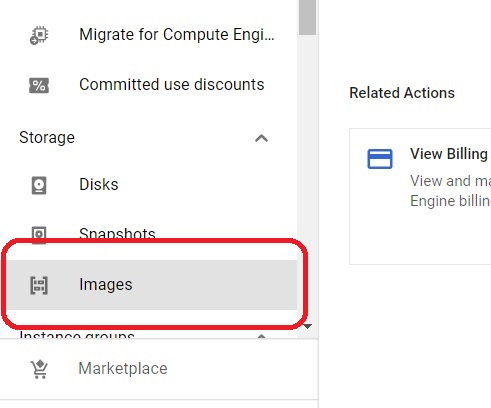
Open the console, then Click on menu > Compute engine > Images.
Step Two: Create an Image
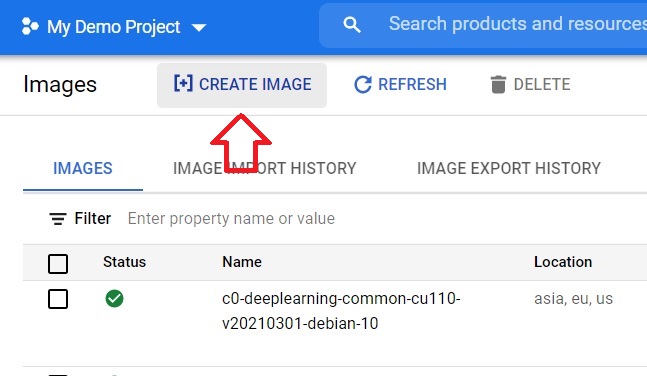
Click Create image.
Step Three: Name It and Choose the Source Disk
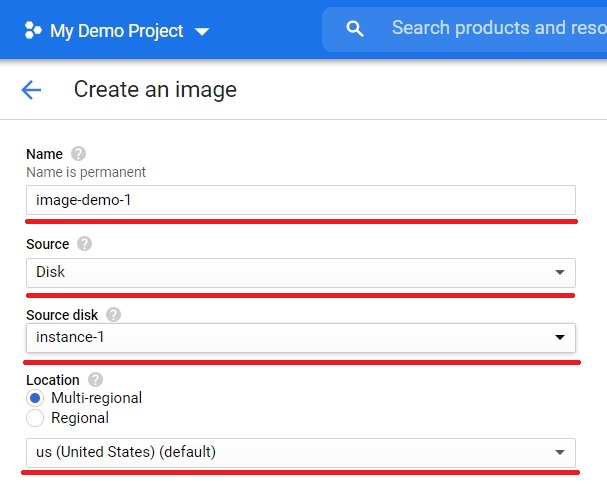
Give the image a name, then choose the source and the source disk. The source disk is the disk you want to turn into an image. If that disk is attached to a running VM, Google recommends stopping the VM first so the disk is in a clean state. If you keep it running, the console asks you to confirm by selecting Keep instance running. For Windows VMs, stop the instance before you create the image.
Step Four: Choose Encryption and Create
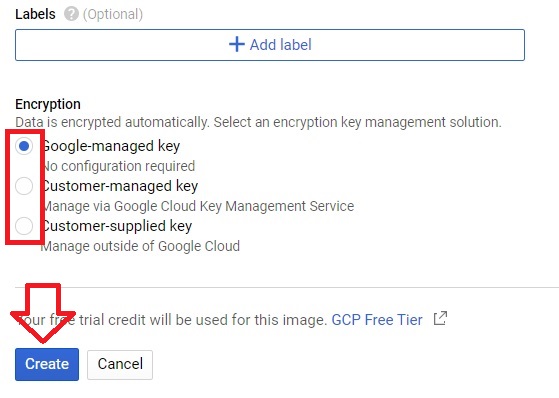
Choose the type of encryption you want, then click Create. The choices on this form are explained below.
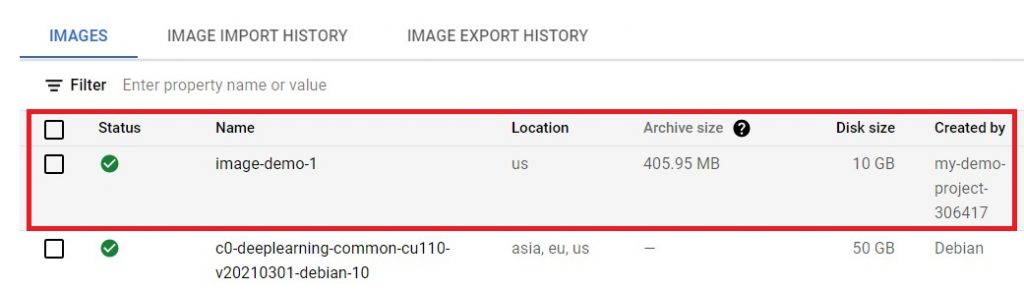
Step Five: The Image is Created
The image appears in the list.
What the Image Form Asks For?
- Storage location. If you do not choose one, Compute Engine stores the image in the multi region closest to the source.
- Optional. An image family groups related images, so a VM created from the family gets the latest non deprecated image in it. This is useful when you update an image over time.
- By default Google manages the key. You can choose to protect the image with a key you control instead.
The Step the Original Skipped: Give the Other Project Access
Before you leave this project, decide who will create VMs from the image in the other project. That person needs the Compute Image User role, granted on the project that holds the image, or on the image itself. In the console, open IAM and Admin, then IAM, click Grant access, enter the person’s account, and choose Compute Engine, then Compute Image User.
If an instance group in the other project will use the image, grant the same role to that project’s Google APIs service account. The person creating the VM also needs permission to create instances in the destination project, which the Compute Instance Admin role covers. If you own both projects, as in this walkthrough, your account already has what it needs, but a teammate or automation will not.
Your organization may also use an organization policy that restricts which image projects can be used for VMs, so if a permitted account is still refused, ask your administrator.
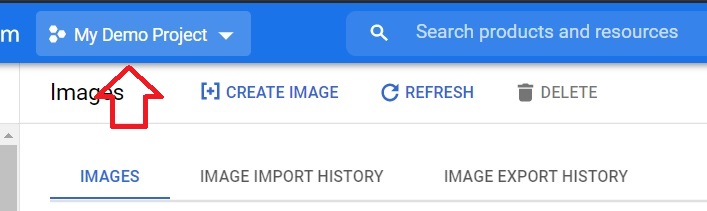
Step Six: Open the Project Picker
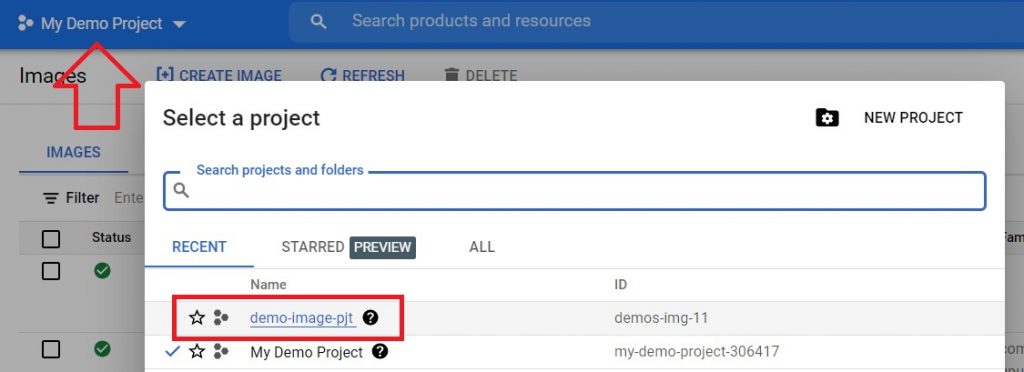
Now create the new project. Click your current project at the top of the console.
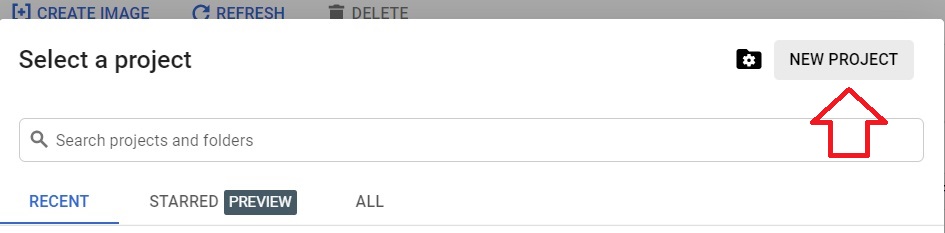
Step Seven: Click New Project
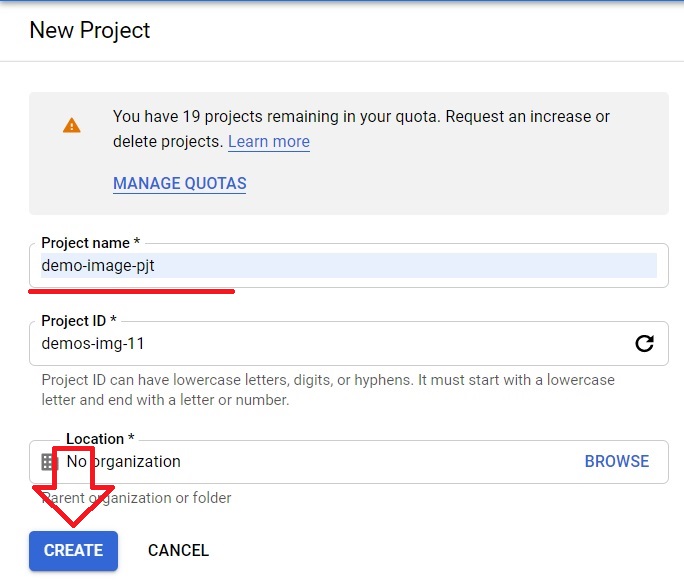
Step Eight: Name the Project and Create It
Give the project a name and click Create. The Google Cloud Platform and Project Creation guide in this series explains project names and IDs.
Step Nine: Select the New Project
Click your current project, then choose the project you just created.
Step Ten: Enable the Compute Engine API
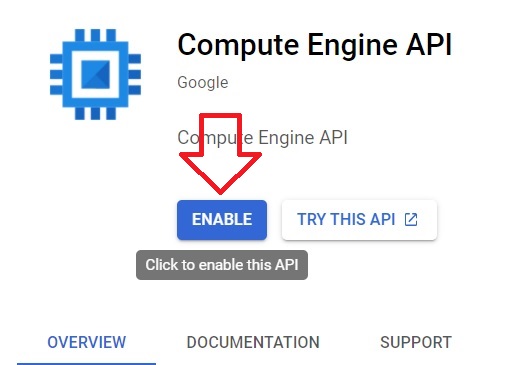
A new project needs the Compute Engine API enabled, so click Enable. It also needs to be linked to a billing account before it can create VMs, which the Enabling Billing guide in this series covers.
Step Eleven: Open VM Instances
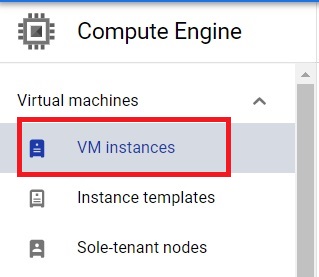
Click VM instances.
Step Twelve: Create an Instance
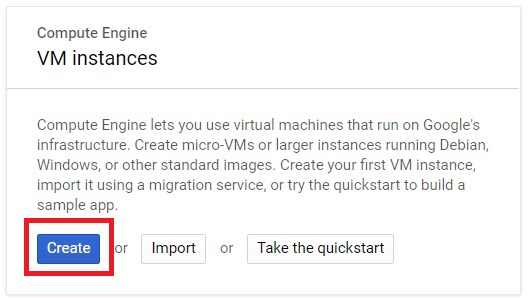
Click Create.
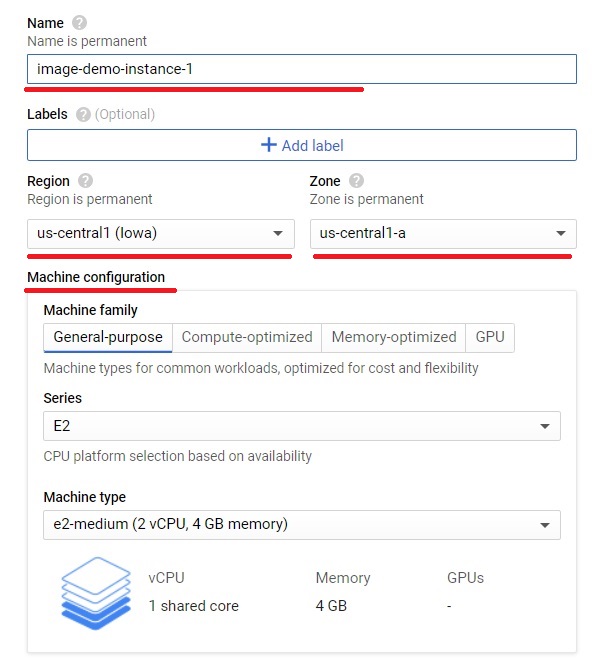
Step Thirteen: Name It and Set the Machine
Give the instance a name, choose the region and zone, and set the machine configuration for your needs.
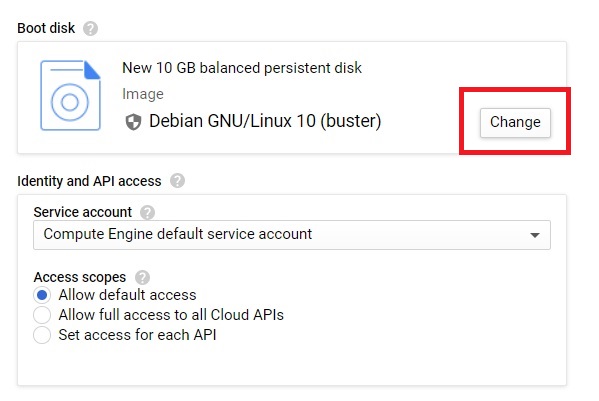
Step Fourteen: Change the Boot Disk
In the boot disk section, click Change.
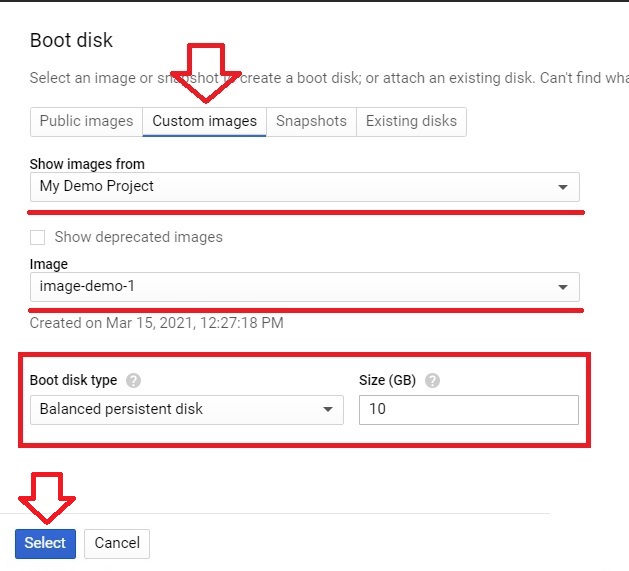
Step Fifteen: Choose the Shared Custom Image
Click Custom images, then change the project to the one that holds the image. If the image project does not appear in the list, or you see a permission error, the Compute Image User role from the earlier step is the first thing to check. Select the image, set the boot disk size and type, then click Select.
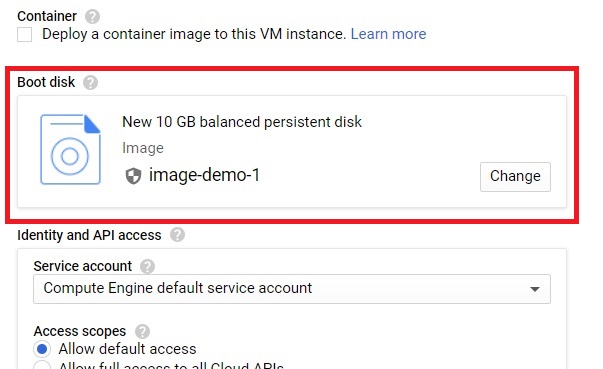
Step Sixteen: Confirm the Image is Chosen
The image is now selected for the instance.
Step Seventeen: Create the Instance
Scroll down and click Create.
Step Eighteen: The VM Is Running From the Image
The instance now runs with the image’s data in this project.

Other Ways to Move a VM Between Projects
- Machine image. If you need all the disks and the VM’s configuration, not just the boot disk, use a machine image. The Creating a Machine Image guide in this series covers it.
- Export to Cloud Storage. Google describes exporting a custom image to Cloud Storage as a good way to share an image with projects that do not have access to yours.
- Command line. A VM can also be created from a shared image with the instances create command, using the image flag together with the image project flag.
What It Costs?
A stored image is billed for the space it uses, based on its size and where it is stored. Delete images you no longer use. The new project also bills like any other, so a VM you launch to test the image keeps costing money until you delete it.
Common Mistakes to Avoid
- Skipping the sharing step and being surprised when a teammate cannot see the image. Grant Compute Image User first.
- Creating an image from a running VM’s disk without thinking about consistency. Stop the VM first where you can.
- Forgetting to link the new project to a billing account. The API alone is not enough.
- Using a plain image when you need several disks. A machine image captures them all.
- Leaving old images and test VMs behind. Both cost money.
That covers creating a custom image, sharing it with another project, and launching a VM from it. To go further, explore Prwatech’s Google Cloud training program, which includes placement assistance.
