Creating Machine Image
Creating a Machine Image From a VM
A machine image is a Compute Engine resource that stores everything needed to recreate a virtual machine, its configuration, its metadata, its permissions, and the data from all of its disks. Think of it as a complete copy of a VM that you can use as a backup, or as a starting point for cloning the machine.
People often confuse it with a snapshot and a custom image, which sound similar but hold less. A snapshot is one disk. A custom image is a boot disk used as a template. A machine image is the whole machine. Picking the right one saves you from discovering, during a restore, that something important was never captured.
This covers what a machine image holds and how it compares with the alternatives, then walks through creating one in the console, explains the location and encryption choices, and shows how to use it afterward.
Machine Image Compared With Other Options
| Resource | What it holds | Multiple disks | Best for |
|---|---|---|---|
| Machine image | Configuration, metadata, permissions including the service account, and the data of every attached disk | Yes | Backing up or cloning a whole VM |
| Disk snapshot | The data of one persistent disk | No | Backing up a single disk |
| Custom image | The contents of a boot disk, packaged as a bootable template | No | Creating many new VMs with the same operating system and software |
| Instance template | The properties used to create VMs, not disk data | No | Creating groups of similar VMs, for example in a managed group |
The Creating and Deleting an Image of an Instance guide in this series covers custom images in more detail.
Prerequisites
- A Google Cloud account with billing enabled. The Enabling Billing guide in this series covers that.
- An existing VM instance to use as the source. The Creating an Instance Using Developers Console guide in this series covers that.
- Permission to create machine images in the project, to read the source instance, and to create snapshots of its disks.
Ste by Step Process of Creating a Machine Image
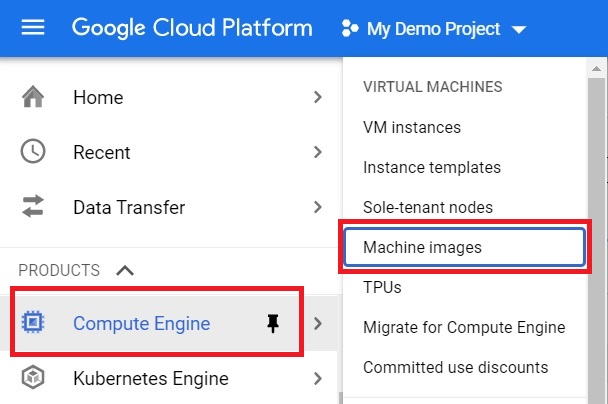
Step 1: Open Machine Images
Open the console, then open Menu > Compute Engine > Machine Images
Step 2: Create a Machine Image
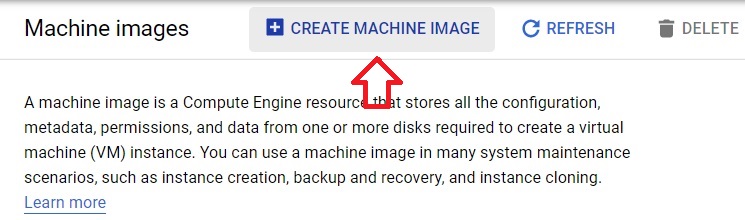
Click Create machine image.
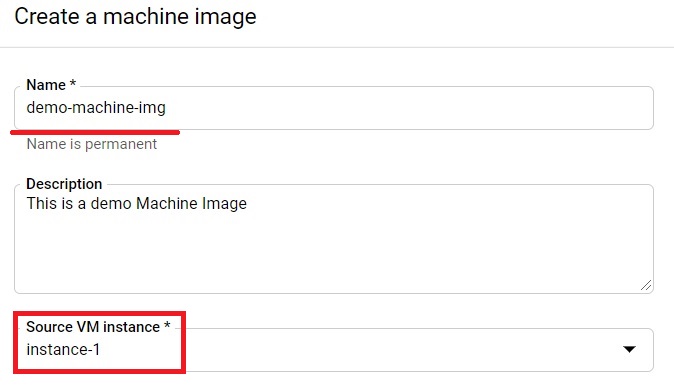
Step 3: Name It and Choose the Source Instance
Give the machine image a name, then choose the source instance, the VM you want to capture. By default, the machine image includes the boot disk and every other disk attached to that instance.
Step 4: Choose the Location and Encryption, Then Create
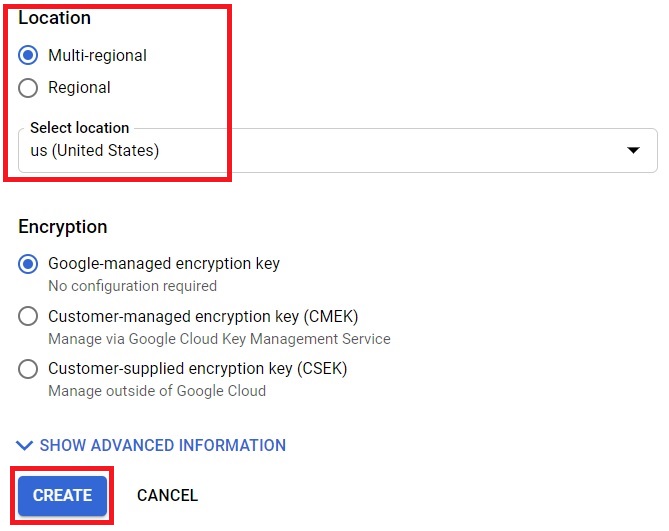
Choose between multi regional and regional storage, and optionally choose an encryption method, then click Create. Both choices are explained below. When it finishes, the machine image is listed as ready.
Choosing a Storage Location
Machine images are stored in Cloud Storage, in either a multi region, such as asia, or a single region, such as asia south one. If you do not choose, the image is stored in the multi region that contains the source instance, or the geographically closest one. Where you store it can matter for availability and for compliance rules about where data may live.
Choosing Encryption
If you choose nothing, the machine image is encrypted with a Google owned and Google managed key. You can instead protect it with a key you control in Cloud Key Management Service. One detail to know is that the key protects the content of the disks, but not the metadata, so do not rely on it to hide something you placed in instance metadata.
What a Machine Image Does Not Capture?
- Local SSD contents. A machine image records how a local SSD was mapped, but not the data on it.
- Application level consistency by default. Compute Engine guarantees that data across disks is captured in a crash consistent way at one point in time. For a database, quiesce it first, or stop the VM if you can.
Limits and Cost
You can create a machine image of a specific instance at most 6 times in 60 minutes. The first machine image from an instance contains a full copy of the disk data, and later ones use the same differential approach as incremental snapshots. What you pay depends on the size of the machine image and where it is stored. To see the size, run:
gcloud compute machine-images describe MACHINE_IMAGE_NAME
Delete machine images you no longer need, since storage is billed for as long as they exist.
Using a Machine Image
When you create a new VM, you can choose to create it from a machine image. It starts with the same configuration, disks, and service account as the source, and you can override some properties. You can also share a machine image with other projects, which makes it useful as a golden image for a team. From the command line, the equivalent commands look like this, though I have not tested them:
gcloud compute machine-images create MACHINE_IMAGE_NAME –source-instance=SOURCE_INSTANCE –source-instance-zone=ZONE
gcloud compute instances create NEW_VM_NAME –source-machine-image=MACHINE_IMAGE_NAME
Common Mistakes to Avoid
- Using a snapshot or a custom image when you need to back up a VM with several disks. Only a machine image captures all the disks and the configuration.
- Assuming a machine image includes local SSD data. It does not.
- Expecting application consistency for a busy database without preparing it first.
- Relying on an encryption key to protect instance metadata. The key protects disk content only.
- Leaving old machine images in place. They cost money for as long as they exist.
That covers creating a machine image, how it differs from the alternatives, and what to watch for. To go further, explore Prwatech’s Google Cloud training program, which includes placement assistance.
