Codes to work with Google Cloud SDK
gcloud Commands for Working With Google Cloud
gcloud is the command line tool for Google Cloud, part of the Google Cloud CLI that used to be called the Cloud SDK. Anything you can do by clicking in the console, you can also do by typing a command, and a typed command can be repeated, saved in a script, and shared with a teammate in a way that a sequence of clicks cannot.
Commands follow a pattern. They start with gcloud, then a product, then the thing you are working with, then an action, and they finish with a name and any options. In gcloud compute instances list, compute is the product, instances is the resource, and list is the action. Once you see that pattern, you can guess many commands and look up the rest with the help flag.
This is a working reference. It covers the commands for VMs, setting up gcloud, managing components, projects, and listing zones, regions, machine types, images, and accounts, with the screenshots from the original page in their original order.
Prerequisites:
- A Google Cloud account.
- The Google Cloud CLI installed on your computer, or Cloud Shell open in the console. The Cloud SDK Installation guide in this series covers installing it on Windows.
Commands for Working With VMs
List Your VMs
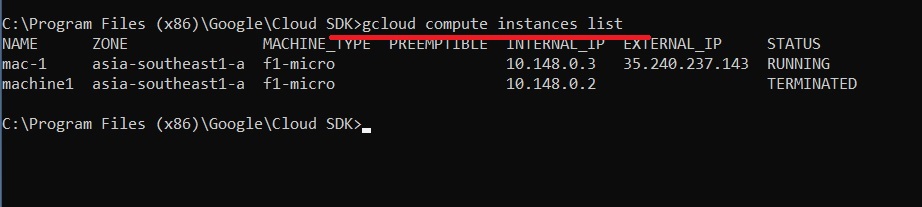
gcloud compute instances list
Lists the VM instances in your current project.
Start a VM
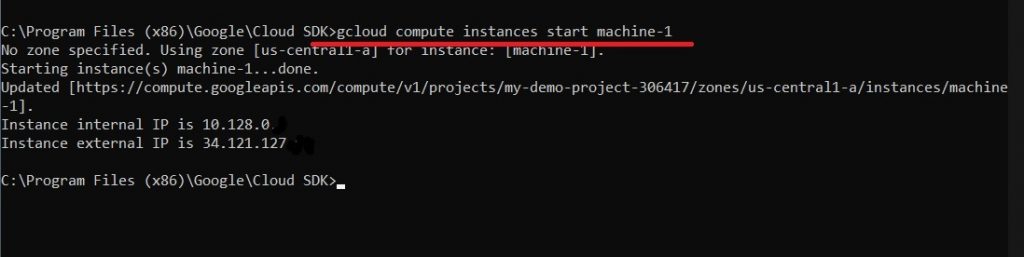
gcloud compute instances start INSTANCE_NAME –zone=ZONE
Starts a stopped VM.
Stop a VM
gcloud compute instances stop INSTANCE_NAME –zone=ZONE
Stops a running VM. A stopped VM generally stops billing for its compute, but its disks and any reserved addresses still cost money.

Delete a VM
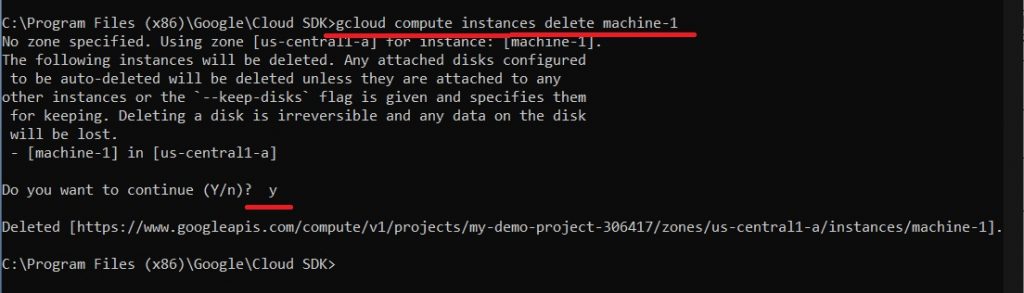
gcloud compute instances delete INSTANCE_NAME –zone=ZONE
Deletes the VM, and gcloud asks you to confirm with y. Be careful here. A VM’s boot disk is deleted along with it by default, and deleting cannot be undone, so check the name and the zone before you confirm.
Create a VM
gcloud compute instances create INSTANCE_NAME –zone=ZONE –machine-type=MACHINE_TYPE –boot-disk-size=DISK_SIZE
A filled in example looks like this, with the flag name, an equals sign, and the value, and no spaces:
gcloud compute instances create my-vm –zone=us-central1-a –machine-type=e2-medium –boot-disk-size=20GB
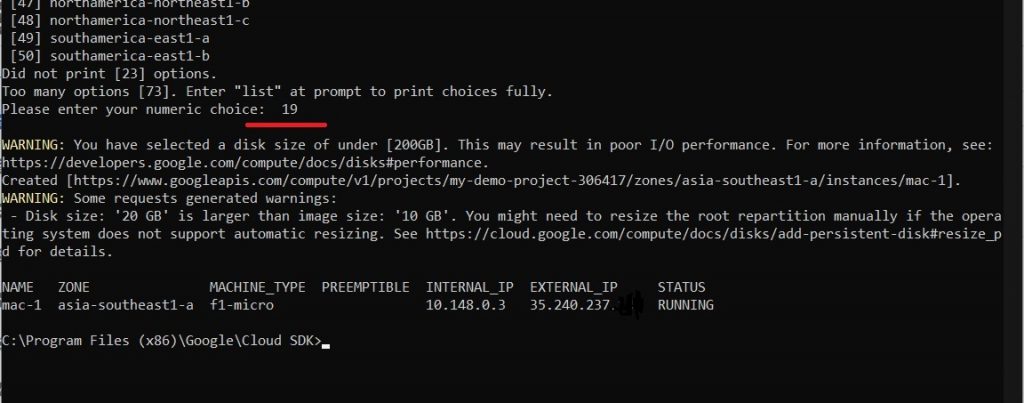
The original page wrote the flags with an en dash and spaces after the equals signs, which makes the command fail. If you leave out the zone, gcloud asks you to choose one from a numbered list, as the next screenshot shows.
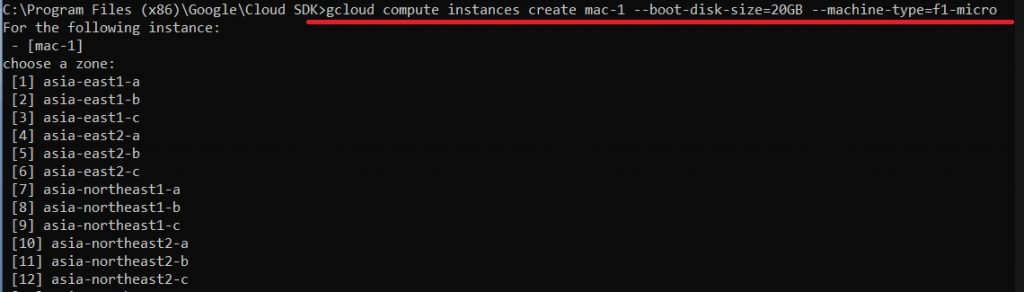
Choose the zone which you want by specifying the respective number, and press enter.
Setting Up gcloud
Initialize gcloud
gcloud init
Walks you through signing in and choosing your defaults.
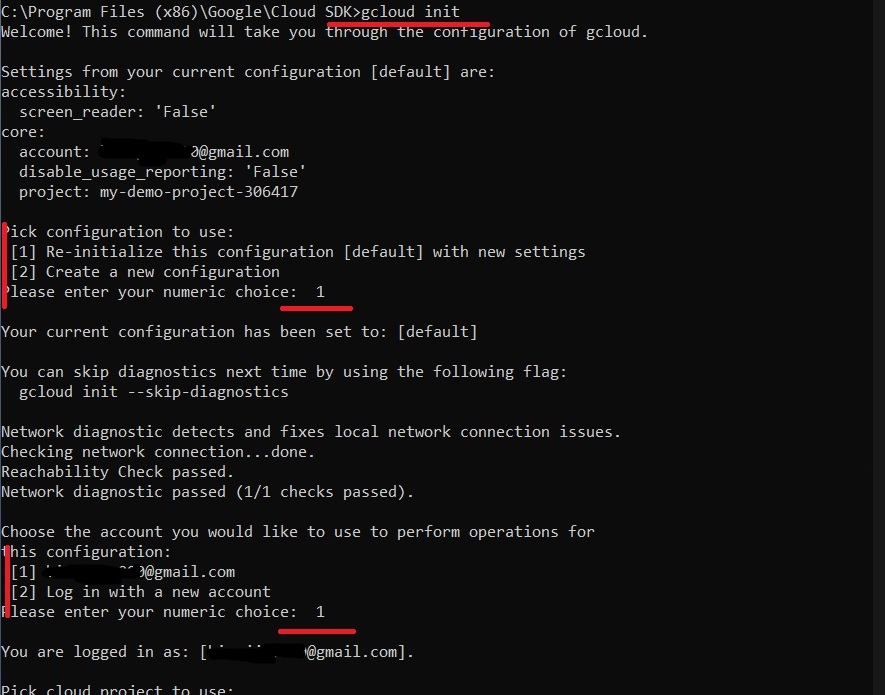
Choose the project you want to work with by typing its number. You can also create a new project here. Then choose the region and zone, typing y to set a new default or n to keep the current one.
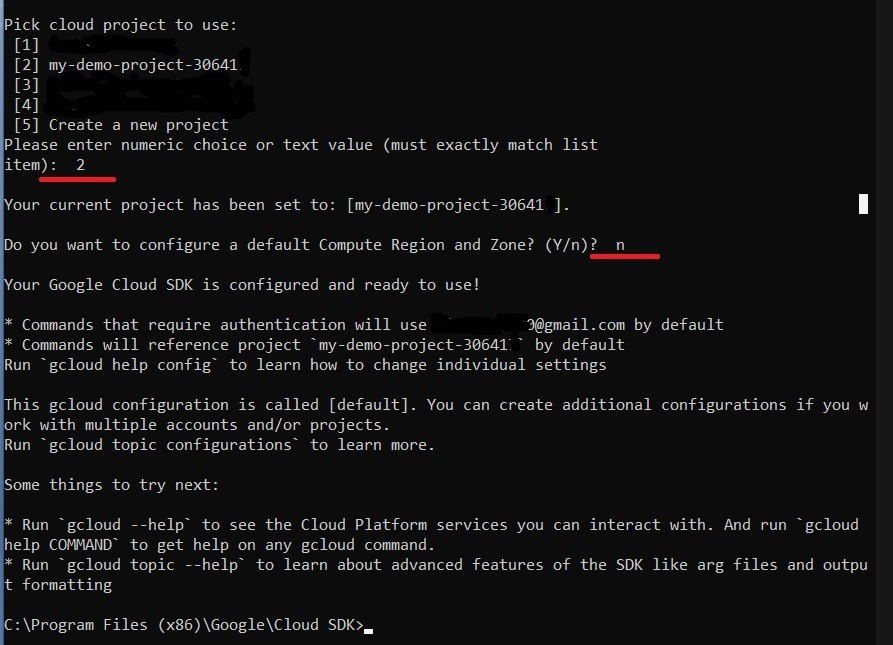
You can change defaults later without running the whole setup again, for example to set a default zone, and to see what is currently set:
gcloud config set compute/zone ZONE
gcloud config list
Managing gcloud Components
Components are the installable parts of the Google Cloud CLI. One important limit applies to all four commands in this section. Google says the component manager is disabled when gcloud was installed with a package manager such as APT or yum, so these commands will not work on that kind of install. Install extra components with the same package manager instead.
List Components
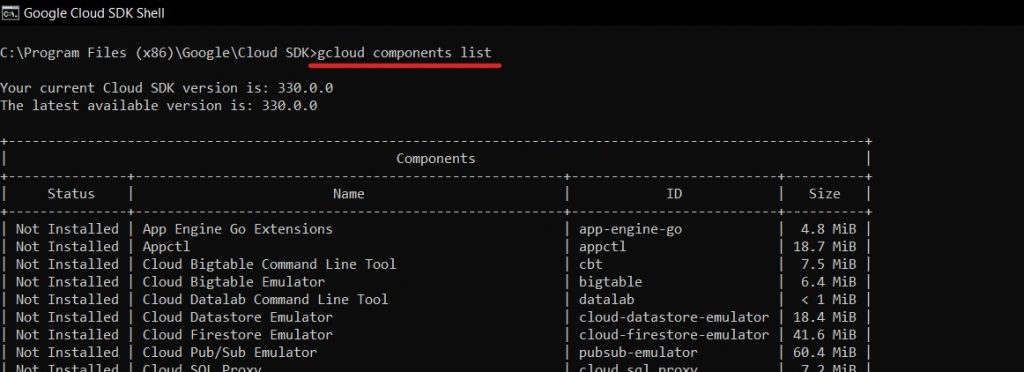
gcloud components list
Shows which components are installed and which are not.
Install a Component
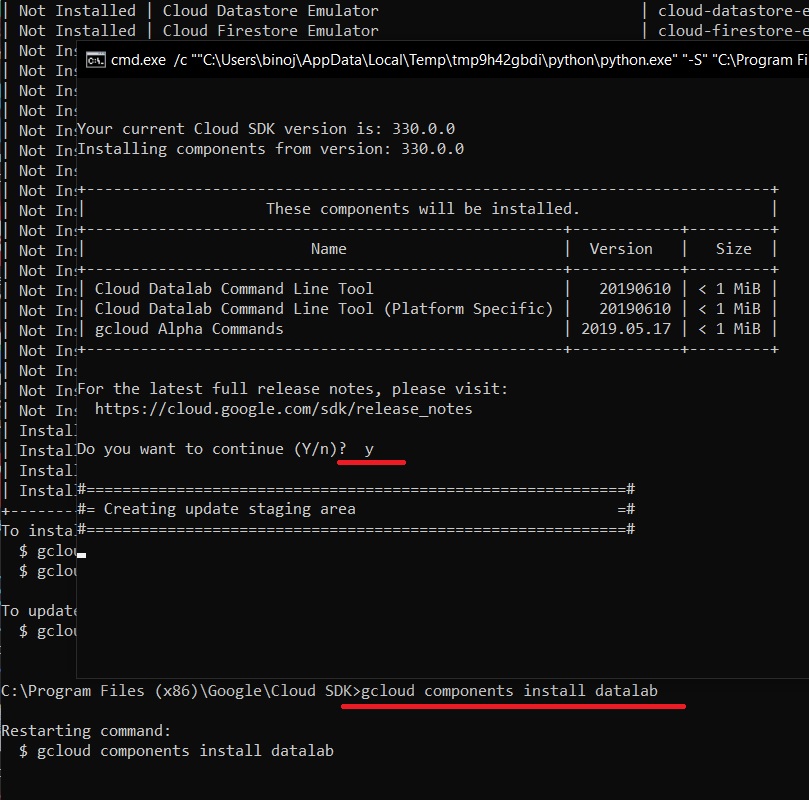
gcloud components install COMPONENT_ID
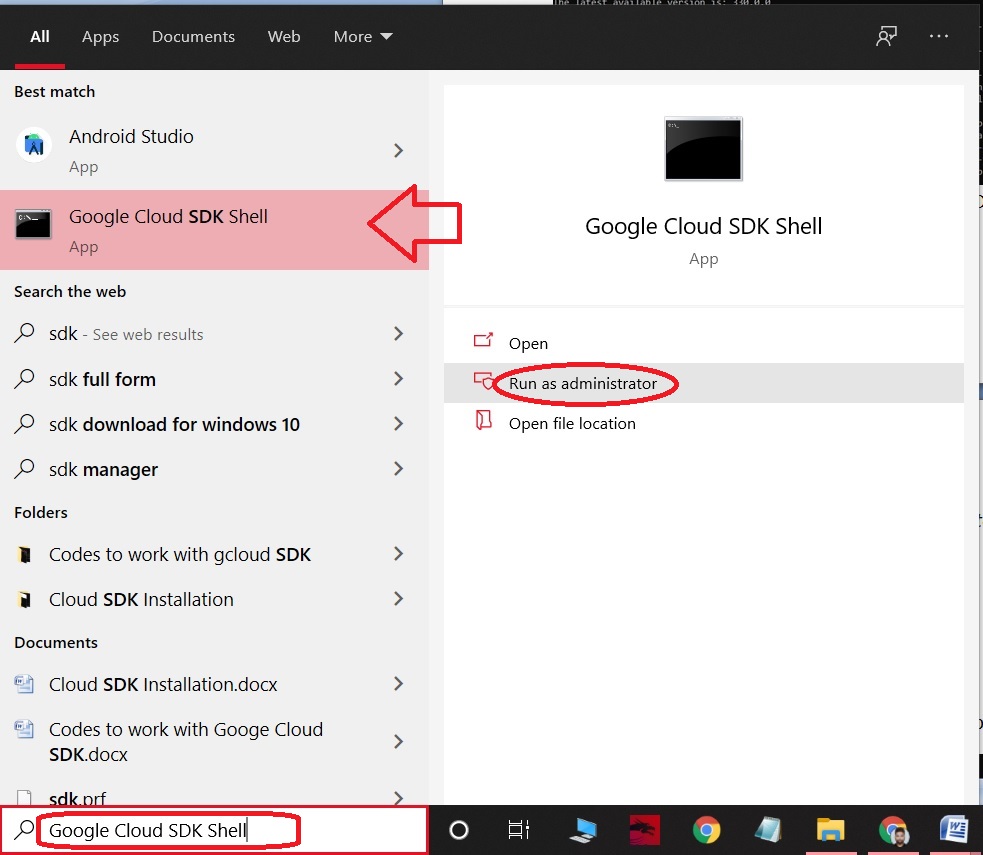
Installs a component. On a system wide install, you need administrator access to install or remove components.
A command window shows the installation. Press y to confirm.
Remove a Component
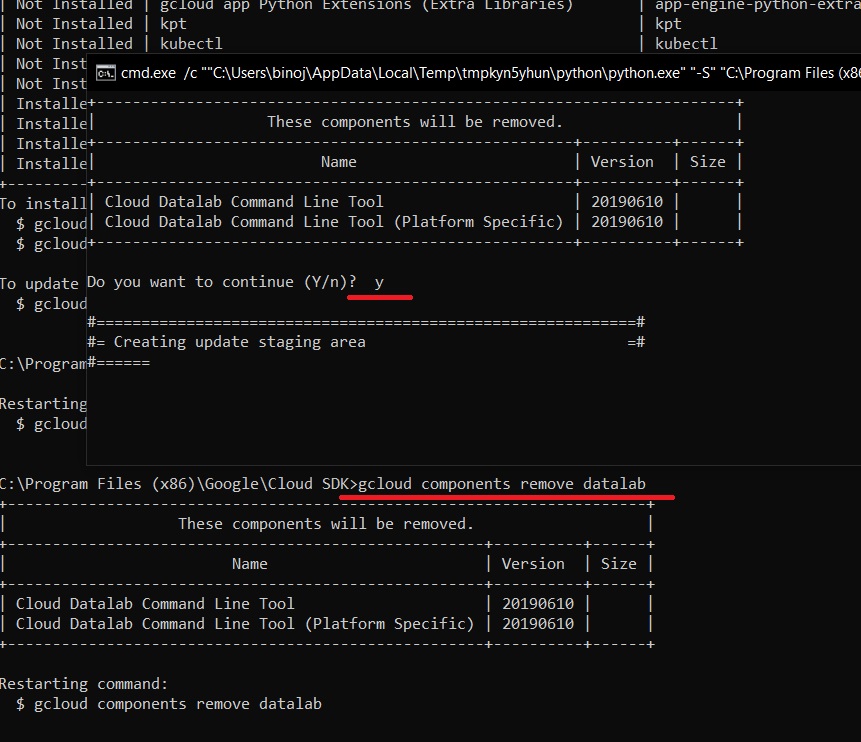
gcloud components remove COMPONENT_ID
Removes a component. Check the ID first, since other commands may depend on it. A command window opens, and you press y to confirm.
Update Components
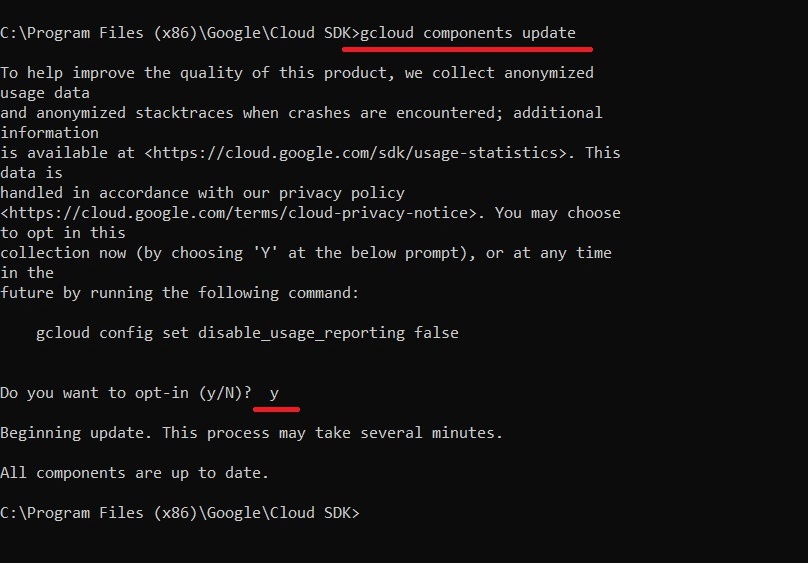
gcloud components update
Updates your installed components. When asked, press y.
Working With Projects
List Projects
gcloud projects list
Shows the projects you have access to.
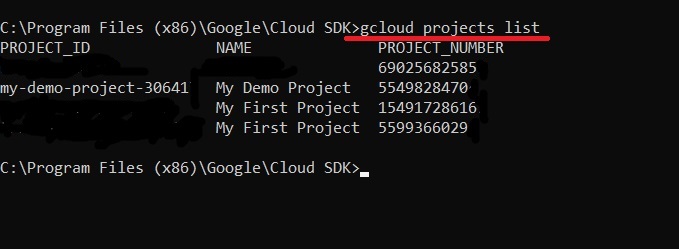
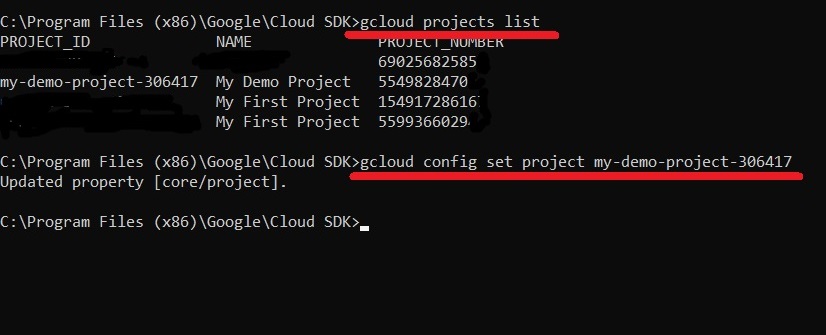
Set the Project You Are Working In
gcloud config set project PROJECT_ID
Every later command runs against this project unless you override it.
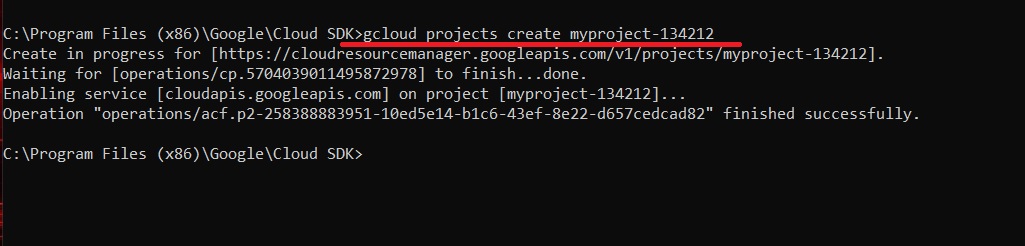
Create a Project
gcloud projects create PROJECT_ID
The project ID has to be unique across all of Google Cloud, so no other project anywhere can already use it. It must also follow the ID rules in the Google Cloud Platform and Project Creation guide in this series. Creating a project does not link it to a billing account, so the project cannot use paid resources until you do that. The Enabling Billing guide in this series covers it.
Listing Zones, Regions, Machine Types, and Images
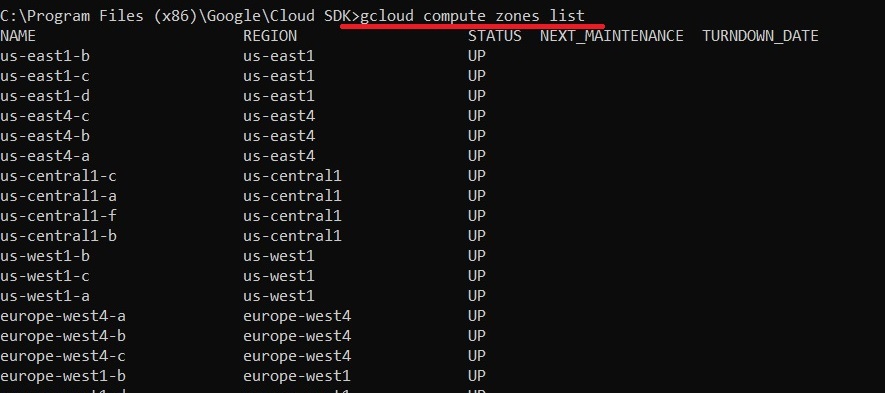
List Zones
gcloud compute zones list
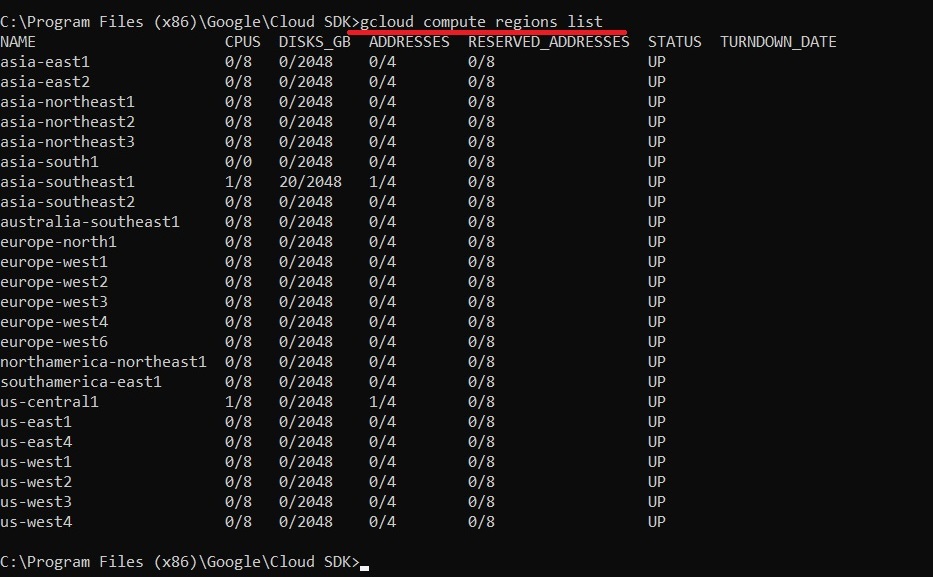
List Regions
gcloud compute regions list
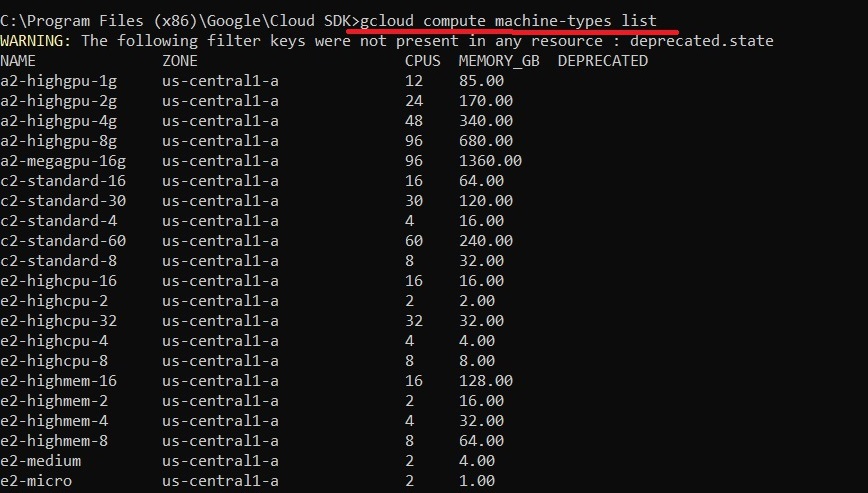
List Machine Types
gcloud compute machine-types list
List Images
gcloud compute images list
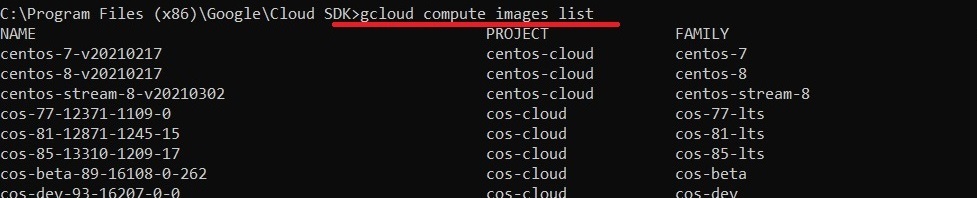
These listings can run to hundreds of lines. Google’s gcloud cheat sheet points out that you can narrow any list with the filter, format, limit, and sort flags. For example, this lists VMs whose zone starts with us and which are not the f1 micro machine type:
gcloud compute instances list –filter=”zone ~ ^us AND -machineType:f1-micro”
Checking Which Account You Are Using
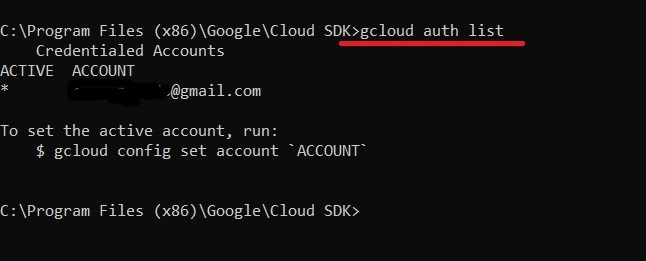
gcloud auth list
Lists the accounts gcloud is signed in with, and marks the active one. It is worth running before any destructive command, so you know which account and project you are about to change.
Getting Help and Where to Go Next
Add the help flag to any command to see its options, for example gcloud compute instances create with the help flag. For Cloud Storage, the gcloud storage commands are the current route. The Bucket Object Versioning and Object Holds guide in this series explains why gsutil is being phased out of the default installation. The Creating an Instance Using Cloud Shell guide in this series goes further on creating VMs.
Common Mistakes to Avoid
- Writing flags with an en dash or with a space after the equals sign. Use two real hyphens, and no spaces around the equals sign.
- Running delete or remove commands without checking the account, project, and zone first.
- Using gcloud components on an APT or yum install, where the component manager is disabled.
- Assuming a new project can create resources straight away. It needs a billing account linked first.
- Leaving out the zone and then answering the interactive prompt wrongly. State the zone in the command.
That covers the everyday gcloud commands for VMs, projects, and components, with the broken ones fixed. To go further, explore Prwatech’s Google Cloud training program, which includes placement assistance.
