Instance Template creation and Creating Instance using Instance Template
Instance Templates and Managed Instance Groups
An instance template is a saved set of VM settings, such as machine type, boot disk image, labels, metadata, and networking, that you can use to create VMs again and again with the same configuration. A managed instance group, or MIG, is a collection of identical VMs created from one template, with services such as autoscaling and autohealing built in.
Templates matter once you need more than one VM. Instead of filling in the same form repeatedly, and drifting slightly each time, you define the VM once. Two facts shape how you work with them. A template cannot be edited after it is created. And a group is only as good as its sizing settings, which decide how many VMs run and what you pay.
This walks through creating a template, creating a managed instance group from it, and choosing between a fixed number of VMs and autoscaling, then covers how to change a template later.
Prerequisites:
- A Google Cloud account with billing enabled. The Enabling Billing guide in this series covers that.
- Familiarity with creating a single VM. The Creating an Instance Using Developers Console guide in this series covers that.
Step by Step Process of Creating Instance Template
Step 1: Open Instance Templates
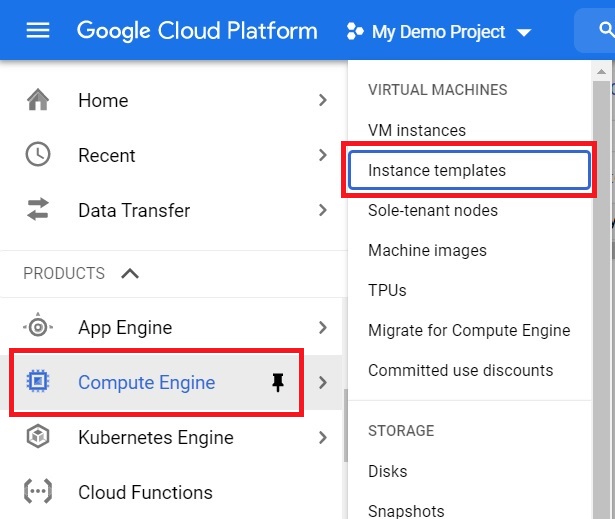
Open the console, Open the compute engine > Instance Templates
Step 2: Create an Instance Template
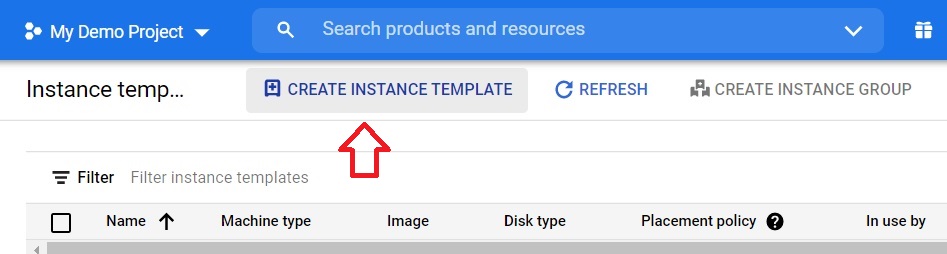
Click Create instance template.
Step 3: Fill In the Settings
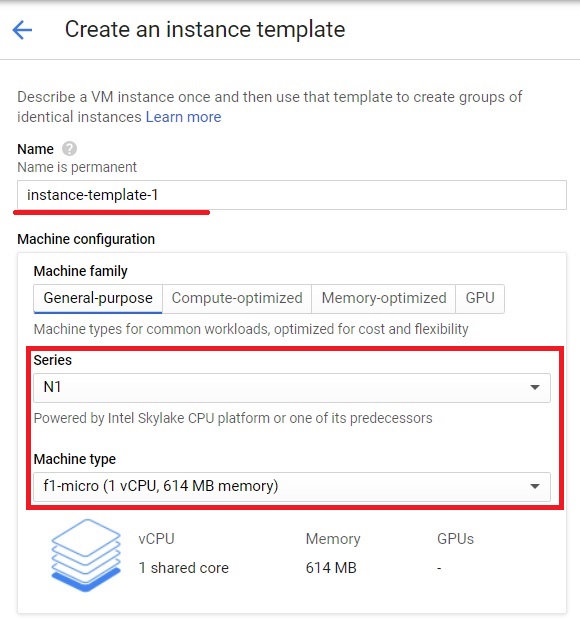
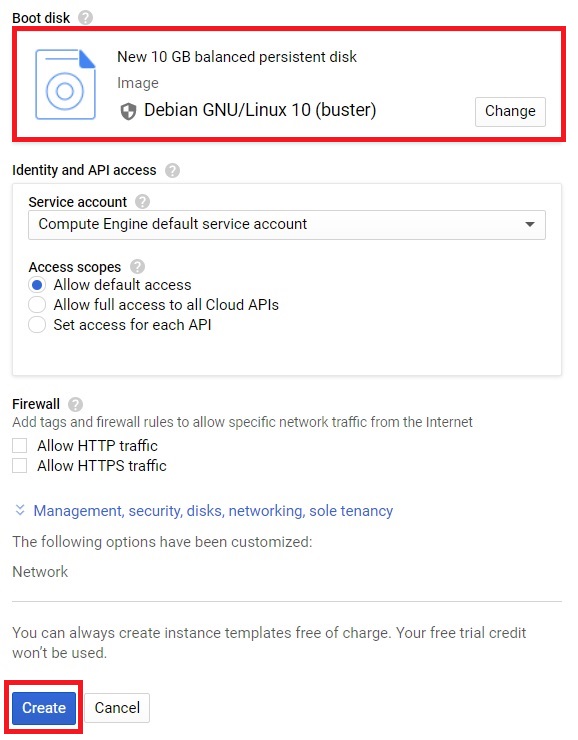
The form is much like creating a single VM. Set the machine type, boot disk, networking, and anything else the VMs should have.
Step 4: Create the Template
Click Create once you have chosen the settings. The instance template is created.
Global and Regional Templates
Google Cloud has two kinds of instance template. A global template can be reused in different regions. A regional template can be used only in the region it was created in, which helps if you want to reduce cross region dependency or meet data residency rules. Either kind can be used to create VMs and managed instance groups.
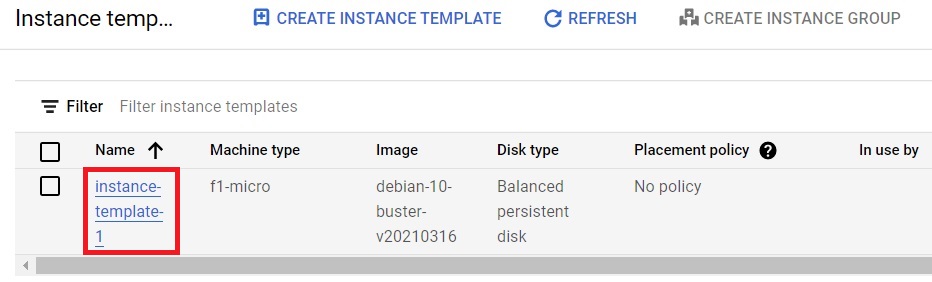
Step 5: Open the Template
To create a group from the template, click the instance template in the list.
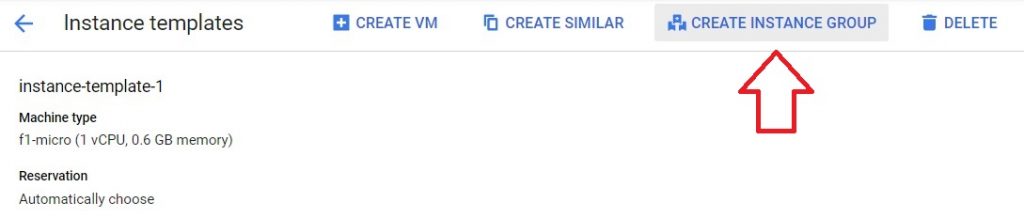
Step 6: Create an Instance Group
Click Create instance group.
Step 7: Name the Group and Choose Where It Runs
The form looks like creating a VM, but here you create several VMs with the same specification. Give the group a name, choose the location, then choose the instance template.
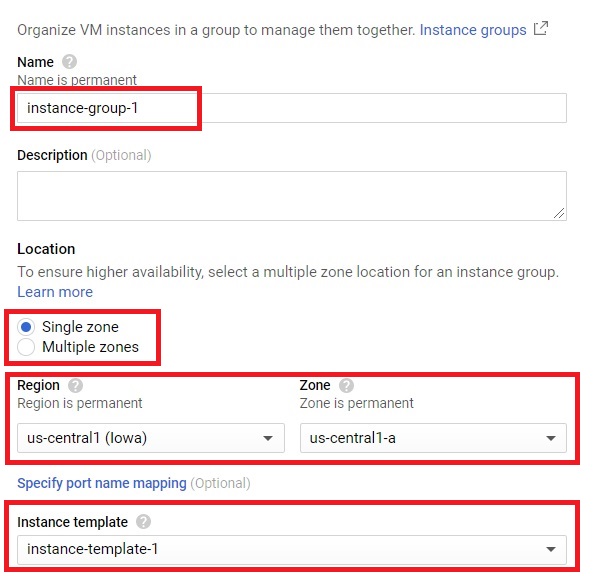
Step 8: Select the Template and Open Autoscaling Mode
Select the instance template you want, then open the Autoscaling mode setting. You now choose one of two paths. Pick a fixed size, or turn autoscaling on.
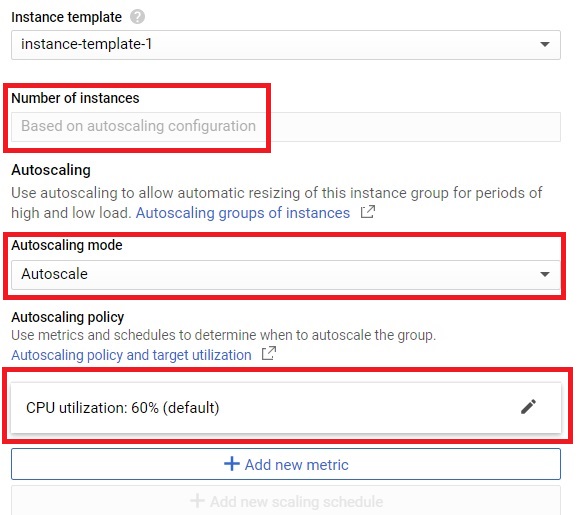
Option 1: A Fixed Number of Instances
Choose Don’t autoscale, then enter the number of instances you want. The group creates exactly that many VMs, and keeps that number running.
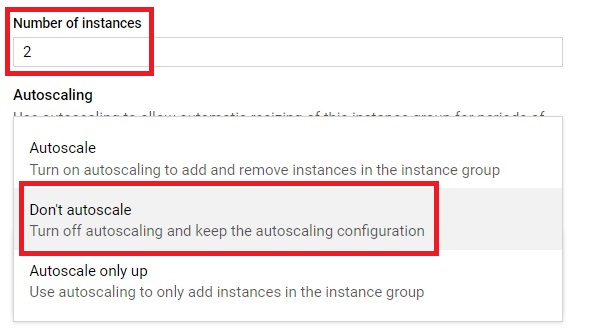
Option 2: Autoscale on CPU Utilization
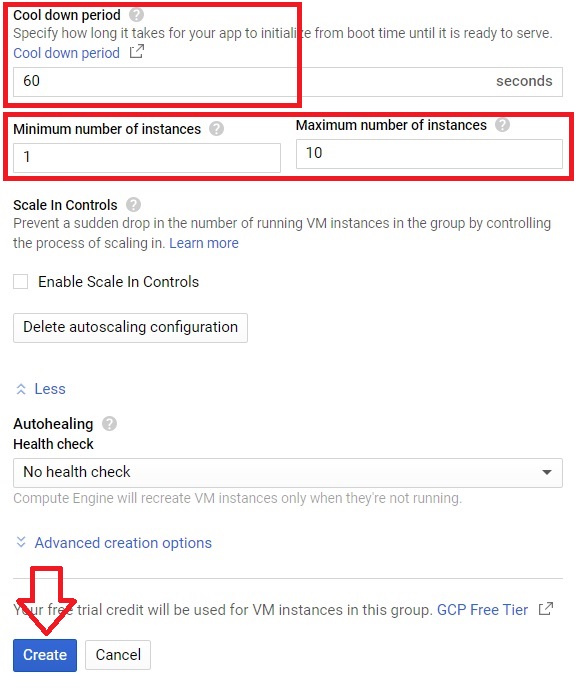
If you want the group to grow and shrink, choose the autoscaling mode that adds and removes instances, then choose CPU utilization as the signal and set a target. The autoscaler compares the group’s average CPU against that target. If the average is above it, the group scales out, up to your maximum. If it is below, the group scales in, down to your minimum.
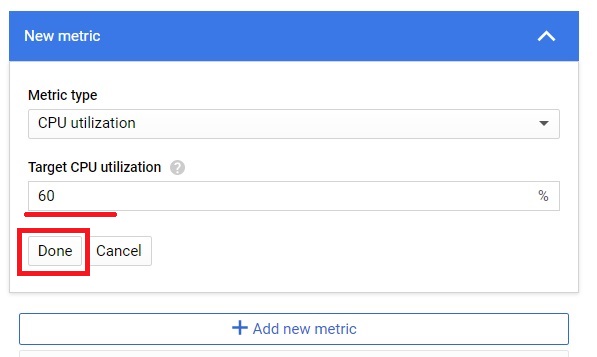
Set the Minimum and Maximum, Then Create
Enter the minimum and maximum number of instances, then click Create. With autoscaling on, the group runs between those two numbers depending on load. The original page said it creates only the specified number of instances, which is true only for the fixed size in Option One.