Creating Cloud Composer
Creating a Cloud Composer Environment
Cloud Composer is Google Cloud’s managed Apache Airflow. Airflow is the tool that schedules and runs workflows made of many steps, called DAGs, and Composer runs it for you. An environment is one managed Airflow setup, with its own web interface, scheduler, workers, database, and a Cloud Storage bucket where you put your DAG files. Google’s documentation now sometimes calls the product Managed Service for Apache Airflow.
Two things matter before you create one. The version, because the steps in older guides, including the original version of this page, are for Composer 1, which is past its end of life date. And the cost, because an environment bills for every hour it exists, whether or not a single DAG is running.
This walks through creating a Composer 3 environment in the console, with the choices that actually matter explained at the steps where you make them, followed by what it costs and what to do next.
Which Composer Version to Use
| Version | Status according to Google’s documentation |
|---|---|
| Cloud Composer 1 | Could no longer be created in the console from July 15, 2024. New environments could not be created at all from September 15, 2025. End of life date was September 15, 2026. |
| Cloud Composer 2, versions 2.0.x | End of life date was September 15, 2026. |
| Cloud Composer 2, versions 2.1.x and later | Still supported and not affected by that date. |
| Cloud Composer 3 | The version Google recommends migrating to, and the one new environments should use. |
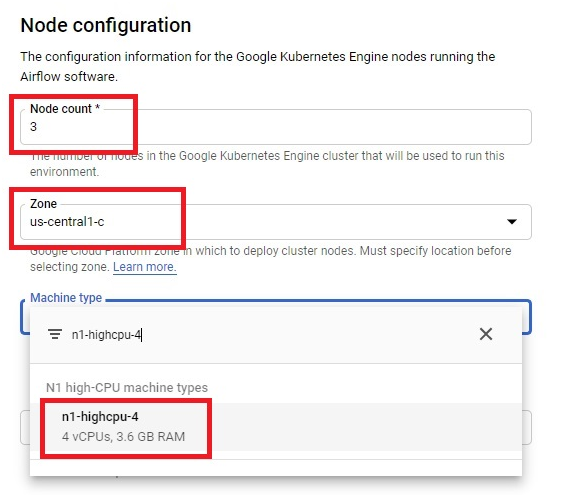
If you find an older guide that asks for a node count and machine type, it is describing Composer 1. The Working With Composer Using Airflow guide in this series covers the same end of life change and what it means for that tutorial.
Step by Step Process of Creating Cloud Composer
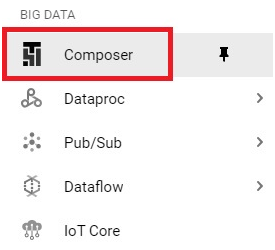
Step One: Open Composer
Open the console, then Open Menu > Composer
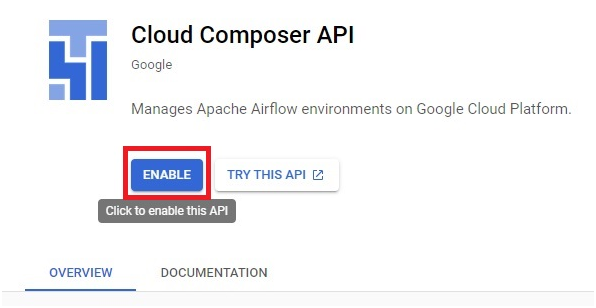
Step Two: Enable the API
Click Enable to turn on the Cloud Composer API.
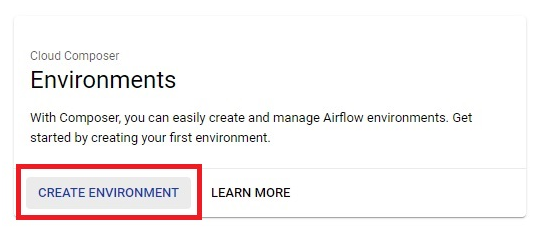
Step Three: Create an Environment
Click Create environment, and choose Cloud Composer 3 if you are offered a choice of version.
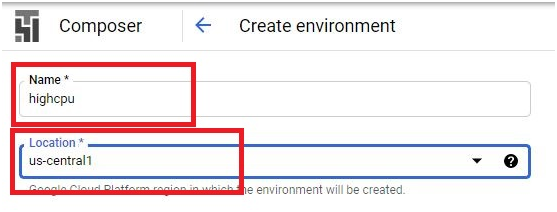
Step Four: Name It and Choose a Location
Give the environment a name and choose a location, which is a region. The original page called this a cluster, but what you are creating is an Airflow environment, and its name is what you will see in the console and in commands later.
Step Five: Choose the Image Version, Size, and Service Account
The original page asks for a node count, a zone, and a machine type here. A current environment asks for different things. Choose an image version, which is the Composer and Airflow version it runs, and choose an environment size, which is small, medium, or large. Small is the right choice for learning. Choose a service account for the environment to run as.
Google recommends a user managed service account with only the permissions the environment and your DAGs need, rather than a broad default account. The Composer Worker role covers what is needed in most cases, and you should add further permissions only when a DAG actually requires them. The GCP Service Account guide in this series explains why narrow permissions matter.
Step Six: Click Create
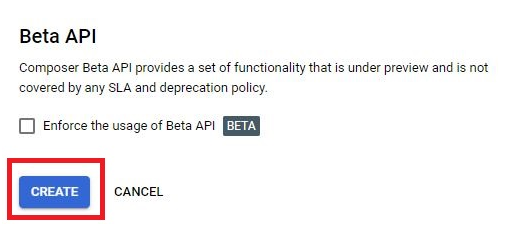
Click Create. Google gives the approximate time to create an environment as 25 minutes, so the original page’s little bit of time is longer than it sounds. You can watch the status in the environments list.
What an Environment Costs
Google bills Composer for the time an environment exists. Its own pricing example makes the point, if you create an environment, run it for 6 hours and 30 minutes, and delete it, you pay for 6.5 hours. Deleting the environment is what stops the charges. Composer 3 is billed in DCU hours, a unit of compute, at 0.06 US dollars per DCU hour in Iowa, plus database storage, and your environment also has costs that are not part of Composer pricing, such as the Cloud Storage bucket and network traffic.
Google’s pricing page gives rates and examples rather than a single monthly figure, and one published measurement of a small Composer 3 environment doing nothing came to about 12.58 US dollars a day, roughly 400 dollars a month. Treat that as an order of magnitude, not a quote, and check Google’s pricing page and calculator. At that rate, a 300 dollar free trial credit would last under a month, so delete practice environments as soon as you finish.
After the Environment Is Created
Each environment gets an Airflow web interface and a Cloud Storage bucket for DAG files. You add a DAG by placing its file in the bucket, and Airflow picks it up. The Working With Composer Using Airflow guide in this series walks through running a DAG.
Common Mistakes to Avoid
- Following a guide that asks for a node count and machine type. Those settings belong to Composer 1, which is past its end of life date.
- Leaving a practice environment running. It bills every hour, and the cost is high for a learning exercise.
- Using a broad default service account out of convenience. Use a user managed account with the Composer Worker role, and add permissions only when needed.
- Assuming creation takes a minute or two. Plan for about 25 minutes.
That covers creating a current Cloud Composer environment and what it costs to keep one running. To go further, explore Prwatech’s Google Cloud training program, which includes placement assistance.
