Adding disks in GCP Instances
Adding and Mounting an Extra Disk on a Google Cloud VM
A new VM comes with one disk, the boot disk, which holds the operating system. When you need more room for data, you can add a second disk. A Compute Engine persistent disk is network storage that you create separately and attach to a VM, and it can outlive the VM it was first attached to.
Attaching a new disk is only half the job. The VM sees a blank, unformatted device, and until you format it with a file system and mount it, it cannot hold files. Google’s guide says that for a new, blank disk you must format and mount it. This guide covers every step, including the careful part, making sure you format the new disk and not another one.
This walks through creating and attaching a disk in the console, formatting it, mounting it, and keeping it mounted after a reboot.
Prerequisites:
- A Google Cloud account with billing enabled. The Enabling Billing guide in this series covers that.
- A running Linux VM. The Creating an Instance Using Developers Console guide in this series covers that.
- Permission to create disks and attach them to the VM.
Before You Start: Zones, Types, Size, and Cost
- A zonal disk can only be attached to VMs in the same zone, so the disk you add is available to instances in that zone only. The original page says this too.
- You choose a disk type in the form. The options differ in speed and price, and which are available depends on the machine series, so read the descriptions in the console.
- You pay for the size you provision, whether or not you fill it. If you only need more space on an existing disk, you can resize it instead of adding another, though you must then extend the file system inside the VM.
- An attached disk bills for as long as it exists, so remove disks you no longer need.
Step by Step Process of Adding Extra Disk on a Google Cloud VM
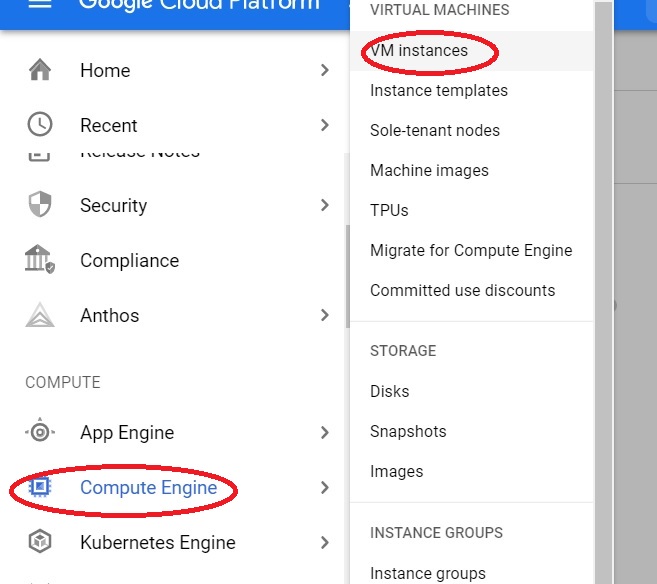
Step One: Open VM Instances
Open the console, then Click Menu > Compute Engine > VM instances.
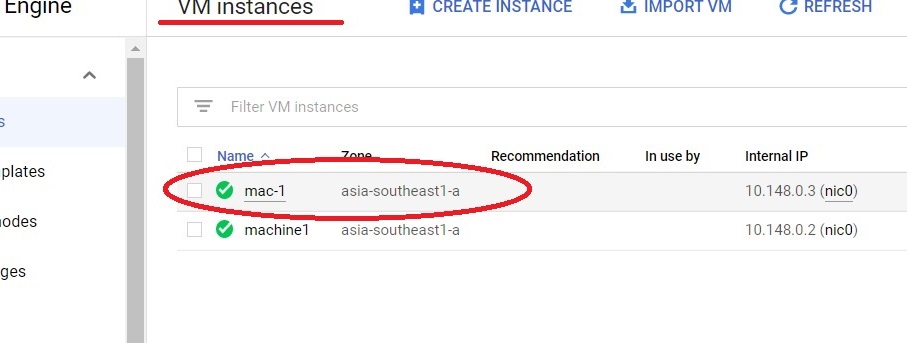
Step Two: Select the VM
Click the instance you want to add the disk to.
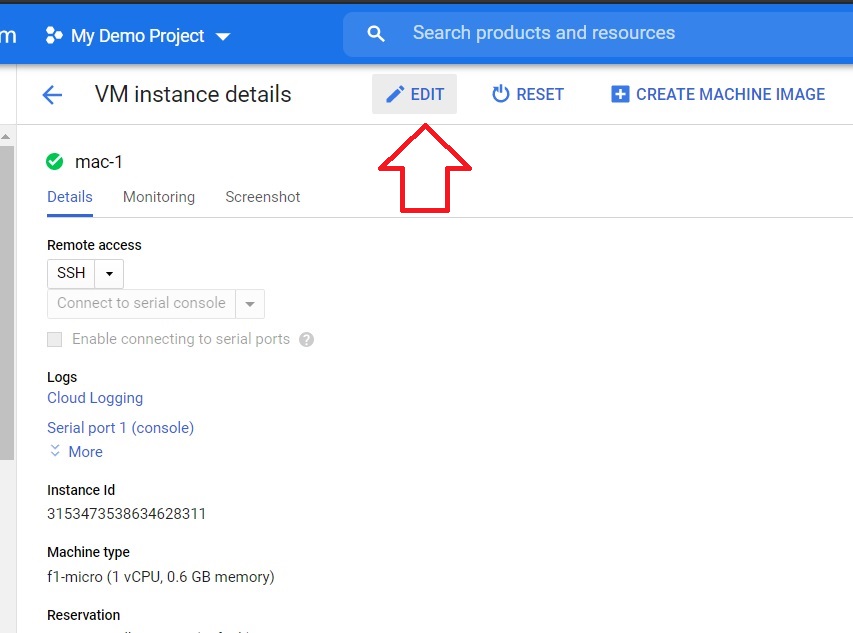
Step Three: Click Edit
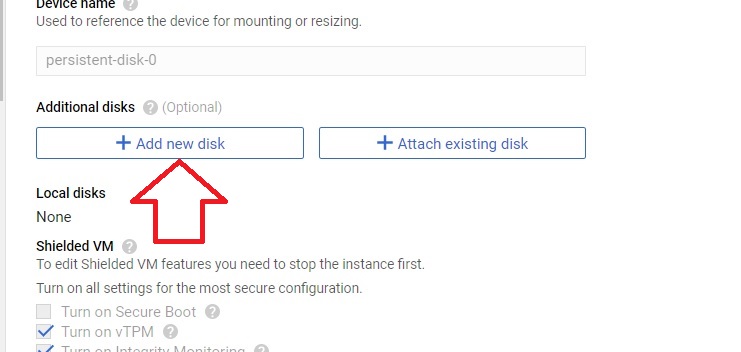
Step Four: Add a New Disk
In the Additional disks section, click Add new disk.
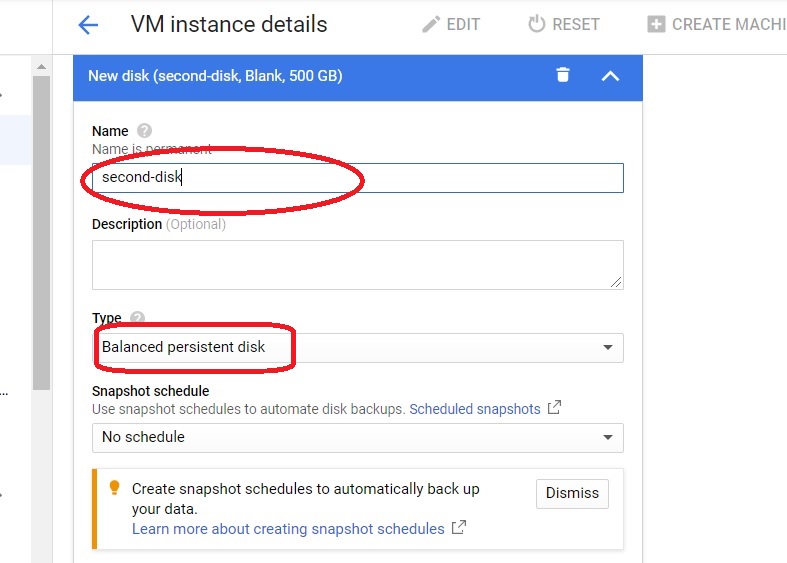
Step Five: Name the Disk and Choose a Type
Give the disk a name and choose the disk type.
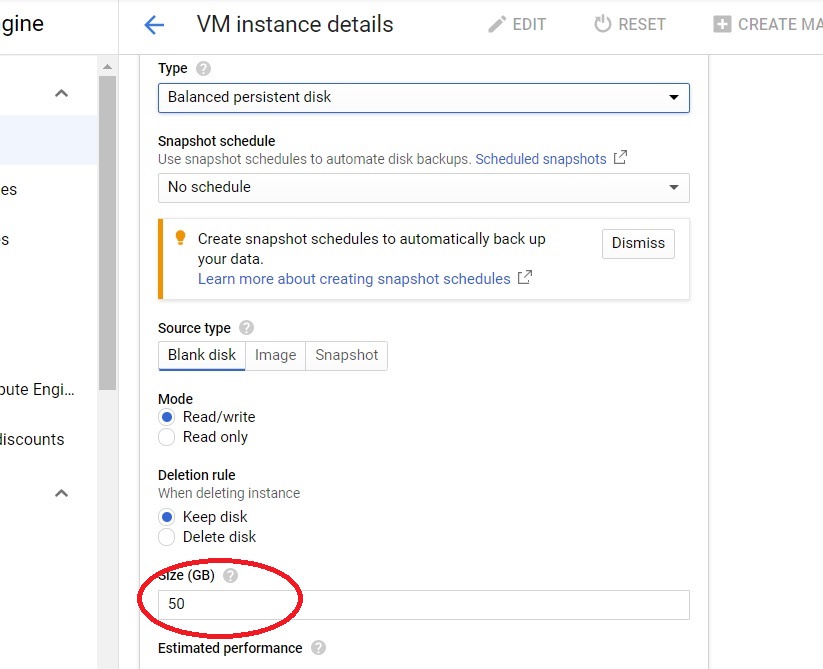
Step Six: Set the Size
Enter the size you want for the disk.
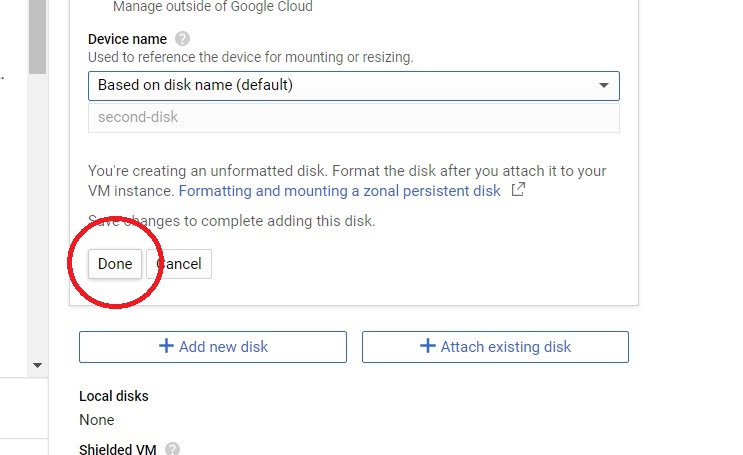
Step Seven: Click Done
Click Done. The disk is defined, but it is not attached yet.
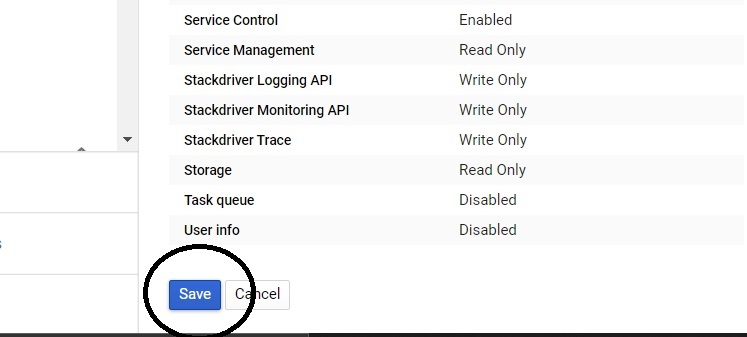
Step Eight: Save
Click Save. Only then is the disk created and attached to the instance.
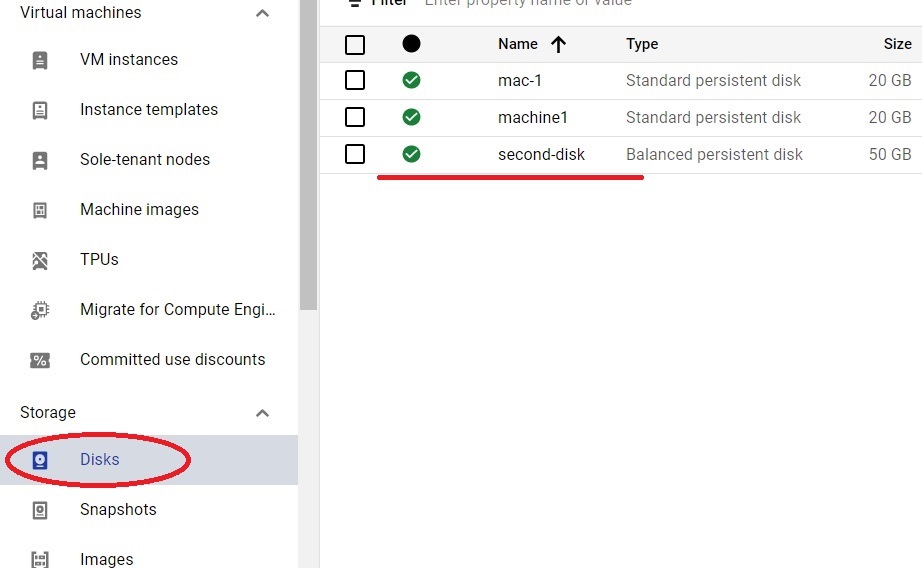
Step Nine: Check the Disks Tab
Open the Disks tab. It lists the disks attached to the VM, including the new one.
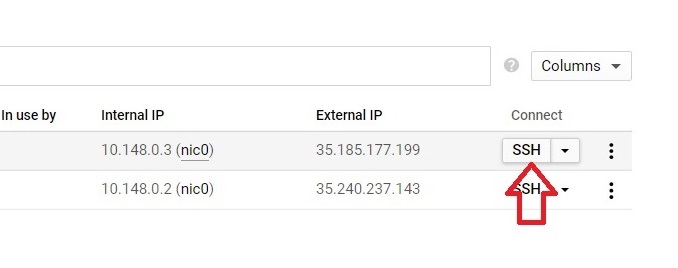
Step Ten: Connect to the VM
Back on VM instances, click SSH next to the machine you added the disk to.
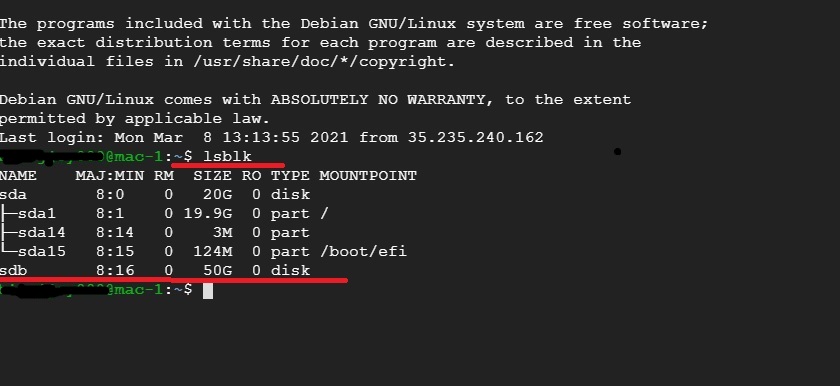
Step Eleven: Identify the New Disk
lsblk
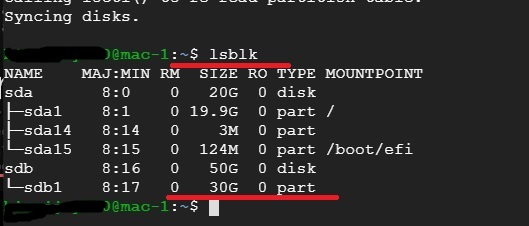
This lists the disks the VM can see. Find the new one by its size, which should match what you entered, and read its device name from the output. On many VMs it is sdb, but do not assume. Some newer machine series show disks with different names, and with several disks attached, the new one may not be sdb. Everything below uses DEVICE_NAME for this name, so replace it with what lsblk shows, and check it twice, because formatting the wrong disk destroys its data.
Optional: Partition the Disk
Google’s guide formats the whole disk without partitioning it, which is simpler, and you can skip to the formatting step and use the device name directly. The original page partitions the disk first, which is also valid. If you want a partition, start the partition tool on the disk you identified:
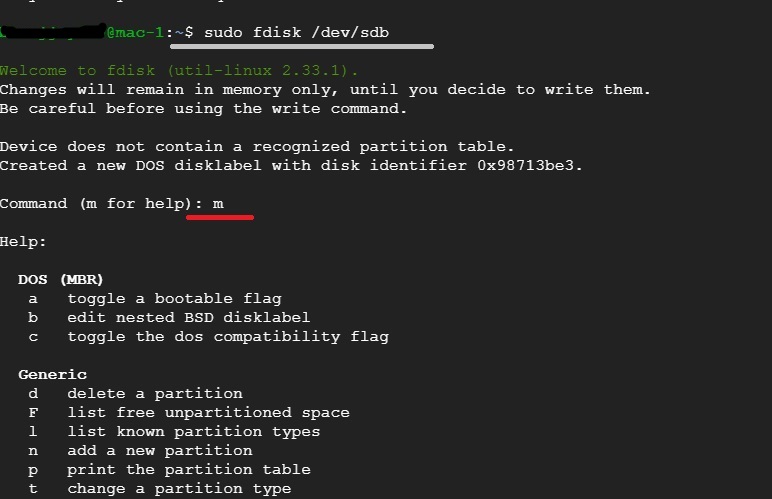
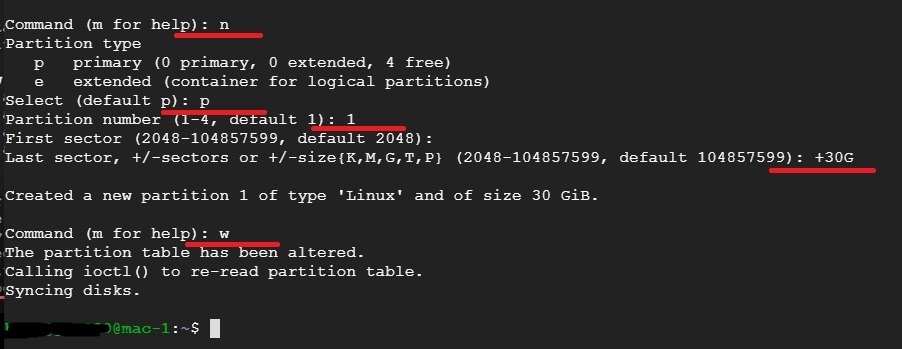
sudo fdisk /dev/DEVICE_NAME
Type m to list the available commands.
Type n to create a new partition, and p for a primary partition if you are asked, then a partition number, such as 1. When asked for sizes, pressing Enter accepts the defaults, which use the whole disk. Type w to write the changes.
Run lsblk again. It should show the new partition under the disk, which is then called DEVICE_NAME followed by 1.
lsblk
If the partition does not show up, tell the kernel to re read the partition table with the partprobe command, and check again.
sudo partprobe
Step Twelve: Create a Mount Folder
Create a folder for the disk under mnt, not under dev. The original page created it inside dev, which is a system directory that is rebuilt at every boot:
sudo mkdir -p /mnt/disks/MOUNT_DIR

Step Thirteen: Format the Disk
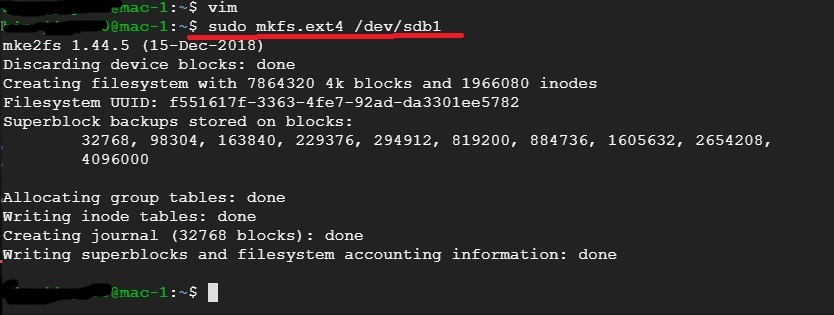
This step erases everything on the device you name, so be certain it is the new, blank disk. If you made a partition, use the partition name. If you did not, use the disk name. Google’s approach uses these options:
sudo mkfs.ext4 -m 0 -E lazy_itable_init=0,lazy_journal_init=0,discard /dev/DEVICE_NAME
The original page used a plain mkfs.ext4 command on the partition, which also works. Either way, this creates an ext4 file system. Do not run it on a disk that already holds data you want to keep. The Adding an Existing Disk Into a New VM guide in this series covers mounting a disk that already has data.
Step Fourteen: Add the Disk to fstab
A mount made by hand is lost on reboot. To make it permanent, add the disk to fstab. First make a backup, then find the disk’s UUID:
sudo cp /etc/fstab /etc/fstab.backup
sudo blkid /dev/DEVICE_NAME
If you made a partition, use the partition name in the blkid command, since the UUID belongs to the file system you formatted. Then open the file in an editor. The original page uses vi:
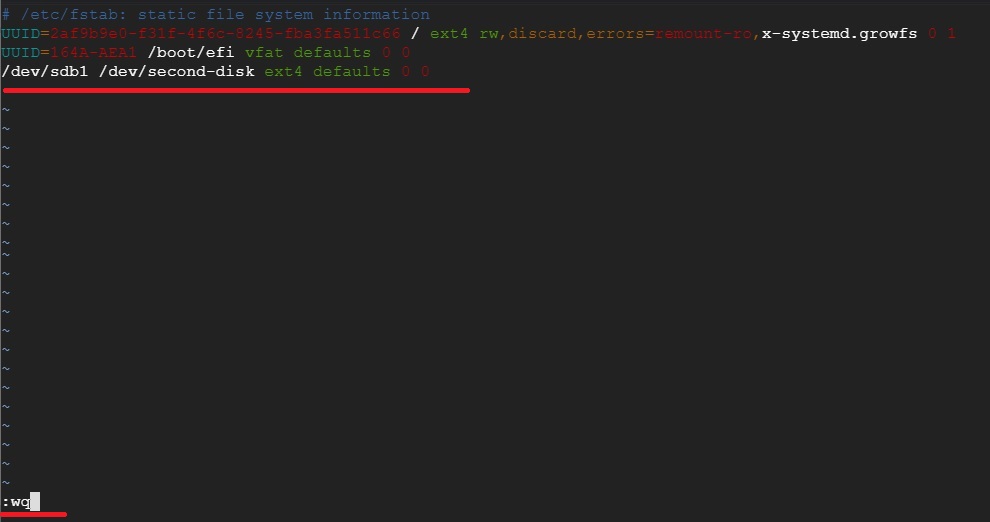
sudo vi /etc/fstab

In vi, press i to switch to editing mode.
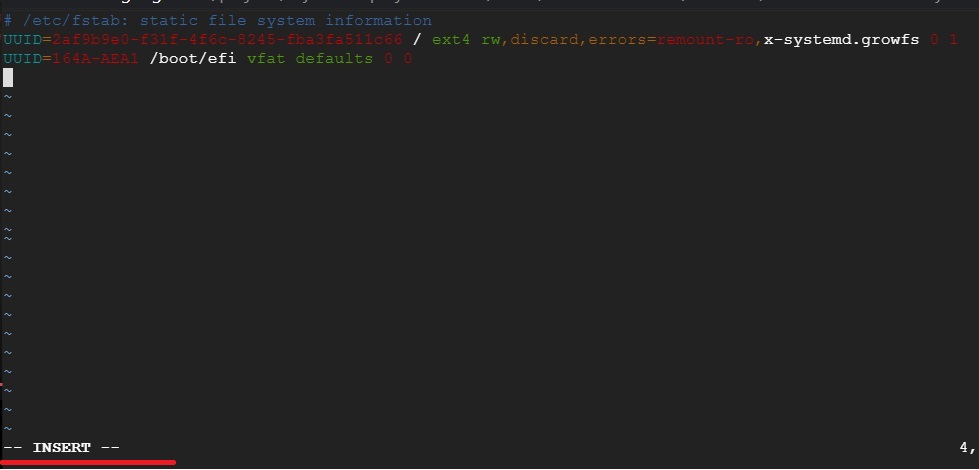
Add one line, using the UUID that blkid showed and the folder you made. The original line used the device name and a folder under dev. This version uses the UUID, a folder under mnt, and nofail:
UUID=UUID_VALUE /mnt/disks/MOUNT_DIR ext4 discard,defaults,nofail 0 2
Press escape, then type a colon, then wq, then press Enter to save and quit.
Step Fifteen: Mount the Disk and Check
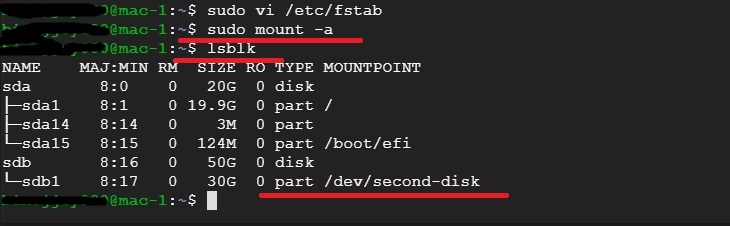
Mount everything listed in fstab, which also tests that your new line is valid. The original page wrote the flag with an en dash, which fails. It needs a real hyphen:
sudo mount -a
lsblk
The disk now shows a mount folder in the lsblk output. If it does not, check the line you added to fstab. If you only want a mount right now, without waiting for fstab, you can mount it directly:
sudo mount -o discard,defaults /dev/DEVICE_NAME /mnt/disks/MOUNT_DIR
Who Can Write to the Disk
A new file system is usually writable only by the root user. Set the folder’s permissions to suit the people who need it, and avoid opening it to everyone unless that is what you intend.
Before You Detach It Later
Because you added an fstab entry, remember to remove it before you detach the disk. The Removing Disks From Instances guide in this series covers that.
Common Mistakes to Avoid
- Assuming the new disk is sdb. Read lsblk and match the size before you partition or format.
- Creating the mount folder under dev. Use a folder under mnt.
- Putting the device name in fstab. Use the UUID, and add nofail.
- Writing the mount command with an en dash. It needs a real hyphen.
- Formatting a disk that already has data. Format only new, blank disks.
- Forgetting that the disk keeps costing money while it exists.
That covers adding a new disk to a Google Cloud VM, formatting it, and mounting it safely. To go further, explore Prwatech’s Google Cloud training program, which includes placement assistance.
