IAM Audit Logs
Audit Logs in Google Cloud
Cloud Audit Logs record who did what, where, and when on your Google Cloud resources. When someone changes an IAM policy, creates a virtual machine, or deletes a bucket, an audit log entry is written to Cloud Logging, so you can answer questions such as who changed this setting, what exactly did they change, and when.
The detail that catches people out is that not all of this is on by default. Admin Activity logs, which record changes to configuration, are always on and cannot be disabled. Data Access logs, which record who read or wrote the data itself, are off by default for almost every service, because they can be very large. If you need to know who read a file or ran a query, you have to turn those logs on yourself, and that is exactly what the Default Audit Config settings in this walkthrough control.
This walks through opening the audit log settings, choosing which Data Access log types to record, and setting exempted principals, then explains the four log types, who can read the logs, and how long they are kept.
Step by Step Process of Google Cloud Audit Logs
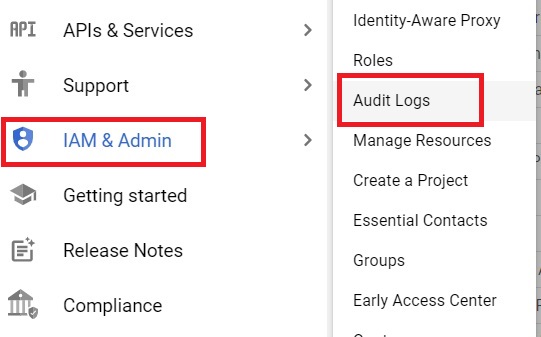
Step One: Open Audit Logs
Open the console, then
Open Menu > IAM & Admin > Audit Logs
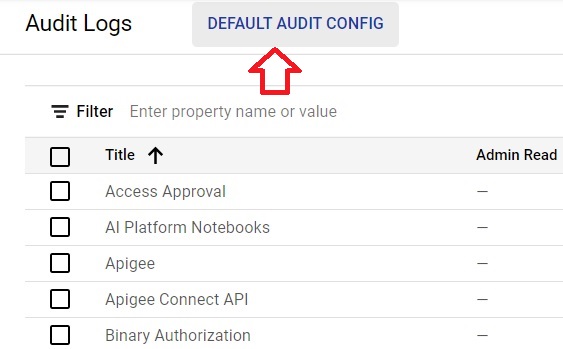
Step Two: Open Default Audit Config
Click Default Audit Config. The default configuration is the starting point for services that do not have their own settings, including services that begin producing Data Access logs in future.
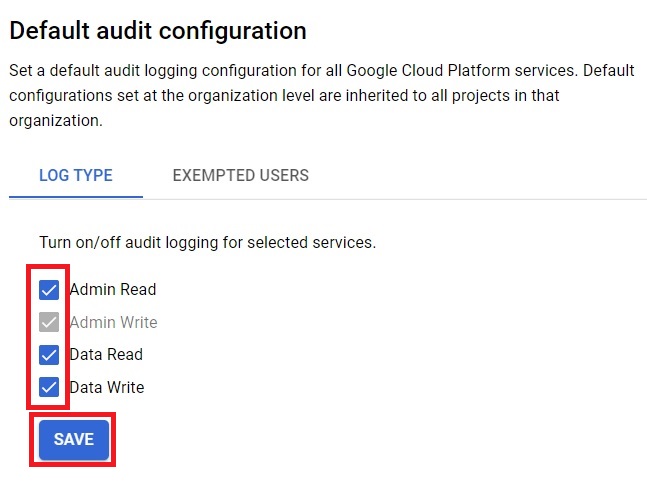
Step Three: Choose the Data Access Log Types to Record
On the Log Type tab, tick the log types you want recorded, then click Save. This is the step the original page described the wrong way round, since a ticked type is turned on.
- Admin Read, records operations that read metadata or configuration information.
- Data Read, records operations that read user provided data.
- Data Write, records operations that write user provided data.
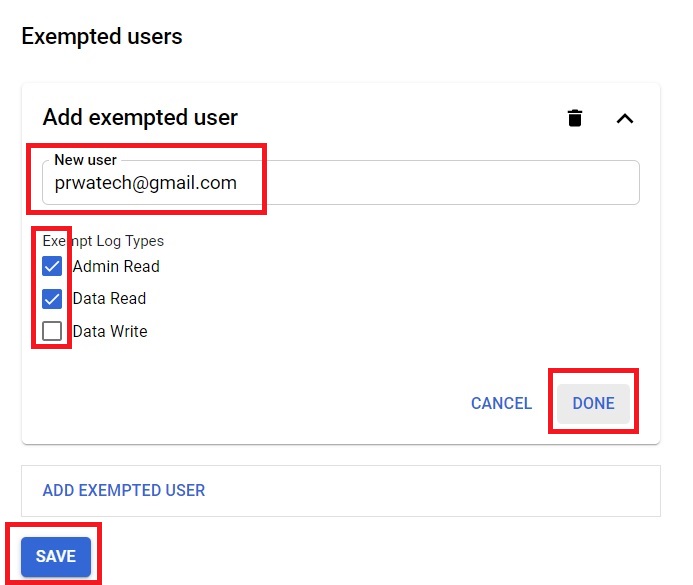
Step Four: Set Exempted Principals
Exempted principals are people or service accounts whose data accesses are not recorded. Open the Exempted Principals tab, add the principal, choose the log types to exempt them from, then click Done and Save.
The Four Types of Audit Logs
- Admin Activity, records changes to configuration and metadata. Always on, free, and it cannot be disabled.
- Data Access, records reads and writes of data. Off by default for all services except some BigQuery services, can generate a lot of volume, and can add logging cost.
- System Event, records actions that Google Cloud itself takes on your resources rather than anything a user did. Always on and cannot be disabled.
- Policy Denied, records requests that Google Cloud denied because of a security policy violation.
BigQuery is the exception to the off by default rule for Data Access logs. Its Data Access logs are on by default and cannot be disabled, which means the original page’s claim that you can disable logging for selected services is not true everywhere.
Who Can See Audit Logs
The Logs Viewer role can read Admin Activity, Policy Denied, and System Event audit logs, but not Data Access audit logs in the default log bucket. To read Data Access logs, a person needs the Private Logs Viewer role, which includes everything Logs Viewer allows plus access to those logs.
How Long Audit Logs Are Kept
Admin Activity and System Event logs are kept for 400 days in a required log bucket whose retention cannot be changed. Data Access logs go to the default log bucket, which keeps logs for 30 days unless you change it. For longer retention, you can raise the default bucket’s retention, which adds cost, or route logs to Cloud Storage or BigQuery with a log sink.
Use Exempted Principals Sparingly
An exemption means that person’s data accesses are not recorded for the log types you chose, which creates a blind spot in your audit trail. Cloud security benchmarks recommend having no exempted principals at all, so that logs are captured for every user.
Common Mistakes to Avoid
- Ticking log types you meant to turn off. Ticking turns a Data Access log type on, which also adds volume and cost.
- Assuming Data Access logs are already being written. They are off by default for almost every service, so enable the ones you need before an investigation, not during it.
- Relying on the 30 day default for Data Access logs when a compliance rule needs longer. Raise retention or export them with a log sink.
- Giving someone only the Logs Viewer role and expecting them to see Data Access logs. They need Private Logs Viewer for that.
- Adding exempted principals out of convenience. Each one leaves a gap in the record.
That covers turning on the right audit logs, who can read them, and how long they last. To go further, explore Prwatech’s Google Cloud training program, which includes placement assistance.