Creating Standard GKE Cluster
How to Create a Standard GKE Cluster in Google Cloud
Google Kubernetes Engine, or GKE, is Google’s managed Kubernetes service. It runs the control plane for you, but it gives you two ways to handle everything else. In Autopilot mode Google also manages the nodes. In Standard mode you do. You choose the machine types, size the node pools, decide the operating system and set when upgrades happen.
That extra control is the whole reason to pick Standard. If you need a particular machine family, GPUs, a specific node image, privileged agents or your own upgrade timing, Standard lets you have them. The price of that freedom is responsibility. Nodes you create are nodes you pay for, whether they are busy or idle, so the choices you make on the creation form decide both how well the cluster works and what it costs.
This guide walks through creating a Standard cluster in the Google Cloud console with every original screenshot kept in place, and explains what each setting means as we reach it. Then we create the same cluster with gcloud, connect to it with kubectl and clean up. Along the way you will find a comparison with Autopilot, a cost warning, common mistakes and a short FAQ.
Standard or Autopilot: Which Should You Choose?
| Point | Standard | Autopilot |
|---|---|---|
| Node management | You create and manage node pools | Google manages nodes for you |
| Cluster location | Zonal or regional | Regional only |
| Billing | You pay for node capacity whether or not Pods use it | Mostly based on Pod resource requests |
| Node operating system | Container Optimized OS by default, Ubuntu or Windows Server optional | Container Optimized OS only |
| Machine types and GPUs | Any machine type, GPUs and TPUs optional | Chosen through compute classes |
| Third party tools | Any tool, including ones needing node access | Tools that are allowlisted or need no elevated access |
My advice: if you have no concrete reason to manage nodes, start with Autopilot and move to Standard only when you hit a limit. If you do need node level control, Standard is the right tool and the rest of this guide is for you.
Prerequisites:
- A Google Cloud account with a project that has billing enabled.
- The Kubernetes Engine API enabled in that project.
- A role that can create clusters, such as Kubernetes Engine Cluster Admin.
- A VPC network. The default network is fine for a first cluster.
- If your organisation restricts external IP addresses through an organisation policy, public cluster creation can fail. Ask your administrator before you start.
- For the command line steps, Cloud Shell or a local gcloud installation, plus kubectl.
Create a Standard Cluster Using the Console
Menu labels change from time to time, so treat the wording below as a guide rather than an exact script.
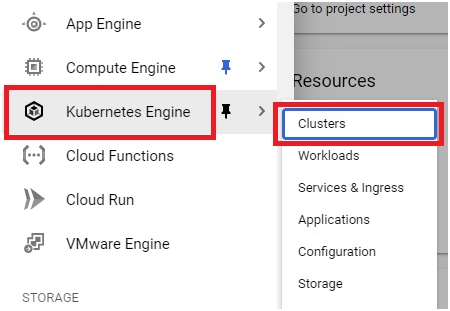
1. Sign in to the Google Cloud console. Open Menu > Kubernetes Engine > Clusters
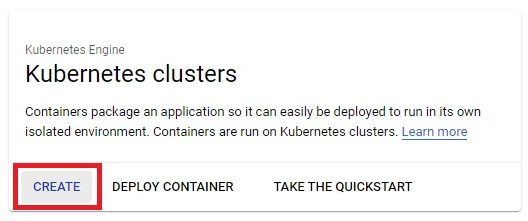
2. Click Createat the top of the Clusters page.
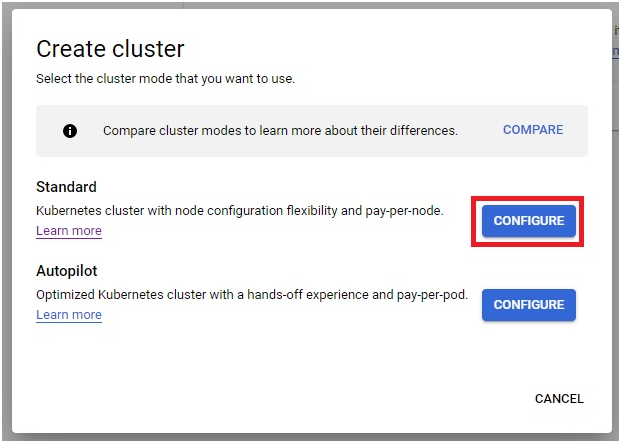
3. Next to Standard, click Configure.
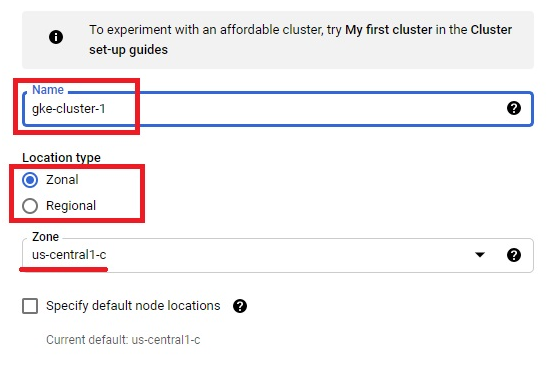
4. Enter a cluster name such as standard-cluster-1. Then choose the location type. A zonal cluster has its control plane in one zone, which is cheaper and fine for learning. A regional cluster spreads across three zones for higher availability. You cannot switch between the two after creation, so decide now. Select the zone or region.
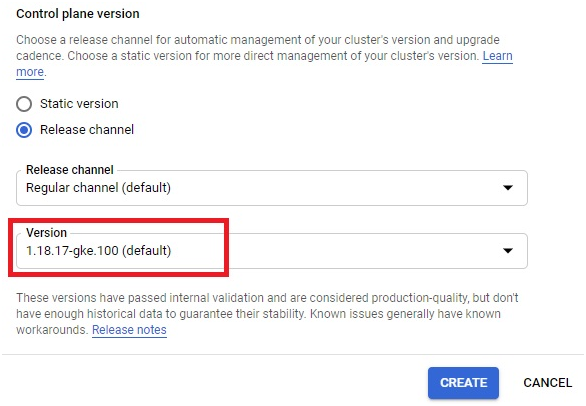
5. Choose the Kubernetes version. The simplest option is to stay on a release channel, which is Regular by default, so Google keeps the version current for you.
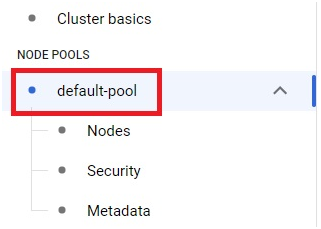
6. In the navigation pane on the left, click default-pool. This is the first node pool that GKE creates for the cluster.
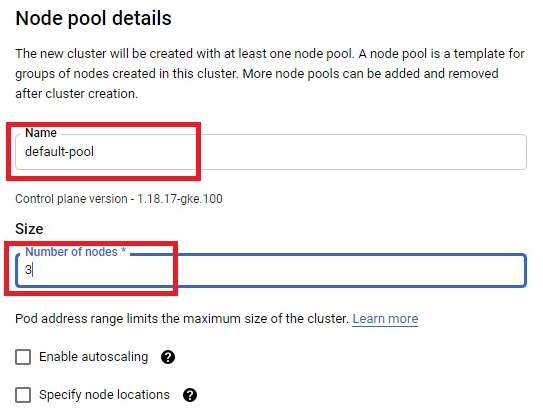
7. Give the node pool a name and set its size, which is the number of nodes. Keep it small while you are learning. If you leave the count at its default, every zone gets three nodes, which adds up on a regional cluster.
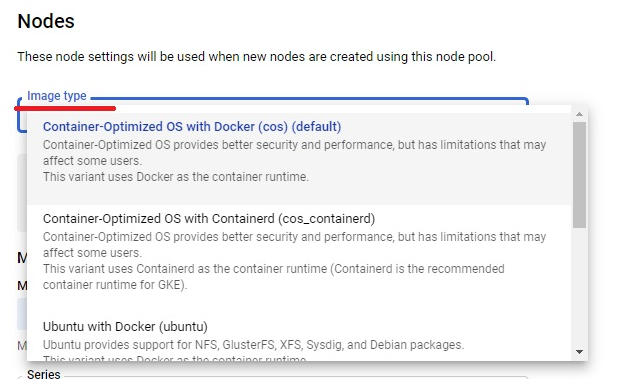
8. In the navigation pane, click Nodes.
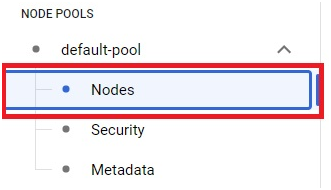
9. Choose the image type, which is the operating system of the nodes. Container Optimized OS with containerd is the default and the best choice unless you need something else.
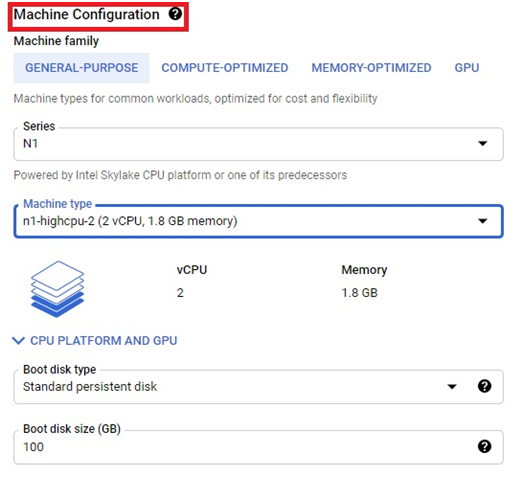
10. Choose the machine configuration, meaning the machine family, type and boot disk. The console default is e2-medium, which suits light testing. Production work usually needs more memory and CPU.
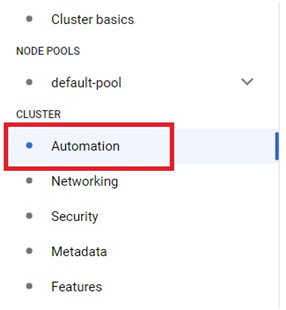
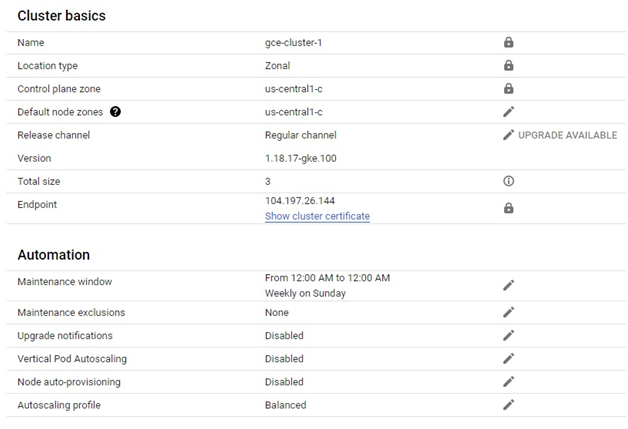
11. In the navigation pane, click Automation. This section controls maintenance and upgrades.
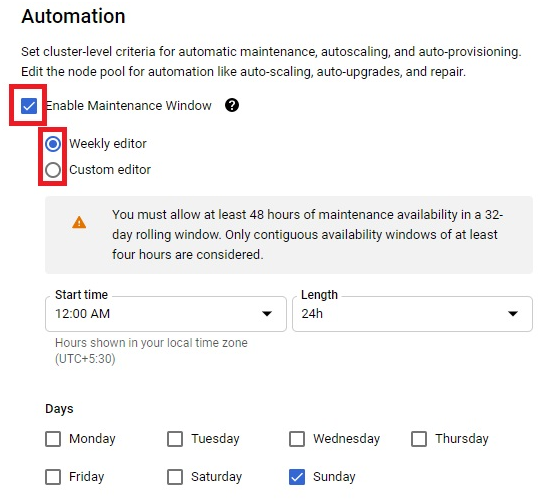
12. Turn on a maintenance window and pick a day and time. Choose a quiet period, such as late at night for your users, so that automatic upgrades do not disturb live traffic.
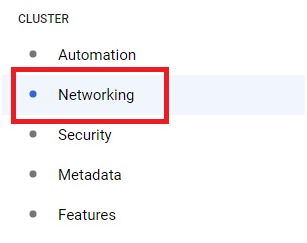
13. Click Networkingin the navigation pane.
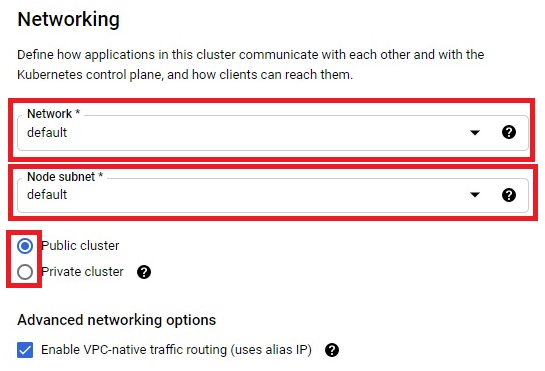
14. Select the network and decide whether the cluster should be public or private. A private cluster keeps nodes off the public internet, which is safer for most real workloads. A public one is simpler for a first test.
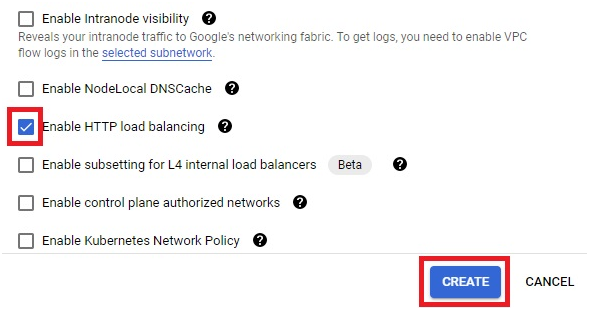
15. Make sure HTTP load balancing is enabled, so Ingress resources can create Google load balancers, then click Create.
16. Wait about three to five minutes. The time depends on the size of the cluster. A green tick next to the name means it is ready.
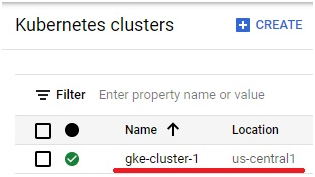
17. Click the cluster name to open it and review the configuration you just built.
Create the Same Cluster With gcloud
The command line is faster to repeat and easier to keep in a script. This creates a small zonal Standard cluster:
gcloud container clusters create standard-cluster-1 –location=us-central1-a –num-nodes=2 –machine-type=e2-medium –release-channel=regular
Setting the node count explicitly keeps the cost under control. For a regional cluster, pass a region such as us-central1 as the location instead. Remember that the count applies to each zone, so two nodes means six in total.
Fetch credentials so kubectl can talk to the cluster, then check the nodes:
gcloud container clusters get-credentials standard-cluster-1 –location=us-central1-a
kubectl get nodes
You should see two nodes in the Ready state. If the list is empty or the command fails, check that the cluster finished creating and that kubectl is installed.
Understanding the Settings You Just Chose
- Location type.Zonal costs less and is fine for development. Regional survives the loss of a zone.
- Release channel.Rapid, Regular and Stable trade newness against stability. Regular is the default and a sensible middle.
- Node pool.A group of nodes with the same configuration. You can add more pools later with different machine types.
- Auto upgrade and auto repair.Keep both on. They save you from manual patching, and the maintenance window controls when upgrades run.
- Private cluster.Keeps node IP addresses internal. Plan outbound access for the nodes if they need to pull images from the internet.
What a Standard Cluster Will Cost
In Standard mode you pay for every node whether Pods use it or not, plus any cluster management fee that applies to your account. A cluster that sits idle still bills. Before you leave a cluster running, check the node count, the machine type and the location type, then compare against the current GKE pricing page. Rates change, so I have not quoted figures here.
Common Mistakes to Avoid
- Leaving the default node count.It applies per zone, so a regional cluster can start with nine nodes.
- Choosing the location type casually.You cannot change a zonal cluster into a regional one later.
- Skipping the maintenance window.Automatic upgrades then run at a time you did not pick.
- Copying commands with curly quotes or a long dash.Pasting from a web page can change the double dash before a flag into a single long character. Type the flags by hand if a command fails oddly.
- Forgetting to delete a test cluster.Nodes keep billing until you remove them.
You now have a working Standard cluster and know what each setting does. A good next step is adding a Spot node pool for batch jobs, or trying Autopilot side by side to see which suits your workloads better.

