Creating pubsub subscription with message filtering
How to Filter Messages in a Pub/Sub Subscription
A single Pub/Sub topic often carries several kinds of messages. An orders topic might carry orders from different countries, a logs topic might mix errors with routine notices, and an events topic might serve several teams at once. Without filtering, every subscription receives everything, and each subscriber has to throw away what it does not need.
Message filtering moves that decision into Pub/Sub. You attach a filter to a subscription, and only the messages that match are delivered to it. The rest are acknowledged automatically and never reach your code. Your subscribers get simpler, your traffic drops, and one topic can feed many different consumers, each seeing only its own slice.
There is one thing to understand before you write a filter. Pub/Sub filters look at message attributes, the small key and value labels you attach when you publish. They do not look inside the message body, and they do not support regular expressions. Many people discover that only after their filter matches nothing. This guide explains the rules clearly, then shows you how to create a filtered subscription in the console with the original screenshots kept in place, and with gcloud. We then cover the filter syntax with examples, a test, the limits, common mistakes and a short FAQ.
What a Filter Can and Cannot Do?
| Point | Supported | Not supported |
|---|---|---|
| What it reads | Message attributes | The message data, which is the body |
| Matching | Exact match, key exists, starts with | Regular expressions |
| Logic | AND, OR, NOT with parentheses | Custom code |
| Length | Up to 256 bytes | Longer filters |
| Changing it later | Create a new subscription | Editing the filter in place |
Because filters read attributes, the publisher has to put the information you want to filter on into attributes. If a country code lives only inside the message body, the filter cannot see it. Plan the attributes at the publishing side first.
Prerequisites:
- A Google Cloud account with a project that has billing enabled.
- The Pub/Sub API enabled.
- An existing topic whose publisher sets attributes on its messages.
- A role that can create subscriptions, such as Pub/Sub Editor.
- Cloud Shell or the gcloud CLI for the testing steps.
Create a Filtered Subscription Using the Console
Menu labels move from time to time, so treat the wording below as a guide.
1. Sign in to the Google Cloud console. Open the navigation menu, choose Pub/Sub and then Subscriptions.
2. Click Create subscription.
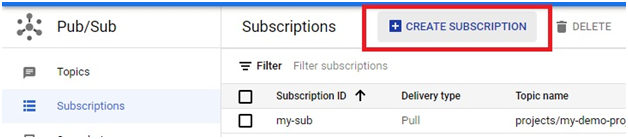
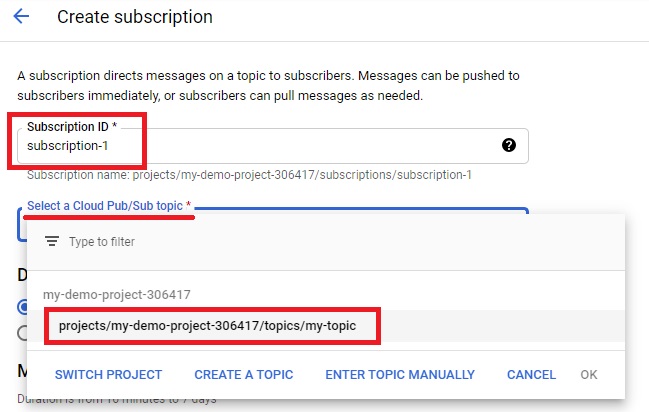
3. Enter a subscription ID, such as orders-india-sub.
4. Select the topic the subscription should read from.
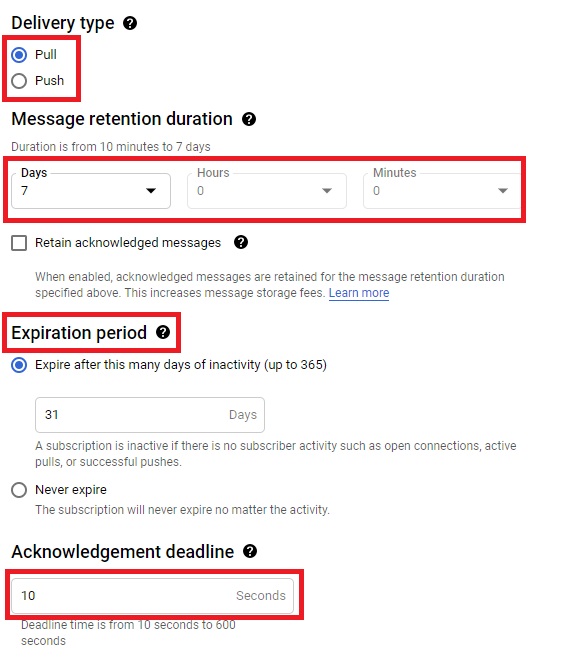
5. Choose the delivery type, either pull or push.
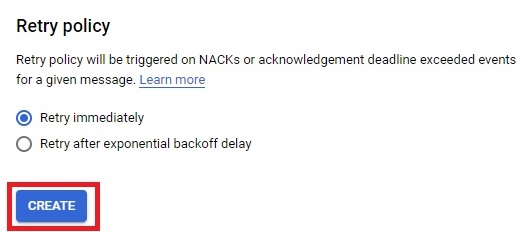
6. Set the message retention duration and the subscription expiration period.
7. Set the acknowledgement deadline.
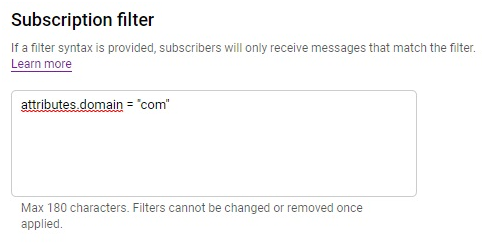
8. Find the subscription filter field and enter your filter, for example attributes.country = “IN”. Remember that you cannot change it after creating the subscription.
9. Click Create. The filtered subscription appears in the list.
Create a Filtered Subscription With gcloud
gcloud pubsub subscriptions create orders-india-sub –topic=orders-topic –message-filter=’attributes.country = “IN”‘
For a push subscription, add the endpoint flag:
gcloud pubsub subscriptions create orders-india-push –topic=orders-topic –push-endpoint=https://my-service.example.com/push –message-filter=’attributes.country = “IN”‘
Wrap the whole filter in single quotes and use double quotes around the value, as shown, so your shell does not mangle it.
Filter Syntax With Examples
Here are the patterns you will use most, written for a message attribute named domain.
| Filter | Description |
|---|---|
attributes:domain |
Messages with the domain attribute |
NOT attributes:domain |
Messages without the domain attribute |
attributes.domain = "com" |
Messages with the domain attribute and the value of com |
attributes.domain != "com" |
Messages without the domain attribute and the value of com |
hasPrefix(attributes.domain, "co") |
Messages with the domain attribute and a value that starts with co |
NOT hasPrefix(attributes.domain, "co") |
Messages without the domain attribute and a value that starts with co |
You can combine conditions. The words AND, OR and NOT must be written in capital letters, and you should use parentheses whenever you mix AND with OR:
attributes:domain AND (attributes.domain = “net” OR attributes.domain = “org”)
A few rules to remember:
- The attribute name goes on the left of the comparison and the value on the right.
- hasPrefix is the only function available.
- If an attribute name contains characters other than letters, numbers, hyphens and underscores, write it in quotes, for example attributes.”iana.org/language_tag”.
Test Your Filter
Publish one message that should match and one that should not, with attributes set:
- Publish a matching message:
gcloud pubsub topics publish orders-topic –message=”order 1″ –attribute=country=IN
- Publish a message that should be filtered out:
gcloud pubsub topics publish orders-topic –message=”order 2″ –attribute=country=US
- Pull from the filtered subscription:
gcloud pubsub subscriptions pull orders-india-sub –auto-ack –limit=10
You should see order 1 only. If nothing arrives, check that the attribute name and value match your filter exactly. Matching is case sensitive.
Change a Filter After Creation
A filter cannot be edited. Google documents a safe way to replace one without losing messages:
- Take a snapshot of the existing subscription.
- Create a new subscription on the same topic with the new filter.
- Seek the new subscription to the snapshot, so it picks up where the old one left off.
- Move your subscribers to the new subscription.
- Delete the old subscription.
Costs and Limits to Know
- Filtered out messages are acknowledged automatically. They never reach your subscriber.
- They are not entirely free. Google says you do not pay outbound message fees for them, but you still pay message delivery fees and seek related storage fees. Check the current pricing page.
- Filters are limited to 256 bytes. For more complex logic, Google suggests a subscription Single Message Transform.
- Backlog metrics count matching messages only. A quiet filtered subscription looks small in monitoring, by design.
- Both delivery types support filters. Pull and push subscriptions can use them.
- Ordering and dead lettering. I did not find how filters interact with these on Google’s page, so test the combination before relying on it.
Common Mistakes to Avoid
- Filtering on the message body. Filters read attributes only.
- Using a regular expression. It is not supported. Use hasPrefix or exact matches.
- Writing and, or, not in lower case. They must be in capitals.
- Putting the value on the left. The attribute goes first.
- Expecting to edit the filter later. Plan it up front, or use the snapshot method.
- Copying commands with curly quotes or a long dash. Pasting from a web page can change the quote marks and the double dash before a flag. Type them by hand if a command fails oddly.
Message filtering lets one topic serve many subscribers without each one wading through everything. Put the values you need into attributes at the publishing side, write the filter carefully, test it with one matching and one non matching message, and remember that you cannot edit it later.
