Creating pubsub subscription with dead lettering
How to Set Up Pub/Sub Dead Lettering for Failed Messages
In a messaging system, some messages are simply bad. A message may carry data your code cannot parse, point at a record that no longer exists, or trigger a bug in your handler. If Pub/Sub keeps redelivering a message like that, your subscriber keeps failing on it, wasting effort and filling your logs, and sometimes holding up work behind it.
Dead lettering is the standard answer. After a message has failed a set number of times, Pub/Sub stops redelivering it to the subscription and forwards it to a separate topic instead, called the dead letter topic. Your main flow keeps moving, and the problem messages wait in one place where you can examine them, find the cause and decide what to do.
The feature is easy to switch on and surprisingly easy to get wrong. The console form takes a minute, but the setup only works if the permissions are right, and nothing warns you when they are not. This guide covers the whole job: how dead lettering works, how to create a subscription with a dead letter topic using the console with every original screenshot kept in place, and with gcloud. We then cover the IAM roles, how to test it, and how to inspect the failed messages, followed by common mistakes and a short FAQ.
How Dead Lettering Works?
- A message is delivered to your subscriber, and the subscriber fails to acknowledge it, either by returning an error or by running out of time.
- Pub/Sub redelivers the message and counts each delivery attempt.
- When the count reaches the maximum delivery attemptsyou set, Pub/Sub publishes the message to the dead letter topic and removes it from the original subscription.
- You read the message from a subscription on the dead letter topic and investigate.
Two details are worth knowing. The dead letter topic is configured on the subscription, not on the topic the subscription reads from. And forwarded messages arrive wrapped with extra attributes that identify where they came from, which helps you trace them.
What You Need Before You Start?
- A Google Cloud account with a project that has billing enabled.
- The Pub/Sub API enabled.
- A main topic that your application publishes to.
- A second topic to act as the dead letter topic. It must be a different topic from the main one. If it were the same, failed messages would loop back into the same stream.
- A subscription on the dead letter topic. A topic with no subscriptions throws messages away, so without this, forwarded messages are lost.
- A role that can create subscriptions and change IAM policies.
Create the Subscription With Dead Lettering Using the Console
Menu labels move from time to time, so treat the wording below as a guide.
1. Sign in to the Google Cloud console. Open the navigation menu, choose Pub/Sub and then Subscriptions.
2. Click Create subscription.
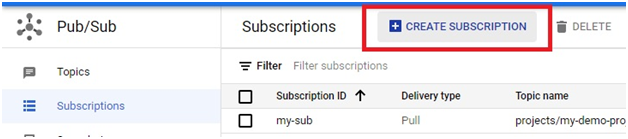
3. Enter a subscription ID and choose the main topic it should read from.
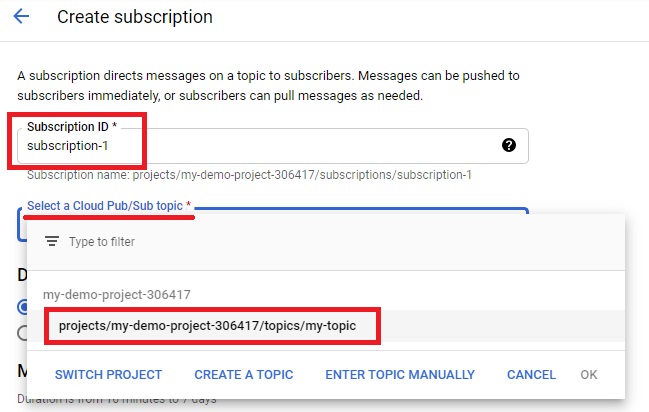
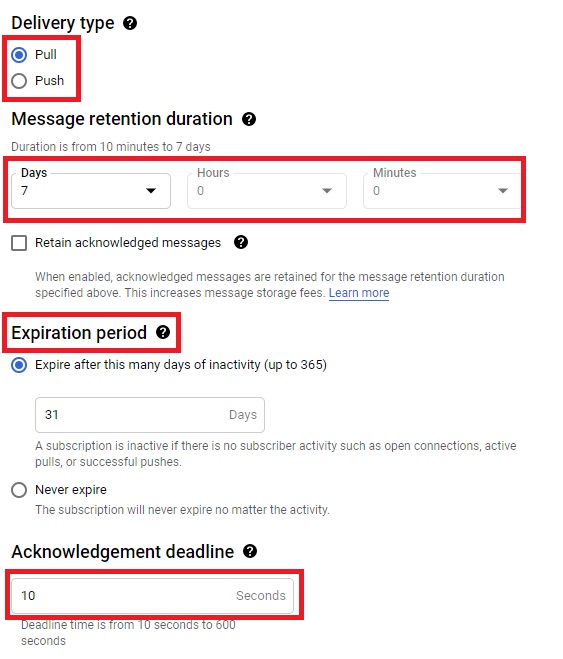
4. Set the delivery type. The original uses Push, which sends messages to an endpoint you provide.
5. Set the message retention duration and the subscription expiration period.
6. Set the acknowledgement deadline. This is how long your subscriber has to respond before the attempt counts as a failure.
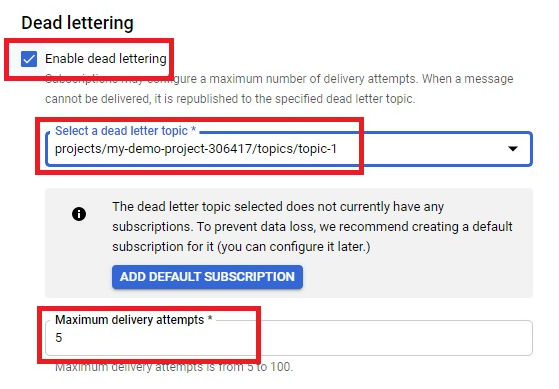
7. Tick Enable dead lettering.
8. Select the dead letter topic. It must be a different topic from the one the subscription reads from.
9. Set the maximum number of delivery attempts. The allowed range is 5 to 100, and the default is 5.
10. Click Create. The subscription appears in the list.
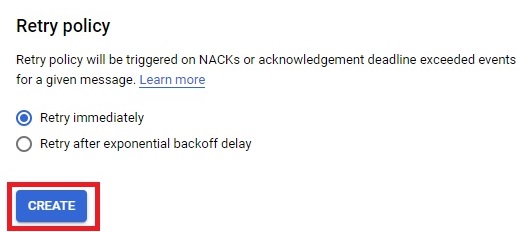
When the console asks to grant permissions to the Pub/Sub service account, accept. If it does not, or if you are unsure, follow the next section.
Grant the Permissions Pub/Sub Needs
This is the step most tutorials leave out. Pub/Sub moves messages to the dead letter topic using its own service account, and that account needs two roles:
- Publisheron the dead letter topic, so it can put forwarded messages there.
- Subscriberon your subscription, so it can acknowledge and remove the failed message.
The service account follows this pattern, where PROJECT_NUMBER is your project number and not the project name:
service-PROJECT_NUMBER@gcp-sa-pubsub.iam.gserviceaccount.com
In gcloud, find your project number, then grant both roles:
PROJECT_NUMBER=$(gcloud projects describe my-project –format=”value(projectNumber)”)
PUBSUB_SA=”service-${PROJECT_NUMBER}@gcp-sa-pubsub.iam.gserviceaccount.com”
gcloud pubsub topics add-iam-policy-binding orders-dead-letter –member=”serviceAccount:${PUBSUB_SA}” –role=”roles/pubsub.publisher”
gcloud pubsub subscriptions add-iam-policy-binding orders-sub –member=”serviceAccount:${PUBSUB_SA}” –role=”roles/pubsub.subscriber”
Without these roles, Google says delivery attempts are not counted, so nothing will ever be forwarded.
Create Everything With gcloud
Create the dead letter topic and a subscription to hold the failed messages:
gcloud pubsub topics create orders-dead-letter
gcloud pubsub subscriptions create orders-dead-letter-sub –topic=orders-dead-letter
Create the main subscription with dead lettering turned on:
gcloud pubsub subscriptions create orders-sub –topic=orders-topic –dead-letter-topic=orders-dead-letter –max-delivery-attempts=5
To add dead lettering to a subscription that already exists, use the update command with the same flags:
gcloud pubsub subscriptions update orders-sub –dead-letter-topic=orders-dead-letter –max-delivery-attempts=5
Then grant the two roles from the previous section.
Test It
- Publish a message to the main topic:
gcloud pubsub topics publish orders-topic –message=”bad message”
- Pull it from the main subscription without acknowledging, and wait for the acknowledgement deadline to pass. Repeat until the delivery attempts reach your maximum:
gcloud pubsub subscriptions pull orders-sub –limit=1
- Pull from the dead letter subscription. The message should appear there:
gcloud pubsub subscriptions pull orders-dead-letter-sub –auto-ack –limit=1
Expect the test to take a few minutes, since each attempt waits for the acknowledgement deadline. Because Google describes forwarding as best effort, the message may arrive after slightly fewer or more attempts than you set.
Reading and Fixing Dead Lettered Messages
- Look at the attributes.Forwarded messages carry attributes that identify the original subscription, which helps you trace the source.
- Find the cause.Common causes are malformed data, a missing record, a bug in your handler and a downstream outage.
- Fix first, replay second.Once the cause is fixed, republish the messages to the main topic so they are processed.
- Alert on volume.A rising number of dead lettered messages is an early warning that something is broken. Set up monitoring on the dead letter subscription.
Things to Know Before You Rely on It
- The maximum delivery attempts value must be between 5 and 100.
- Forwarding is best effort, so counts are approximate.
- The attempt counter can reset, so a subscriber may occasionally see a message more times than the maximum.
- The dead letter topic can live in a different project, but then you must specify the project and grant the roles there.
- Pub/Sub delivers at least once, so make your handler safe to repeat.
Common Mistakes to Avoid
- Skipping the IAM roles.The most common reason dead lettering silently does nothing.
- No subscription on the dead letter topic.Forwarded messages are lost.
- Using the same topic.The dead letter topic must differ from the main topic.
- Using the project name in the service account.The address needs the project number.
- Never looking at the dead letter queue.It only helps if someone reads it.
- Copying commands with curly quotes or a long dash.Pasting from a web page can change the double dash before a flag into a single long character. Type the flags by hand if a command fails oddly.
Dead lettering keeps bad messages from clogging a healthy system, but only if the topic, the subscription and the permissions are all in place. Set up the second topic, grant both roles, test with a deliberately failing message, and then watch the dead letter queue.
