Google Cloud Essential Contacts
Essential Contacts in Google Cloud
Essential Contacts is the list of people Google Cloud sends important platform notifications to, such as billing and payment problems, security notices, legal and compliance notices, and warnings about suspension. You choose the email addresses and which categories of notice each address receives, at the organization, folder, or project level.
This matters because by default no Essential Contacts are configured. In that case Google falls back on whoever holds certain IAM roles. Legal notices go to billing administrators, security notices go to organization administrators, and suspension and technical notices go to project owners. If that person has changed roles, left the company, or never reads those emails, a warning that a project is about to be suspended can go unseen. Essential Contacts lets you point each kind of notice at a mailbox someone actually watches.
This walks through adding a contact in the console, then covers what each notification category means, where to set contacts and who to use, and who is allowed to manage them.
Step by step Process of Adding contact in the Google Cloud
Step One: Open Essential Contacts
Open the console, then the menu, then IAM and Admin, then Essential Contacts. If the page asks you to enable the Essential Contacts API, enable it. Check the resource selector at the top of the page, since it shows whether you are managing contacts for an organization, a folder, or a project.
Open Cloud Console
Open Menu > IAM & Admin > Audit Logs
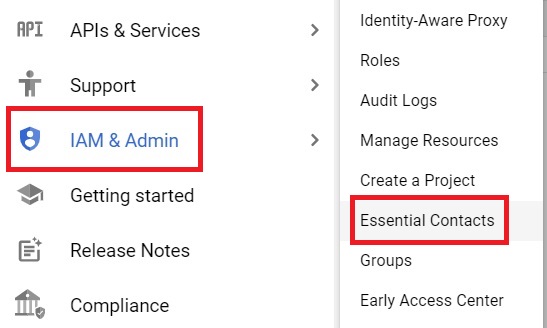
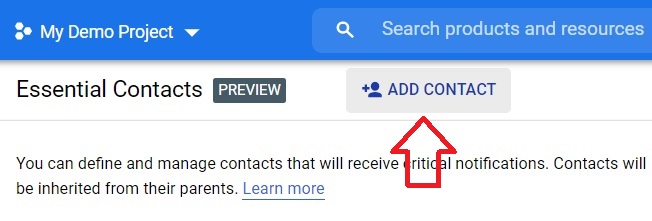
Step Two: Click Add Contact
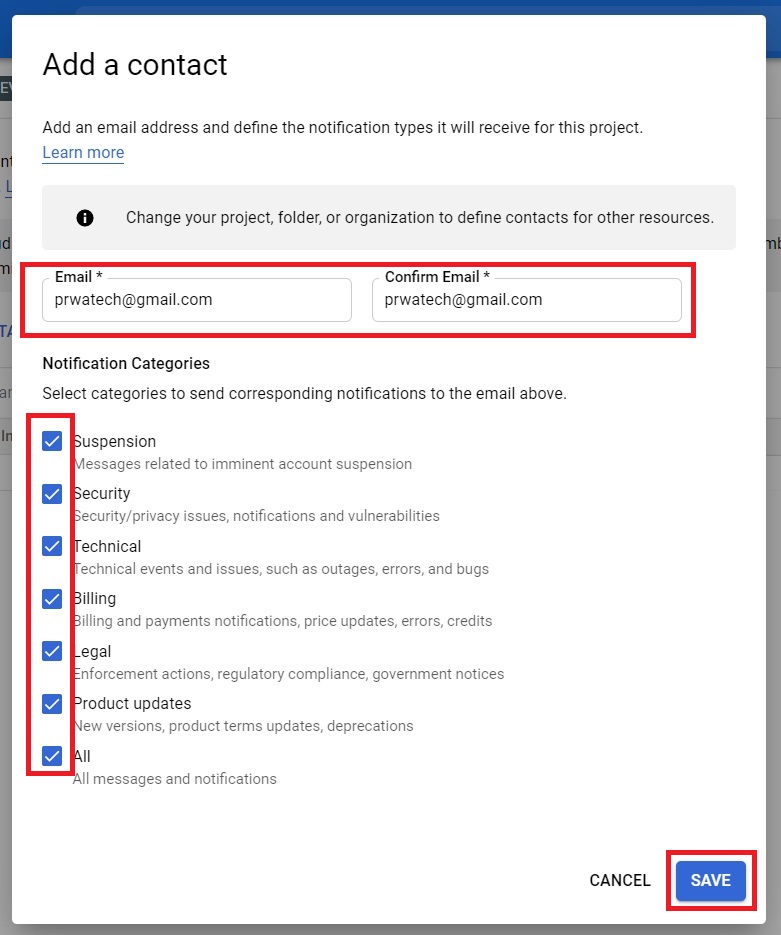
Step Three: Enter the Email and Choose Categories
Enter the email address in both the Email and Confirm Email fields, then choose the notification categories this address should receive. Click Save.
Step Four: Confirm the Contact Was Added
The contact appears in the list with the categories you selected.

What Each Notification Category Means
- Billing, critical billing and payment notices about your account and services.
- Legal, official legal and compliance notices, such as changes to terms or legal requests concerning your account.
- Security, notices about security issues affecting your resources.
- Suspension, notices about potential or actual suspension of your account or projects because of policy violations or other issues.
- Technical, notices about technical issues and changes affecting your services.
- Technical incidents, notices about incidents affecting your services.
- Product updates, updates about Google Cloud products and services.
- All, a superset that includes billing, legal, product updates, security, suspension, and technical notices.
Where to Set Contacts and Who to Use
- Google recommends setting Billing, Legal, and Security contacts at the organization level, since those notices usually belong with specialist teams such as finance, legal counsel, and the security team.
- A common baseline, used in cloud security benchmarks, is to make sure the Security, Legal, Suspension, and Technical categories each have a contact at the organization level.
- Use a shared mailbox or distribution list for each function rather than one person’s address. A personal address stops working the day that person leaves.
Who Can Manage Essential Contacts
To create, view, edit, or delete contacts, a person needs the Essential Contacts Admin role. Viewing contacts only needs the Essential Contacts Viewer role. Contacts can be changed or removed from the same page where you added them.
An organization can also limit which email domains new contacts are allowed to use, by setting the organization policy constraint named essentialcontacts.allowedContactDomains. If an address is rejected when you try to add it, a domain restriction like this is a likely reason.
Common Mistakes to Avoid
- Using one person’s email address. Contacts should survive staff changes, so use a shared mailbox or distribution list.
- Leaving categories empty. A category with no contact falls back to whoever holds the default IAM role, which may not be anyone who reads those emails.
- Setting contacts only on a single project. Notices for billing, legal, and security are best covered at the organization level.
- Expecting Essential Contacts to receive your own monitoring alerts. It controls who Google Cloud notifies about the platform, while Cloud Monitoring alerts use their own notification channels.
That covers adding Essential Contacts, what each category sends, and who should be on the list. To go further, explore Prwatech’s Google Cloud training program, which includes placement assistance.
