Configuring and Expanding GKE Clusters.
Adding a GPU Node Pool to a GKE Cluster
A node pool is a group of identical machines in a Google Kubernetes Engine cluster, where your containers run. A cluster can have several pools, and each pool can be a different shape. A GPU node pool is one whose machines have graphics processors attached, which is what you need for training machine learning models and for other work that runs far faster on a GPU.
Google recommends creating separate GPU node pools, rather than adding GPUs to your general pool. The reason is cost and control. GPU machines are expensive, so you want them to exist only when something needs them, and you want your ordinary workloads to stay off them. Separate pools make both possible.
This walks through adding a GPU node pool in the console, then with one gcloud command, and covers drivers, quota, how pods ask for a GPU, and how to keep the cost down.
Prerequisites:
- A Google Cloud account with billing enabled. The Enabling Billing guide in this series covers that.
- A GKE Standard cluster. Node pools are a Standard cluster feature. Autopilot clusters manage nodes for you. The Creating Standard GKE Cluster guide and the Creating Autopilot GKE Cluster guide in this series cover both.
- GPU quota for the GPU type you want, in the zone you want. A new project often has none, and without it the pool cannot be created.
Step by Step Process of Adding a GPU Node Pool
Step 1: See Which GPUs Are Available in Your Zone
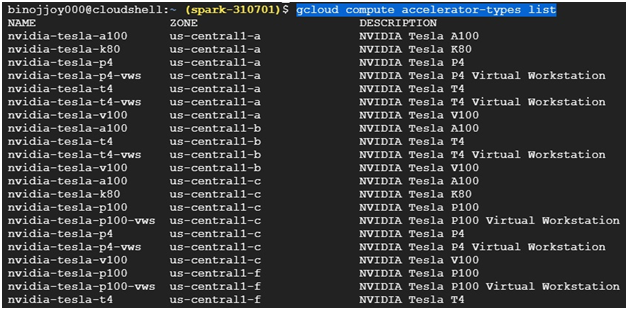
Not every GPU type is offered in every zone. List the accelerator types that exist, and check the zone column against the zone your cluster uses:
gcloud compute accelerator-types list
Step 2: Add a Node Pool
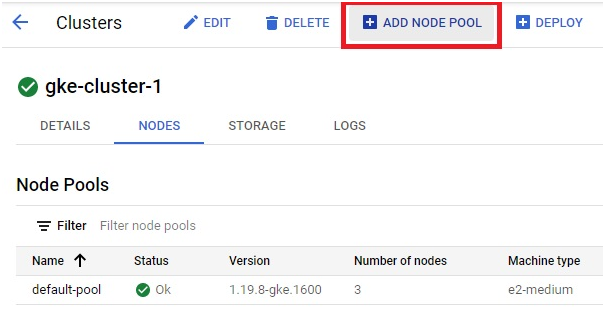
Open your cluster in the console and click Add node pool.
Step 3: Name It and Set the Size
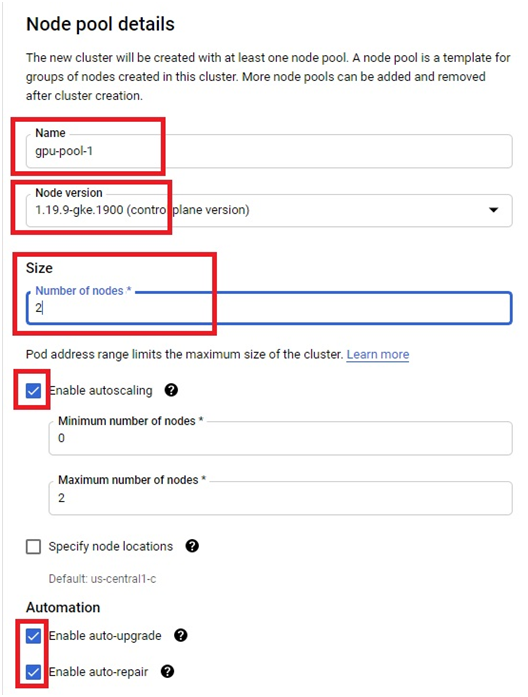
Give the pool a name and choose the node version. Choose the size of the pool, and tick Enable autoscaling. Setting the minimum number of nodes to zero lets the pool shrink to nothing when no pod needs a GPU, which is the main way to avoid paying for idle GPUs. Under Automation, tick Enable auto upgrade and Enable auto repair.
Step 4: Choose the Operating System
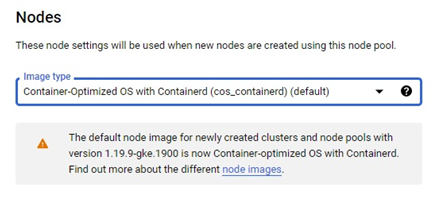
Choose the operating system for the nodes.
Step 5: Choose the GPU and the Machine
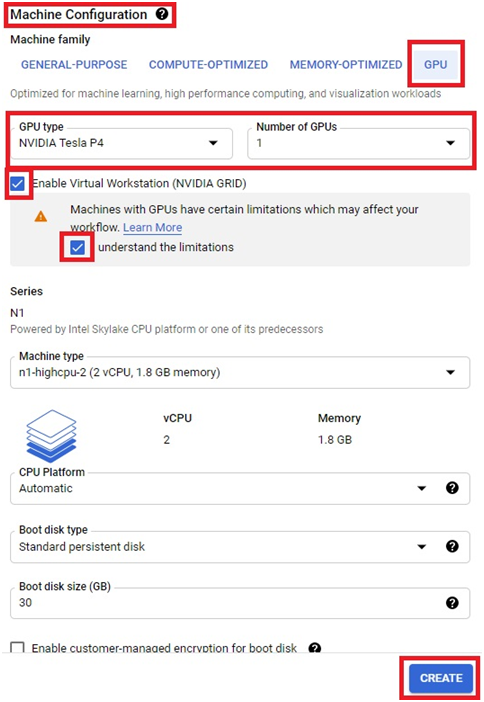
In Machine configuration, click GPU. Choose the GPU type and how many GPUs each node should have. Then choose the machine configuration for the nodes, and click Create. The GPU pool is created.
The original page also says to click Enable Virtual Workstation and tick I understand the limitations. That option selects a GPU variant meant for graphics and remote workstation workloads, and it typically costs more. For machine learning and other compute work, leave it off.
The Same Thing With One Command
This is the command from the original page, with the flags corrected. Each flag has two real hyphens, and the last two flags are no longer joined together:
gcloud container node-pools create gpu-pool –accelerator type=nvidia-tesla-p4,count=1 –zone us-central1-c –cluster gke-cluster-1 –num-nodes 2 –min-nodes 0 –max-nodes 3 –enable-autoscaling –machine-type n1-standard-1
It creates a pool called gpu-pool with 2 nodes to start, that can scale between 0 and 3, each with one GPU. If you leave out the zone, gcloud may ask you for one.

GPU Drivers
A GPU is useless to your containers until the NVIDIA driver is installed on the node. Google’s gcloud reference lets you choose how, with a driver version option added to the accelerator flag, for example:
–accelerator type=nvidia-tesla-t4,count=1,gpu-driver-version=default
- default, installs the default driver version for your GKE version. For GKE version 1.30.1-gke.1156000 and later, this is the default behavior.
- latest, installs the latest driver version available for your GKE version.
- disabled, skips automatic installation. For GKE versions before 1.30.1-gke.1156000, this was the default, which meant you had to install the driver yourself.
This is why a 2021 style guide that never mentions drivers is incomplete today. On recent versions GKE does this for you, but it is worth knowing the option exists.
How a Pod Asks for a GPU
GKE automatically adds a taint to GPU nodes so that only pods that ask for a GPU are scheduled on them, and your ordinary pods stay off the expensive machines. To ask for one, a pod requests the GPU resource in its container settings, under the resource limits:
resources:
limits:
nvidia.com/gpu: 1
When a pod like this is waiting and no GPU node is free, the autoscaler can add a node to the pool, up to the maximum you set.
What a GPU Pool Costs
GPU nodes bill for the whole machine, GPU included, for as long as they exist. Two habits keep this under control. First, set the pool’s minimum to zero nodes, so it costs nothing when no pod needs a GPU. Second, delete the pool when you finish practising. I have not tested this command, so check the names first:
gcloud container node-pools delete gpu-pool –cluster=gke-cluster-1 –zone=us-central1-c
The Creating and Deleting Budget guide in this series explains why a budget alert only notifies you, and does not stop spending.
Common Mistakes to Avoid
- Writing flags with en dashes, or running two flags together. Use two real hyphens and a space between flags.
- Trying to create a GPU pool with no GPU quota, or in a zone that does not offer that GPU.
- Forgetting about drivers, then finding the GPU is not visible to your containers.
- Leaving the minimum at one or more nodes for a pool you only use occasionally.
- Ticking Enable Virtual Workstation for a machine learning workload.
- Leaving a practice GPU pool running.
That covers adding a GPU node pool to a GKE cluster, getting the drivers and quota right, and keeping the cost down. To go further, explore Prwatech’s Google Cloud training program, which includes placement assistance.
