Creating Labels in GCP
Creating and Updating Labels in Google Cloud
A label is a key and value pair that you attach to a Google Cloud resource, such as environment and production, or team and analytics. Labels are descriptive metadata. They let you filter and group resources, but they cannot be used to set conditions on access policies.
Most teams add labels for cost reasons. Information about labels is passed to the billing system, so the built in billing reports can filter and group your charges by label, and you can export billing data to BigQuery with the labels included and query it. Without labels, spending is grouped by service. With labels, you can see which team, application, or environment is behind a number.
This walks through adding a label to a project from the console, then updating and removing labels, followed by the rules labels have to follow, how labels differ from tags, and how to use them for cost reporting.
Step by step Process of Creating and Updating Labels in Google Cloud
Step One: Open Labels
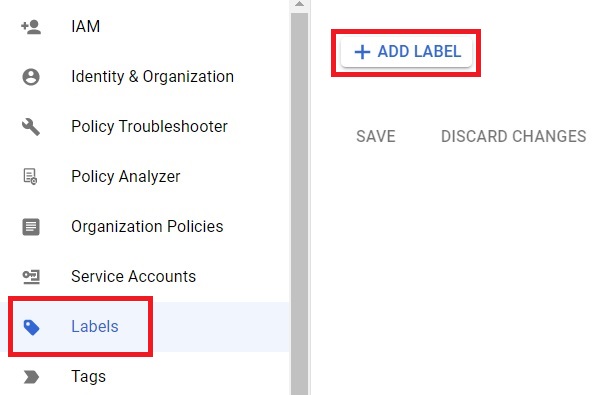
Open the console, then the menu, then IAM and Admin, then Labels. Click Add Label.
Open Cloud Console
Open Menu > IAM & Admin > Labels
Click on Add Label
Step Two: Enter a Key and a Value
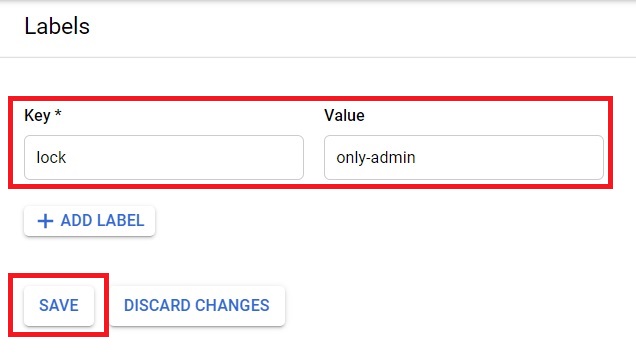
Type a key and a value, then click Save. Keep the key short and consistent, since the same key will need to be used on every project you want to compare later.
Step Three: Confirm the Label Is Saved
The label is saved and appears in the list for the project.

Updating or Removing a Label
To update a label, return to the same Labels page for the project, change the value you want to update, and click Save. If you need a different key rather than a different value, the cleanest way is to remove the old label and add a new one.
To remove a label, use the remove option next to it on that page, then save. Google’s documentation notes that a label can be removed from a resource at any time, which is not true of a tag, covered below. Because labels are descriptive, removing or changing one does not change who can access the project, but any billing report that groups by that label will change with it.
Rules for Label Keys and Values
- Each resource can have up to 64 labels.
- A key and a value can each be up to 63 characters long.
- A key must start with a lowercase letter and cannot be empty.
- Keys and values can contain lowercase letters, numbers, underscores, and dashes, and international characters are allowed.
These are the general requirements. A specific service can add its own, so if a label is rejected, check that service’s documentation.
Labels Compared to Tags
Google Cloud uses the word tags for more than one thing, which is why this causes so much confusion.
- Labels, are defined on each individual resource, and are used to filter, group, and break down billing. They cannot be used to set conditions on policies.
- Resource Manager tags, are created at the organization or project level and then attached to resources. They are used to allow or deny policies conditionally, for example in IAM conditions, and a tag cannot be deleted while it is still attached to a resource.
- Network tags, are an older, separate idea on Compute Engine, used to decide which firewall rules and routes apply to which virtual machines.
A common pattern is to use labels for things like cost center and application name, and tags for something like environment where a policy needs to depend on it.
Using Labels for Cost Reporting
In the Cloud Billing reports, you can filter or group costs by label. For deeper analysis, turn on billing export to BigQuery. Labels are exported alongside each resource and its usage, so you can query for something like the cost of all test resources compared with production, or how much one particular service costs. The BigQuery guides in this series cover running queries like these.
Naming Labels Consistently
- Agree on a small set of keys up front, such as environment, team, cost_center, and application, and use the same spelling on every project.
- Pick one value for each meaning. If some projects use prod and others use production, billing reports will treat them as two separate groups.
- Label the resources you actually want to report on, not only the project. Labels are defined on each resource, so a label on a project does not automatically appear on the resources inside it.
Common Mistakes to Avoid
- Expecting a label to control access. Labels cannot set policy conditions. If a policy needs to depend on a property of a resource, that is what Resource Manager tags are for.
- Using inconsistent keys or values across projects. A report can only group what is spelled the same way.
- Labeling only the project and assuming everything inside it is labeled too. Label the individual resources you need to see in a report.
- Putting personal details or secrets into a label. Labels show up in billing data and resource listings, so keep them to plain descriptive values.
That covers adding, updating, and removing labels on a project, and using them to make billing readable. To go further, explore Prwatech’s Google Cloud training program, which includes placement assistance.
