Copying data from Storage bucket to a Filestore
Copying Data Between Cloud Storage and Filestore
Cloud Storage and Filestore solve different storage problems. Cloud Storage holds objects cheaply and durably, accessed over an API, while Filestore is a fully managed NFS file share that behaves like an actual mounted drive, which some applications need since they expect to read and write real files rather than call a storage API. Moving data between the two comes up whenever an application built around a real file system needs data that currently lives in a bucket, or when you want to archive files out of an expensive, low latency file share into cheaper long term object storage.
This assumes a Filestore instance is already created and its share is already mounted on the machine you are running these commands from, whether that is a Compute Engine instance or Cloud Shell. If you have not mounted a share yet, the Mounting Filestore File Share on Compute Engine Clients guide covers that first.
This walks through copying a single file from Cloud Storage into a mounted Filestore share, copying a file back the other way, and using rsync as a better option than cp for keeping a whole directory in sync.
Step One: Find the File’s URI in Cloud Storage
Open the console, then the menu, then Cloud Storage, then your bucket. Click the file you want to copy, and copy its URI.
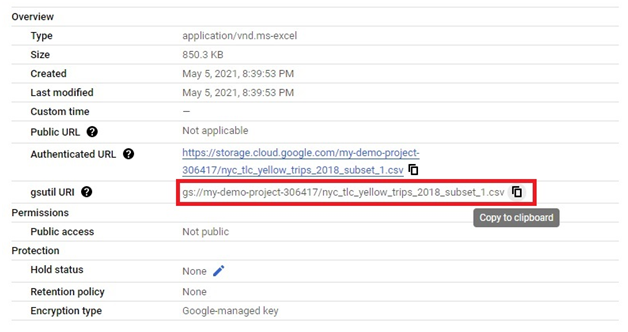
Step Two: Copy a File From Cloud Storage to Filestore
Open Cloud Shell, or the terminal on whichever machine has the Filestore share mounted, and run:
gsutil cp -r URI_OF_FILE /mount_directory
Replace the URI and the mount directory path with your own. This copies the file from the bucket directly into the mounted Filestore share.

Step Three: Copy a File From Filestore Back to Cloud Storage
gsutil cp -r /mount_directory gs://BUCKET_NAME/folder_name
This does the reverse, copying from the mounted share back into a bucket.

Step Four: Use rsync for a Whole Directory
For keeping an entire directory in sync rather than copying one file at a time, use rsync instead of cp:
gsutil rsync -r mount-directory gs://bucket

Choosing rsync Instead of cp for a Directory
cp with the recursive flag copies everything in a directory every time you run it, whether or not anything has actually changed since the last copy. rsync instead compares the source and destination first, and only transfers files that are new or different, which is meaningfully faster on a repeated sync and avoids wasting bandwidth and time recopying files that have not changed. If you are syncing the same directory more than once, rsync is generally the better default over cp.
Why sudo Causes Problems With gsutil
It is tempting to add sudo whenever a command hits a permissions error, but for gsutil specifically this usually makes things worse rather than better. Your gcloud login session is stored in your own user account’s home directory, and running gsutil with sudo switches execution to the root account, which does not have that same login available, so the command fails to authenticate rather than succeeding with elevated permissions. If you hit a genuine permissions error copying into the mounted directory, check the mount and folder permissions themselves rather than reaching for sudo first.
Common Mistakes to Avoid
- Running gsutil with sudo. It is rarely the fix, and it usually breaks authentication instead of solving a permissions problem.
- Copying commands with the wrong dash character. If a command fails with an unrecognized option, retype the flag rather than assuming the command itself is wrong.
- Using cp instead of rsync for a directory you will sync more than once. cp recopies everything every time, while rsync only moves what has actually changed.
- Running these commands before the Filestore share is actually mounted. The mount directory needs to already exist and be connected to your Filestore instance, or the copy has nowhere valid to land.
That covers copying files between Cloud Storage and a mounted Filestore share, and when to reach for rsync instead of cp. To go further, explore Prwatech’s Google Cloud training program, which includes placement assistance.
