Enabling Billing in GCP
Enabling Billing for a New Google Cloud Project
A Cloud Billing account is what pays for the usage of your Google Cloud projects. A project and a billing account are separate things. To use Google Cloud resources in a project, the project has to be linked to an active billing account, and that link is what “billing enabled” means. One billing account can pay for several projects, so you do not need a new one for each.
Google Cloud works on a pay as you go basis, with no upfront commitment, so you are billed only for what you use. For someone just starting out, the first billing account is usually created through the free trial, which comes with a credit and a time limit that are worth understanding before you enter a card.
This walks through creating a billing account in the console, then covers how to check whether a project has billing, how to link a project to an existing account, what the free trial includes, and who needs which permission to do all of this.
Step by Step Process of Enabling Billing for a New GCP Project
Step One: Open Billing
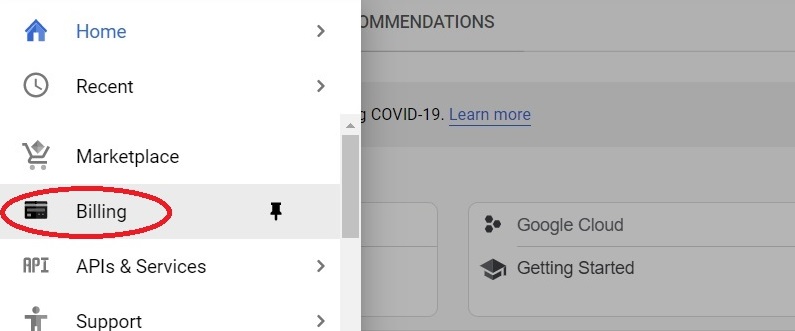
Open the console, then the menu, then Billing.
Step Two: Open Your Billing Account
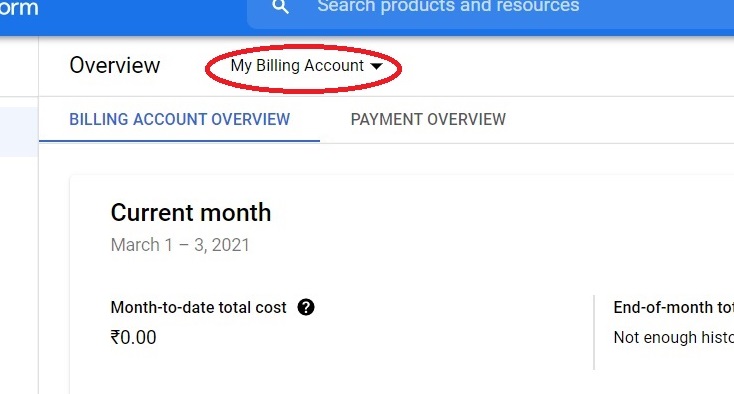
Click My Billing Account. This is the default name Google gives the billing account created when you start the free trial, so yours may have a different name if you chose one.
Step Three: Create an Account
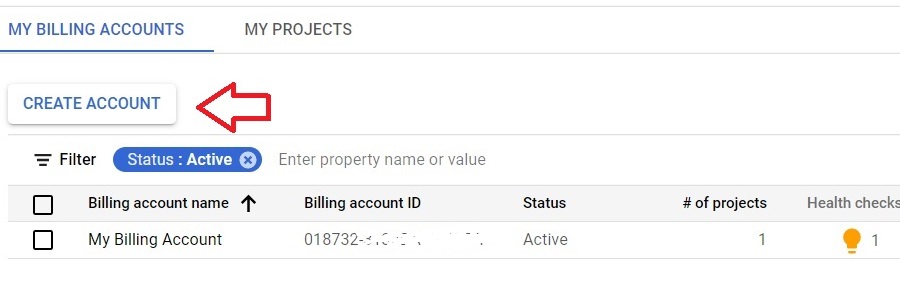
To set up a new billing account, click Create account.
Step Four: Name It and Choose Your Country
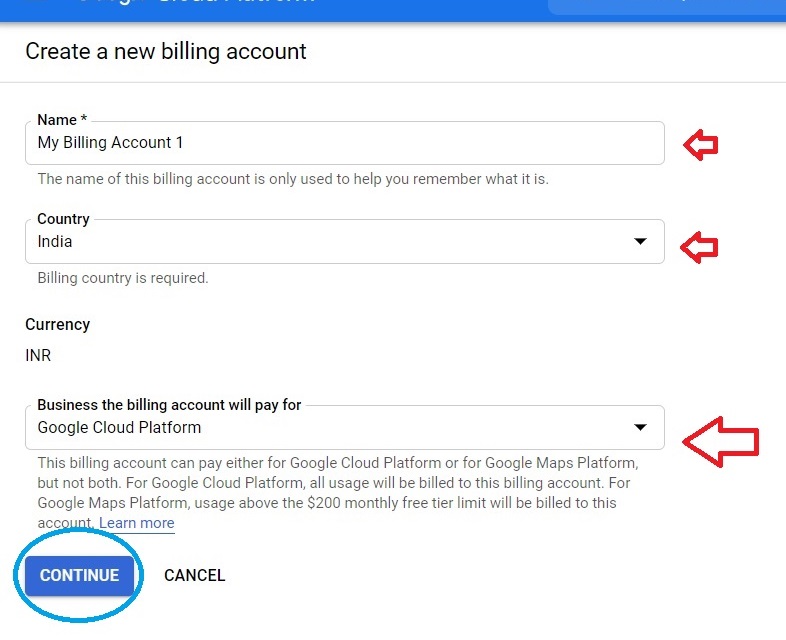
Enter a name for the billing account and choose your country, then click Continue.
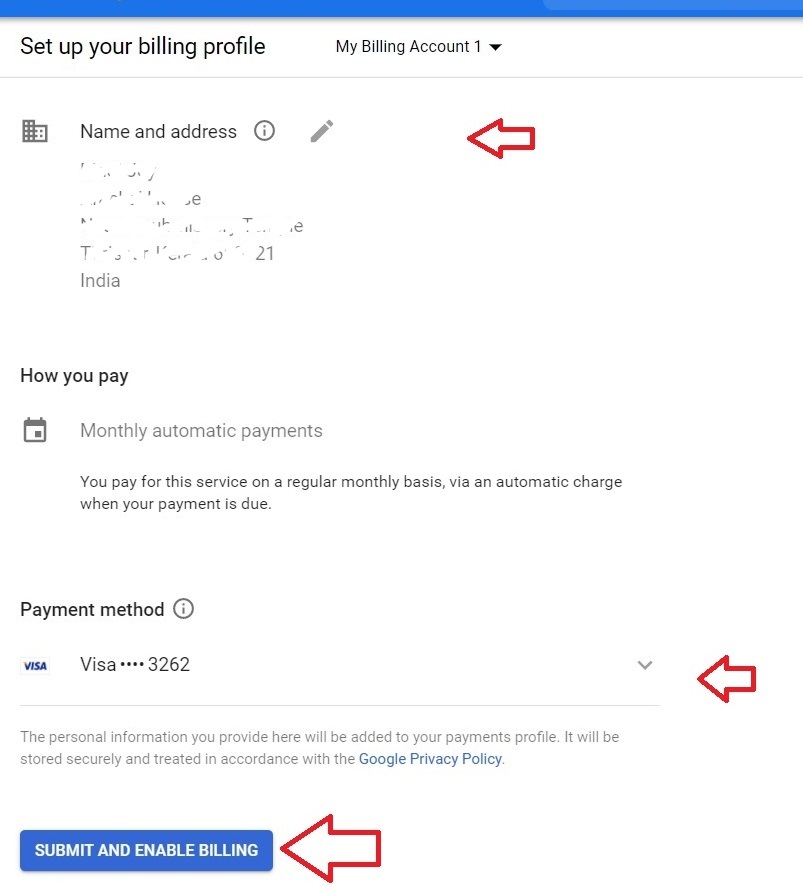
Step Five: Enter Your Details and Enable Billing
Fill in the details and choose a payment method, using a valid debit or credit card. When you are finished, click Submit and enable billing. The screens you see can differ slightly depending on whether this is your first billing account, which starts the free trial, or an additional one.
Check Whether a Project Has Billing Enabled
Open the Billing page for the project. If the project is not linked to a billing account, the console shows a message similar to This project has no billing account, with an option to link one. Billing has to be enabled before a project can use Google Cloud resources.
Link a Project to an Existing Billing Account
If you already have a billing account and only need to attach a new project to it, choose Link a billing account from that message, select the account, and confirm. You do not need to create a new account. To do this you need permission on both sides. On the billing account you need the Billing Account User or Billing Account Administrator role, and on the project you need the Project Billing Manager or Project Owner role.
What the Free Trial Includes
For eligible new users, signing up for the free trial creates a free trial billing account with a 300 US dollar welcome credit, valid for 90 days. During the trial you are not billed. You can spend the credit on covered products and services, including usage beyond the free tier limits. Your remaining credit and days are shown in a Cloud Billing report.
The trial has a hard edge. If you do not upgrade to a paid billing account before 90 days pass, or if you spend the whole 300 dollars first, the free trial billing account is closed and all of its projects and resources are stopped. A paid billing account gives full access to Google Cloud, and you are then billed for usage not covered by the credit or the free tier.
Unlinking a Project Turns Billing Off
Billing is tied to the link between the project and the account. If a project is unlinked from its billing account, billing is disabled on it, and to keep using the project you must link it to an active billing account again.
After You Enable Billing, Set a Budget
Once billing is on, set a budget alert so spending does not surprise you. As covered in the Creating and Deleting a Budget guide in this series, a budget only sends notifications and does not stop spending by itself.
Common Mistakes to Avoid
- Assuming billing is switched on automatically for every project. A project is billing enabled only while it is linked to an active billing account.
- Creating a new billing account for every project. One account can pay for several projects, so link the project to the one you already have.
- Letting the free trial run out without noticing. Once 90 days pass or the credit is used up, the trial billing account closes and its projects and resources stop.
- Unlinking a project to tidy up without realising it disables billing on that project.
- Trying to link a project without the right roles. You need a billing role on the account and a project role on the project.
That covers creating a billing account, linking it to a project, and what to know before the free trial ends. To go further, explore Prwatech’s Google Cloud training program, which includes placement assistance.
