Migration manager
Migration Manager and What Replaced It
Moving a server to the cloud, without rebuilding it, is called a lift and shift migration. Google Cloud’s tool for moving virtual machines to Compute Engine this way has had several names. The older version was called Migrate for Compute Engine, and its control component was the Migration Manager that this page walks through. The current product is called Migrate to Virtual Machines.
The change matters because the two work differently. The older product asked you to build a Manager VM, with its own network, service accounts, and passwords. The current one is built into the Google Cloud console, replicates your source VMs continuously without downtime on the source, and uses a small appliance called the Migrate Connector to reach VMware environments. If you are planning a real migration, the current product is the one to learn.
This page first explains what happened to the Migration Manager, keeps the original walkthrough as a legacy reference, then covers how a migration works today and which Google Cloud tool handles planning and assessment.
What Happened to Migrate for Compute Engine
- On April 30, 2024, the 4.x versions of Migrate for Compute Engine reached end of life, and Google deprecated the product.
- Google’s instruction is to use Migrate to Virtual Machines to migrate VMs to Compute Engine.
- The Migration Manager walkthrough below describes the older design.
Legacy Walkthrough: Creating a Migration Manager
These are the original steps, explained so that you understand what each one was for. They are kept for reference, and for anyone who meets the older product in an existing environment. Your screenshots show the older Migrate for Compute Engine form.
Legacy Step 1: Open Migrate for Compute Engine
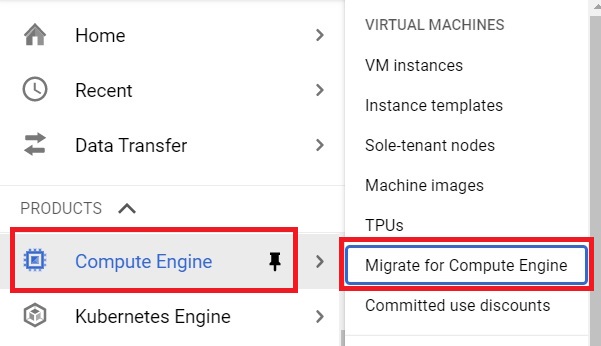
Open the console, then open Menu > Compute Engine > Migrate for Compute Engine.
Legacy Step 2: Create a Manager
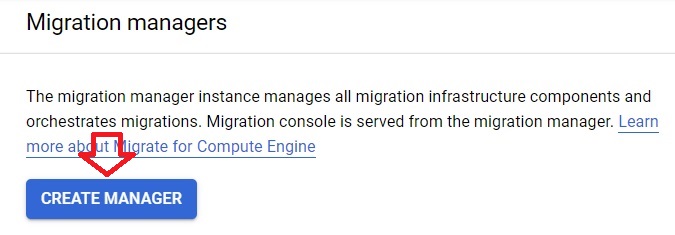
The Migration Manager is the component that controls the migration. Click Create Manager.
Legacy Step 3: Configure Network Connectivity and Firewalls
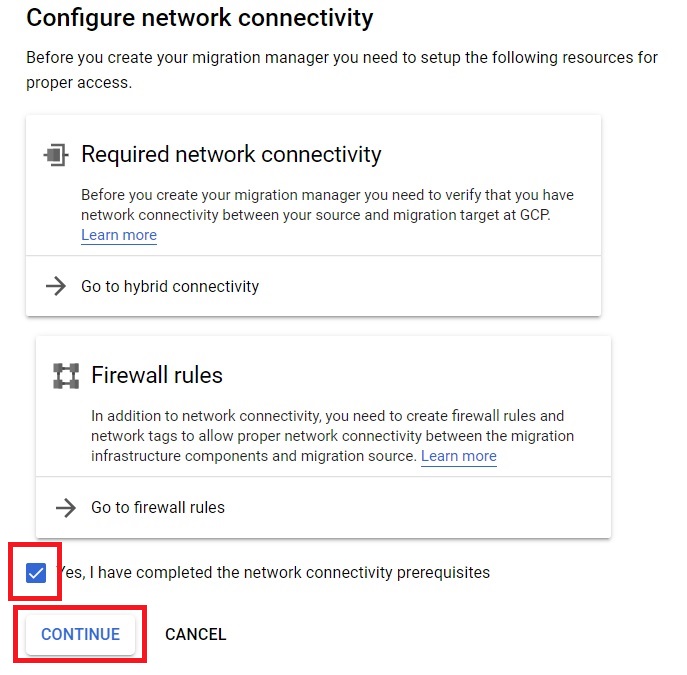
Set up the network connectivity and firewall rules the Manager needs, then tick the checkbox and click Continue.
Legacy Step 4: Name the Manager and Choose Where It Runs
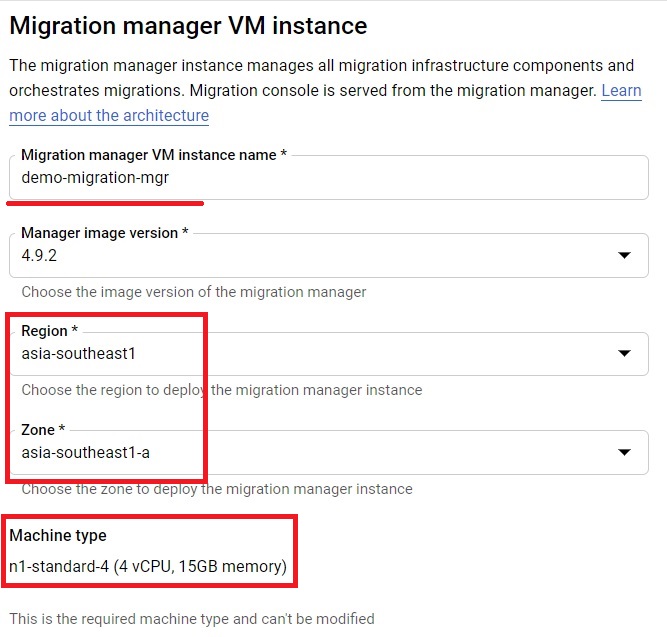
Give the Manager instance a name, choose the Manager version, and choose the region and zone for it. The machine type was selected automatically.
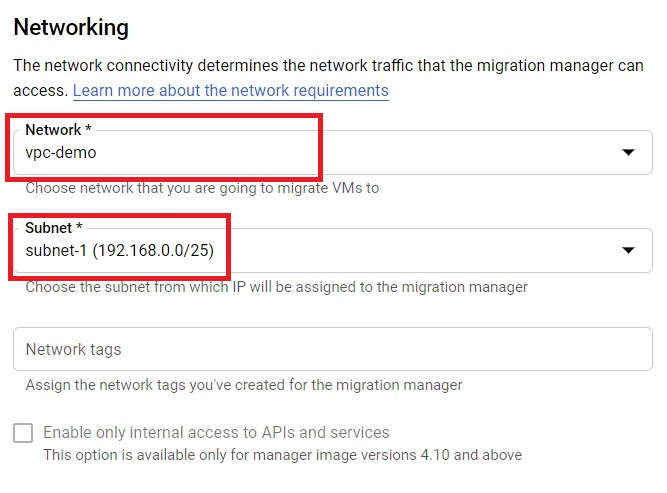
Legacy Step 5: Choose the Network
Under Networking, choose the network and subnet for the Manager. A VPC network can be used. The Creating VPC Network guide in this series covers networks.
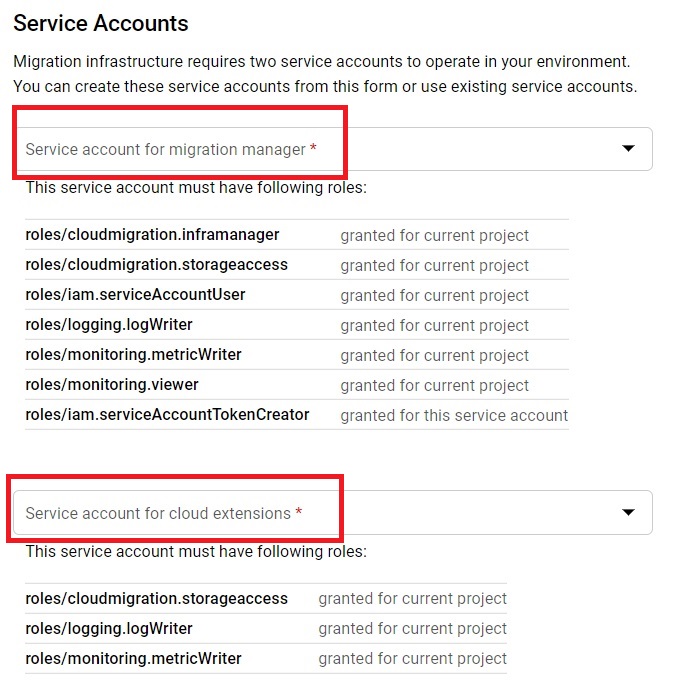
Legacy Step 6: Set the Service Accounts
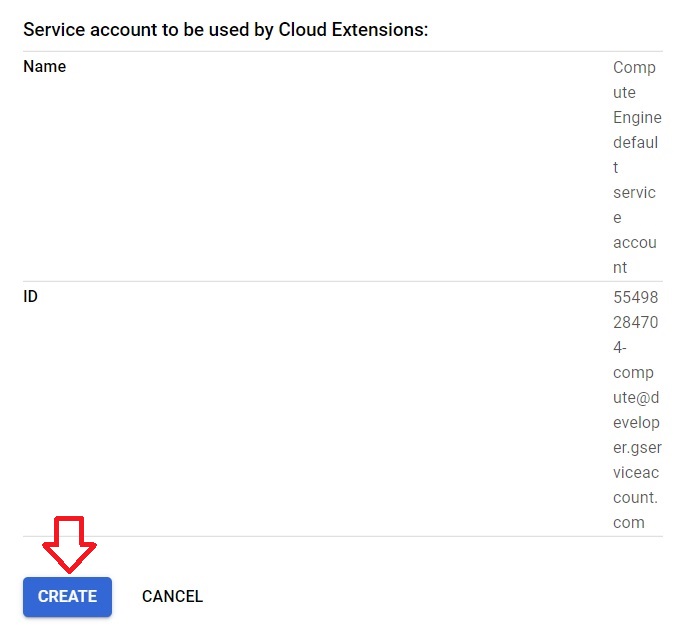
Choose a service account for the Migration Manager, and service accounts for the cloud extensions. The GCP Service Account guide in this series explains why accounts should hold only the permissions they need.
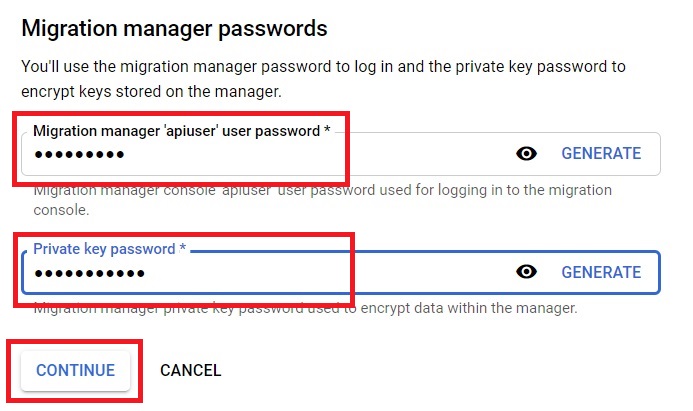
Legacy Step 7: Set the Passwords
Set a password for the Migration Manager and a password for the private key, then click Continue.
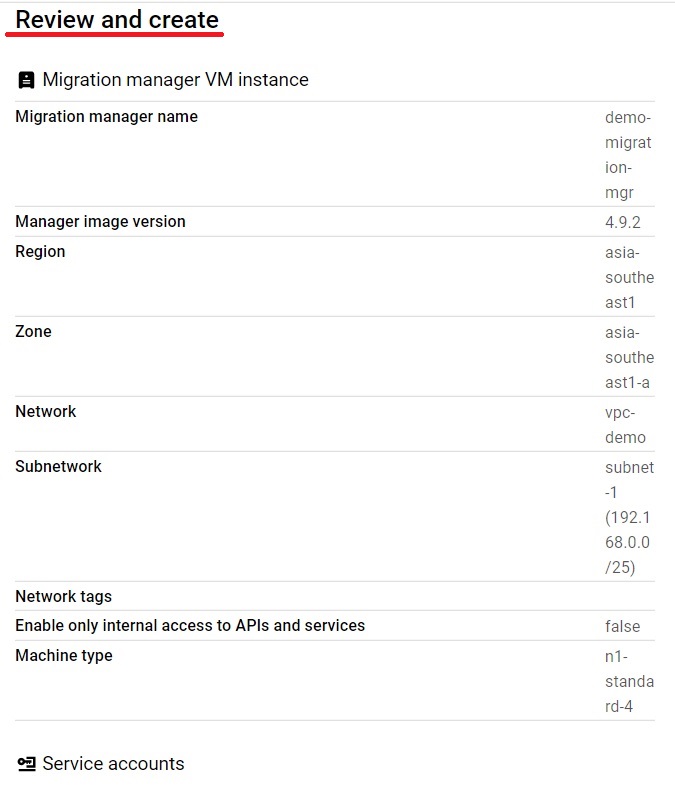
Legacy Step 8: Review
The review page shows the settings you chose for the Migration Manager.
Legacy Step 9: Create
Click Create. This creates the Migration Manager. The original page said it creates the service account, which is not correct.
How a Migration Works Today?
With Migrate to Virtual Machines, there is no Manager to build. Google describes the process in these stages, all performed in the Google Cloud console.
- Prepare the source. For a VMware environment, install the Migrate Connector, a virtual appliance, in your vSphere data center and register it as a migration source. The supported sources include a vSphere data center, Google Cloud VMware Engine, AWS, and Azure.
- Onboard the VMs. On the Sources tab, choose the source and onboard the VMs you want to migrate.
- Start replication. Select VMs whose replication status is Ready. The data is replicated continuously to Google Cloud without causing downtime on the source, and by default a replication runs every 2 hours.
- Configure the target. Set what the migrated VM should look like on Compute Engine.
- Test a clone, optionally. Create a Compute Engine clone from the replicated data and test it before committing.
- Cut over. Google stops the source VM, completes a final replication, and creates the production Compute Engine instance.
- Finalize the migration. Once you are satisfied, finalize it.
How Long a Migrating VM Stays Active?
A migrating VM stays active for 100 days from the time it appears in the VM Migrations tab. After 100 days it moves to the EXPIRED state, where it stays for 30 days. If you need more time, you can extend the lifespan of the migrating VM by a further 100 days. If you do not extend it, the VM expires, so plan your migration waves within that window.
Assessment and Planning Belong to Migration Center
The original introduction listed inventory discovery, dependency analysis, and workload profiling. Those are the job of Google Cloud Migration Center, a separate platform for discovering your assets, assessing your infrastructure, and planning the move. It can generate total cost of ownership reports, identify application and network dependencies, and suggest which Google Cloud products suit each workload. A sensible order is to assess with Migration Center first, then migrate with Migrate to Virtual Machines.
Common Mistakes to Avoid
- Following the legacy walkthrough to start a new migration. Migrate for Compute Engine 4.x is past its end of life date.
- Treating Migration Manager as a planning tool. It ran migrations. Planning and cost estimates come from Migration Center.
- Letting a migrating VM expire. It stays active for 100 days and can be extended once for another 100 days, so plan accordingly.
- Skipping the test clone for an important server. It lets you test the migrated VM before the source is stopped.
That covers what happened to Migration Manager, how VM migration works now, and where to plan one. To go further, explore Prwatech’s Google Cloud training program, which includes placement assistance.
