Adding and Deleting files in bucket.
Uploading and Deleting Files in a Cloud Storage Bucket
Adding and deleting files in Cloud Storage buckets play crucial roles in managing data within Google Cloud Platform’s storage service.
This introduction offers an overview of the process and significance of these operations.
Cloud Storage buckets act as scalable and durable repositories for storing various data types, including text files, images, application binaries, and multimedia content. Adding files to a bucket entails uploading data from local storage or other sources to the Cloud Storage infrastructure. This data is securely stored and accessible from anywhere with an internet connection. Users can perform this task using the Cloud Console, command-line tools, or programmatically via APIs, offering flexibility and convenience.
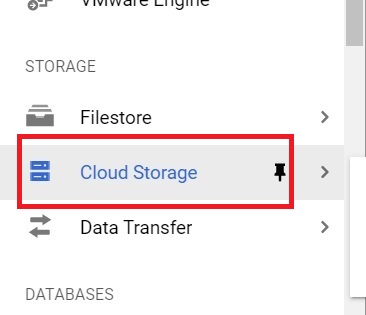
Step One: Open Cloud Storage
Open the console, then the
Menu > Cloud Storage.
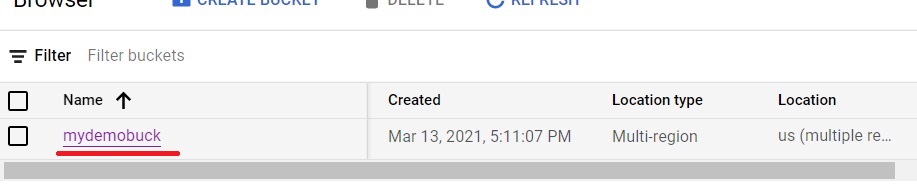
Step Two: Open the Bucket
Click the bucket you want to add files to.
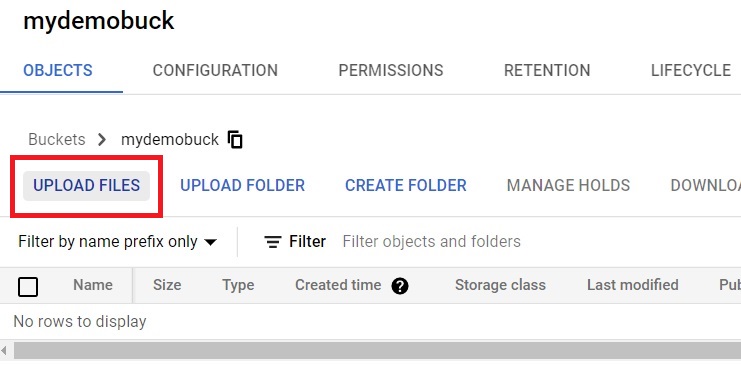
Step Three: Start the Upload
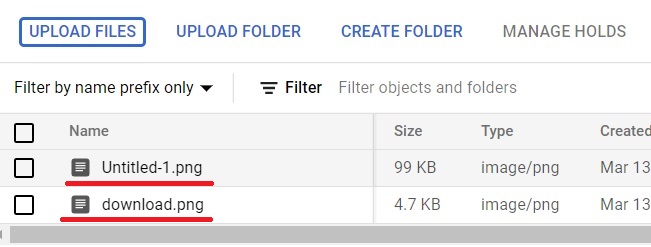
Click Upload Files.
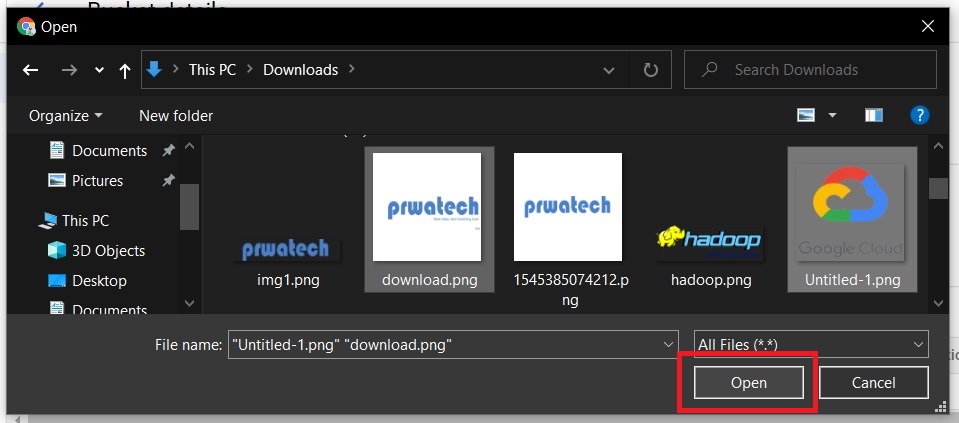
Step Four: Choose Your File
Select the file you want to upload, then click Open.
Step Five: Confirm the Upload
The file uploads and appears in the bucket.
Faster Ways to Upload
- Drag and drop a file, or several at once, straight from your computer’s file browser onto the bucket page in your browser, which skips the file picker dialog entirely.
- Upload an entire folder at once using the folder upload option next to Upload Files, which preserves the folder structure inside the bucket rather than flattening every file into the top level.
Step Six: Delete a File
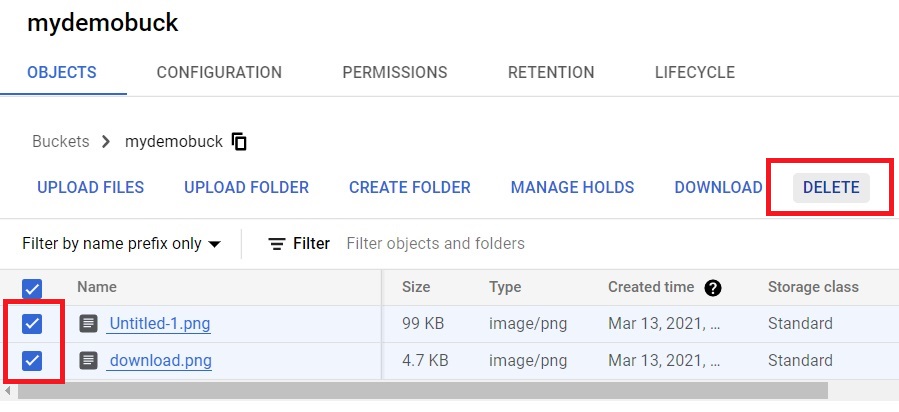
Select the file you want to remove, then click Delete.
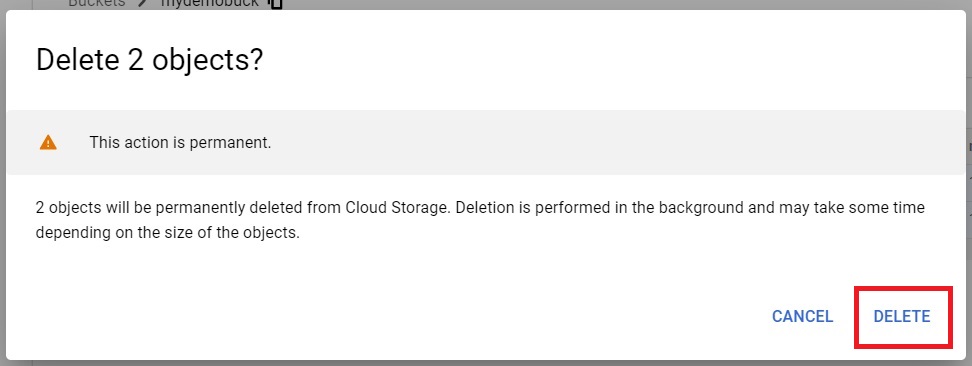
Give the confirmation to delete.
What Actually Happens When You Delete a File
Whether that click is instantly final or not depends on two settings elsewhere in the bucket. If the bucket has soft delete enabled, which is on by default for new buckets, the file is kept in a recoverable state for a set number of days before it is actually gone, and you can restore it in that window if the deletion was a mistake. If the bucket has Object Versioning enabled instead, deleting the current version does not erase the data either, it becomes a noncurrent version, still sitting in the bucket and still costing storage, until something explicitly removes it. Only on a bucket with both features off does clicking Delete remove the file immediately and for good.
Common Mistakes to Avoid
- Assuming Delete always means gone forever. Check whether the bucket has soft delete or Object Versioning enabled before treating a deletion as unrecoverable, or as harmless.
- Uploading files one at a time out of habit. Selecting several files at once, or dragging a whole folder in, saves time once you are moving more than one or two files.
- Forgetting that a noncurrent version under Object Versioning still costs storage. Deleting the current version does not free up space if an old version is still sitting there.
That covers uploading and deleting files in a Cloud Storage bucket, and what a deletion actually does behind the scenes. To go further, explore Prwatech’s Google Cloud training program, which includes placement assistance.