Adding GCS file into BigQuery
Loading a Google Cloud Storage File Into BigQuery
Cloud Storage is the standard place to stage a file before it becomes a BigQuery table, especially once a file is too large for the direct upload option in the console. This walks through loading a CSV already sitting in a bucket into a new BigQuery table, then querying it.
Loading data from Google Cloud Storage (GCS) into BigQuery is a fundamental process that forms the backbone of many data ingestion pipelines within Google’s comprehensive cloud ecosystem. This introduction will explore the intricacies of data loading from GCS to BigQuery, providing insights into the mechanisms, best practices, and benefits associated with this essential operation.
Google Cloud Storage serves as a scalable and durable object storage solution, ideal for storing a wide array of data types, including structured, semi-structured, and unstructured data. BigQuery, on the other hand, offers a powerful, fully managed data warehouse platform with lightning-fast SQL queries and built-in machine learning capabilities.
Step by Step Process of Loading Data from GCS into BigQuery
The process of loading data from GCS into BigQuery involves several steps, including defining the data schema, configuring the load job settings, and initiating the data transfer. Users can choose from a variety of file formats supported by both GCS and BigQuery, such as CSV, JSON, Avro, Parquet, and more, ensuring compatibility and flexibility in data loading operations.
Step One: Get the Sample File Into a Bucket
Download this sample CSV, a small subset of New York taxi trip data:
https://storage.googleapis.com/cloud-training/OCBL013/nyc_tlc_yellow_trips_2018_subset_1.csv
Upload it into a Cloud Storage bucket in your project.
Step Two: Open BigQuery
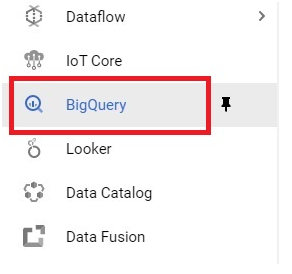
Open the console, then the menu, then BigQuery.
Open Menu > BigQuery.
Step Three: Create a Dataset
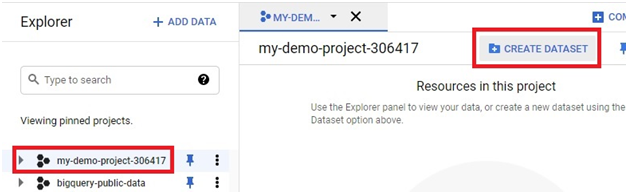
Open your project, then click Create Dataset.
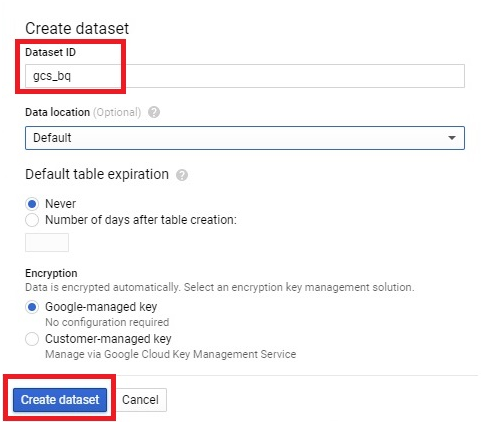
Give it a dataset ID, then click Create Dataset.
Step Four: Create a Table
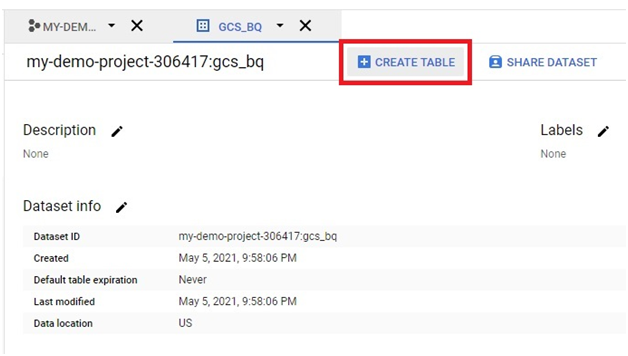
Click Create Table.
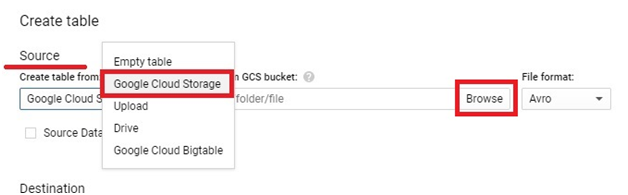
Select Google Cloud Storage as the source, then click Browse.
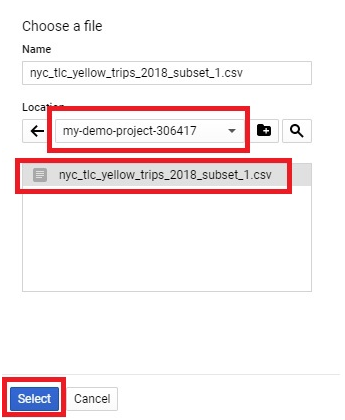
Choose the file from bucket. Click Select
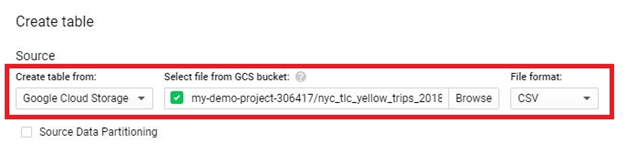
The File will be selected with file format.
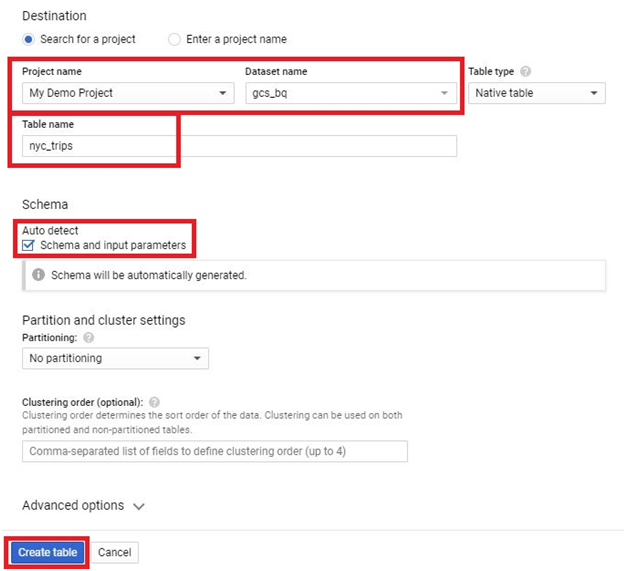
Choose the Destination table.
Give project name, dataset name and table name.
Click on auto detect. Click create table.
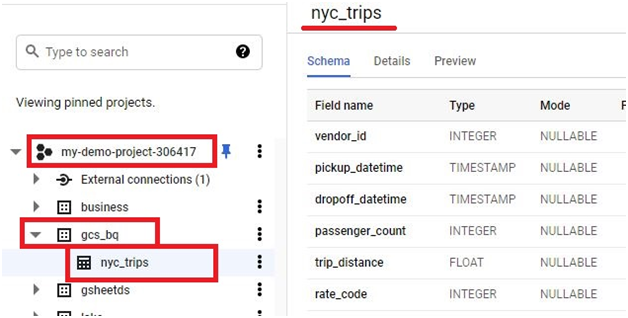
The table is created and loaded with the file’s data.
Step Five: Query the Table
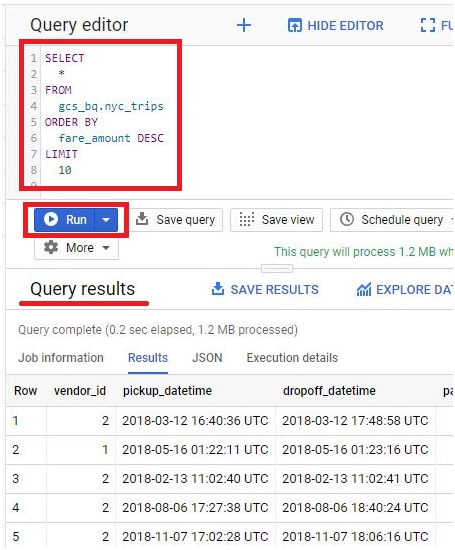
In the query editor, replace the dataset and table names below with the ones you actually created, then run it to see the ten highest fares in the dataset:
SELECT
*
FROM
your_dataset.your_table_name
ORDER BY
fare_amount DESC
LIMIT
10;
Click Run.The Query will be executed.
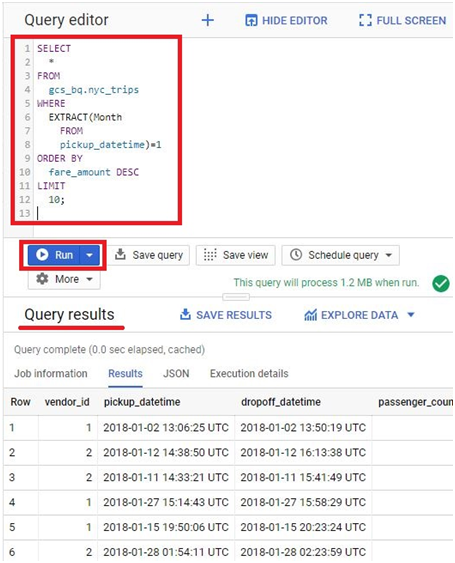
This second version narrows the same question down to January only, using EXTRACT to pull the month out of the pickup timestamp:
SELECT
*
FROM
your_dataset.your_table_name
WHERE
EXTRACT(MONTH FROM pickup_datetime) = 1
ORDER BY
fare_amount DESC
LIMIT
10;
Click Run.The Query will be executed.
Load Job Versus External Table
Loading, which is what the steps above do, copies the file’s data into BigQuery’s own storage as a native table. There is a second option worth knowing about: creating an external table that points at the file in Cloud Storage without copying it in at all. BigQuery reads the file directly from the bucket each time the external table is queried.
- Choose loading when query speed matters, since a native table generally performs better than an external one.
- Choose an external table when the data changes often and reloading it every time is wasteful, when you want to avoid storing the same data twice, or for one time, ad hoc analysis over a file you do not need as a permanent table.
File Size Limits Worth Knowing
Loading from Cloud Storage supports far larger files than the direct upload option in the console, which is capped at 10 MB. A compressed gzip file used in a load job is capped at 4 GB, while the overall size of everything in a single load job can go up to 15 TB. If a file does not fit even these limits, splitting it into multiple files in the same bucket and loading them together is the usual approach.
Common Mistakes to Avoid
- Querying a dataset and table name copied from an example instead of the ones you actually created. Match the query to your own naming exactly.
- Loading a gzip compressed file larger than 4 GB and being confused by the failure. Split it into smaller files first, or load it uncompressed if the larger overall load job limit still covers it.
- Loading a file into a native table when an external table would have avoided storing the data twice, particularly for a file that is already updated somewhere else and does not need a full reload every time.
That covers loading a Cloud Storage file into BigQuery, and when an external table might serve you better instead. To go further, explore Prwatech’s Google Cloud training program, which includes placement assistance.