Deleting an Instance Using the Developers Console
Deleting an Instance Using the Developers Console
Deleting a VM is the last step in its life, and the one people most often do halfway. The VM disappears from the list, the bill drops, and it seems finished. But a VM is a bundle of things, the machine itself, its disks, and sometimes a reserved IP address, and deleting the machine does not always delete the rest.
Google’s guidance is to delete an instance you no longer need, to stop incurring charges for it and its attached resources. The important words there are attached resources, since some of them can outlive the VM and keep costing money. Knowing which ones is what separates a clean shutdown from a surprise bill next month.
This walks through deleting a VM in the console, explains what is removed and what stays behind, and covers stopping, deletion protection, and cleaning up afterward.
Prerequisites:
- A Google Cloud account and a VM you no longer need. The Creating an Instance Using Developers Console guide in this series covers creating one.
- Permission to delete the instance. To force the deletion of an attached disk as well, you also need permission to delete that disk.
Before You Delete
- Back up anything you need. Deleting is permanent. Take a snapshot of a disk, or a machine image of the whole VM, if there is any chance you will want the data. The Creating a Machine Image guide in this series covers that.
- Check the disk settings. Look at each disk’s deletion rule on the VM’s details page. Delete disk means it goes with the VM. Keep disk means it stays behind.
- Check whether the VM belongs to a managed instance group. A group may create a replacement VM, so delete or resize the group instead. The Instance Templates and Managed Instance Groups guide in this series covers groups.
Step by Step Process of Deleting an Instance Using the Developers Console
Step One: Open VM Instances
Open Cloud Console.
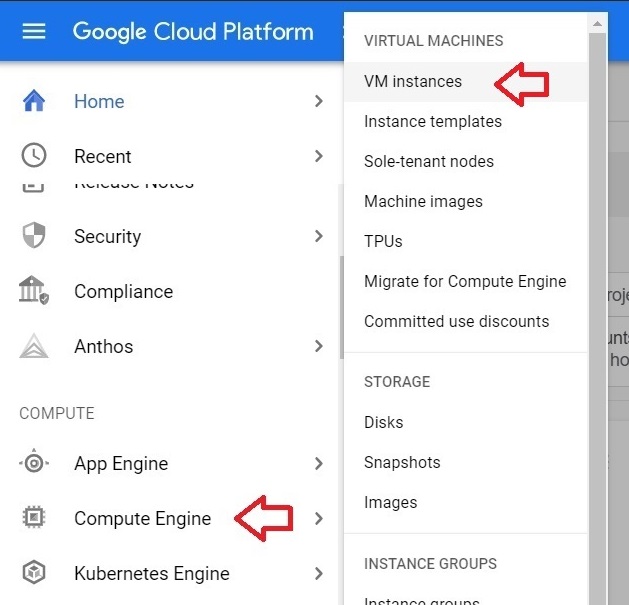
Click on Menu > Compute Engine > VM Instances.
Step Two: Select the Instance
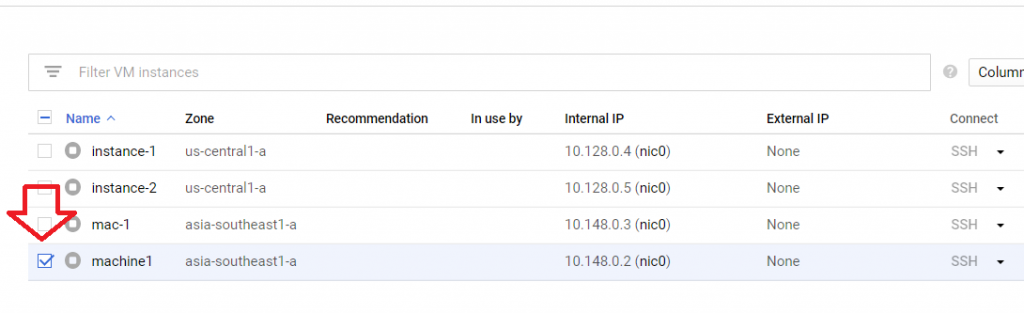
Tick the checkbox next to the instance you want to delete. Check the name and the zone before you go further.
Step Three: Click Delete
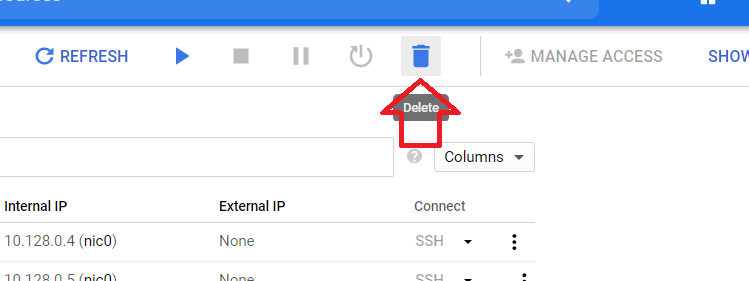
Click the Delete button.
Step Four: Confirm
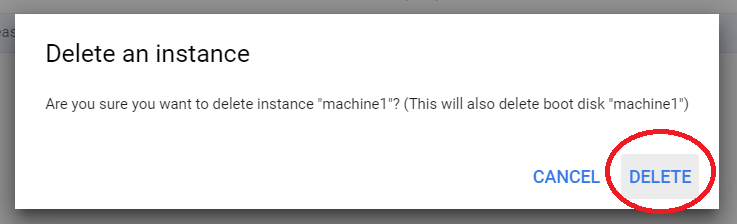
A confirmation message appears. Read it, because it tells you whether the boot disk will also be deleted. Click Delete, and the instance is deleted. Google stops the VM first, then deletes it.
What is Deleted and What Stays?
- The VM itself. Removed from the project, and it stops billing for compute.
- The boot disk. Deleted with the VM by default. The console confirmation warns you, and you can keep it by editing the VM beforehand and unticking the option to delete the boot disk when the instance is deleted.
- Additional disks. Follow their own deletion rule. If it says keep, the disk is detached and stays in your project. Google notes that you must then delete the disk yourself when you no longer need it, or it keeps costing money.
- Static external IP addresses. A static address you reserved is maintained, and Google says that a reserved static address you do not assign to an instance is charged at a higher rate than one in use. Release it if you do not need it.
- Ephemeral IP addresses. These are released when the VM goes, unless you promoted them to static.
- Snapshots, images, and machine images. These are separate resources that you created from the VM, and they stay until you delete them.
Stopping Instead of Deleting
If you only want a break, stop the VM instead. A stopped VM keeps its disks and its static external IPs, and can be started again, which is the difference from deleting. It generally stops billing for compute, but its disks, and any static addresses, still cost money. Delete only when you are sure you are finished.
Deletion Protection
You can set deletion protection on a VM. While it is on, a request to delete the VM fails, which guards against deleting the wrong one by accident. It does not stop you from stopping, resetting, or suspending the VM. If a delete will not go through, check whether protection is switched on, and turn it off first.
Deleting From the Command Line
The equivalent command is below. Add a flag to say what happens to the disks. Google documents delete disks with the values all, boot, or data. I have not tested it:
gcloud compute instances delete VM_NAME –zone=ZONE
gcloud compute instances delete VM_NAME –zone=ZONE –delete-disks=all
The Codes to Work With Google Cloud SDK guide in this series covers the other commands.
After You Delete: Clean Up
- Open the Disks page and delete any disk that was kept and that you no longer need. The Removing Disks From Instances guide in this series covers detaching and deleting disks.
- Release any reserved static IP address you are not using. The External IP Address in GCP guide in this series covers addresses.
- Delete snapshots and images you created only for this VM.
Common Mistakes to Avoid
- Assuming deleting the VM deletes everything. Disks set to keep and reserved static IPs remain.
- Deleting a VM that is part of a managed instance group, and watching a replacement appear.
- Deleting without a backup. It cannot be undone.
- Deleting when stopping would do. A stopped VM can be started again.
- Leaving orphaned disks and unused static addresses behind after the VM is gone.
That covers deleting a VM in the console, what it removes, and what to clean up afterward. To go further, explore Prwatech’s Google Cloud training program, which includes placement assistance.
