message ordering for pubsub subscription
How to Enable Message Ordering for Pub/Sub Subscriptions
Pub/Sub is Google Cloud’s messaging service. A publisher sends messages to a topic, and subscribers receive them through subscriptions. It is built for scale and reliability, and to get that it does not promise by default that messages arrive in the order they were sent. For many uses that is fine. For others it is a serious problem.
Imagine a stream of updates to a customer account: an account is opened, money is deposited, then money is withdrawn. If the withdrawal is processed before the deposit, the balance goes wrong. The same issue appears in order tracking, stock changes, event logs and any workflow where each step depends on the last. For these, you want Pub/Sub to deliver related messages in the order they were published.
That is what message ordering does, but it comes with conditions that many tutorials skip. This guide explains how ordering keys work, then shows you how to create an ordered subscription in the console with the original screenshots kept in place and with gcloud. We then test it, and cover the publisher requirements, throughput limits, redelivery behaviour, common mistakes and a short FAQ.
How Message Ordering Works?
Ordering in Pub/Sub is built on an ordering key, which is a string you attach to each message when you publish it. A customer ID or an order number works well.
- Messages with the sameordering key are delivered in the order they were published.
- Messages with differentkeys have no ordering between them. Pub/Sub can deliver them in any order.
- Messages with no ordering key are not ordered at all.
This is the important idea. Ordering is not a global queue. It is a separate ordered line for every key, which is what lets Pub/Sub keep scaling.
Two Halves of the Setup
| Side | What you must do | Where |
|---|---|---|
| Subscription | Turn on message ordering when you create it | Console or gcloud, covered below |
| Publisher | Attach an ordering key to every message that needs ordering | Your publishing code or command |
| Region | Publish all messages with the same key in the same region | Publisher setup |
Subscribers can connect from any region and ordering is still preserved. The restriction is on the publishing side.
Prerequisites:
- A Google Cloud account with a project that has billing enabled.
- The Pub/Sub API enabled in the project.
- A role that can create subscriptions, such as Pub/Sub Editor.
- An existing Pub/Sub topic. Create one first if you do not have one.
- Cloud Shell or the gcloud CLI for the testing steps.
Create an Ordered Subscription Using the Console
Menu labels move from time to time, so treat the wording below as a guide.
1. Sign in to the Google Cloud console with an account that has access to the project.
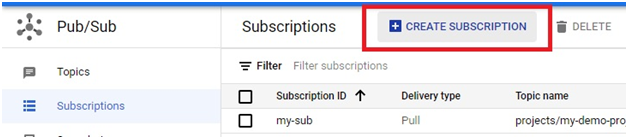
2. Open the navigation menu, choose Pub/Sub and then Subscriptions.
3. Click Create subscription.
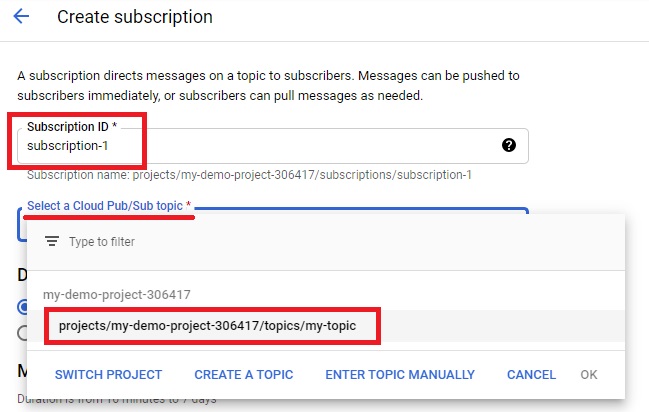
4. Enter a subscription ID, such as orders-ordered-sub.
5. Select the topic the subscription should read from.
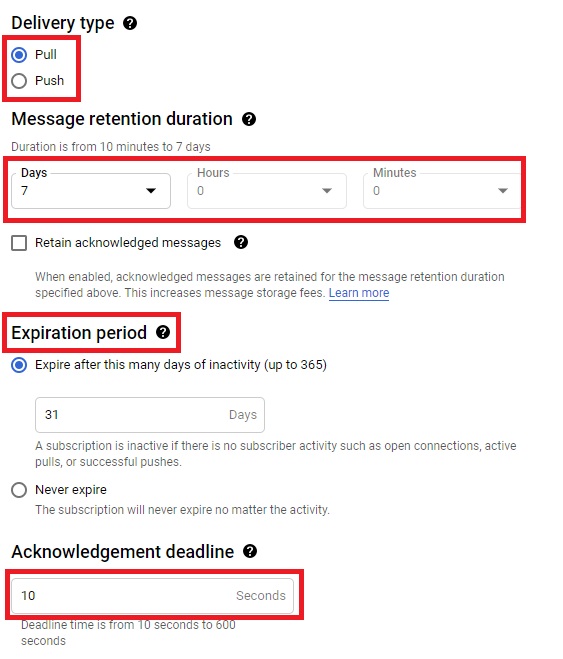
6. Choose the delivery type. Pull is the usual choice, where your application asks for messages. Push sends messages to an address you provide.
7. Set the message retention duration and the subscription expiration period. Retention decides how long unacknowledged messages are kept.
8. Set the acknowledgement deadline. This is how long a subscriber has to process a message before Pub/Sub sends it again. Choose a value that matches your processing time.
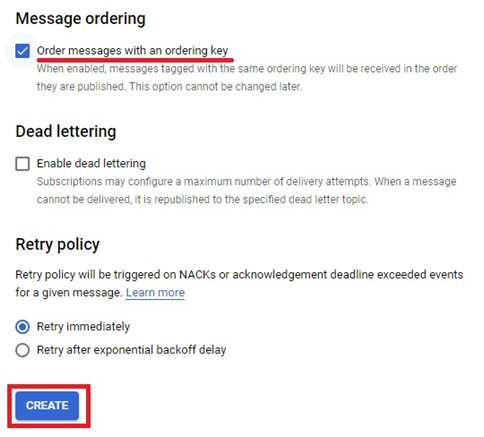
9. Tick the option to deliver messages in order using an ordering key. This is the key step, and you cannot change it after the subscription is created.
10. Tick Order messages with an ordering Key.
11. Click Create. The subscription with Ordering of message will be created.
12.Click Create.
Create an Ordered Subscription With gcloud
One flag does it:
gcloud pubsub subscriptions create orders-ordered-sub –topic=orders-topic –enable-message-ordering
You can confirm the setting afterwards:
gcloud pubsub subscriptions describe orders-ordered-sub
In the output, look for enableMessageOrdering set to true.
Publish Messages With an Ordering Key
A quick test from the command line. Publish three messages that share one key:
gcloud pubsub topics publish orders-topic –message=”step 1″ –ordering-key=customer-42
gcloud pubsub topics publish orders-topic –message=”step 2″ –ordering-key=customer-42
gcloud pubsub topics publish orders-topic –message=”step 3″ –ordering-key=customer-42
Then pull them and confirm the order:
gcloud pubsub subscriptions pull orders-ordered-sub –auto-ack –limit=10
You should see step 1, step 2 and step 3 in that order. If you publish from code, the client library also needs ordering turned on. In Python it looks like this:
from google.cloud import pubsub_v1
options = pubsub_v1.types.PublisherOptions(enable_message_ordering=True)
publisher = pubsub_v1.PublisherClient(
publisher_options=options,
client_options={“api_endpoint”: “us-east1-pubsub.googleapis.com:443”},
)
topic_path = publisher.topic_path(“my-project”, “orders-topic”)
future = publisher.publish(topic_path, b”step 1″, ordering_key=”customer-42″)
print(future.result())
The regional endpoint matters, because all messages with the same key must be published in the same region. Replace the project and region with your own.
Limits and Behaviour You Should Know
- The setting is permanent: You cannot turn ordering on or off for an existing subscription. Create a new one.
- Throughput per key is capped: Google states a limit of 1 MBps of publishing throughput for each ordering key. Spread your traffic across many keys.
- Redelivery repeats the tail: Pub/Sub delivers at least once. If one message is redelivered, later messages for that key are redelivered too, even ones already acknowledged. Make your processing safe to repeat.
- Slow acknowledgement blocks a key: A message that is not acknowledged can hold up later messages with the same key, and may delay other keys. Acknowledge promptly.
- Hot keys cause lag: If one key gets more traffic than a subscriber can handle, its backlog grows. Watch the oldest unacknowledged message age metric.
- Keep ordered and unordered traffic apart: If you need both, use separate topics.
- Latency can rise: Ordering may add delay, so test it against your needs.
Common Mistakes to Avoid
- Enabling ordering but not setting a key: Messages without an ordering key are not ordered.
- Trying to switch ordering on later: It must be set when you create the subscription.
- Using one key for everything: That squeezes all traffic through a single key and hits the per key limit.
- Publishing the same key from different regions: Keep each key in one region.
- Copying commands with curly quotes or a long dash: Pasting from a web page can change the double dash before a flag into a single long character. Type the flags by hand if a command fails oddly.
Message ordering gives you the sequence guarantee that stateful workflows need, as long as you set it up on both sides. Create the ordered subscription, publish with ordering keys, test with the three message example, and design your processing so that a repeated message does no harm.
