Working with dataproc in console
Submitting a PySpark Job Through the Dataproc Console
Once a script works, you have two ways to actually run it against a Dataproc cluster: from the command line with spark-submit, or by submitting it as a job through the console. This covers the console route, writing a small PySpark script that counts movie ratings, uploading it to Cloud Storage, then submitting it as a job against an existing cluster and watching it run.
This assumes you already have a Dataproc cluster running and the sample data already loaded into HDFS on that cluster, covered in the Working with Dataproc guide in this series.
Before You Start: Getting the Sample Data Onto Your Cluster
If you have not already done this, SSH into your cluster and run the following to create a folder and load the sample ratings file into it:
hadoop fs -mkdir /user/YOUR_USER_ID/sparkdata
hadoop fs -put u.data sparkdata
hadoop fs -ls sparkdata
The last command confirms the file actually landed where the script below expects to find it.
A complete Step by Step Process of Submitting a PySpark Job Through the Dataproc Console
Step One: Write the Script
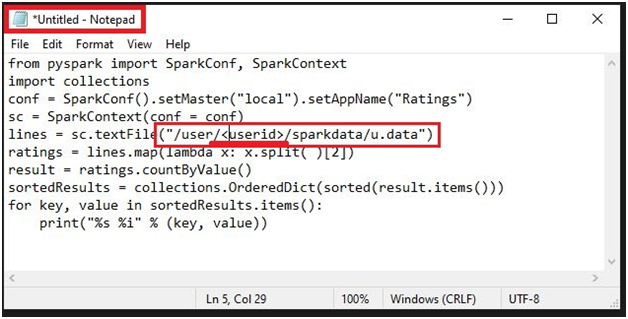
In a plain text editor on your own machine, paste the following:
from pyspark import SparkConf, SparkContext
import collections
conf = SparkConf().setMaster(“local”).setAppName(“Ratings”)
sc = SparkContext(conf = conf)
lines = sc.textFile(“/user/YOUR_USER_ID/sparkdata/u.data”)
ratings = lines.map(lambda x: x.split()[2])
result = ratings.countByValue()
sortedResults = collections.OrderedDict(sorted(result.items()))
for key, value in sortedResults.items():
print(“%s %i” % (key, value))
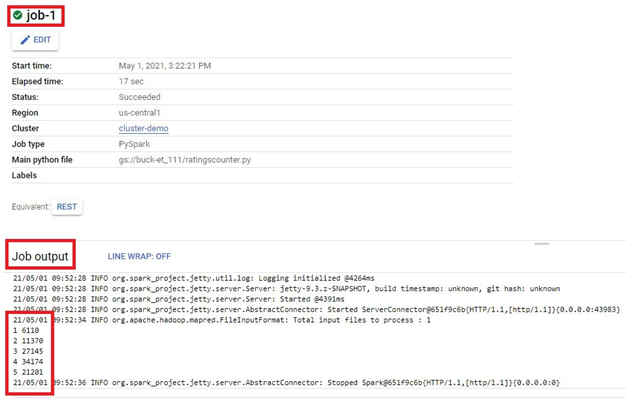
This counts how many ratings fall into each score, from the sample data you loaded into HDFS.
Step Two: Find Your User ID
Open Cloud Shell and run:
whoami
This gives you your username directly. Running pwd instead also reveals it, since Cloud Shell’s home directory path includes your username, but whoami is the more direct way to get it.

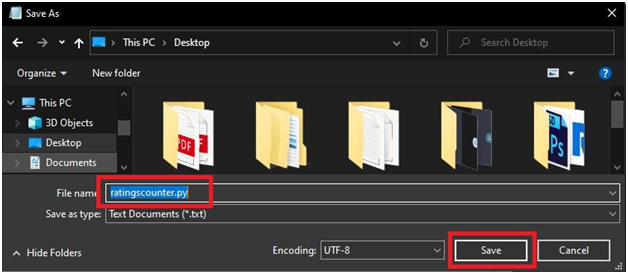
Step Three: Save the File
Save it as ratingscounter.py, replacing YOUR_USER_ID in the script with the actual ID from the previous step.
Step Four: Upload the File to a Bucket
Open the console, then
Open Cloud Storage > Browser
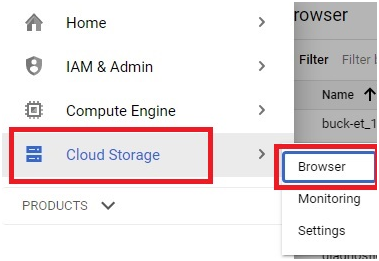
Upload the script into a bucket, then click it.
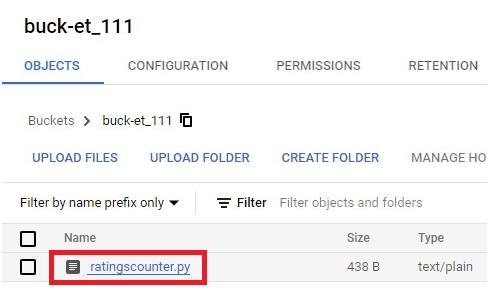
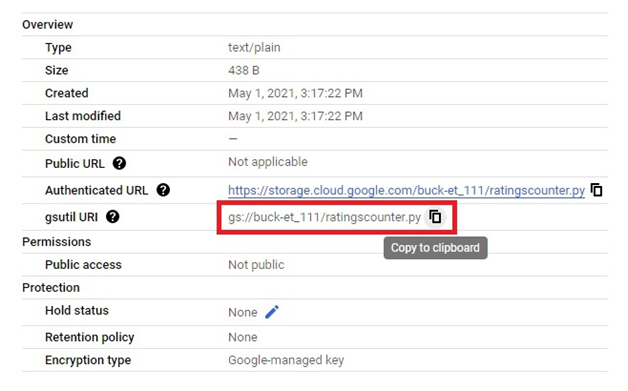
Step Five: Copy the File’s URI
Step Six: Open Dataproc Jobs
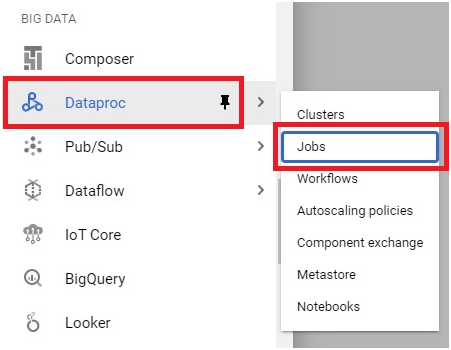
Open the menu, then Dataproc, then Jobs.
Step Seven: Submit a Job
Click Submit Job.

Step Eight: Configure the Job
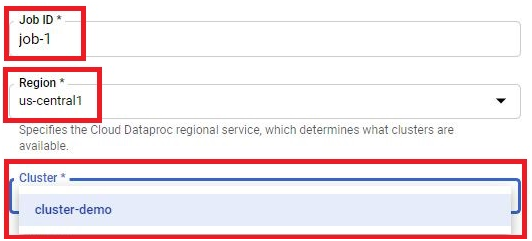
Give the job an ID. The region fills in automatically, and you choose which cluster to run it against.
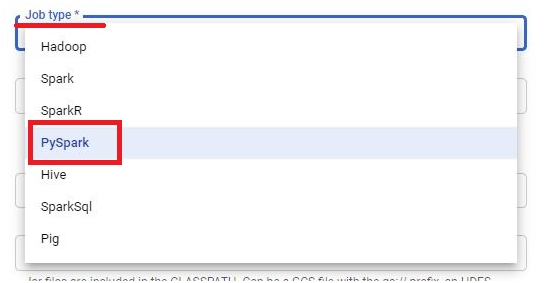
Set the job type to PySpark.
Paste the script’s URI into the main Python file field.
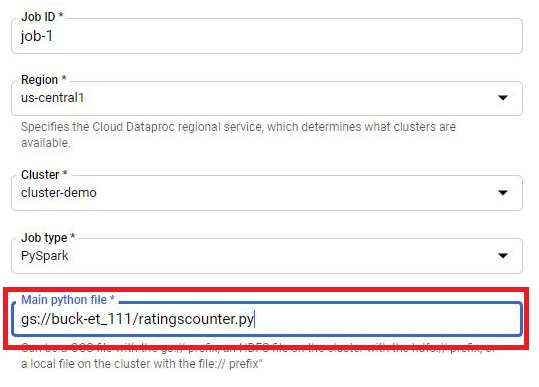
Step Nine: Submit and Review
Click Submit.
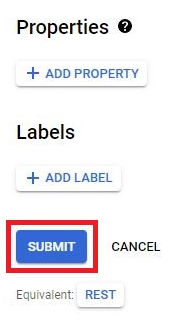
The job runs and returns its result.
Consider Cloud Storage Instead of HDFS for New Work
This example reads from HDFS, which lives on the cluster itself, and disappears the moment you delete that cluster, the same tradeoff covered in the Dataproc Metastore guide in this series. For anything beyond a quick exercise, reading source data directly from a Cloud Storage path instead, using a gs colon slash slash URI in place of an HDFS path, means the data survives independently of any specific cluster, and multiple clusters can read the same source without copying it around first.
Common Mistakes to Avoid
- Submitting the job before loading the sample data into HDFS. The script has nothing to read and will fail immediately.
- Leaving the placeholder user ID in the script’s file path. It needs to match your actual username exactly, or the path will not resolve.
- Relying on pwd out of habit to find your username. It works here because of how Cloud Shell’s home directory happens to be structured, but whoami is the direct, reliable way to get it.
- Storing important source data only in HDFS. It disappears with the cluster, while a Cloud Storage path survives independently.
That covers submitting a PySpark job through the Dataproc console, including the HDFS setup step easy to miss on the way here. To go further, explore Prwatech’s Google Cloud training program, which includes placement assistance.