Adding Drive File into BigQuery
Querying a Google Drive File Directly From BigQuery
BigQuery can create an external table linked directly to a file sitting in Google Drive, most commonly a Google Sheet, without importing or copying the data anywhere. BigQuery reads the file in place each time the table is queried, so any edit made in the Sheet shows up the next time someone runs a query against it.
Incorporating files from Google Drive into BigQuery offers a streamlined pathway to leverage diverse data sources within Google’s comprehensive cloud ecosystem. This introduction elucidates the process of seamlessly integrating Drive files into BigQuery, highlighting the methods, considerations, and advantages inherent in this operation.
Google Drive serves as a robust cloud storage platform, facilitating collaboration and centralizing document management. BigQuery, on the other hand, is a powerful data analytics platform renowned for its scalability and performance. By bridging these platforms, users can harness the rich data stored in Drive for advanced analytics and insights generation.
Step by Step Process of adding Drive files into BigQuery
The process of adding Drive files into BigQuery typically involves exporting the desired files from Drive to Google Cloud Storage in a compatible format, such as CSV or JSON. Subsequently, users can leverage BigQuery’s native functionality to ingest the data from Cloud Storage into BigQuery tables, enabling seamless integration with existing datasets and analytical workflows.
Prerequisites
Step One: Create a Sample Google Sheet
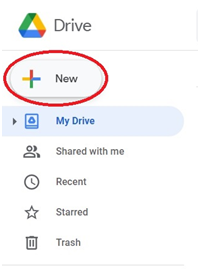
Open drive.google.com and click New.
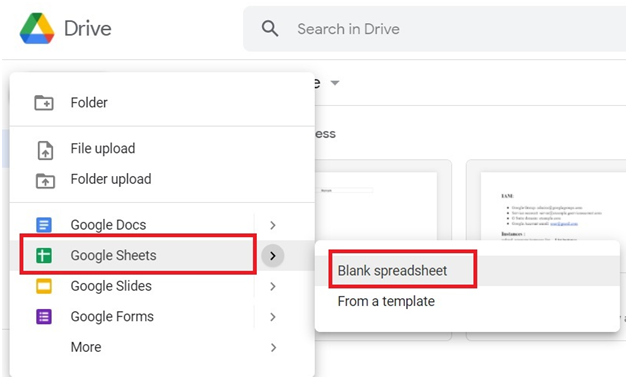
Choose Google Sheets, then Blank Spreadsheet.
Google Sheets > Blank Spreadsheet.
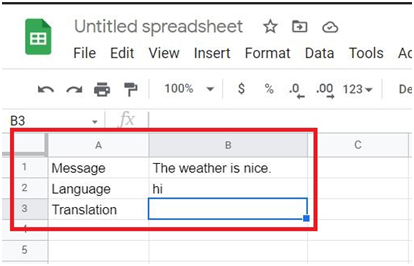
Add a small sample dataset, such as a message and its language code.
Type the spreadsheet like below.
Step Two: Add a Translated Column
In an empty cell, use the GOOGLETRANSLATE function to generate a translated version of a message:
=GOOGLETRANSLATE(“source cell”, “written language”, “translation language”)
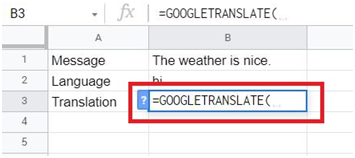
Replace the placeholder text with the actual cell references for your source message and target language.
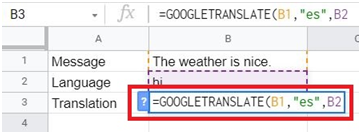
Click outside the cell to confirm it.
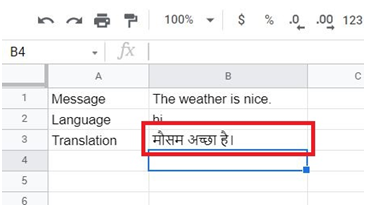
Step Three: Create a Dataset in BigQuery
Open the console, then go to BigQuery.
Go to Menu > Big Query > SQL Instances
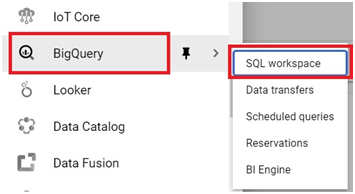
Select your project.
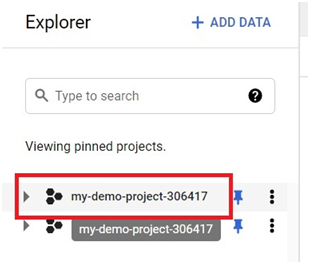
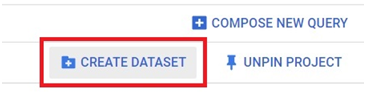
Click Create Dataset.
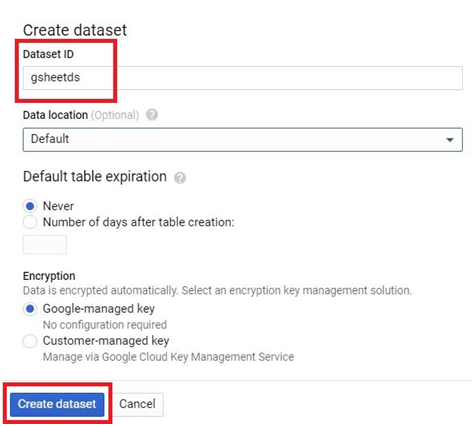
Give it a dataset ID, then click Create Dataset.
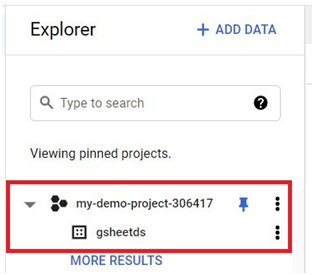
It now appears listed under your project.
Step Four: Create an External Table Linked to the Sheet
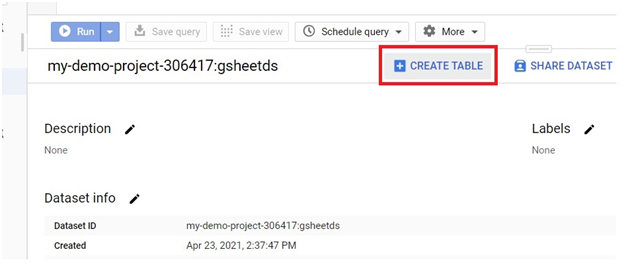
Click Create Table.
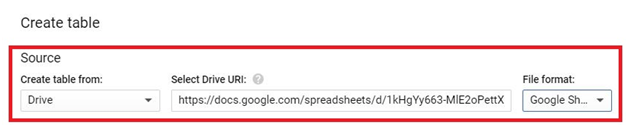
Choose Drive as the source.
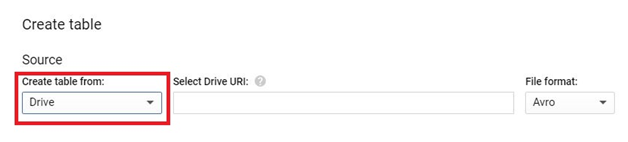
Open your Google Sheet and copy its share link.

Paste it into the URI field, and set the file format to Google Sheets.
Give the table a name, switch to editing the schema as text, and define the columns to match your sheet, for example:
message:STRING
code:STRING
translation:STRING
Click Create Table.
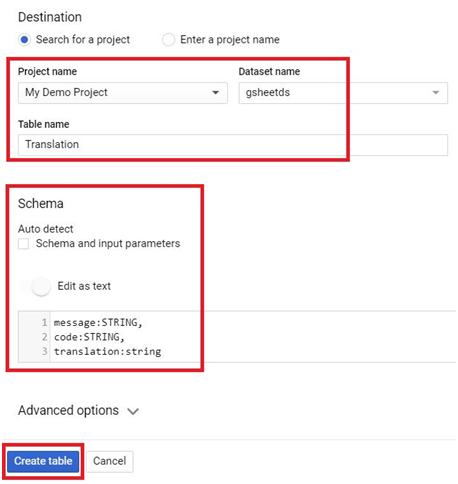
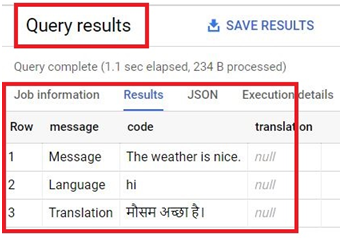
Step Five: Query the External Table
In the query editor, write a query against the new table and click Run.
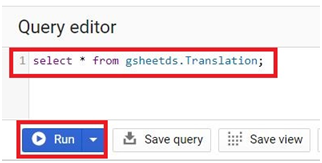
The results come back directly from the live data in the Sheet.
Why This Connection Can Suddenly Stop Working
The single most common problem with a Drive linked external table is an error along the lines of permission denied while getting Drive credentials. This is not usually a BigQuery bug. BigQuery accesses the linked file by impersonating whoever originally set up the connection, so if that person loses access to the file, has it unshared with them, or leaves the organization, every query against the table can fail for everyone, not just that one person.
- Confirm that the account the table depends on still has at least viewer access to the file in Drive.
- Prefer a shared account, group, or service account for the connection over a single person’s individual login, so the table’s access does not depend on one specific employee staying at the company.
- If you are using an old version of the bq command line tool, version 2.1.12 or earlier, you may also need to add the enable gdrive access flag explicitly.
Common Mistakes to Avoid
- Assuming this feature requires a Cloud Storage step. It does not. BigQuery reads Drive hosted CSV, JSON, Avro, and Google Sheets files directly.
- Building an important table on top of one person’s personal Drive access without a fallback. Revisit this once the connection is more than a quick test.
- Writing a formula in Sheets with mismatched or curly quotation marks. Google Sheets needs the same straight, matching quotes around text arguments that most programming languages do.
- Defining the external table’s schema in a different column order than the actual sheet. The schema is matched by position, not by header name, so a mismatch here silently shifts every value into the wrong column.
That covers linking a Google Drive file to BigQuery as an external table, and the permission issue most likely to break it later. To go further, explore Prwatech’s Google Cloud training program, which includes placement assistance.